Every day, multiple transactions occur, and you may need to issue checks in batches to pay various vendors. To simplify this process, you can upload a document in .csv format to efficiently manage batch check payments.
Steps to Input a Clear Date for Multiple Accounts Payable (AP) Payments
Follow these steps to learn how to input a Clear Date for your AP payments:
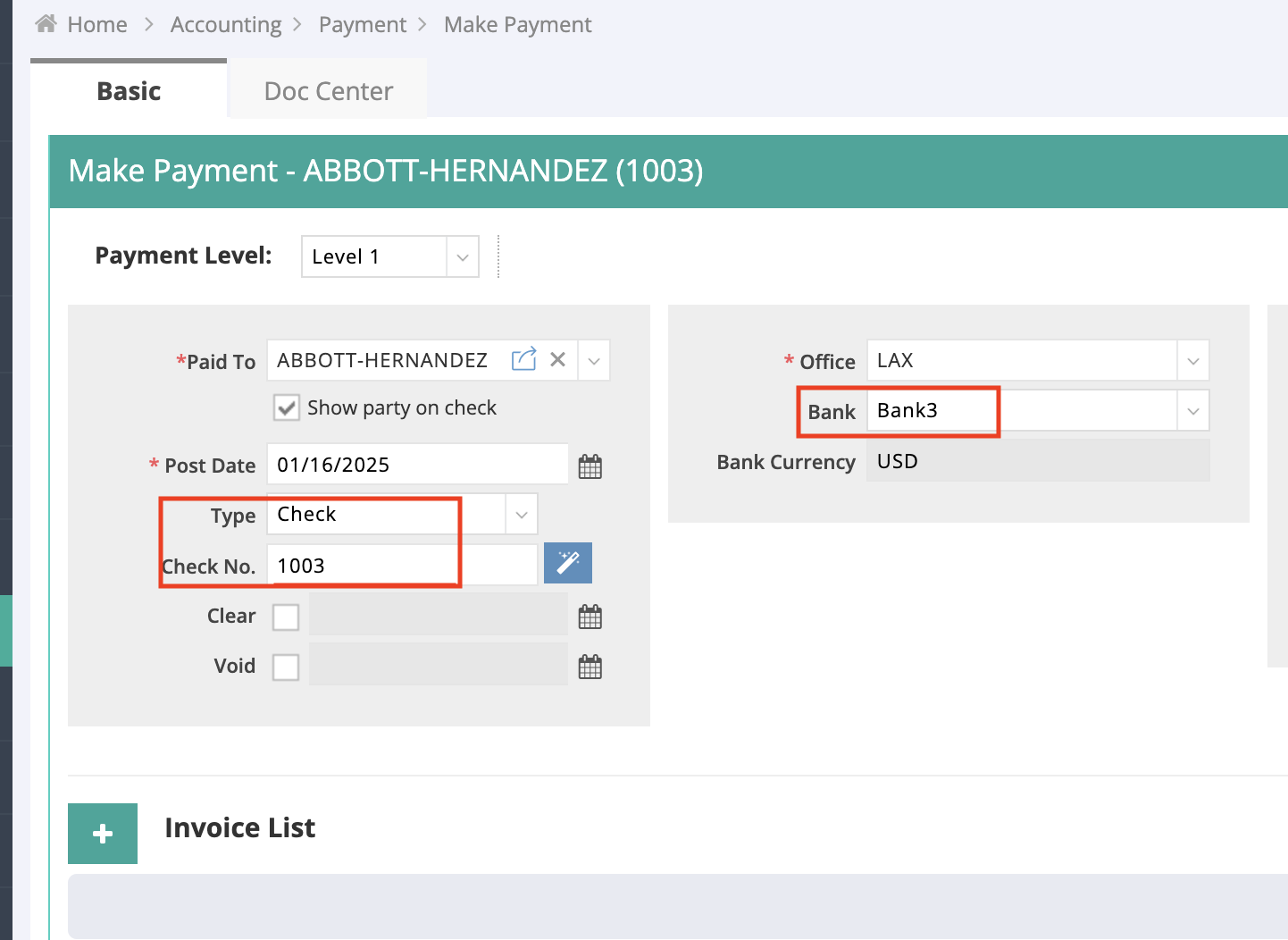
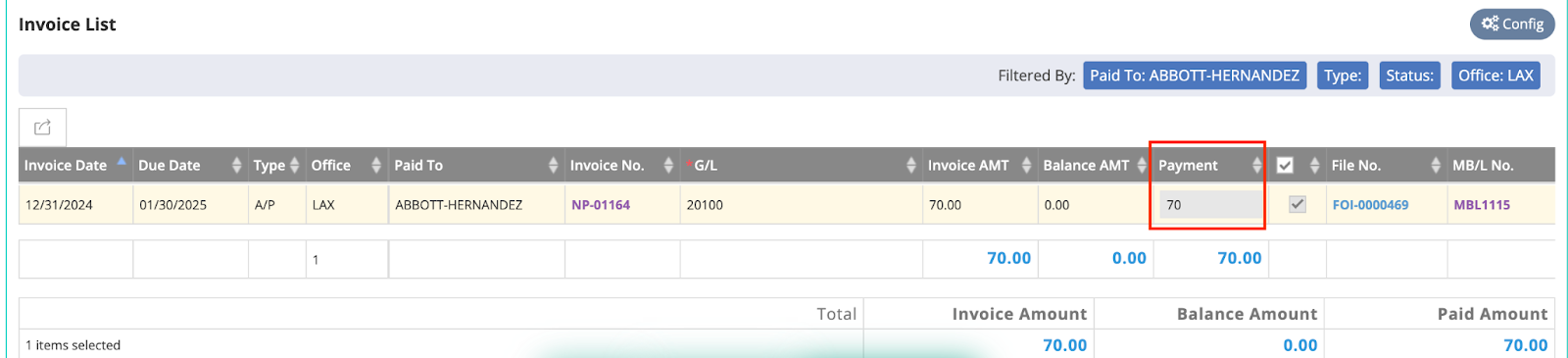
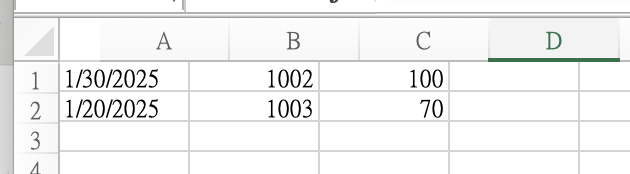
For instance, let’s say we need to clear the following payment:
- Go to “Setting” > “Accounting” > “Bank List” in the navigation bar.

2. Select a bank (e.g., “Bank 3”) > Settings > Clear Check by Excel.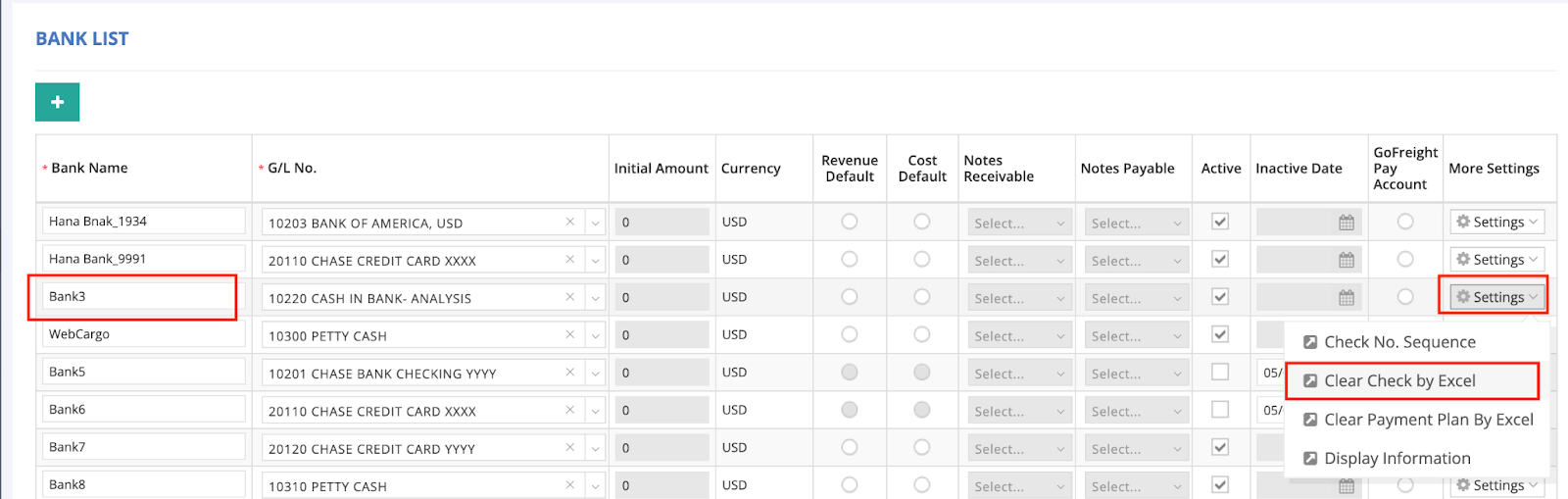
3.Enter the format information, then click “OK.”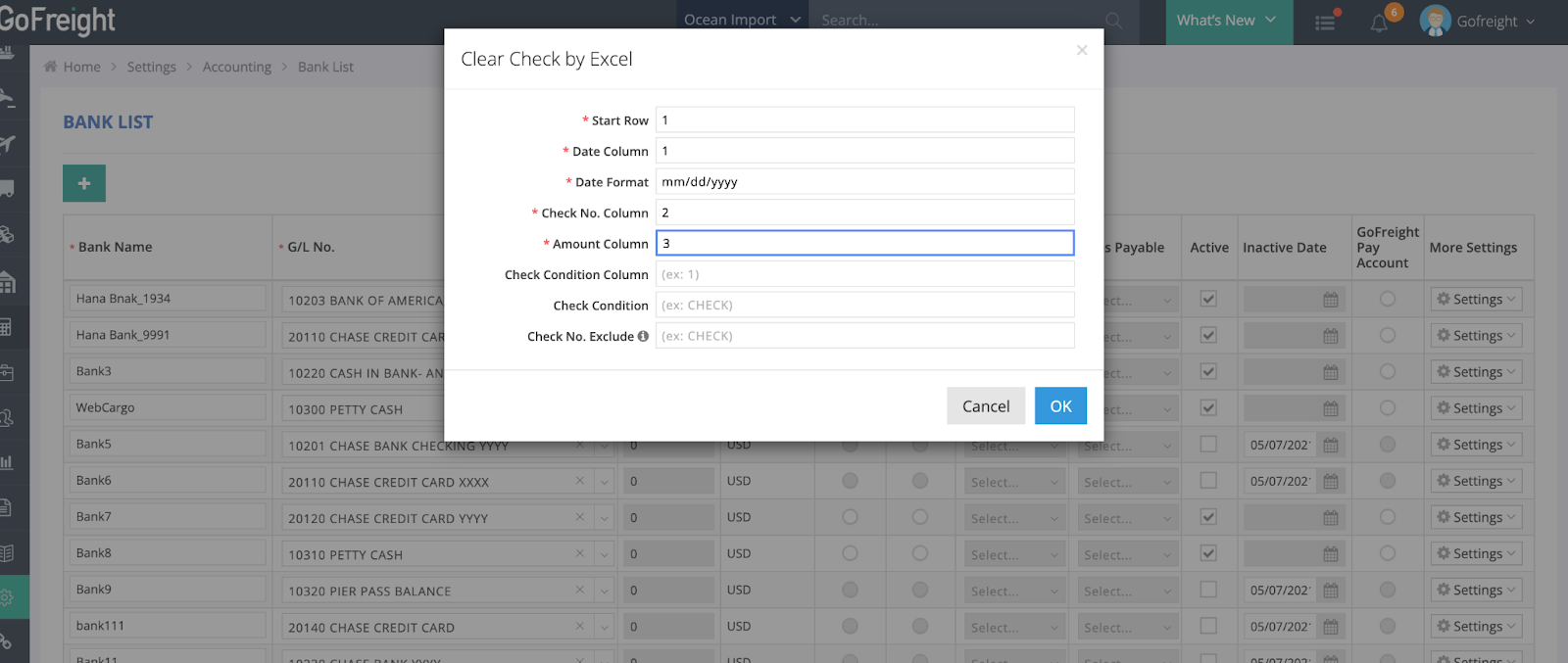
4.Refer to the following guidance to prepare an Excel spreadsheet: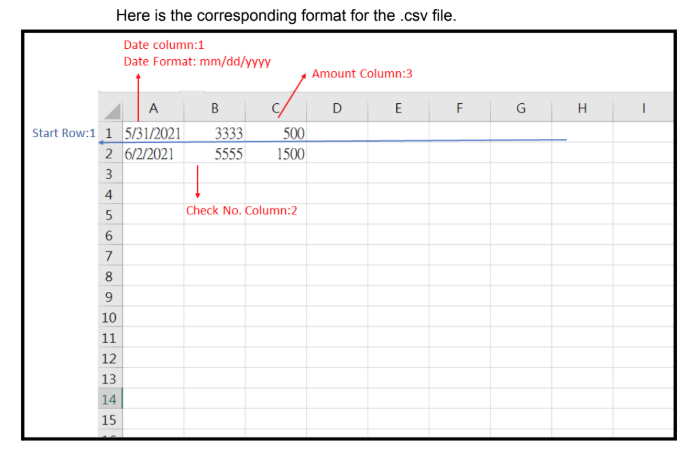
- Create an Excel spreadsheet on your device and input all the required data. Once completed, save the file in .csv format:
- A Column (Date Format - mm/dd/yyyy): Clear Date
- B Column (Check No.)
- C Column (Payment Amount)
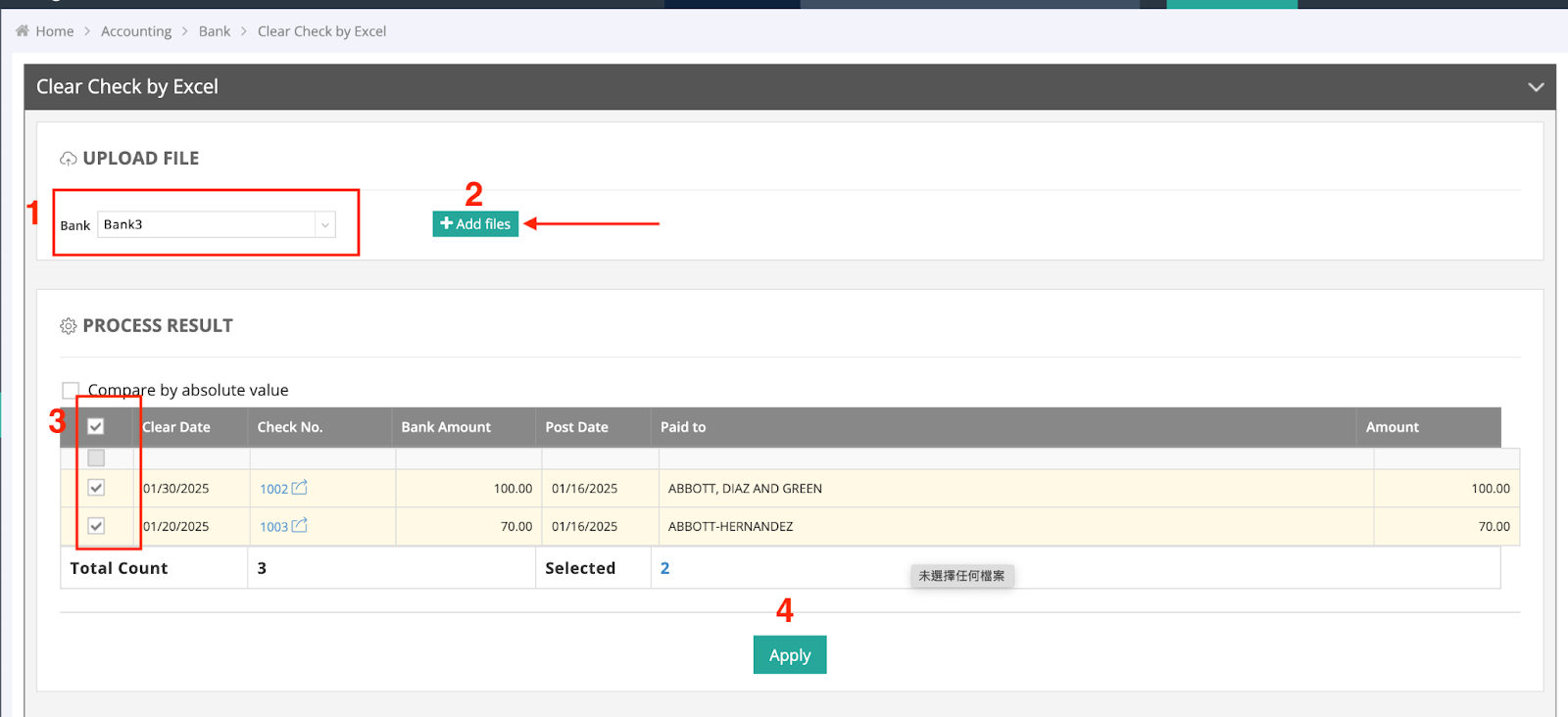
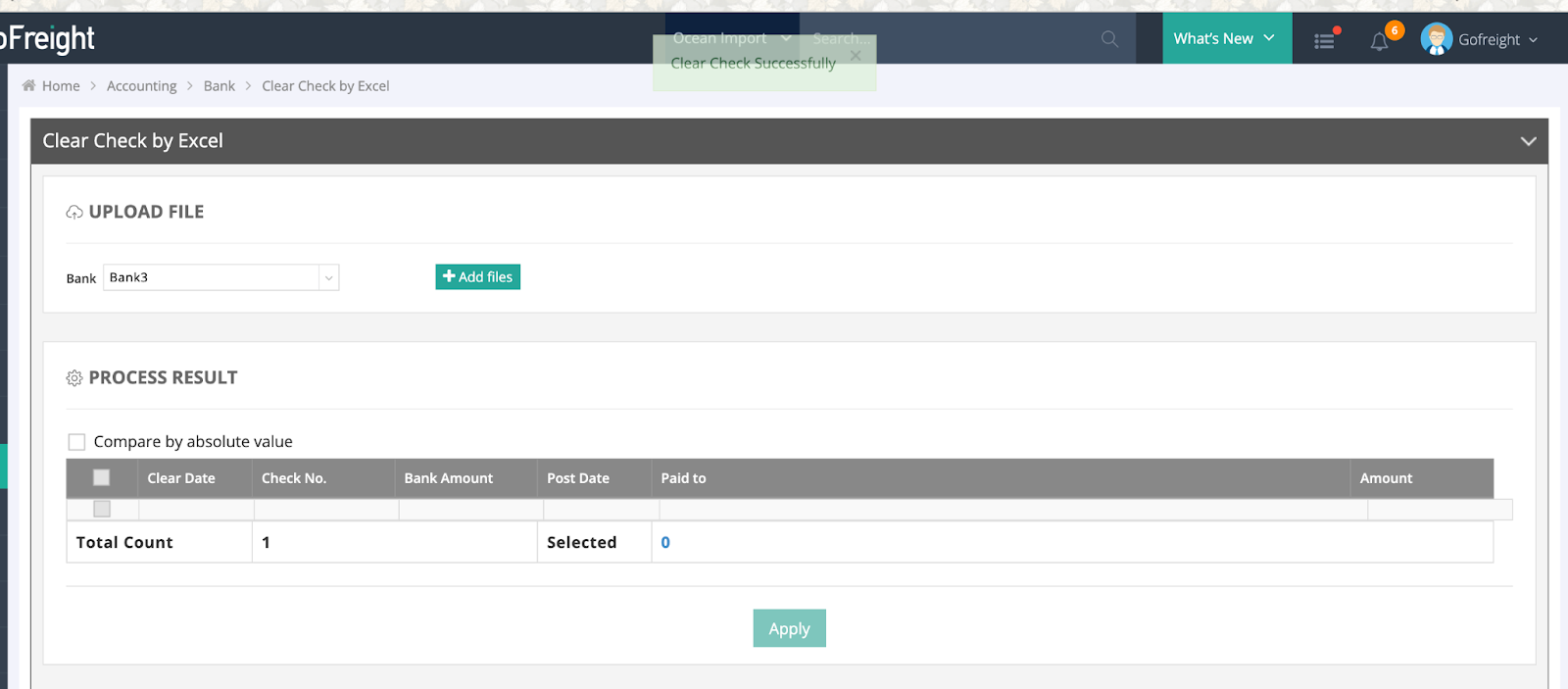
- Return to “Accounting” > “Bank” > “Clear Check by Excel” in the navigation bar.
- Select the bank (e.g., "Bank 3") where you want to perform the operation. Then, click “Add Files” to upload the .csv file. Review and ensure that the records match the payment information. Finally, click “APPLY” to complete the process.
- You will see a confirmation message: "Clear Check Successfully", and a new log will be generated below.

- You’ll notice the payments have been updated accordingly.
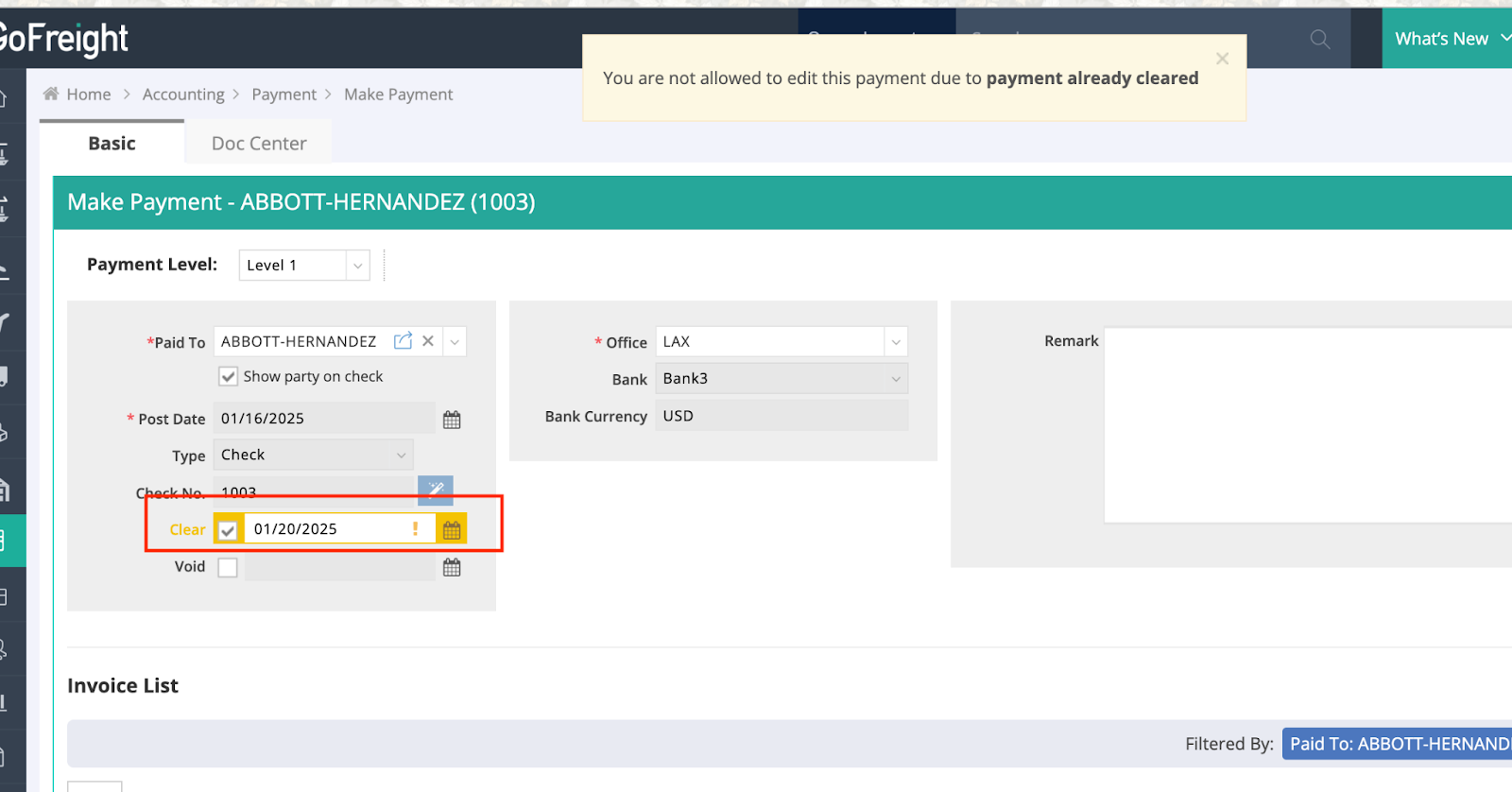
(1) Before Clearing: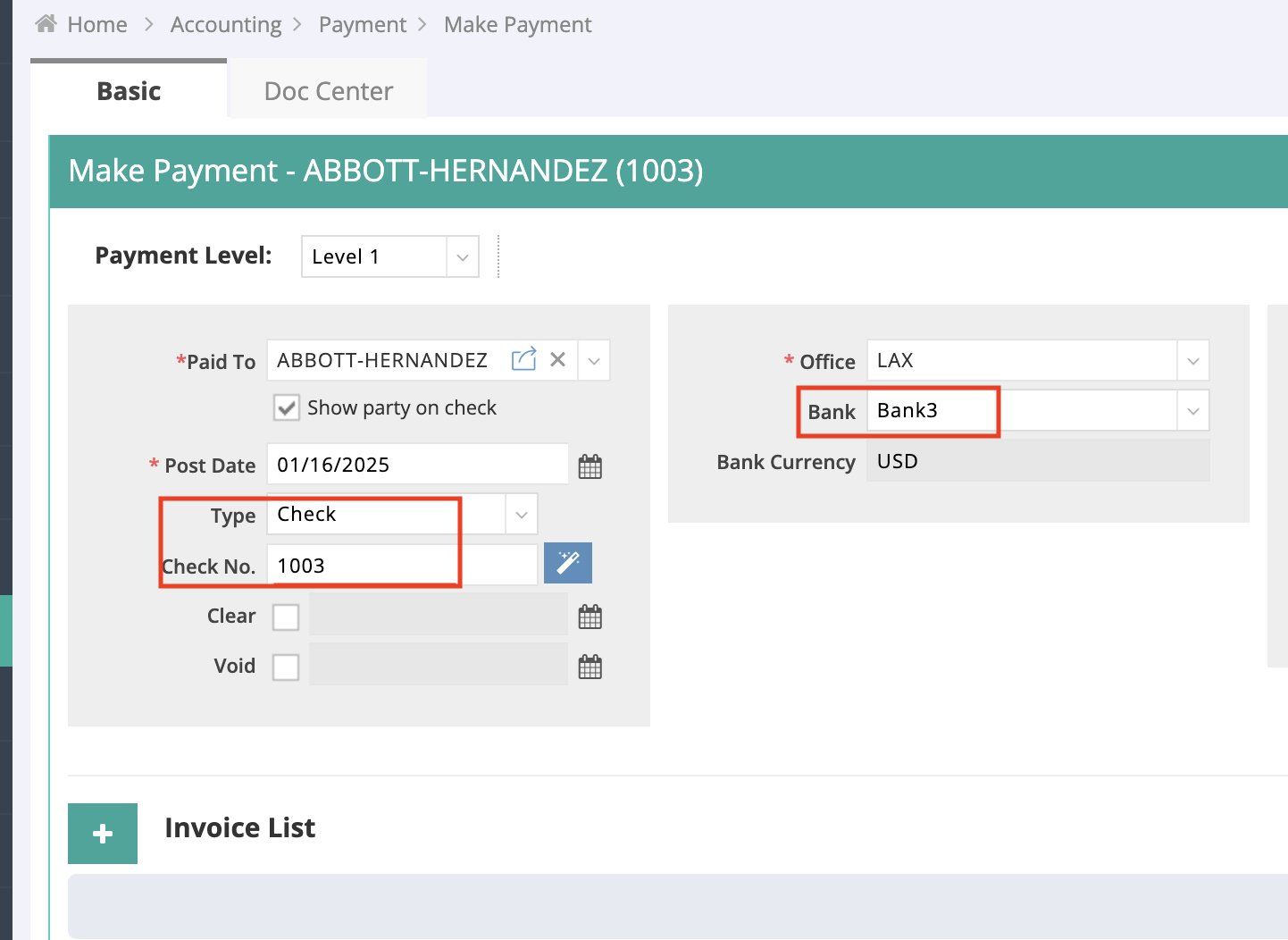
(2) After Clearing: Clear Date is generated automatically.