
This guide explains how to create journal entries across multiple offices in GoFreight, how accounting configurations affect your journal setup, and how to troubleshoot common issues.
Before starting, you may want to review these related articles:
Note: In this article, “J/E” represents Journal Entry.
1. Overview
In GoFreight, the ability to record journal entries across offices depends on your company’s accounting setup.
- Accounting by Company → Cross-office journal entries are supported.
- Accounting by Office → Each office operates independently, so cross-office journals are not allowed.
This guide will show you how to work with both scenarios.
2. Creating Cross-Office Journal Entries
Scenario A: Standard Environment (Accounting by Office NOT Enabled)
In this setup, you can create journal entries involving multiple offices.
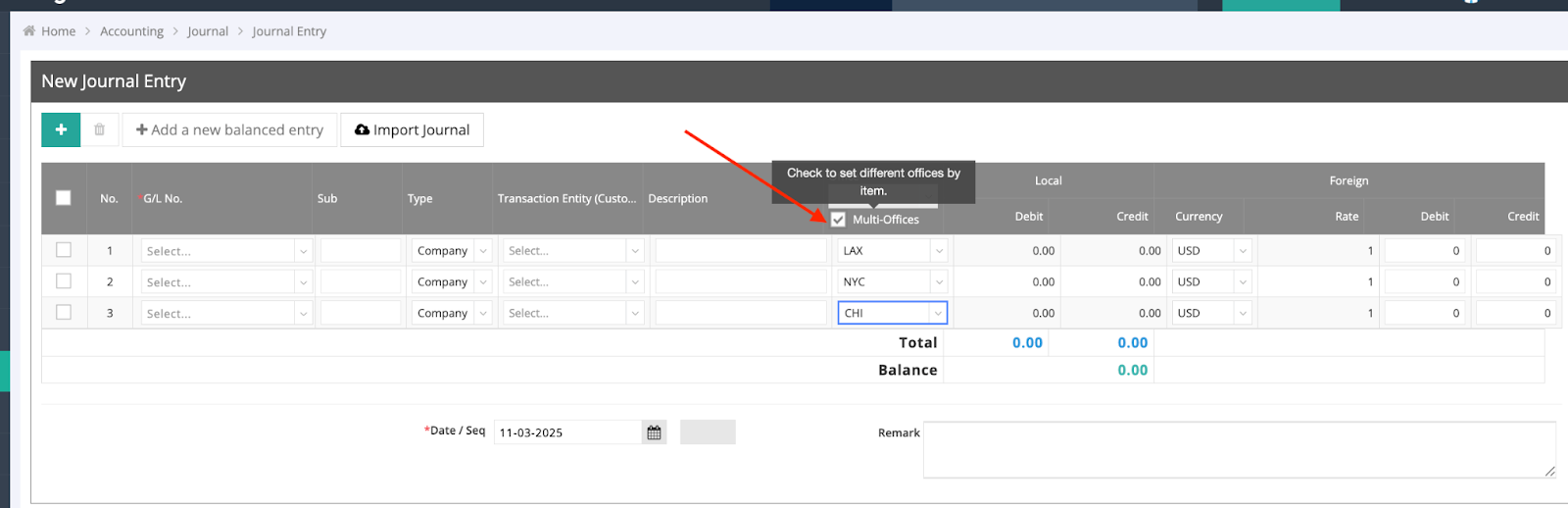
Step 1. Enable Cross-Office
When creating a new journal entry, check the “Office” option to enable cross-office entry.
Step 2. Select Offices
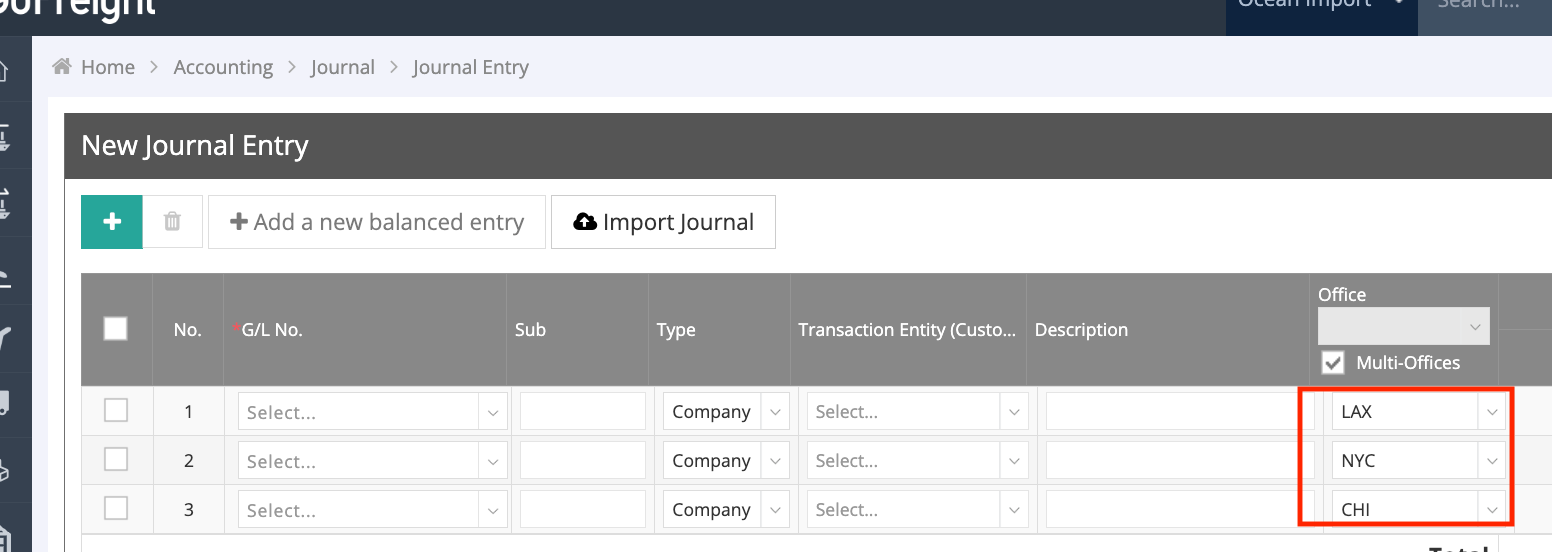
You can now select multiple offices for the journal entry.
Step 3. Input and Balance
- Enter Debit and Credit amounts.
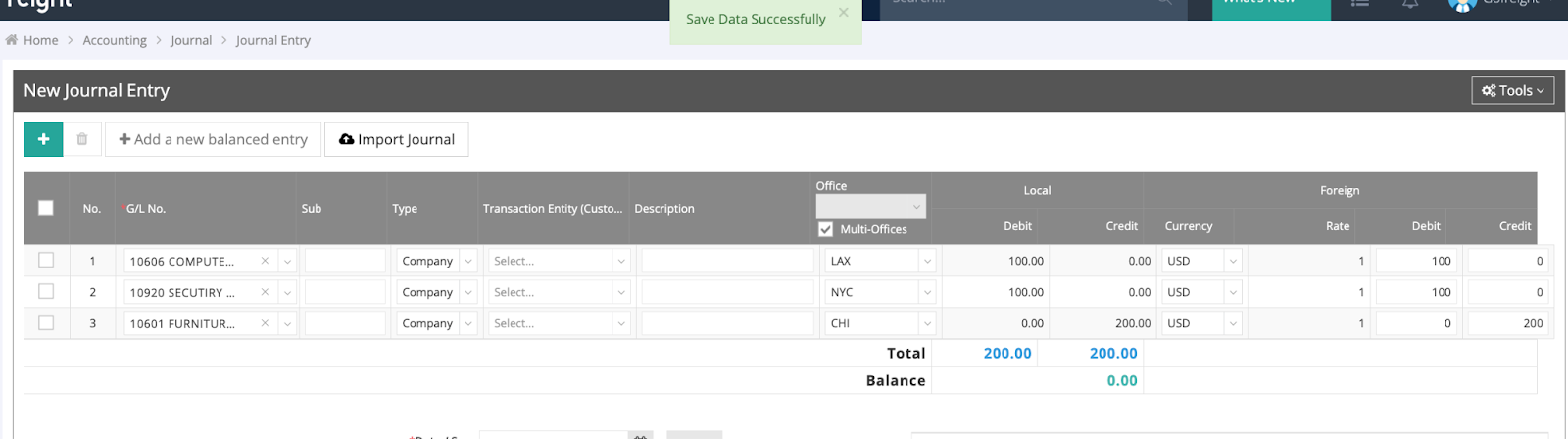
- The system requires the total Debit = total Credit (Balance = 0) before saving.
Not Balanced -> The J/E cannot be saved.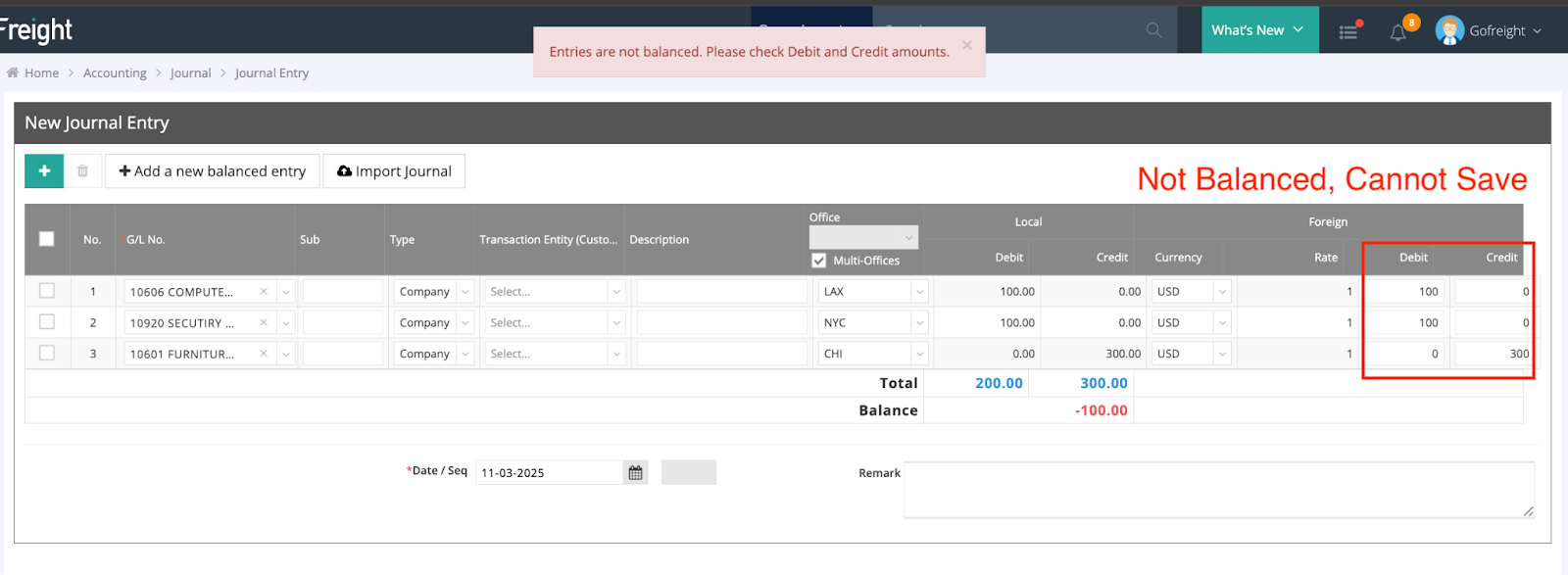
Balanced -> The J/E can be successfully saved.
Step 4. Review Voucher
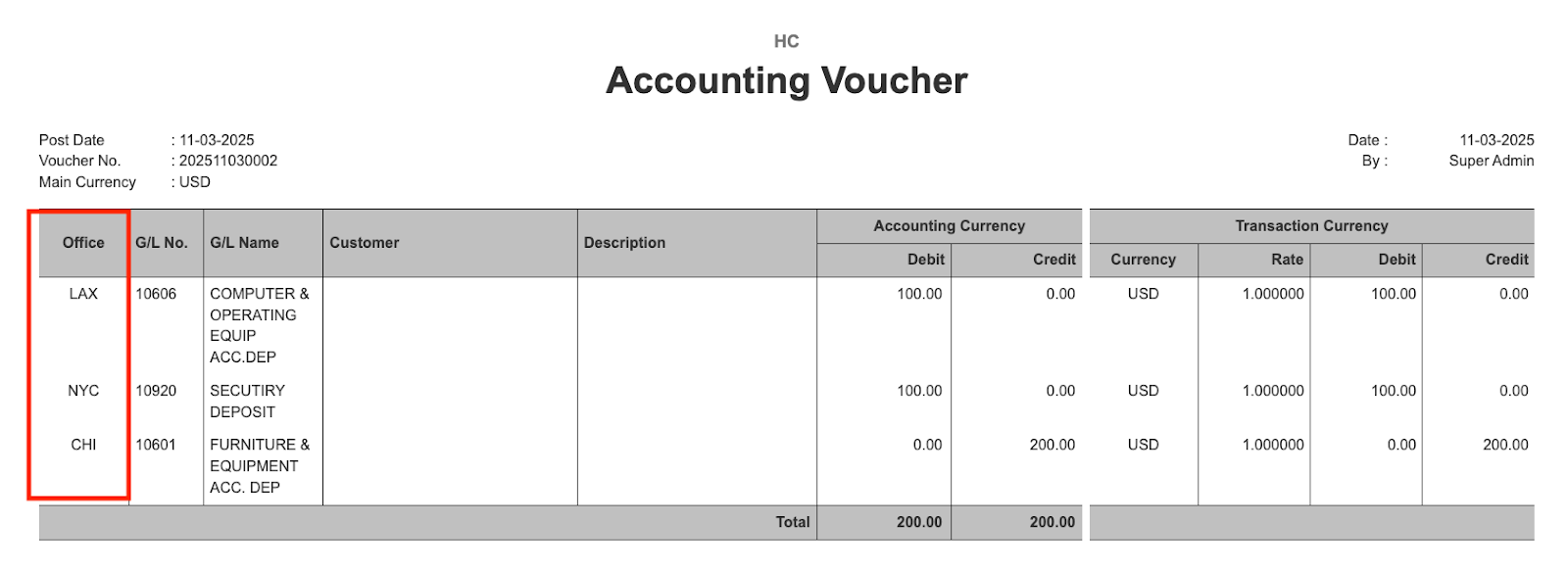
Once saved, the voucher displays all entries grouped by office, allowing easy review.
Scenario B: Restricted Environment (Accounting by Office Enabled)
Restriction
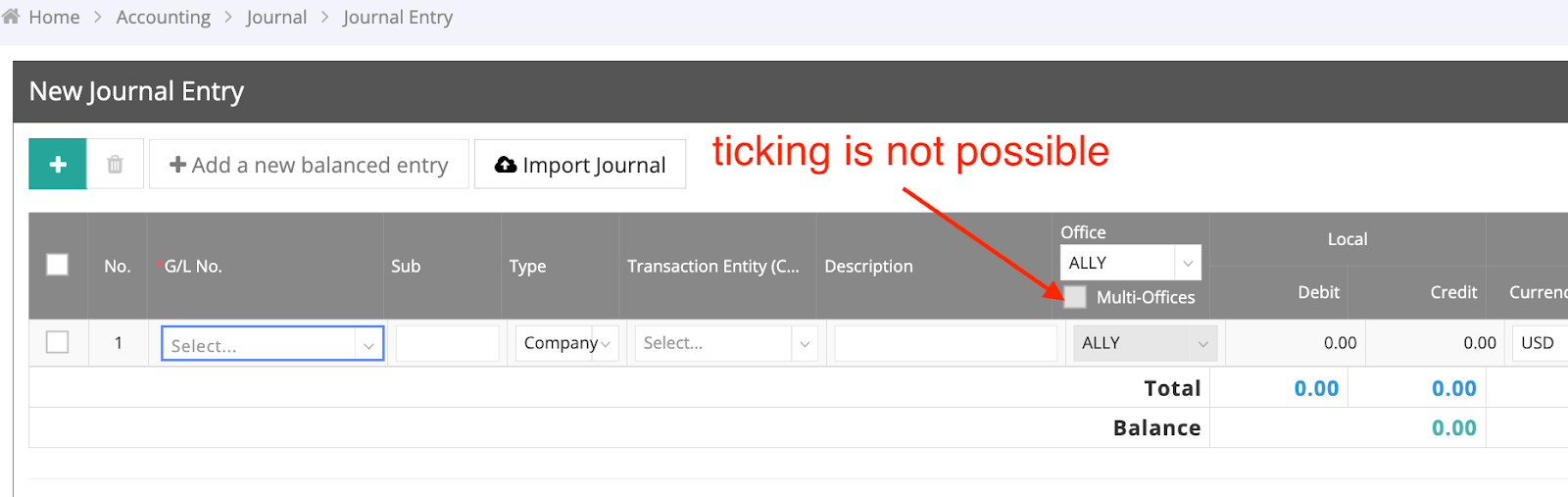
The cross-office option will be grayed out and unavailable.
Office Dependency
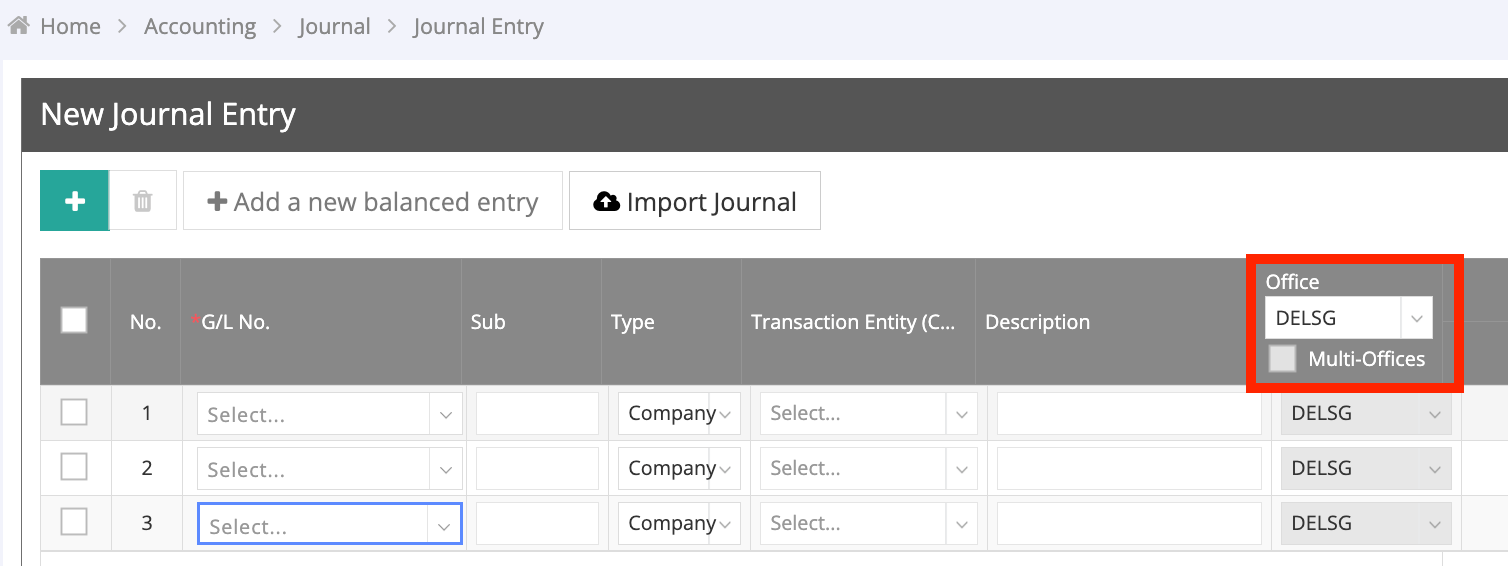
All entries must be linked to the single office selected at the top of the journal entry form.
3. Important Notes & Troubleshooting
3.1 Trial Balance Verification
When using cross-office journal entries:
- Viewing by an individual office may appear unbalanced.
- Always review the Trial Balance at the Company level to see the correct totals.
3.2 Editing Restrictions (Accounting Block)
- If any office involved in a journal entry is accounting-blocked, the entire journal becomes locked for editing.
To Edit a Blocked Journal:
- Identify which office is blocked (check Accounting Block History (GUIDE LINK HERE )
- Unblock that office (Unblock All Data “No Earlier” than the Journal Date).
- Once all offices are unblocked, the journal becomes editable again.
4. Key Takeaways
- Always ensure Debit = Credit before saving.
- Review Trial Balances at the Company level for accurate results.
- If editing is blocked, check the Accounting Block History at the office level to identify which office(s) caused the restriction.
FAQ — Journal Entry with Multi-Office
Selecting Different Offices
Q1: Can I include multiple offices in one Journal Entry?
Yes. You can add transactions from multiple offices in a single journal entry. Each transaction line must include an Office that you have permission to access.
Q2: Why can’t I select certain offices?
It depends on your company’s accounting type:
- Accounting by Company → You can select any office you have permission for.
-
Accounting by Office → Not supported; each office operates independently.
Q3: Why can’t I save my Journal Entry?
The journal can only be saved when total Debit = total Credit (Balance = 0).
Individual offices do not need to balance, only the overall journal must.
Q4: How are multi-office journals shown in reports?
- In the General Journal, all entries are logged as one record; involved offices are separated by commas.
- In the Voucher, the entry also appears as one record, but you can still filter by any office included.
Financing Report
Q1: Why doesn’t the trial balance match for each office?
When using multi-office journal entries, individual office trial balances may not balance. However, the total across all offices must always balance.
This is expected behavior and ensures consistency.
Accounting Block
Q1: What happens if one of the offices in a multi-office journal is accounting-blocked?
If any office in the journal is blocked, the entire journal becomes blocked and cannot be posted or edited.
Q2: How can I unblock a multi-office journal?
The journal will only be unblocked once all related offices are unblocked.
If even one office remains blocked, the journal stays locked.