
To receive prepayment from your trade partners (customers), please follow the steps outlined below.
Note: By default, this function to receive payment is only available for the role of General Manager, Accounting Manager, and Accounting.
(A)Create Billing Code for Prepayment-use
First, create a billing code for the prepayment.
Please follow the steps in the article link below to create a new billing code. Billing code is known as Freight Code in the GoFreight system.
When setting up the billing code, select the same General Ledger (G/L) Code for both Revenue and Credit, and a different G/L Code for Cost and Debit.
In this example, the billing code will be named “Other Charge.”
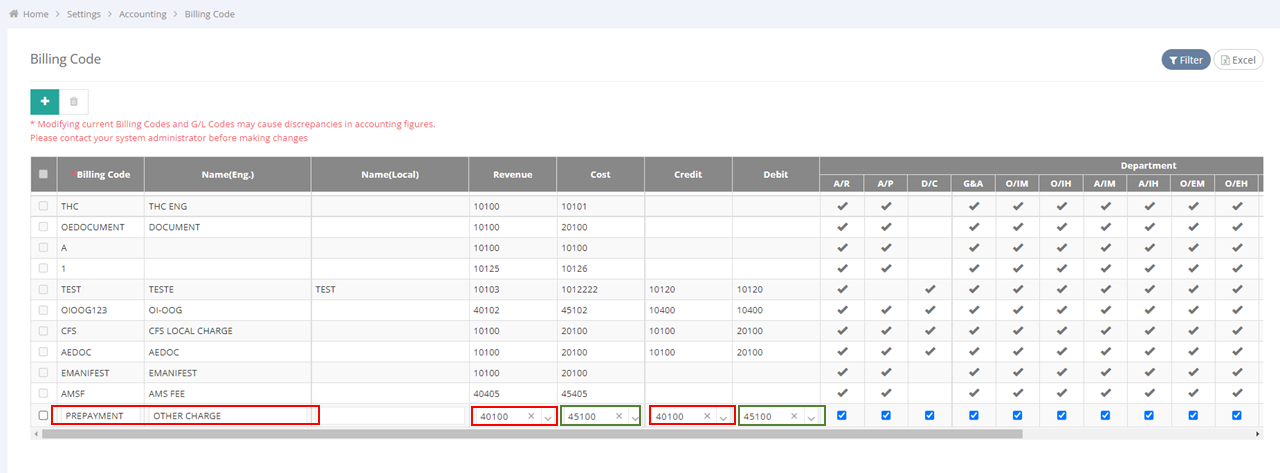
Example: You need to receive a USD 2,000 prepayment from your Trade Partner ( customer), CAIN AND SONS, for other charges totaling USD 2,000.
(B) Entry Prepayment
1. Navigate to "Misc" > "New Operation" to enter and complete the related information, then save. 
2. Go to the "Accounting" tab, then click “Create Invoice.” 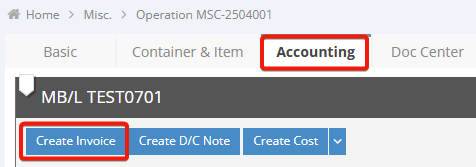
3. Add a relevant freight code (in this example, we select "Other Charges"), choose the appropriate type ( in this example, we select: Our Sales”), and enter the received amount: $2,000.

4. After saving the invoice, click "Tools" in the upper right corner and select "Receive Payment."

5. Verify the freight details, check "Deposit", then click "Save."

6. Return to the Accounting tab; a yellow lock will appear next to the status of this invoice, indicating that the payment has been received.
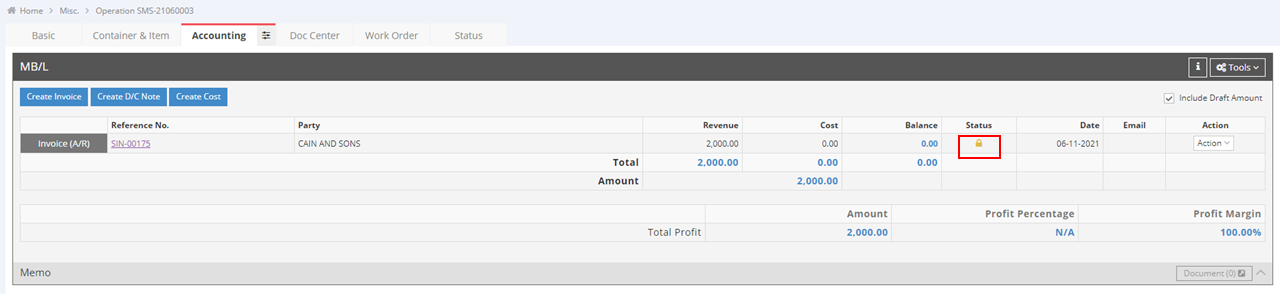
7. Click "Create D/C Note." ( Debit/Credit Note )

8. Enter "CAIN AND SONS" in the "Agent Name" field. Use the same freight code in the previous Invoice (in this example, we select "Other Charges"), select "Credit" as the type, and enter the amount of $2,000. Click "Save" to complete the entry.

9. A Credit Note has been created. This Credit Note can be used to offset Accounts Receivable (AR) in the future.

(C) Offset the Prepayment
In the future, when you create an Accounts Receivable (AR) for CAIN AND SONS, you can offset the prepayment amount. Below are three possible scenarios:
Scenario 1. Fully Offset (AR $2,000, Prepayment $2,000)
- Go to "Accounting" > "Payment" > "Receive Payment"
- Select "Received From" CAIN AND SONS, and click "Search."
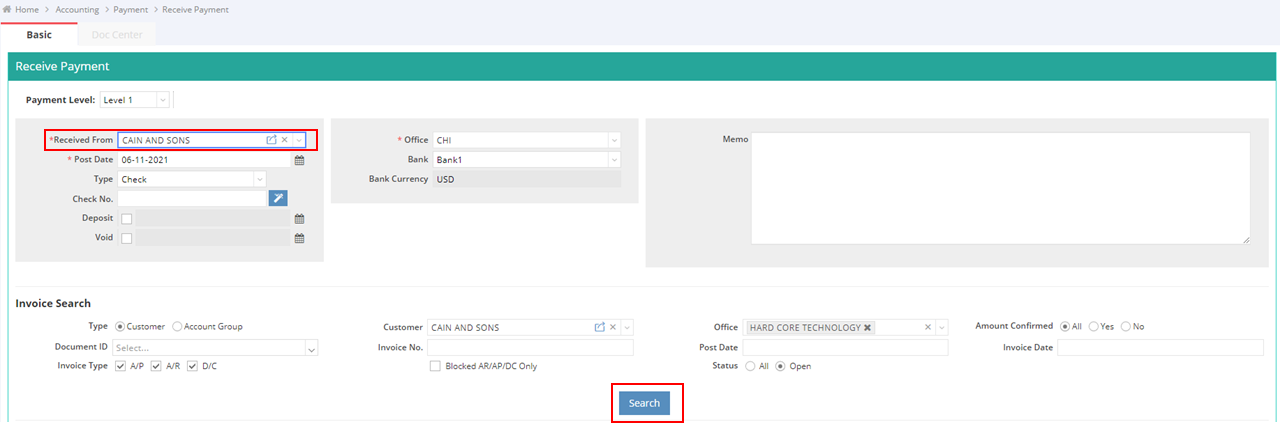
- Check the previously created Credit Note and the AR to offset. Click “Save.”
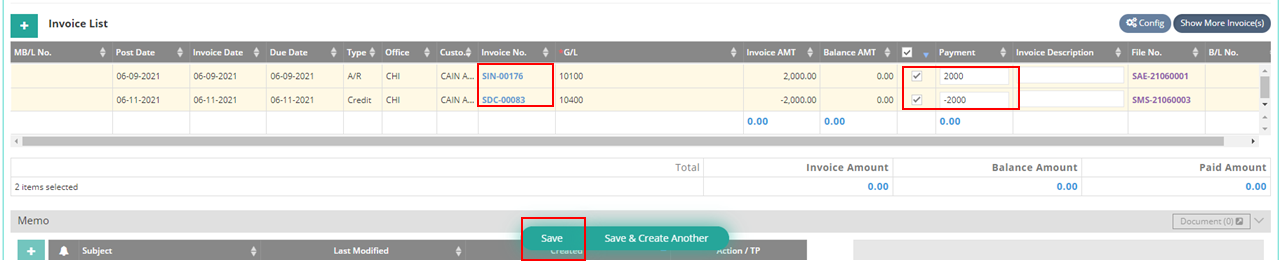
Scenario 2. Partial Offset (AR $1,500, Prepayment $2,000)
- Go to "Accounting" > "Payment" > "Receive Payment"
- Select "Received From" CAIN AND SONS, and click "Search."
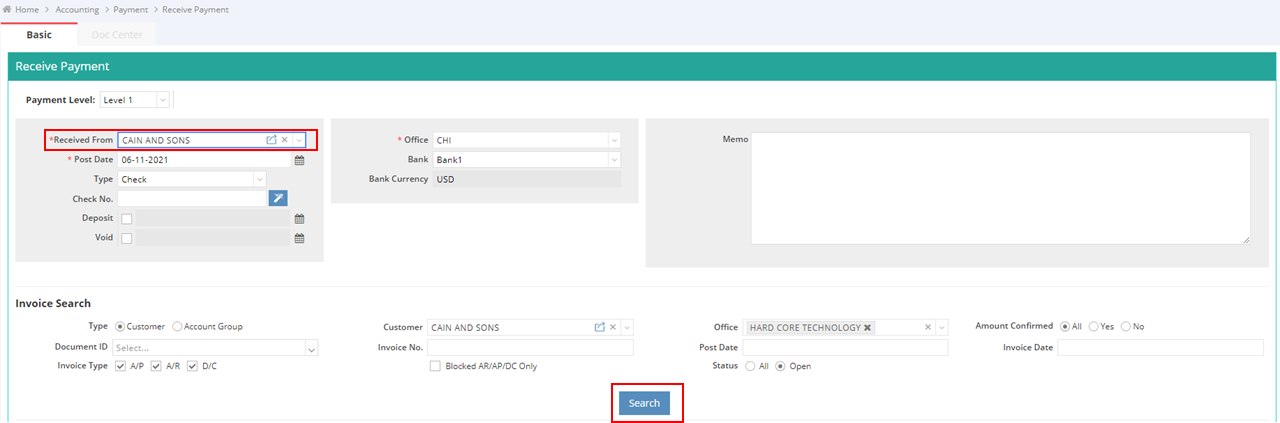
- Check the AR to offset and the previously created Credit Note, then enter the amount -1500 and SAVE.
- The remaining balance of the Credit Note will be -500, indicating that your Trade Partner still has a $500 prepayment balance to offset AR in the future.

Scenario 3. AR Exceeds Prepayment (AR $2,300, Prepayment $2,000)
- Go to "Accounting" > "Payment" > "Receive Payment. "
- Select "Received From" CAIN AND SONS, and click "Search."

- Check the AR to offset, enter the amount $2,000, and review the previously created Credit Note. Click “Save.”
- The remaining balance of the AR will be $300, indicating that your Trade Partner still needs to pay $300.
