
During daily operations, users may occasionally receive prepayments from trade partners (customers) before any service is performed or invoice is issued.
To ensure financial reports remain accurate, these prepayments might be recorded under a Liability account (e.g. Customer Deposit) as requested by CPA, instead of Accounts Receivable or Revenue.
This guide explains how to properly:
- Record customer prepayments as liabilities
- Apply the prepayment to an invoice later
- Track the related customer and transactions in reports
Why not use AR for prepayments?
Accounts Receivable is for issued invoices (earned revenue), while prepayments are customer deposits and must be recorded as liabilities until services are completed.
⚠️ Permission Notice
By default:
- Receiving Payments is available to:
General Manager, Accounting Manager, Accounting - Creating G/L Codes is available to:
General Manager, Admin
Step 0 — Create a Liability G/L Account for Customer Deposits
Navigation:
Settings > Accounting > G/L Code
Create a new G/L account:
- G/L Code: 20620
- G/L Name: Customer Deposit
- Type: Liability (Current Liability)

This account will be used to temporarily hold customer prepayments until an invoice is issued.
📘 You can refer to this guide for detailed steps on creating a G/L Code:
[LINK – How to Create G/L Codes]
Step 1 — Receive Customer Prepayment
Scenario:
- Customer: Poodle Logistics
- Amount: USD 50,000
- Payment Date: Dec 8, 2025
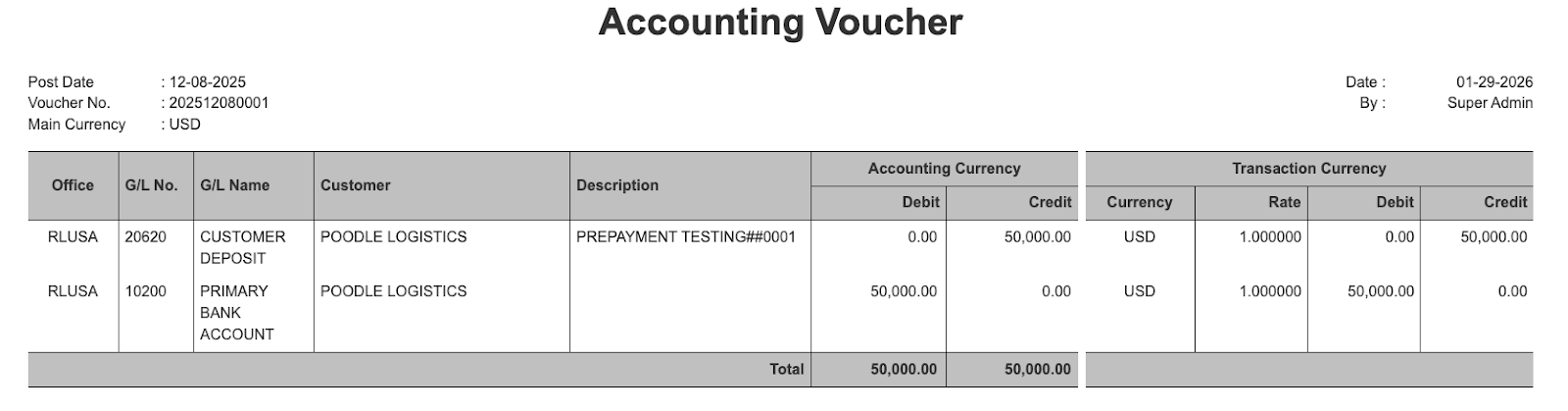
Accounting Impact
| Account | Debit | Credit | Description |
| Bank/Cash | 50,000 | Increase in assets | |
| Customer Deposit | 50,000 | Increase in liability (Debt to customer) |
System Steps
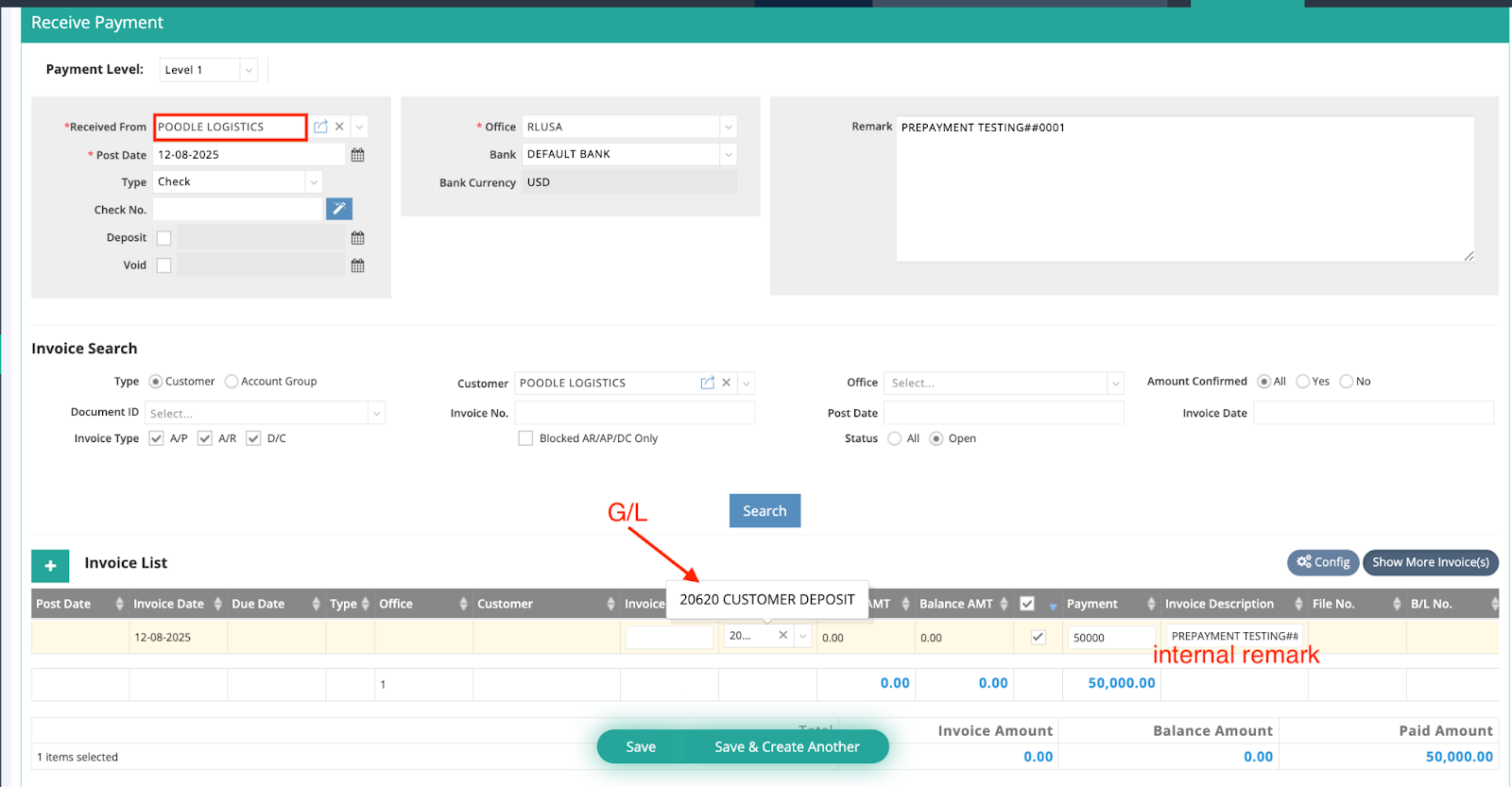
- Go to Accounting > Payment > Receive Payment
- Select Poodle Logistics in the Received From field
- Enter Payment Post Date: Dec 8, 2025
- Select 20620 – Customer Deposit in the G/L field
- Enter payment amount 50,000
- Save
Result
- The cash is recorded in the bank
- The amount appears under Customer Deposit (Liability) on the Balance Sheet
- No AR or revenue is created
How to Review This on Reports
- Open Balance Sheet (as of Dec 8, 2025)
- Locate Customer Deposit under Liabilities
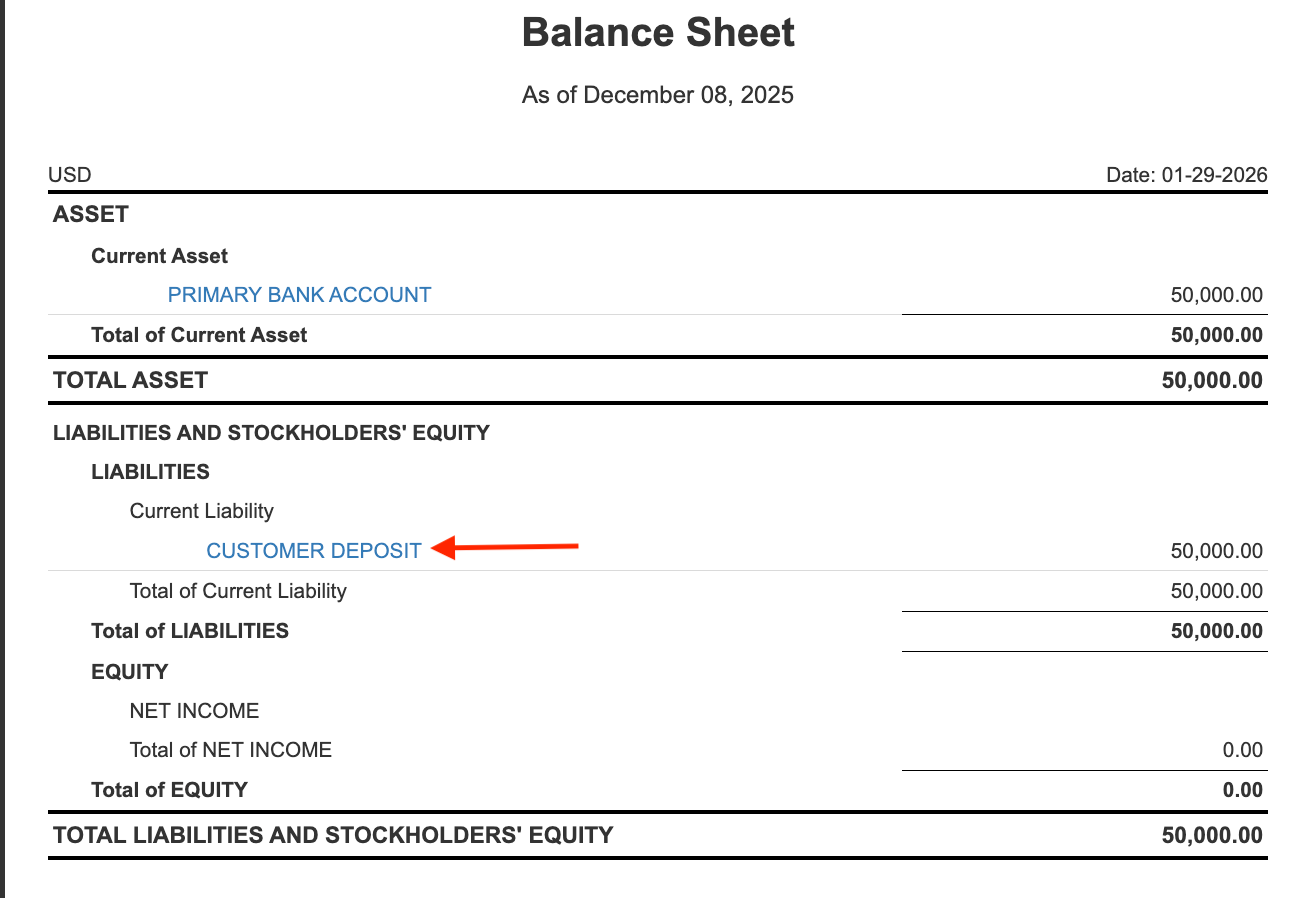
- Click the blue G/L code (20620) to drill down
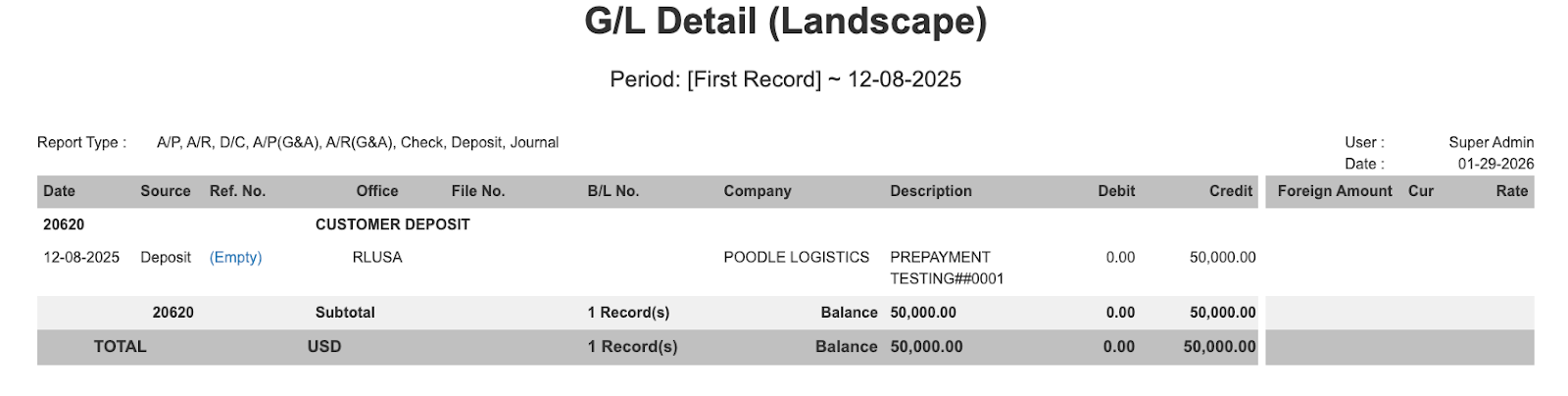
In the detailed report:
- The Company column shows the related trade partner
- Users can clearly identify which customer the prepayment belongs to
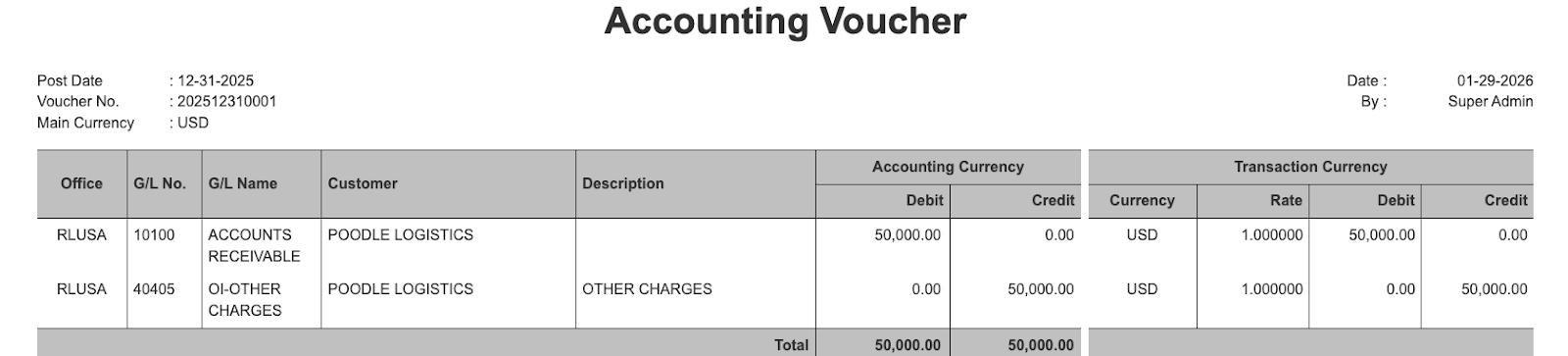
Step 2 — Issue Invoice When Service Is Completed
Invoice Date: Dec 31, 2025
Invoice No.: IN-00003
Amount: USD 50,000
Accounting Impact
| Account | Debit | Credit | Description |
| Accounts Receivable | 50,000 | ||
| Revenue | 50,000 |
System Steps
- Create the invoice with Invoice Post Date: Dec 31, 2025
- Normal invoicing process applies

Step 3 — Apply the Prepayment to the Invoice
Date: Dec 31, 2025
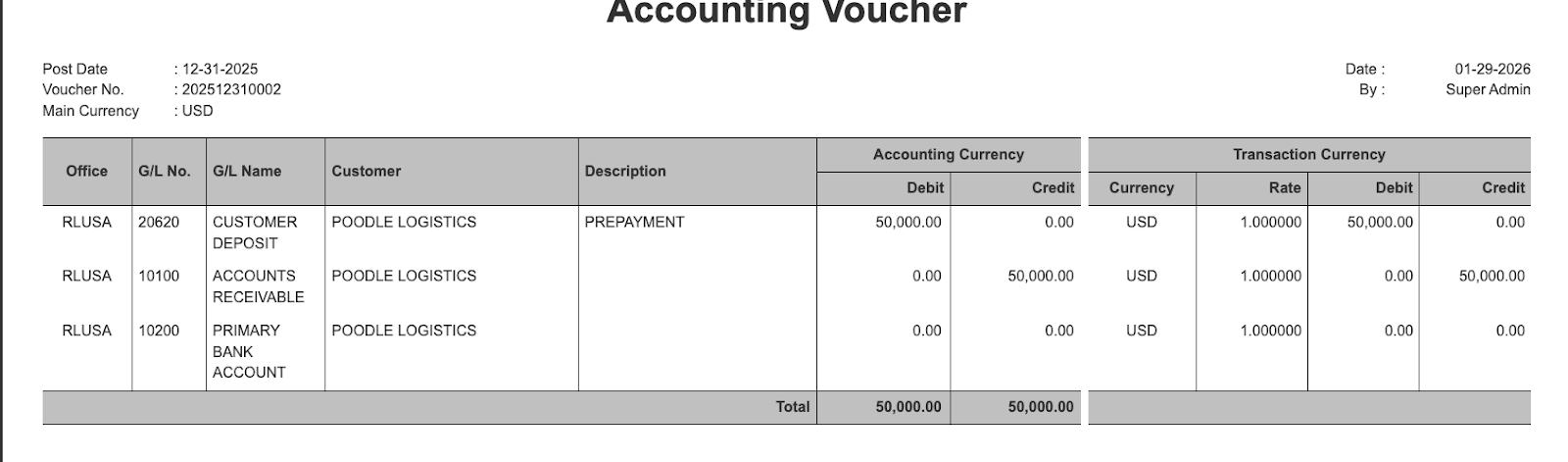
Accounting Impact
| Account | Debit | Credit | Description |
| Customer Deposit | 50,000 | Clearing the liability | |
| Accounts Receivable | 50,000 | Clearing the open invoice |
System Steps
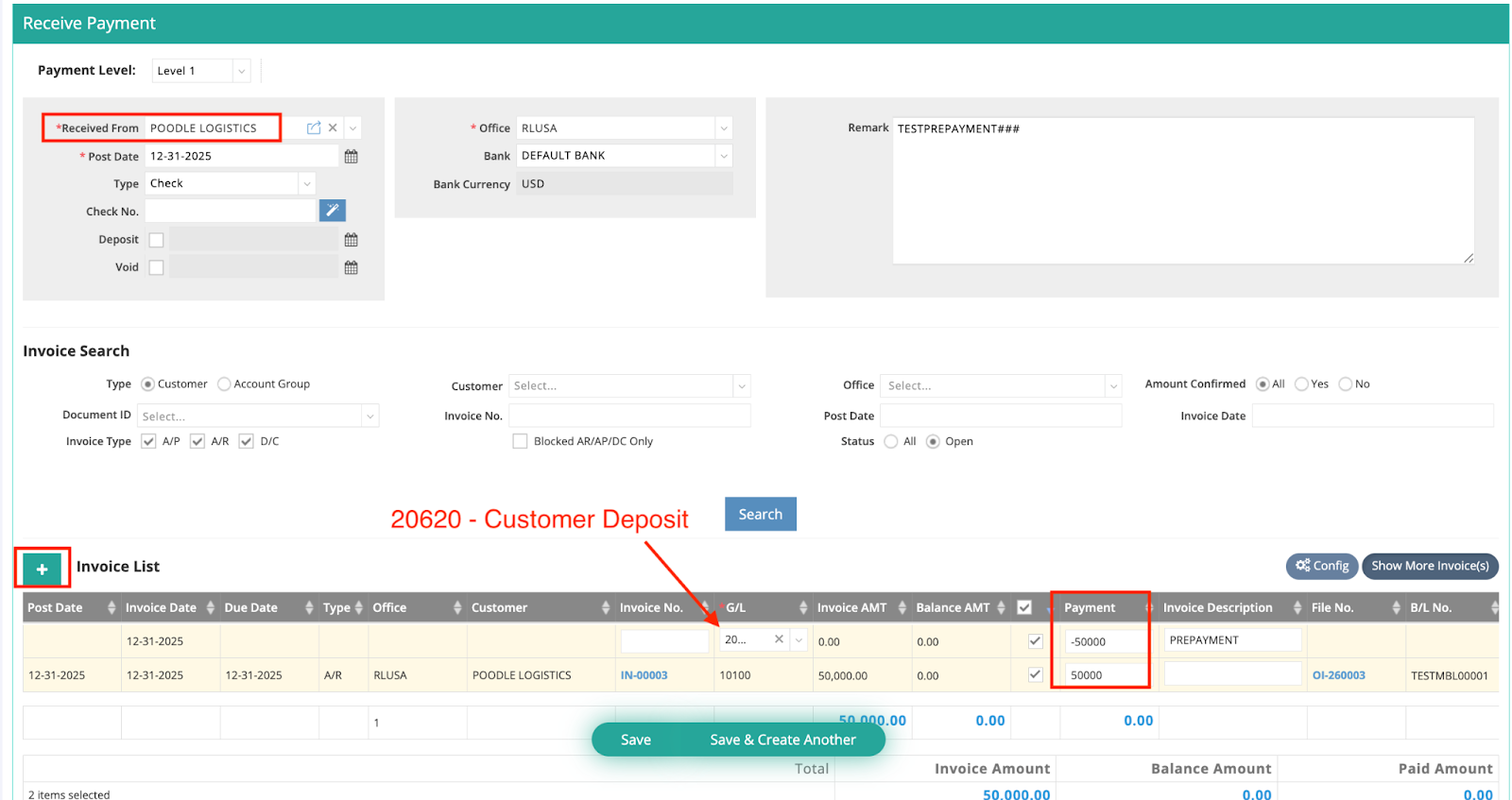
- Go to Accounting > Payment > Receive Payment
- Select invoice IN-00003
- In the Invoice List:
- Line 1:
- Invoice: IN-00003
- Payment Amount: 50,000
- Line 1:
- Click the green “+” to add a second line:
- G/L: 20620 – Customer Deposit
- Payment Amount: -50,000
- Save
Result
- AR is cleared
- Customer Deposit liability is cleared
- No cash movement occurs (bank line is zero)
This can be verified in the Accounting Voucher, where no bank debit/credit amount is generated.
Step 4 — Review Reports
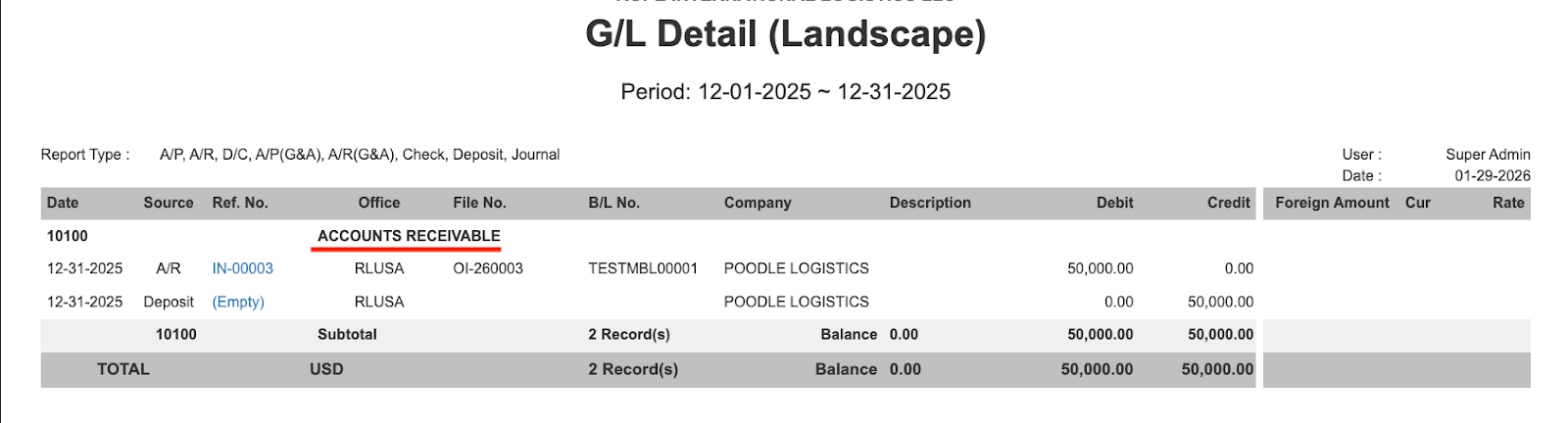
Accounts Receivable G/L Report (December)
- Shows invoice creation and offset clearly
- Company column identifies the trade partner
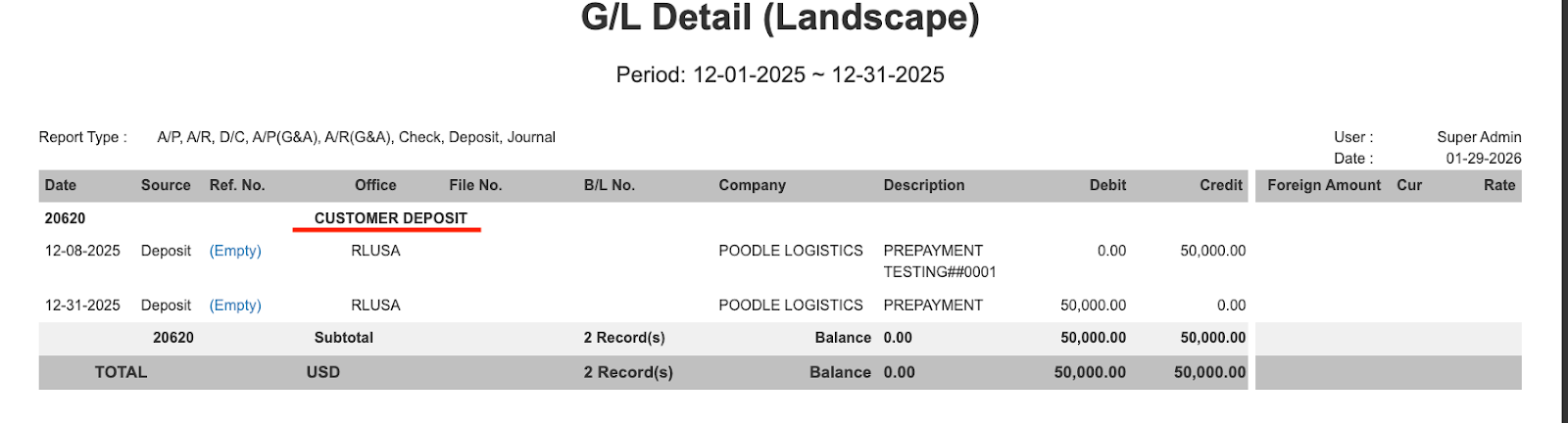
Customer Deposit (20620) G/L Report
- Shows both the prepayment receipt and the offset
- Users can track balances by customer at any time
How to Track Which Invoices Are Related to Prepayments (Operational Tip)
To help operations teams avoid missing offsets, users can utilize Color Remarks.
Suggested Practice
- Create a color remark named “Prepayment”
- Apply it to:
- Prepayment-related invoices
- Or invoices that will later be offset by deposits

How This Helps
- OPs can use Filter by:
- Customer
- Color Remark = “Prepayment”
- Easily identify:
- Which invoices are linked to deposits
- Which deposits are still pending offset
📘 Reference:
[LINK – How to Use Color Remarks for Invoice Status]
✅ Summary
- Customer prepayments are recorded as Liabilities, not AR
- Financial reports remain CPA-compliant
- Trade partner information is still visible in G/L and reports
- Offsetting is controlled and traceable
- Operational risk of missing offsets is reduced through reporting and color remarks
Additional Note:
Since this is for logistics, consider mentioning House Bill (HBL) or Job Numbers. We suggest users paste the Job No. in the prepayment Internal Remark description for easier tracking later.