We are excited to announce the release of an enhanced version of the Air Export Module, featuring new fields and improved connections between settings and shipment entries. This upgrade addresses previous inefficiencies, such as the lack of connection between billing code pages that required users to perform multiple entries for creating invoices on MAWB and HAWB. With this latest release, we aim to streamline your billing process, allowing for a more efficient and intuitive workflow.
IATA Code Mapping Table: Essential First Step
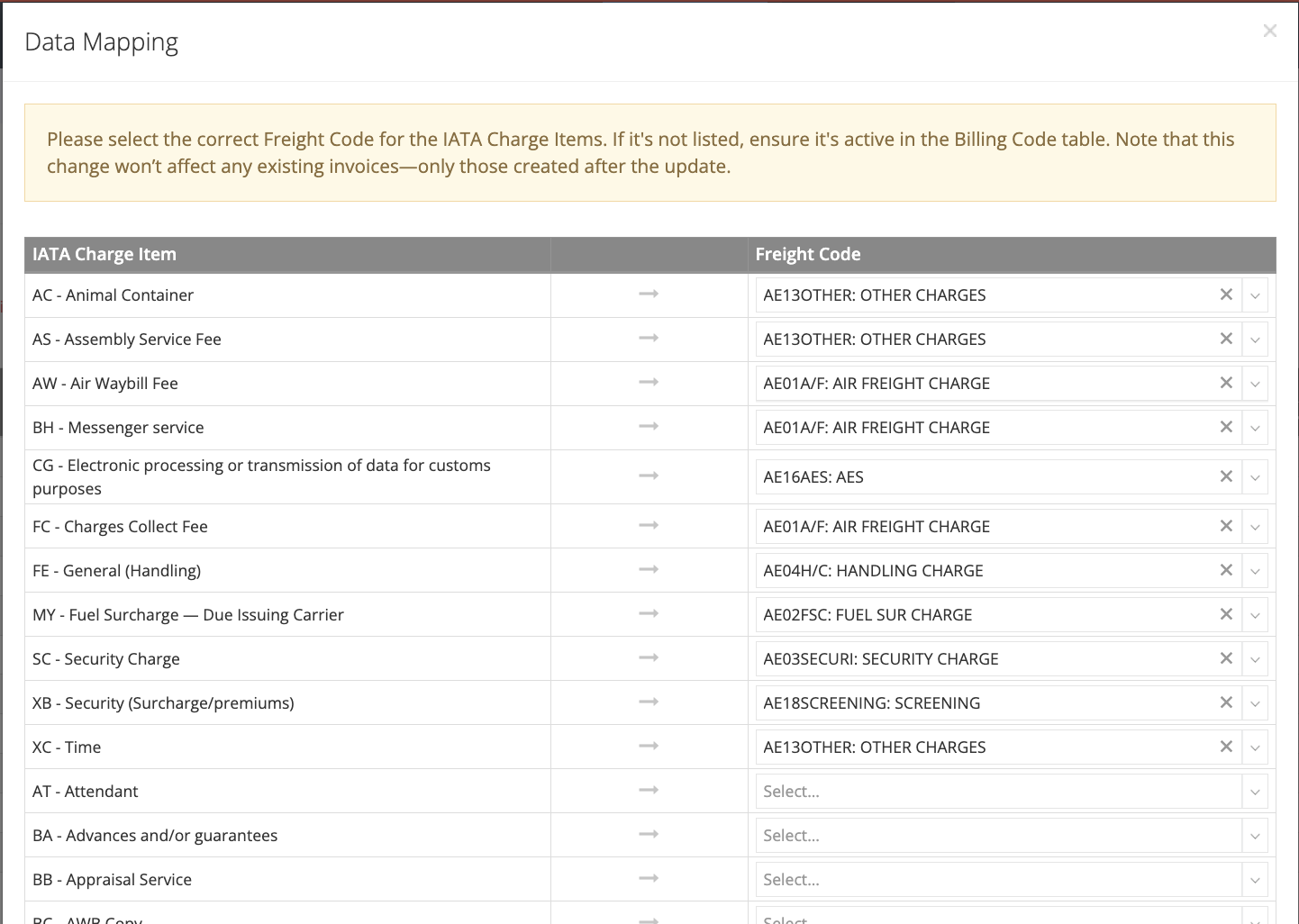
To utilize the new features in the Air Export Module, navigate to Settings > Accounting > Billing Code > Data Mapping with IATA Charge Item. Please note that only Admins and General Managers have access to this area by default. The two roles can access Data Mapping with IATA Charge Item to revise the linked Freight Codes when necessary.
*Note: To request changes to the default permission settings, please contact support@gofreight.com.
Here, you can link the GoFreight Billing Codes as needed.
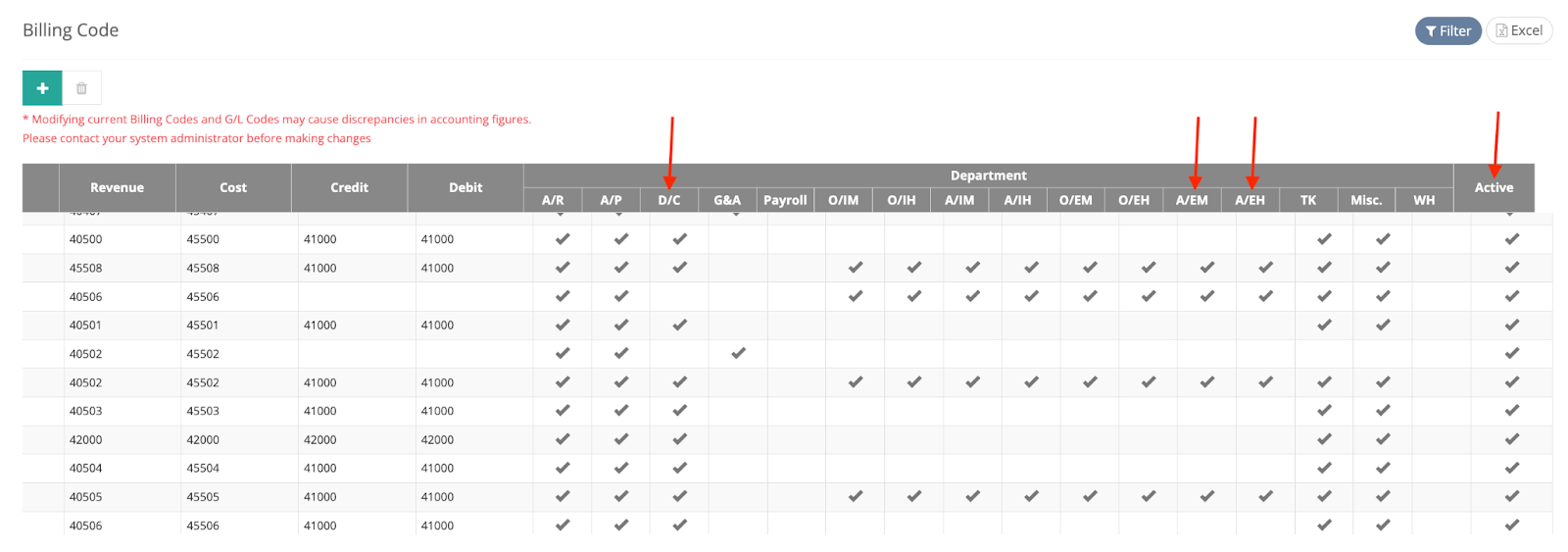
*Note: For billing codes to be selectable in the Freight Code menu, ensure the code’s D/C, A/EM, and/or A/EH settings are enabled and marked as Active.
Setting Up AE Other Charges
To simplify the process of entering repetitive Other Charges in the Air Export Module, users can now set default AE Other Charges in the Settings. You can configure these default billing codes either by general level or by trade partner level.
(i) By General:
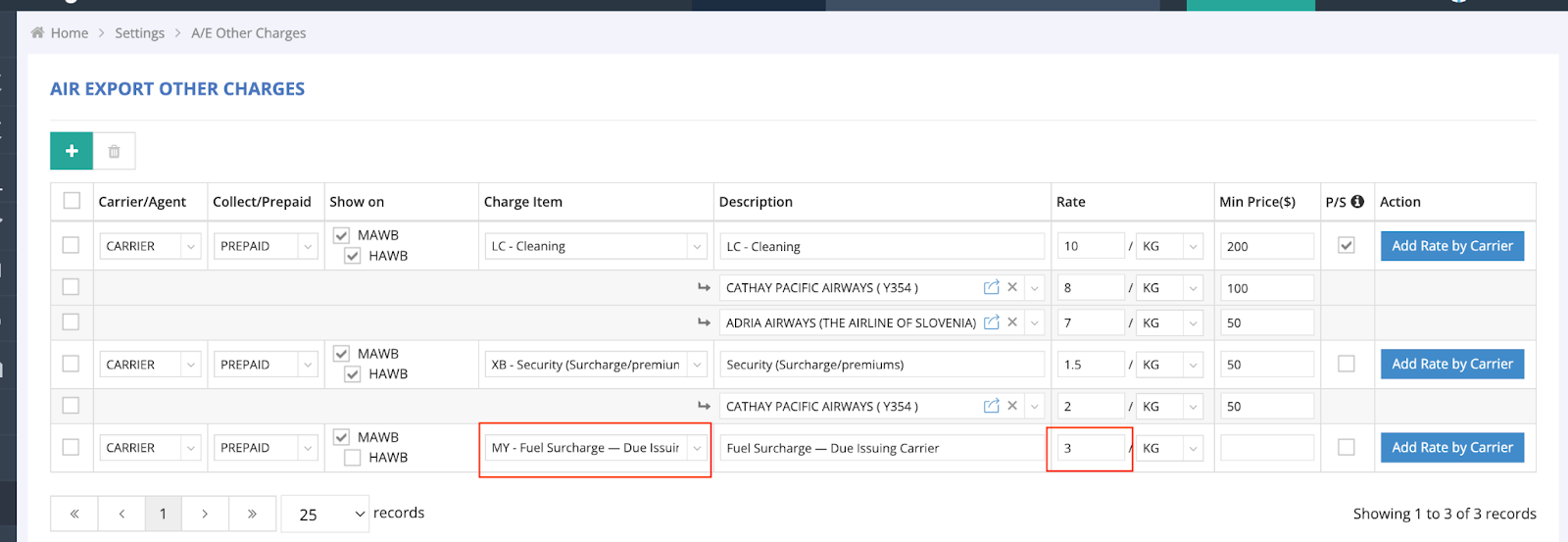
Navigate to Air Export Other Charges (Home > Settings > A/E Other Charges).
- P/S (Profit Share) column: The profit share amount will be auto-calculated when loading data into the D/C page.
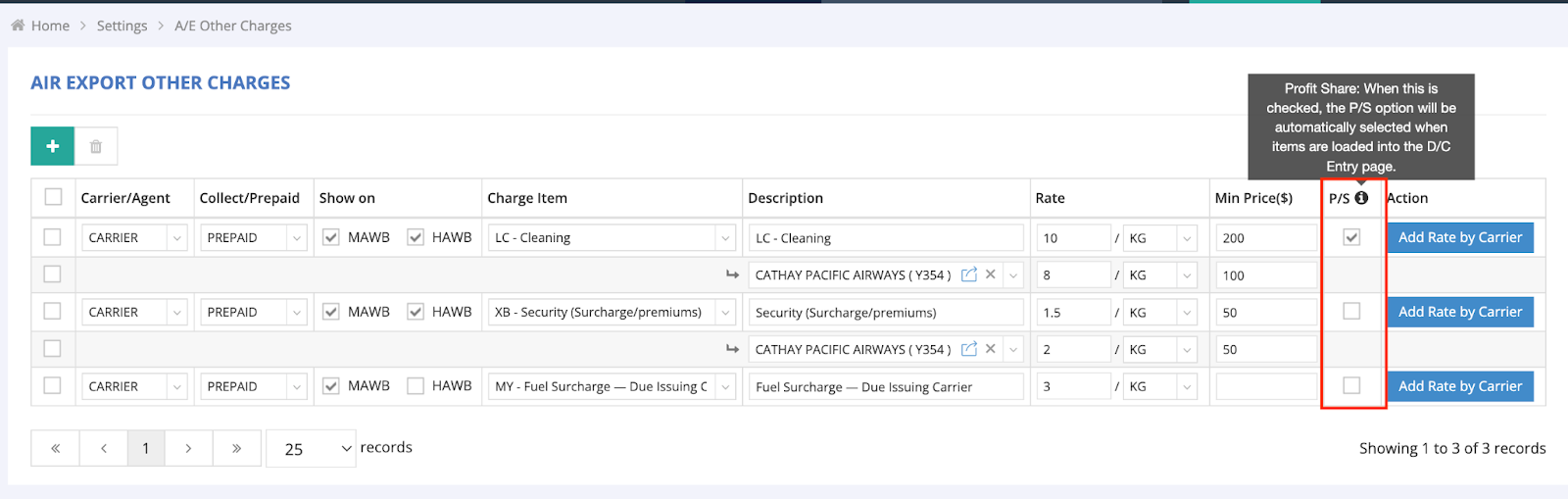
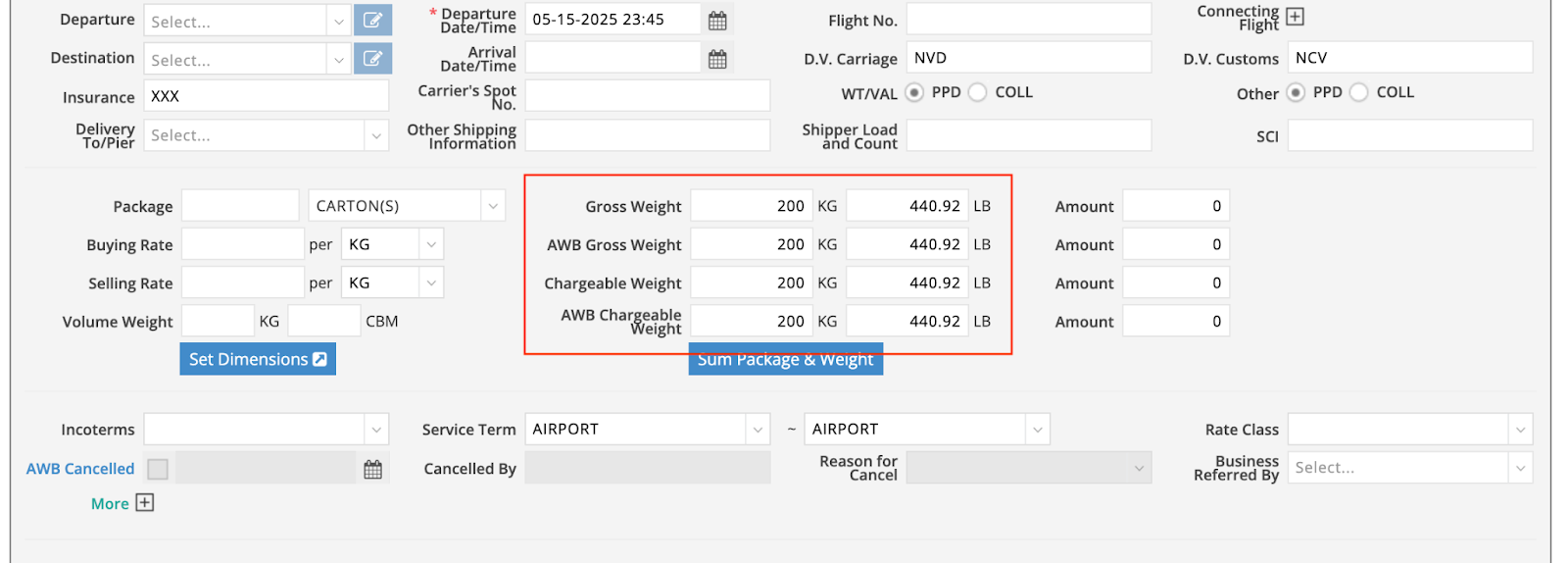
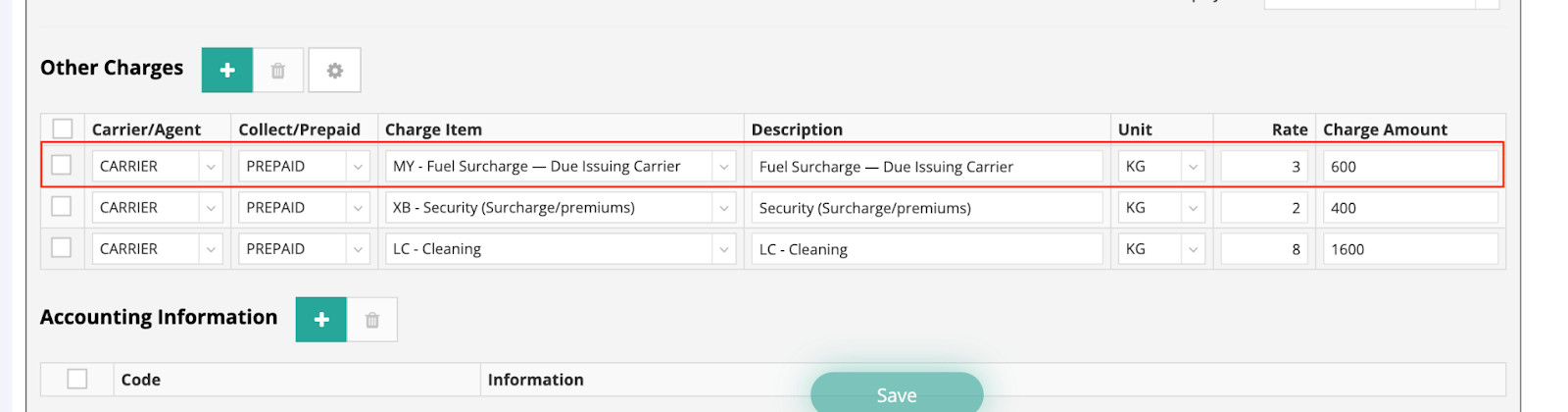
- Example of Setting Specific Charges: For instance, if you set up a Fuel Charge, when creating an MAWB and entering the Chargeable Weight as 200, the shipment’s Charge Item, Rate, and Charge Amount will be automatically displayed and calculated.
Air Export Other Charges
MAWB
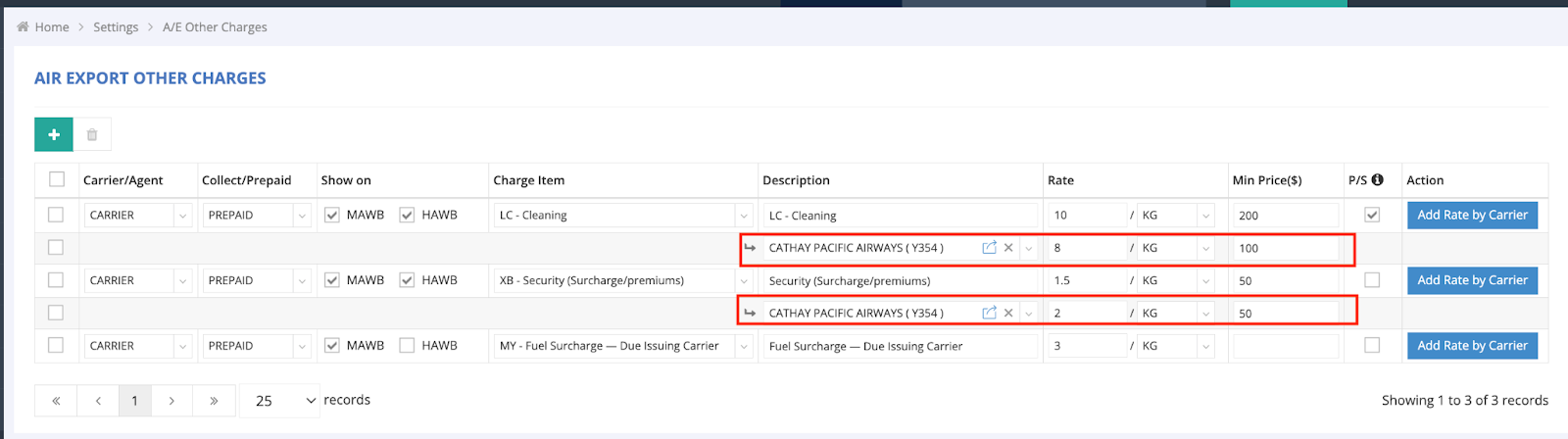
- When you click the blue “Add Rate By Carrier” button on the right side, you can define a specific rate and minimum price for a selected carrier. These values will be automatically applied when that carrier is chosen on an MAWB.
- For example, you can set up LC-Cleaning and Security (Surcharge/Premium) charges for Cathay Pacific. Later, when Cathay Pacific is selected on an MAWB, the corresponding rate and minimum price will be auto-filled and calculated accordingly.

(ii) By Trade Partner:
Access Trade Partner Accounting Settings (Home > Trade Partner > Accounting Settings > Air Export > Other Charges).
- The Charge Items will use IATA freight codes instead of your GoFreight billing codes.
- Example: For Trade Partner ITALLIA LINE (CR 0133), you can enter Screening and Airway Bill Fees into Other Charges, along with the default Rate and Min Price.
1. To set up, enter the required charges and rates.
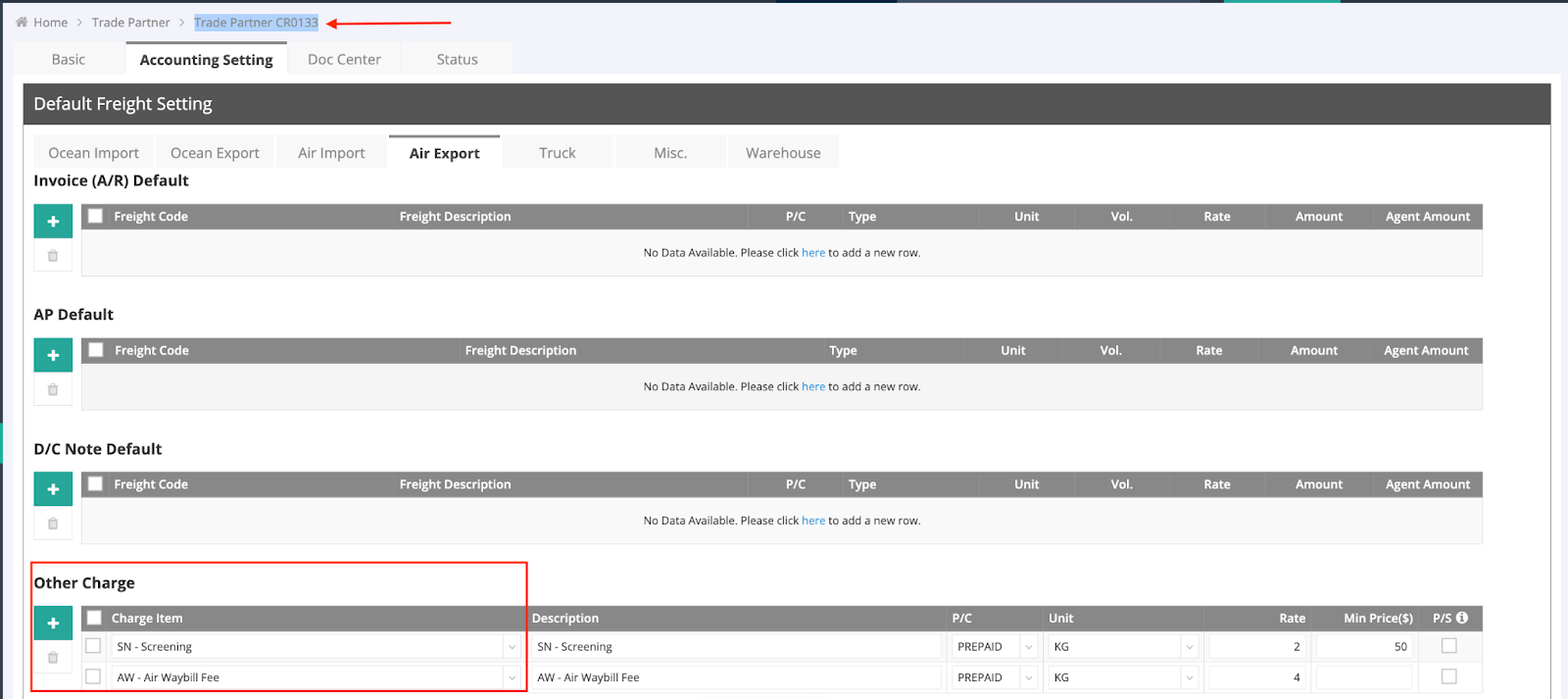
*Note: If you check the “P/S” checkbox, the P/S option will automatically be selected when items are loaded into the D/C entry page. By checking the “P/S” checkbox, you can avoid manually selecting each charge item when doing profit share with your overseas agent every time. This is recommended if the freight code typically involves profit sharing with overseas agents.
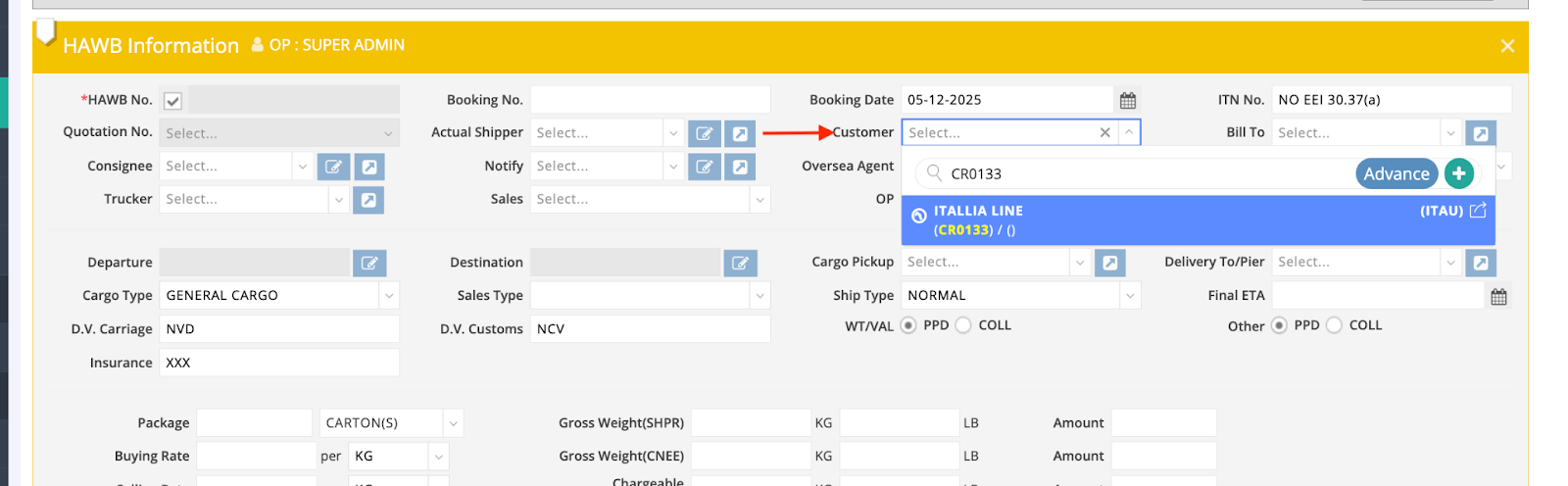
2. Go to HAWB and enter CR0133 into the Customer field.
3. On the HAWB Other Charges, select Default Freight > Customer.
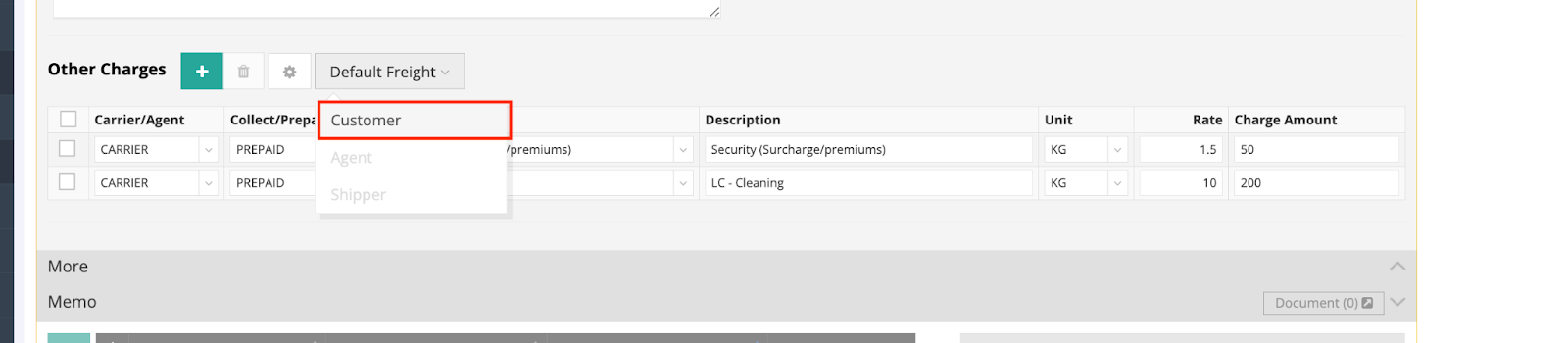
4. The default Charge Items, Rate, and Charge Amount will populate in HAWB’s Other Charges section automatically.

*Note: The above setup can also be applied to the Oversea Agent and Shipper fields.
Managing MAWB (Destination) Rev/Cost
When a single MAWB contains multiple HAWBs, and you want to consolidate charges for the same agent, you can use this workflow.
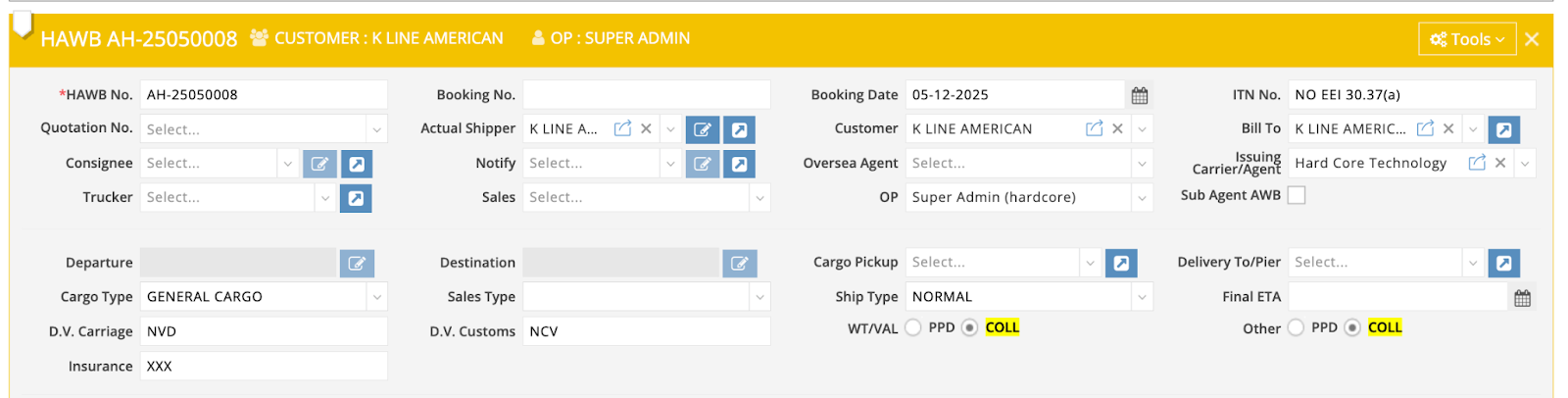
1. For HAWB, ensure to tick COLL on WT/VAL & Other.
2. There are two methods to enter Freight Codes:
Method A
- Press “Copy from Other Charges” to transfer freight code items listed from the HAWB Shipment page to the MAWB (Destination) Rev/Cost. If it’s the first time you select a code via “Copy from Other Charges”, a pop-up will prompt you to select a GF Freight Code to map the IATA Charge Code.
HAWB Example

Accounting Tab - MAWB (Destination) Rev/Cost
- Press “Copy from Other Charge”, notice that the Charge Item “AC - Animal Container” is brought here.
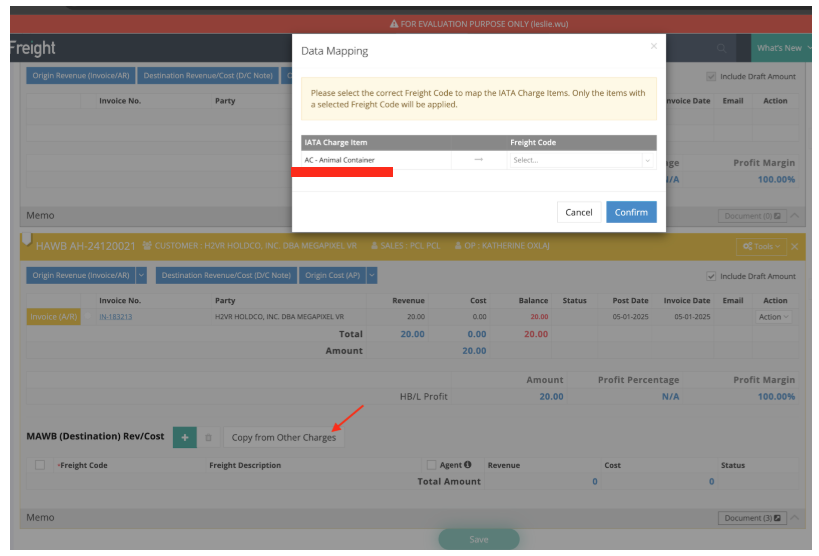
- The system warns you that this “AC - Animal Container” IATA Charge Item isn’t mapped with any GF Freight Code yet. It guides you to select one to map.
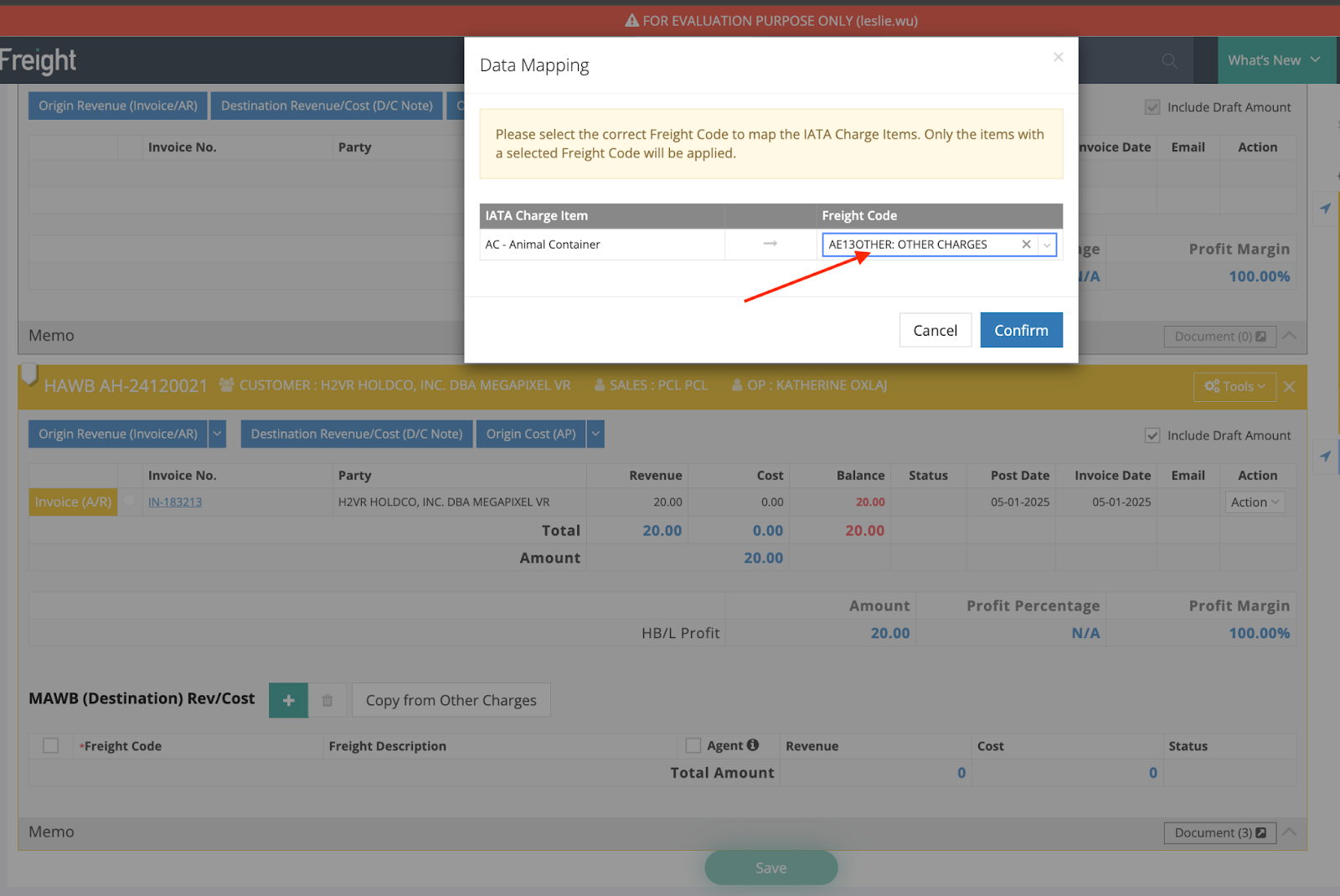
- Once the mapping is done, you will notice the corresponding GF Freight Code is displayed under the MAWB (Destination) Rev/Cost section afterward.

Method B
Navigate to “Accounting” > “MAWB (Destination Rev/Cost)” > Press “+”, then select freight codes.
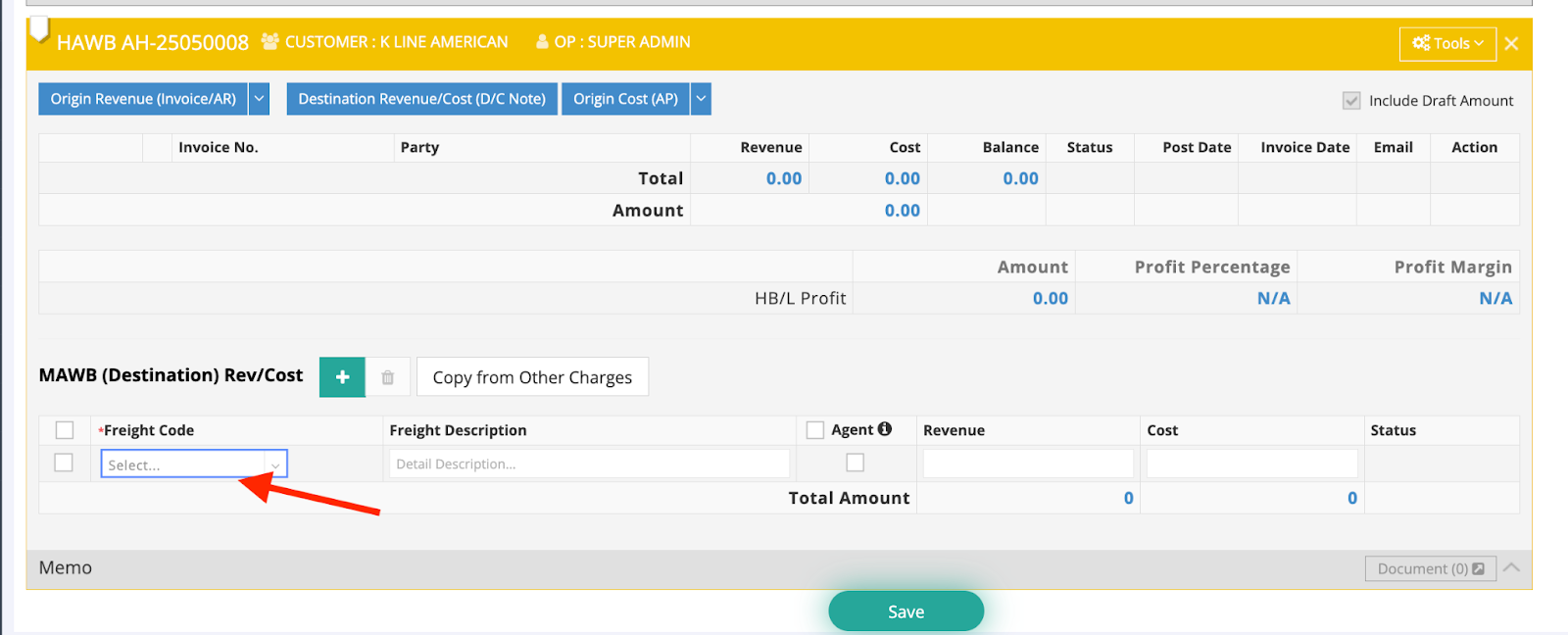
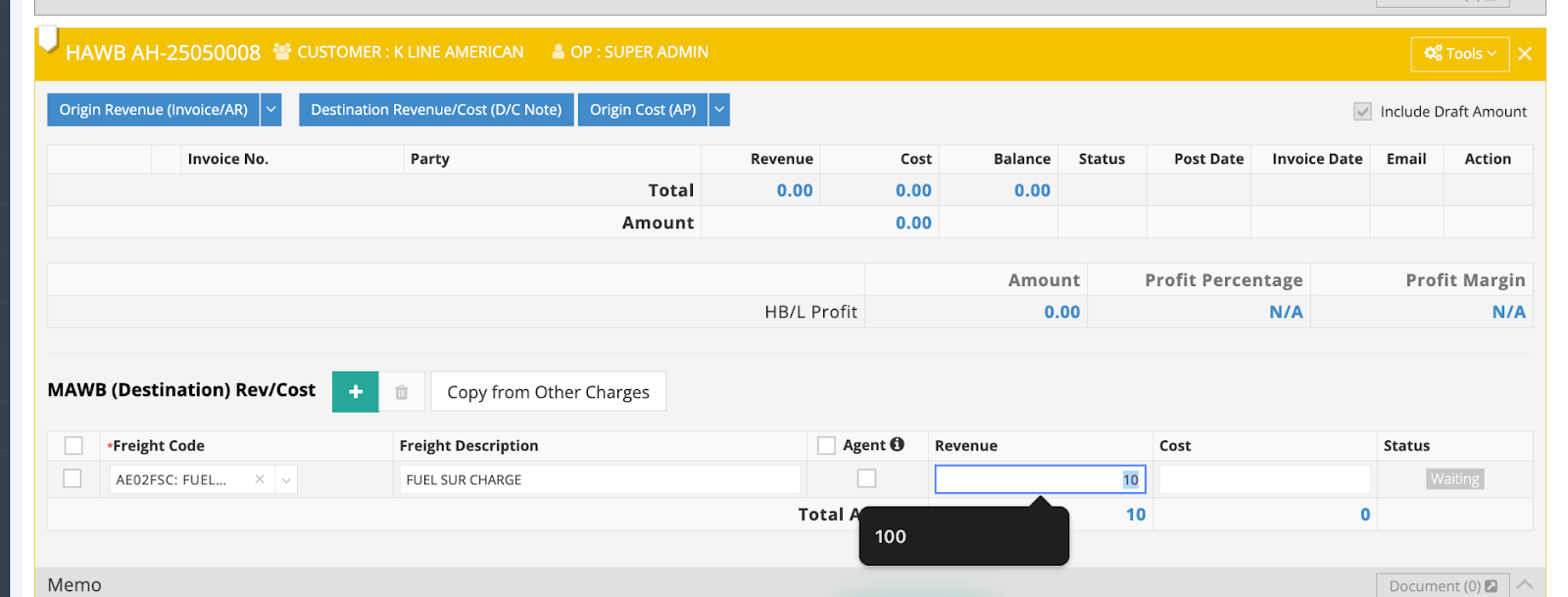
Create MAWB D/C Note via "Load and Link"
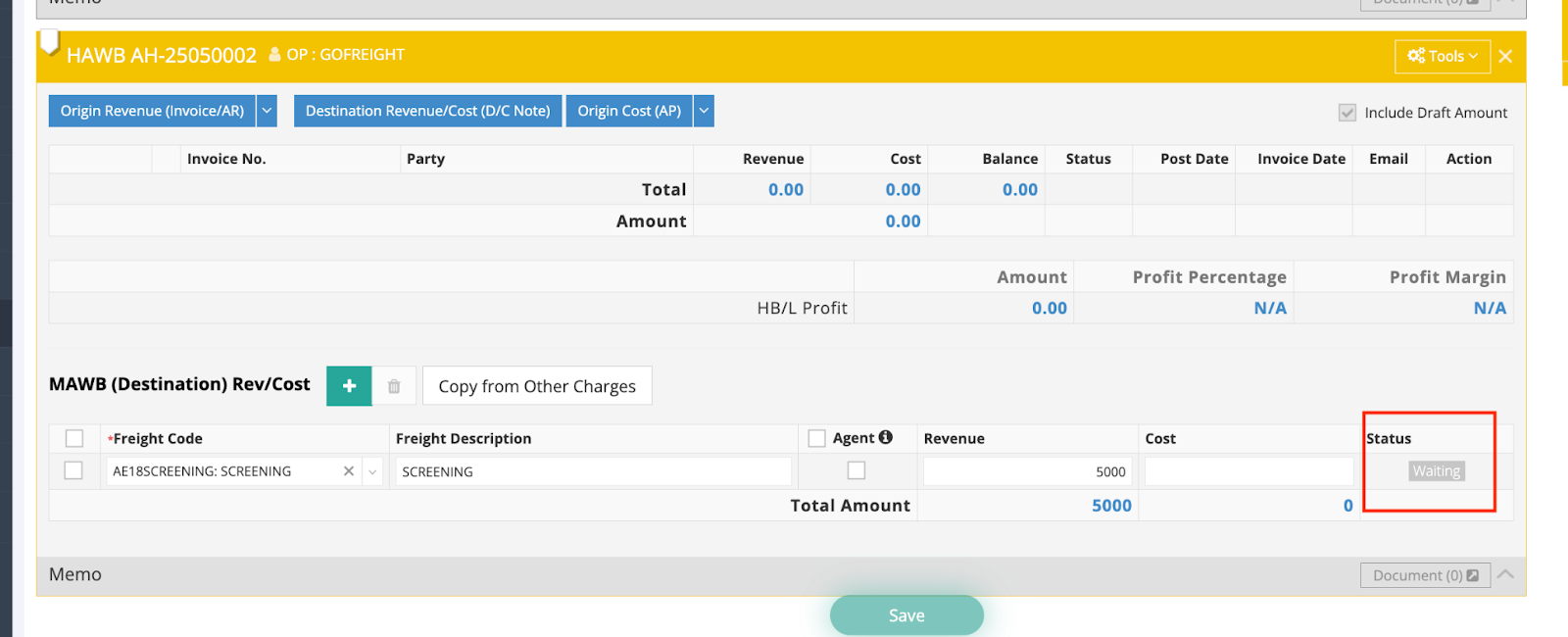
1. In the Accounting section, ensure that the MAWB Destination Rev/Cost includes a freight code entry. Note the status "Waiting."
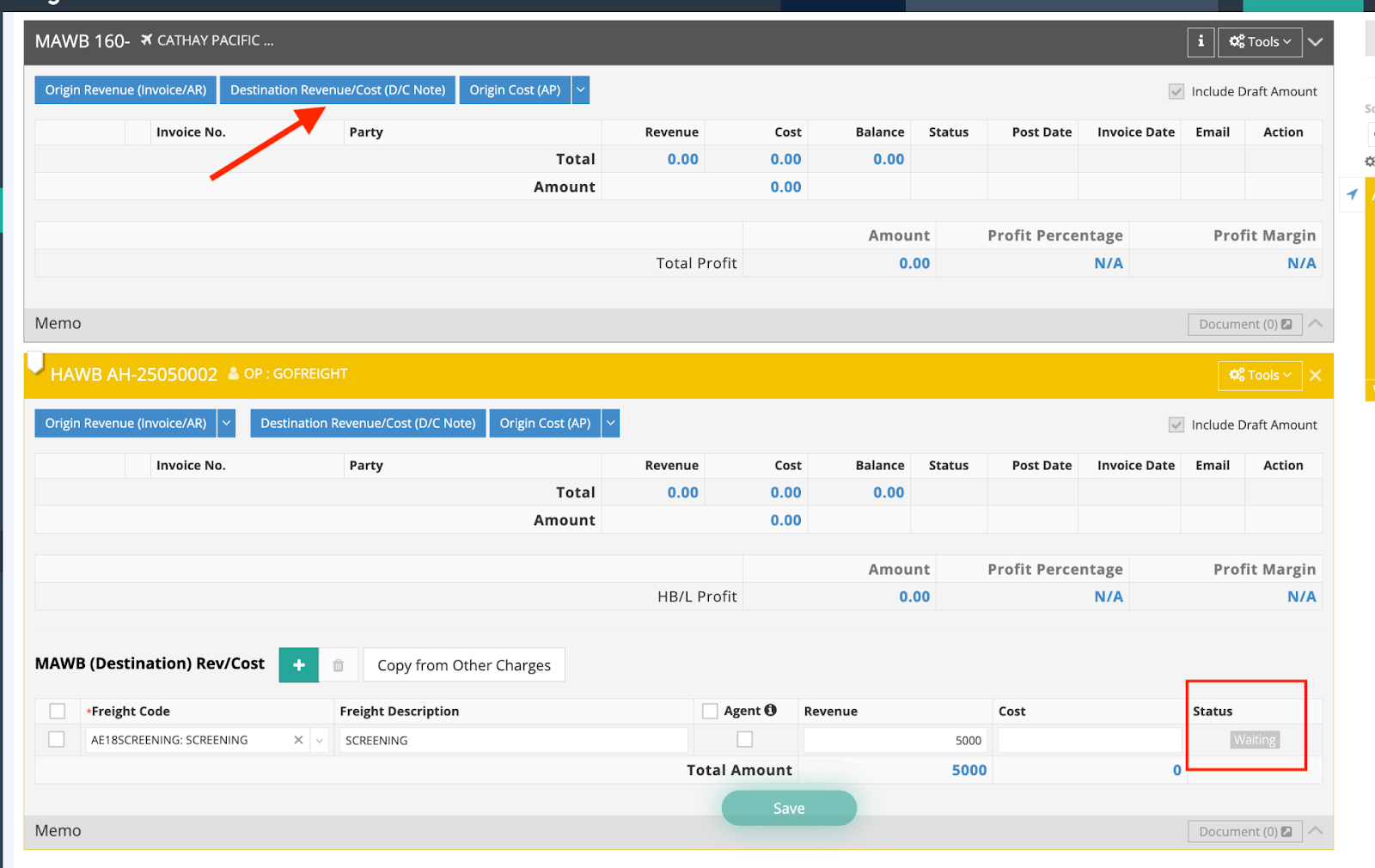
2. Click on Destination Revenue/Cost (D/C Note) on the MAWB.
3. On the Debit/Credit Note creation page, click Load and Link.
*Note: If there are multiple agents associated with the same MAWB, you can check the “Filter by Agent” option to group charges by agent. This is recommended in consolidated shipments

4. The charge item will be automatically linked to this Debit/Credit Note creation page.
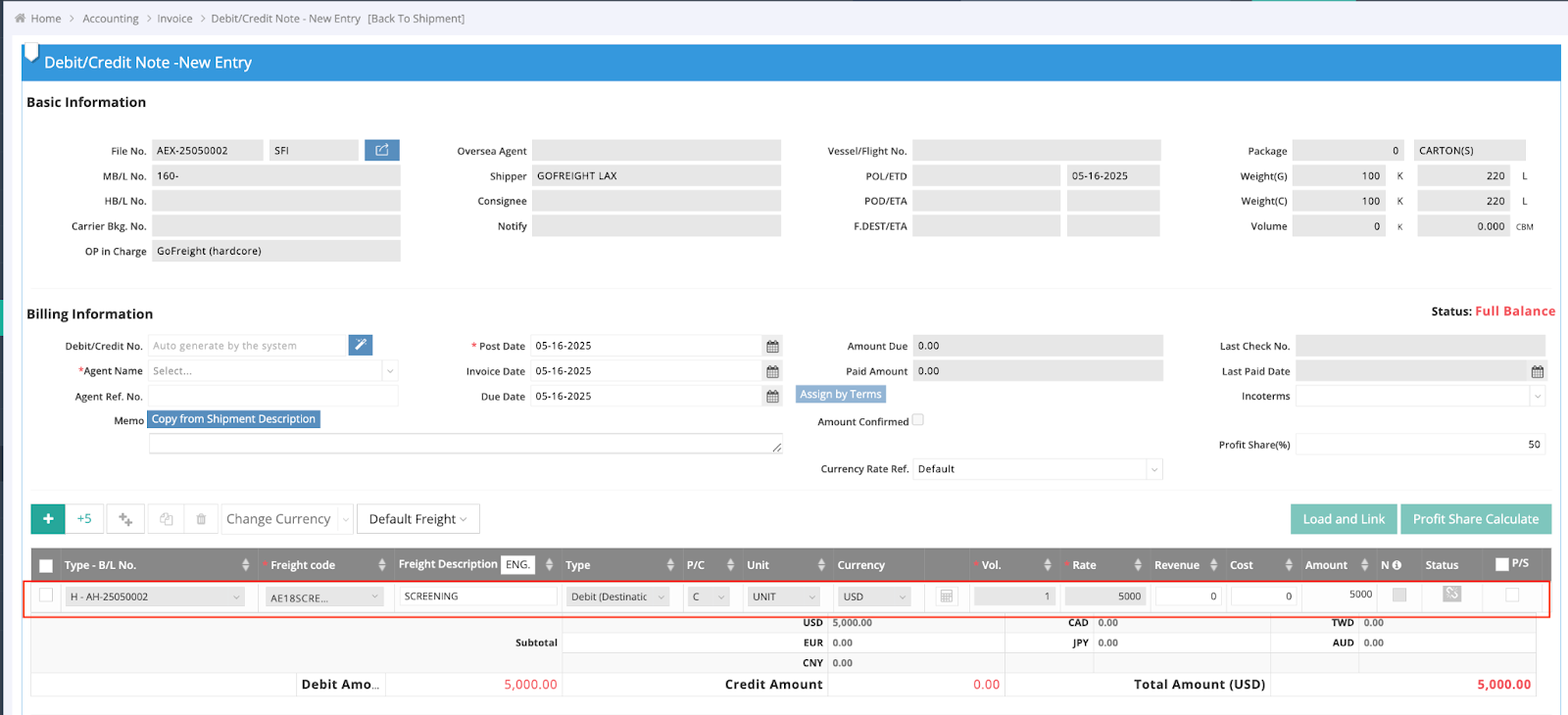
- The Load and Link feature works for all HAWBs under an MAWB. For example, if there are 5 HAWBs with a total of 20 charge items listed under the MAWB Destination Rev/Cost section, all 20 codes will be linked to the MAWB’s Debit/Credit Note by pressing Load and Link.
- To limit the Load & Link action to a specific overseas agent, enter the Overseas Agent Trade Partner name. The system will display a hint showing how many AP and AR invoices are currently linked to that trade partner.
- By ticking “Filter by Agent,” only the invoices associated with the selected overseas agent will be linked—rather than pulling in all invoices. This is especially useful in consolidated shipments involving multiple overseas agents, where you're issuing a Debit/Credit Note to just one specific agent.

Create MAWB D/C Note via Load and Link (“Agent” Checkbox Behavior)
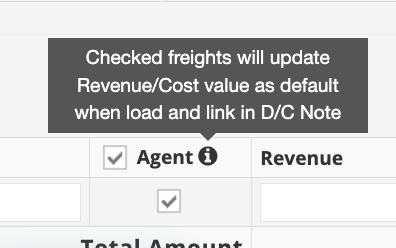
A checkbox labeled Agent on the MAWB (Destination) Rev/Cost allows the Rev/Cost value to be set as default when using the Load and Link function in the D/C Note.
Follow these steps:
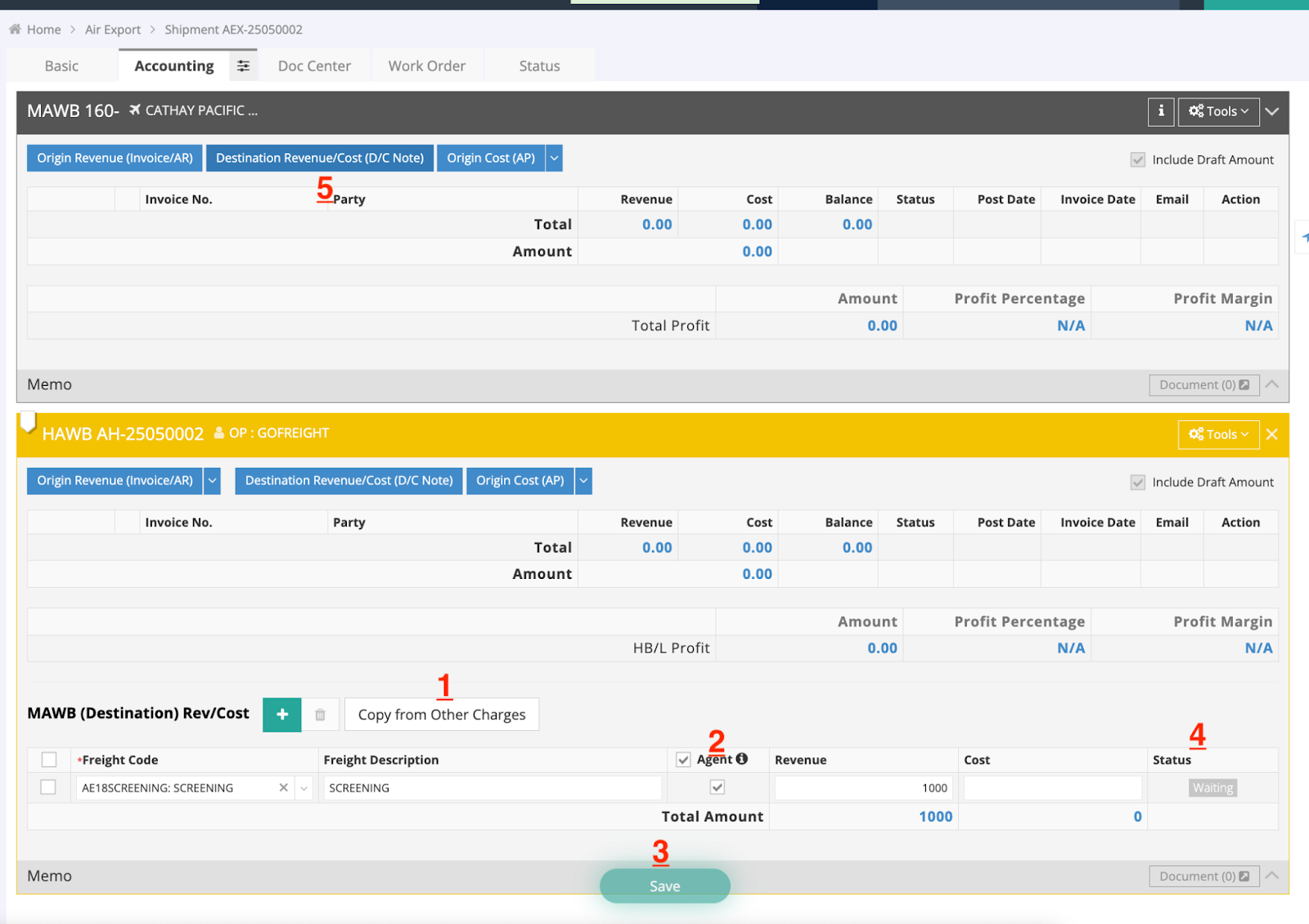
1. On the MAWB (Destination) Rev/Cost, click Copy from Other Charges.
2. Check the Agent box.
3. Save the changes.
4. Observe that the status changes to Waiting.
5. Click on Destination Rev/Cost (D/C Note).
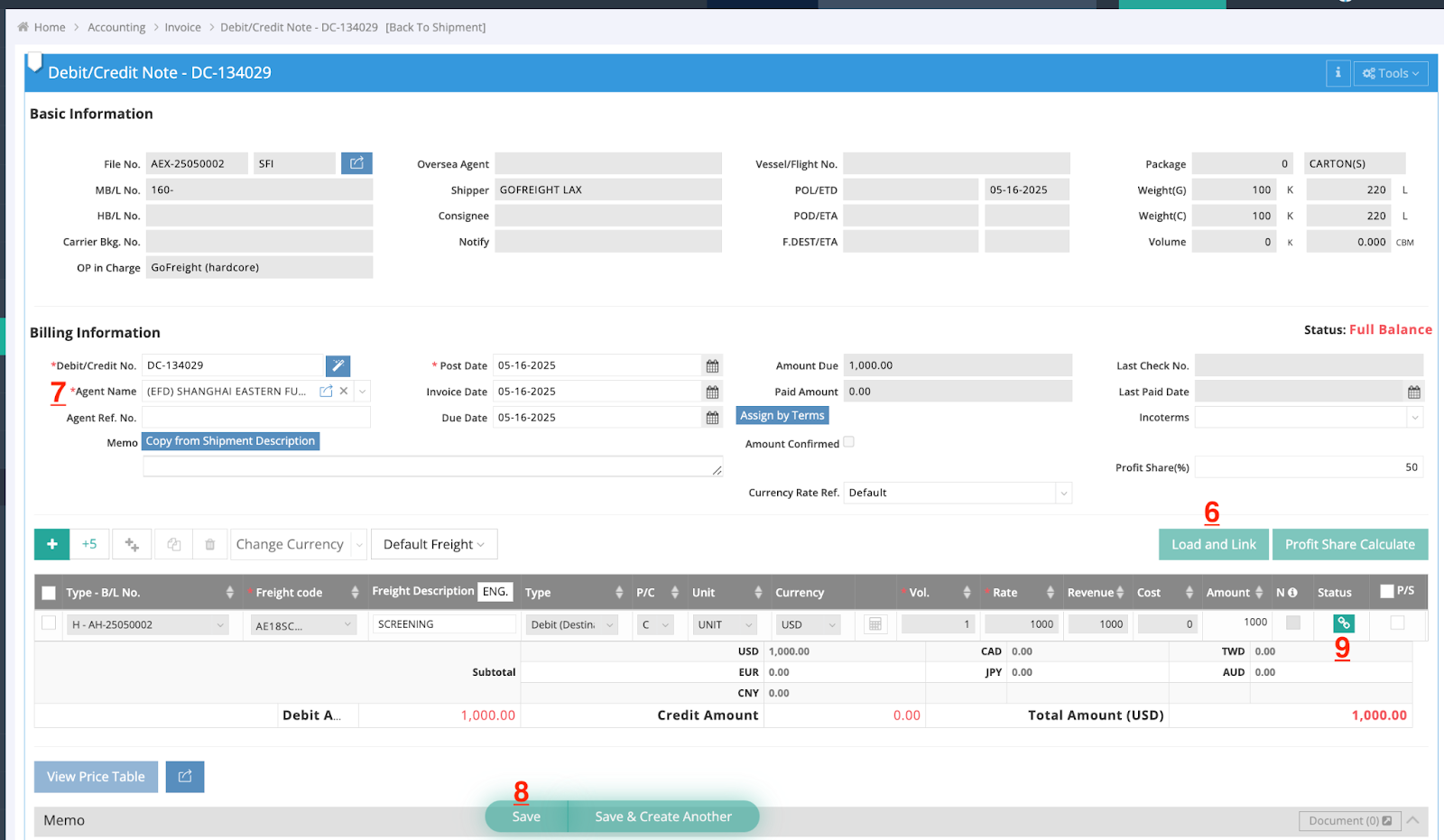
6. Click Load and Link; the value from MAWB (Destination) Rev/Cost will automatically transfer here.
7. Select the Agent Name.
8. Save the changes.
9. The status will change to Linked.
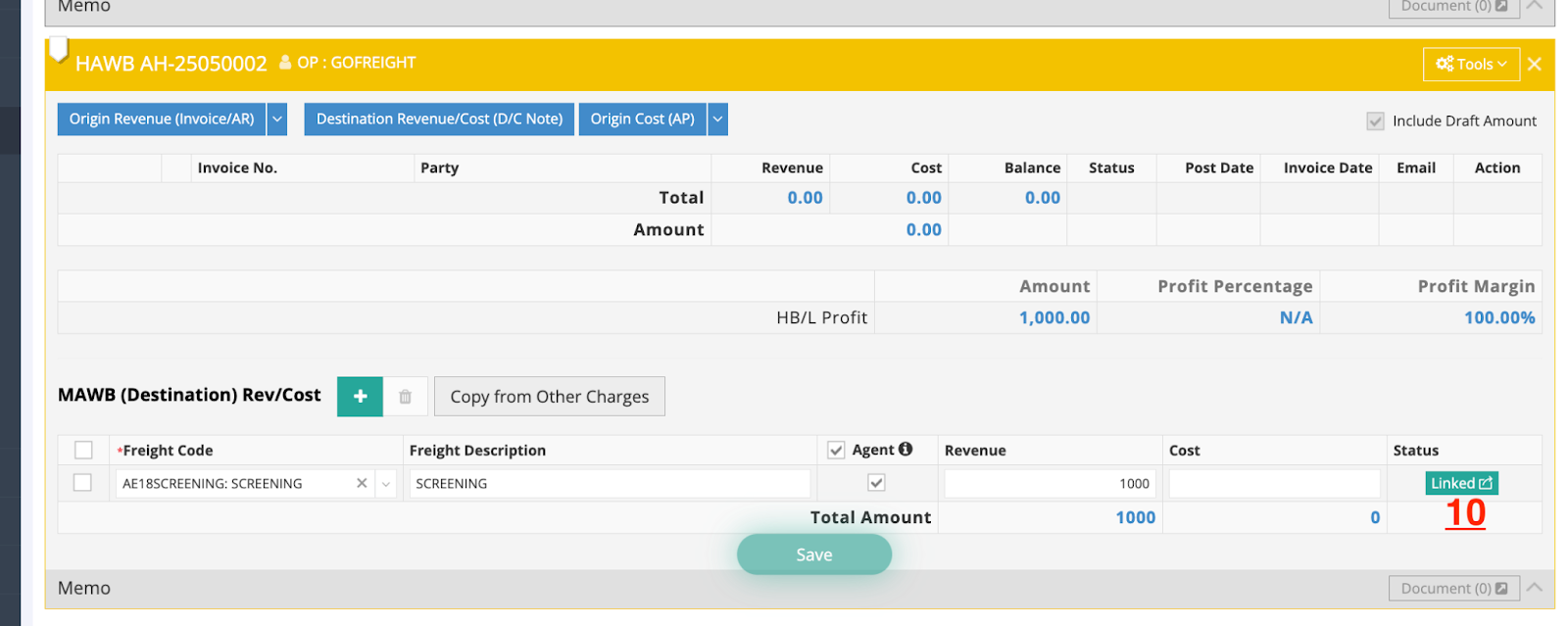
10. On the MAWB (Destination) Rev/Cost, the status will change from Waiting to Linked. This indicates that any updates to the Revenue or Cost will automatically reflect in the MAWB’s Debit/Credit Note.
Checking the Agent box also allows the system to automatically calculate the Profit Share if the freight codes’ profit share is fixed.
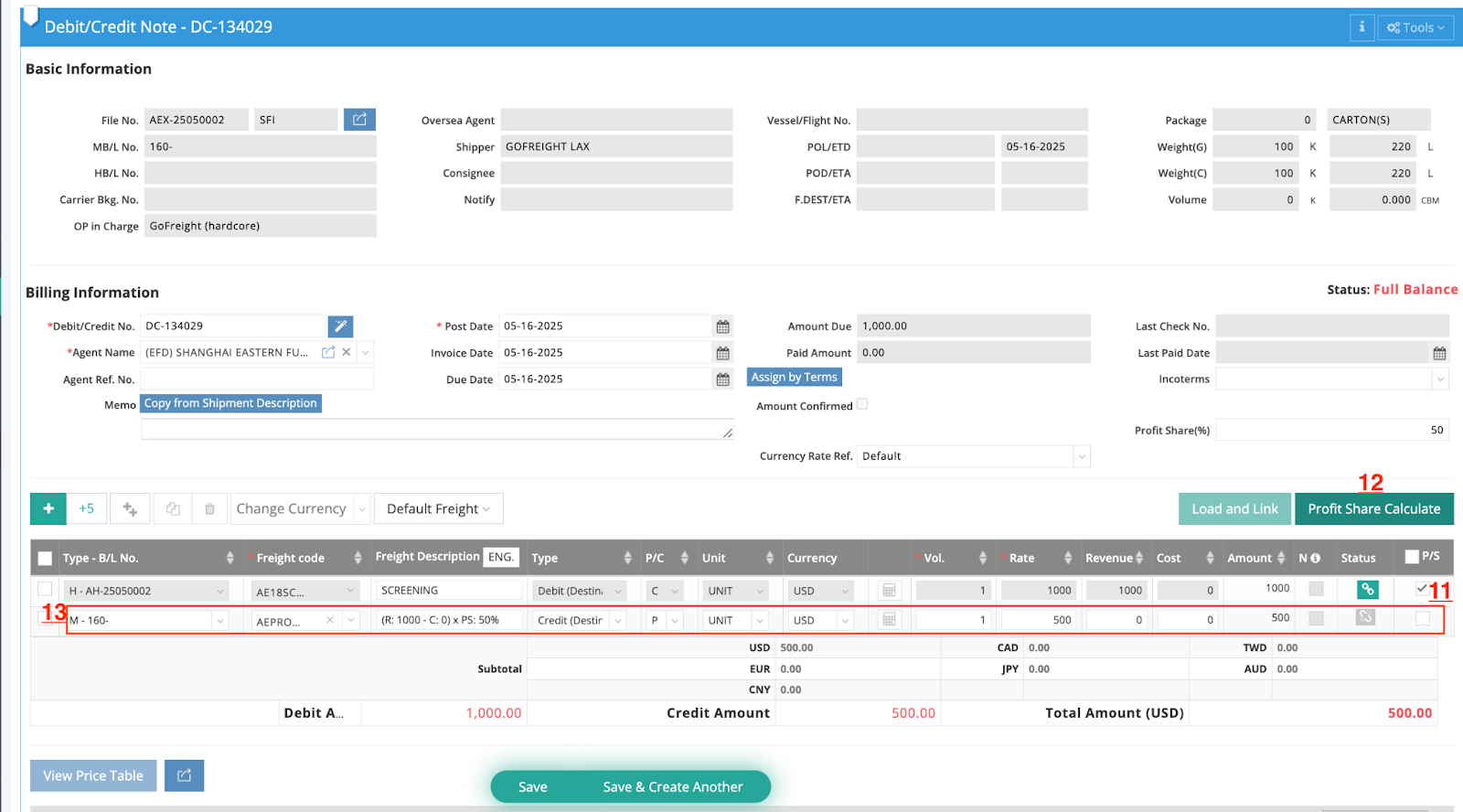
11. Check P/S.
12. Click Profit Share Calculation.
13. A profit share entry will be generated and calculated based on your AE Profit Share percentage (default is 50%).