
Attention: This is a paid feature. If you do not have access currently, please contact your account manager or us at support@gofreight.com for details on how to purchase it individually.
1. System Design
GoFreight has developed a QuickBooks Online (QBO) Adapter for seamless data exchange of invoices and payments between GoFreight and QuickBooks Online (QBO). Follow the steps below for the initial setup.

2. First-Time Login
- Using your GoFreight account, log in to the QBO Adapter.
- Navigate to Connect > Connect to QuickBooks, and complete the connection between the QBO Adapter and QuickBooks Online.

2.1 Trade Partner Mapping
[Setting] > [Trade Partner Mapping]
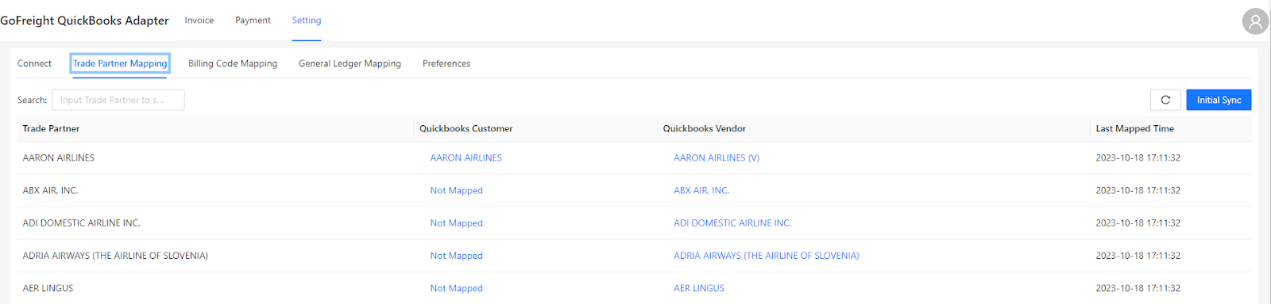
After clicking "Initial Sync", the QBO Adapter will automatically match GoFreight's trade partners with QuickBooks Online customers and vendors of the same name. Once a trade partner is mapped, future clicks on "Initial Sync" will not trigger the mapping process again, even if no matching customer or vendor was found during the first sync.

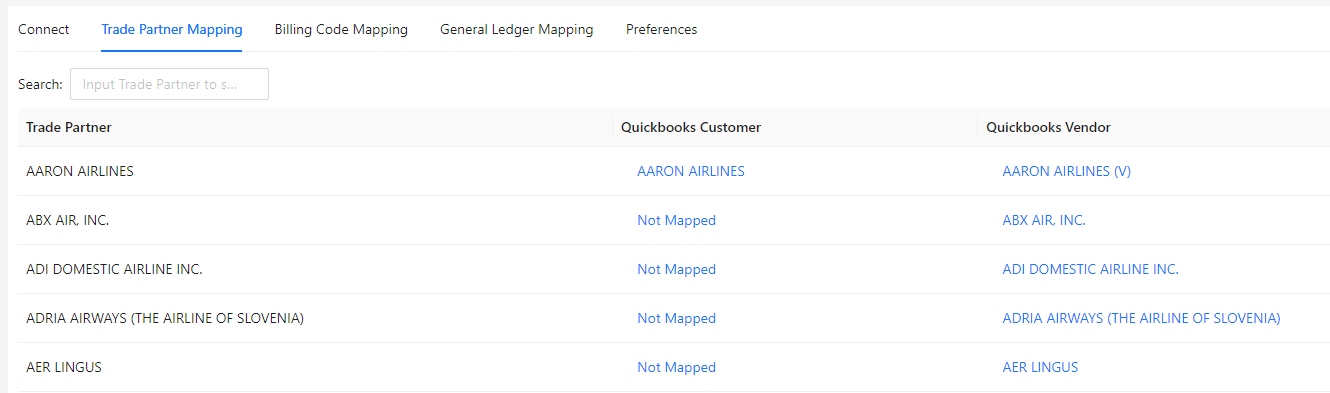
The "Trade Partner Mapping" column displays the trade partner list synced from GoFreight. You can view the corresponding relationships with QuickBooks Customers and Vendors. Click the “QuickBooks Customer” or “QuickBooks Vendor” fields to add or modify the mappings.
2.2 Billing Code Mapping
[Setting] > [Billing Code Mapping]
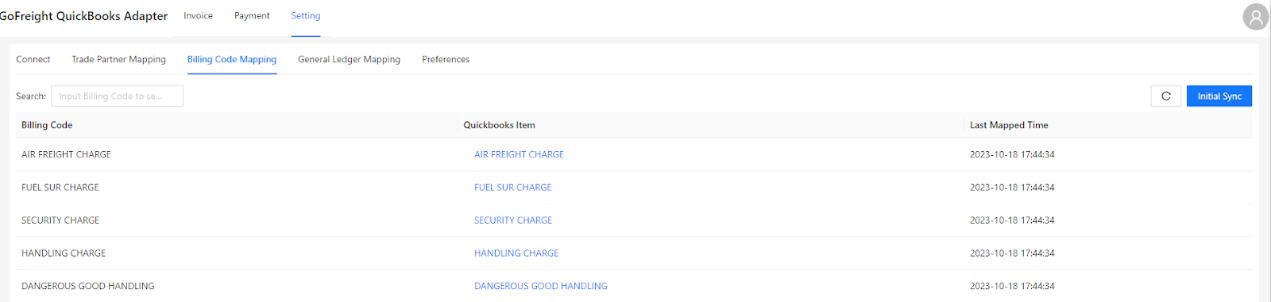
After clicking "Initial Sync", the QBO Adapter will automatically match GoFreight's billing codes with QuickBooks Online item codes of the same name. Once a billing code is mapped, future clicks on "Initial Sync" will not trigger the mapping process again, even if no matching item was found during the initial sync.

The "Billing Code" column displays the billing codes synced from GoFreight. You can view the corresponding items in QuickBooks under the "QuickBooks Item" section. Click the field to add or modify the mapping for item codes.

2.3 General Ledger Mapping
[Setting] > [General Ledger Mapping]

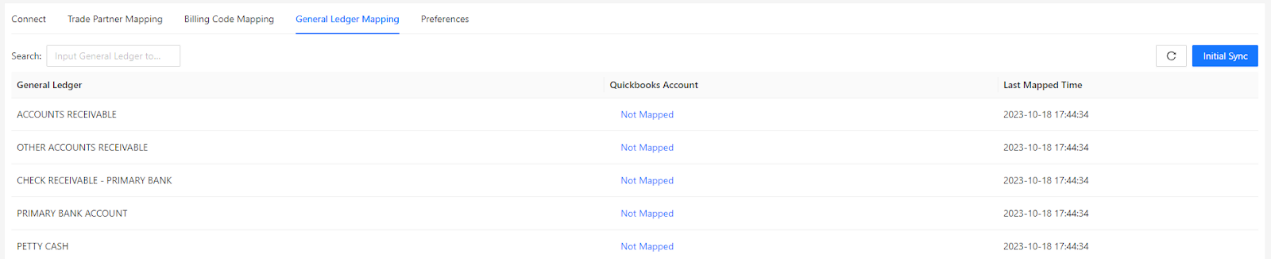
After clicking "Initial Sync", the QBO Adapter will automatically match GoFreight's general ledger codes with QuickBooks Online account codes that share the same codes.

The "General Ledger" column displays the general ledger codes synced from GoFreight. You can find the corresponding codes in the "QuickBooks Account" column. Click the field to add or modify the mapping for account codes.
2.4 Bank and Bank/Current Asset Account Code Mapping
Follow the steps below to map banks between GoFreight and QuickBooks:
1. In the GoFreight Bank List, identify the GL Code of the bank you want to map to QuickBooks.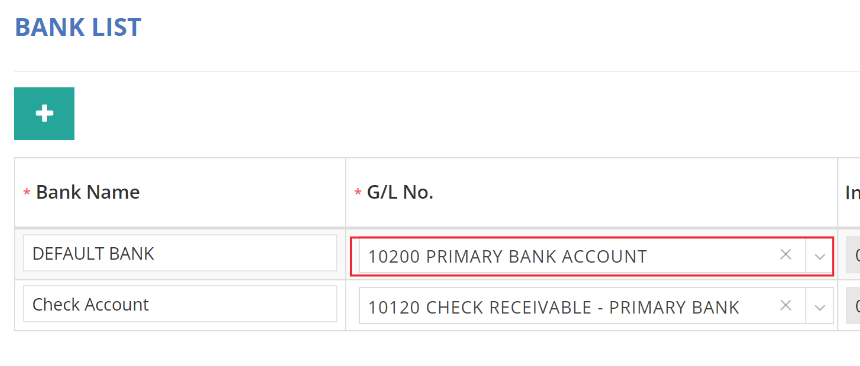 2. In QuickBooks, identify the corresponding chart of accounts.
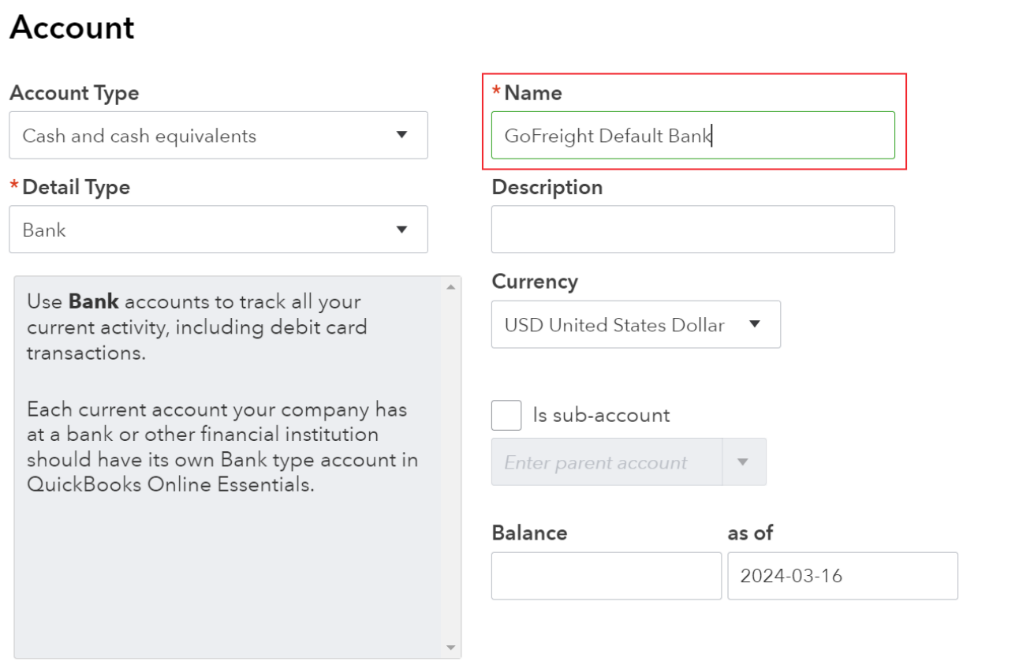 3. In the QBO Adapter, go to Settings > General Ledger Mapping:
-
- Search and locate the G/L No. of the bank in GoFreight.
- Search the Chart of Accounts for the bank in QuickBooks Online.
- Select and the adapter will automatically map them.
 4. Upon completing these settings, the mapping will take effect, ensuring future payments and receipts in GoFreight's bank are correctly mapped to QuickBooks Online.
After mapping trade partners, billing codes, general ledger codes, and banks, you can start using the QBO Adapter.
2.5 General Workflow
The QBO Adapter uploads invoices from GoFreight to QuickBooks. To avoid duplicate entries, create invoices in GoFreight first and upload them to QuickBooks using the "Block" function.
For detailed instructions on uploading invoices, please refer to section 3 “Invoice Synchronization”.
For payments and receipts, GoFreight offers two options: upload payments and receipts from GoFreight to QuickBooks, or transfer payments and receipts from QuickBooks back to GoFreight. Please note that you can choose only one transfer direction, and it cannot be changed arbitrarily after being set up by GoFreight's customer service.
For detailed instructions on downloading payments from QuickBooks to GoFreight, refer to section 4 “Payment Synchronization”.
For detailed instructions on uploading payments to QuickBooks from GoFreight, refer to section 4 “Payment Synchronization”.
3. Invoice Synchronization
3.1 Synchronization of Invoices

When an invoice is blocked on GoFreight, it is transmitted to the QBO Adapter.
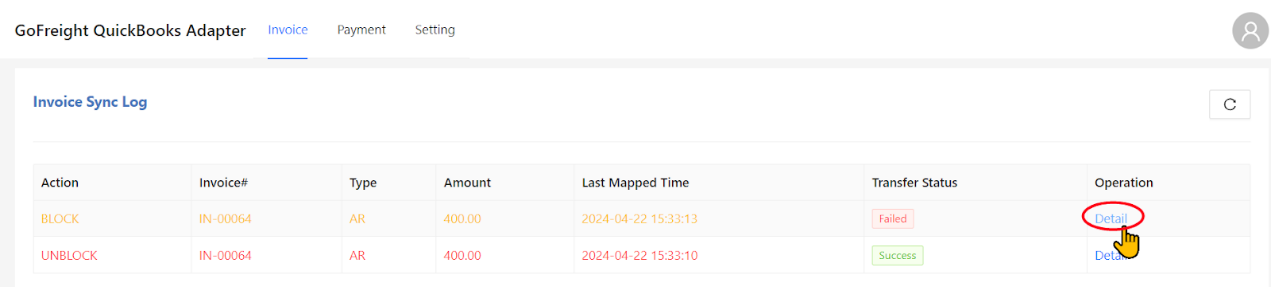
In the QBO Adapter, under the "Invoice" section, you can find the sync log for the respective invoice. The "Transfer Status" indicates the synchronization status with QuickBooks Online:
- If the action is “Block” and the Transfer Status shows “Success,” the invoice has been successfully uploaded to QuickBooks Online.
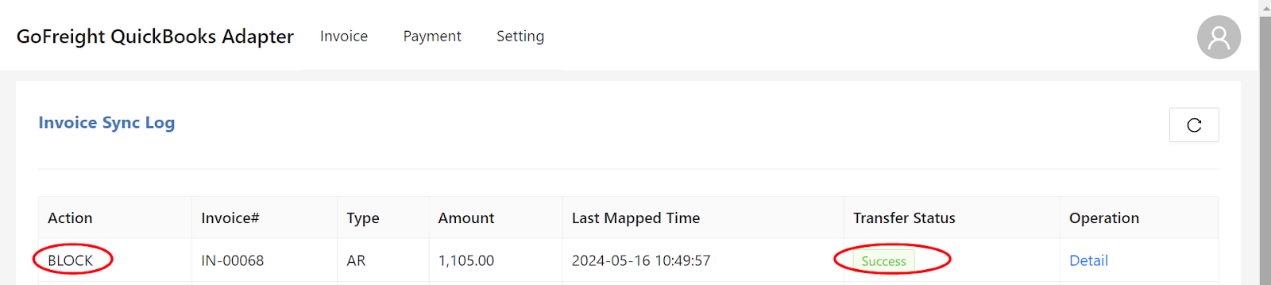
Click “Detail” to view the details.
- If the action is “Block” and the Transfer Status shows “Failed,” click “Detail” to view more information.

- If it shows "Failed," click “Detail” to find the failure reasons and perform troubleshooting. For example, if the failure reason indicates that it is due to an un-mapped Trade Partner/Billing/GL Code, check the mapping status and redo the mapping between GoFreight and QuickBooks Online.
- If it shows "Ignored," the payment may not have any invoices uploaded from GoFreight previously.

3.1.1 Error Handling
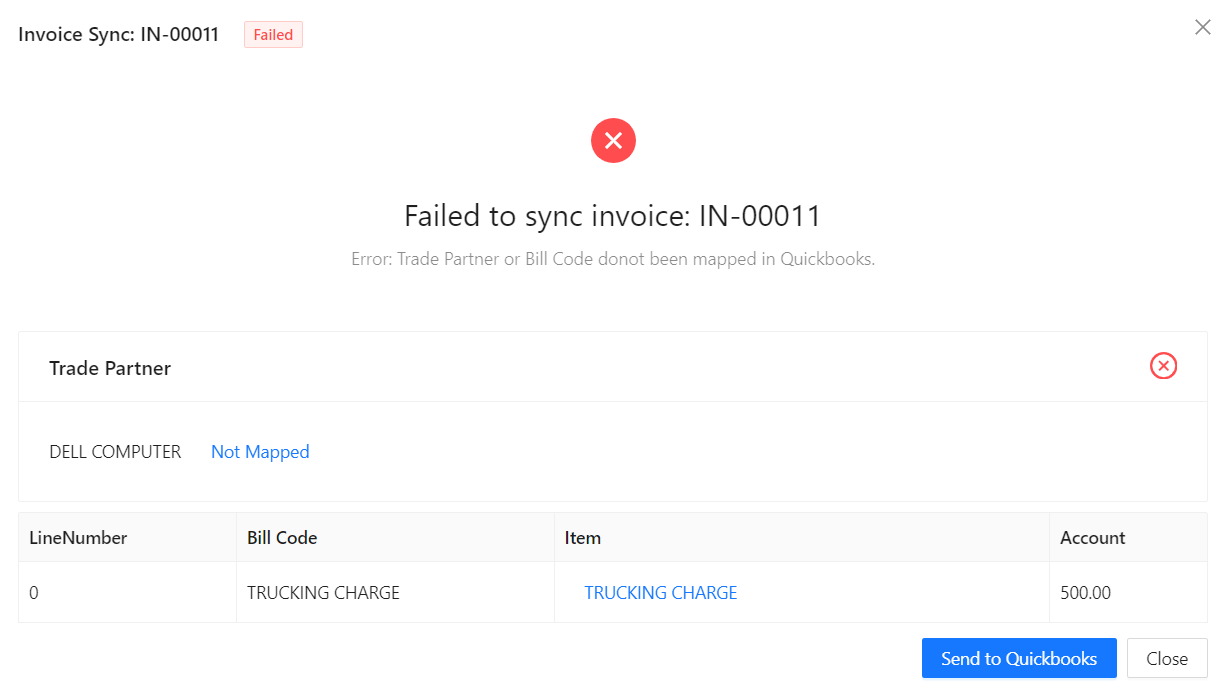
Clicking the "Detail" button in the "Operation" column opens the debug interface for that invoice, displaying the reasons for synchronization failure, which typically include:
- Incorrect Trade Partner Mapping: The trade partner needs to be correctly mapped.
- Click the "Trade Partner" field to select the correct customer or vendor from QuickBooks Online for mapping.
- Incorrect Billing Code Mapping: The billing code needs to be correctly mapped.
- Click the "Item" field to select the correct item code from QuickBooks Online for mapping.
- Incorrect General Ledger Code Mapping: The general ledger code needs to be correctly mapped.
- Click the "Account" field to select the correct account code from QuickBooks Online for mapping.
After selecting the correct corresponding object, click "Send to QuickBooks" in the bottom right corner, and the invoice will be transmitted to QuickBooks Online.
3.2 Modifying Invoices
To modify an invoice that has already been uploaded, you must first unblock the invoice on GoFreight.
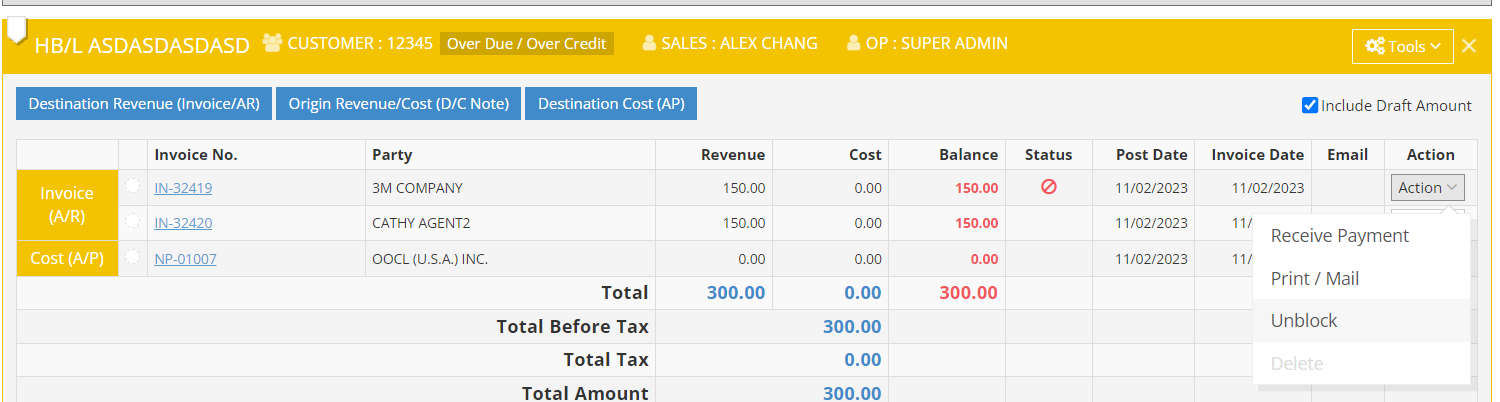
The QBO Adapter will record the Unblock action but will not modify the invoice in QuickBooks.
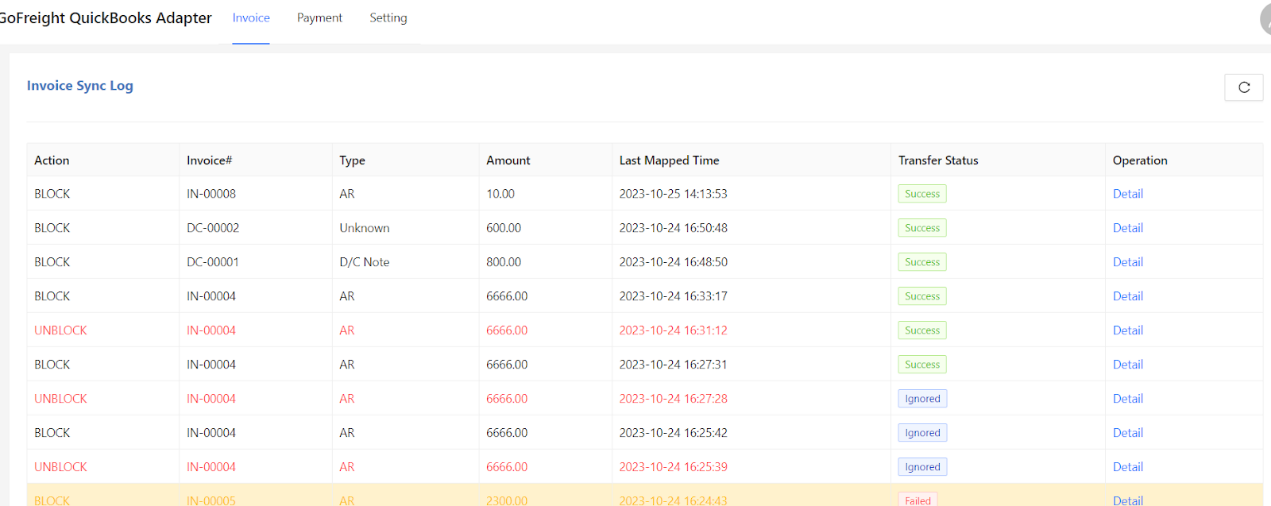
After the invoice has been unblocked, users can proceed with the necessary modifications. Once modifications are complete, the invoice should be blocked again to initiate the process of updating the originally uploaded invoice.
4. Payment Synchronization
Scenario 1: Downloading Payments from QuickBooks Online
1) Synchronizing Payments
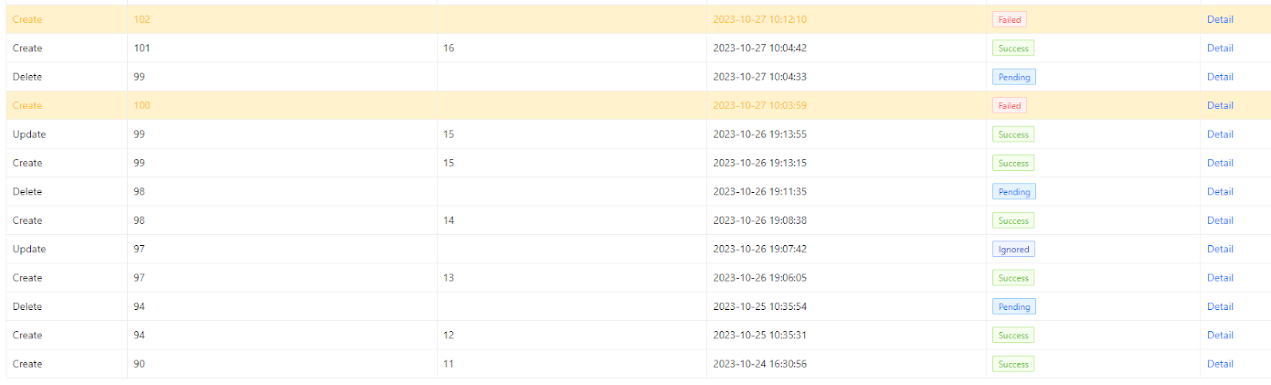
In QuickBooks, when creating a payment, select the invoice to be paid or received and the account for the transaction. After clicking "Save," the payment data is sent to the QBO Adapter. Under the "Payments" section of the QBO Adapter, you can view a log of all payments. When the transfer status shows "Success," the payment has been successfully synchronized back to GoFreight.
If the status displays "Pending," please contact the GoFreight support agent for further investigation.
2) Modifying Existing Payments
If modifications are made to payments in QuickBooks Online, the QBO Adapter will update GoFreight with the latest information.
Scenario 2: Uploading Payments from GoFreight to QuickBooks
1) Uploading GoFreight Payments by “Block”
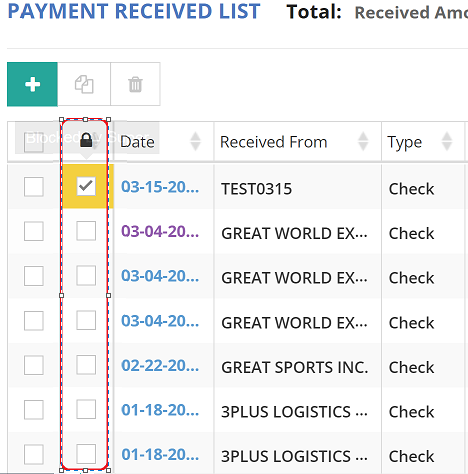
In the Payment entry page, go to Tools, and click "Block" to lock payments. This action will trigger the upload of payments to QuickBooks.

You can also block payments in the Payment Receive list and Payment Made List by clicking the checkbox in the "Block" column.
2) Payment Logs
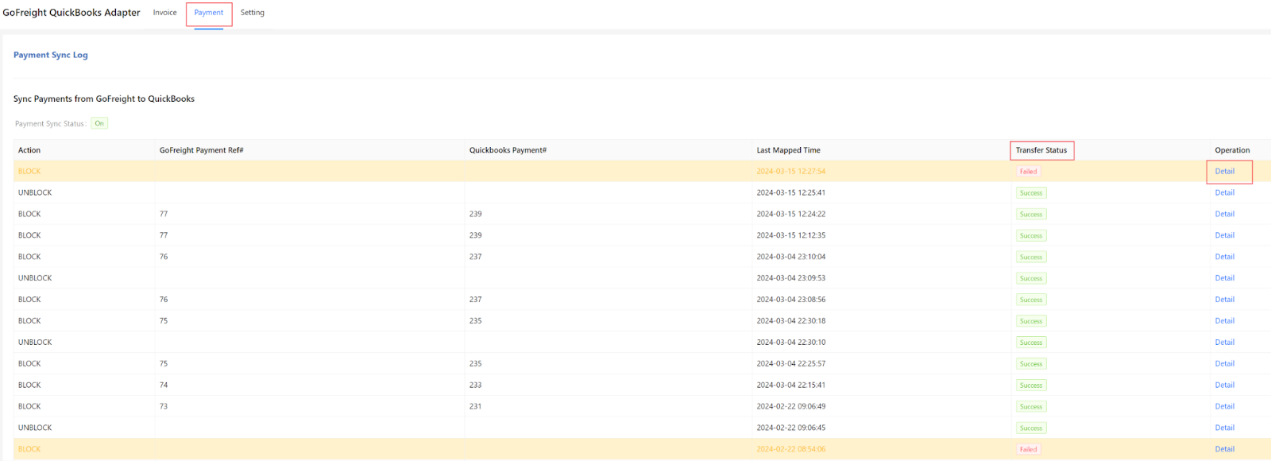
You can view the upload history on the QBO Adapter’s Payment sync log page.

Column Description:
- Action: Displays Block/Unblock
- GoFreight Payment Ref#: GoFreight Payments Reference Number
- QuickBooks Payments#: QuickBooks Payments Reference Number
- Transfer Status: Indicates upload success or failure.
- Operation: Click Detail to show transaction details. If there is an error uploading data, click Detail to understand the reason for the failure.
3) Error Handling
Several reasons can cause errors when uploading payments:
- The payment trade partner does not have the correct mapping (refer to Section on Trade Partner Mapping for correction).
- The corresponding invoice for the payee does not exist in QuickBooks.
- QuickBooks does not support GoFreight’s payments containing simple invoices.
In case of payment upload failure, please click the "Detail" button and refer to the upload failure notification to correct the data.

