
We’re excited to introduce an enhancement to the Copy Charges feature. This improvement streamlines your billing process by automatically copying freight charges, reducing manual input, and saving time.
1. Overview
Original Functionality:
- Previously, users needed to manually input each freight charge.
Why We Enhanced It:
- Customers requested that general Freight Charges also be copied automatically, eliminating the need for manual entry.
New Functionality:
-
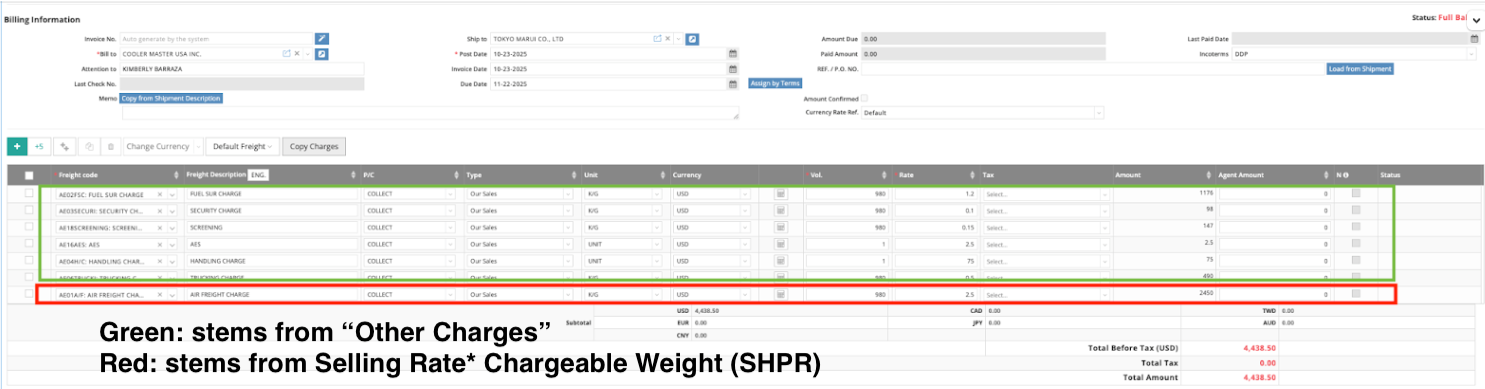
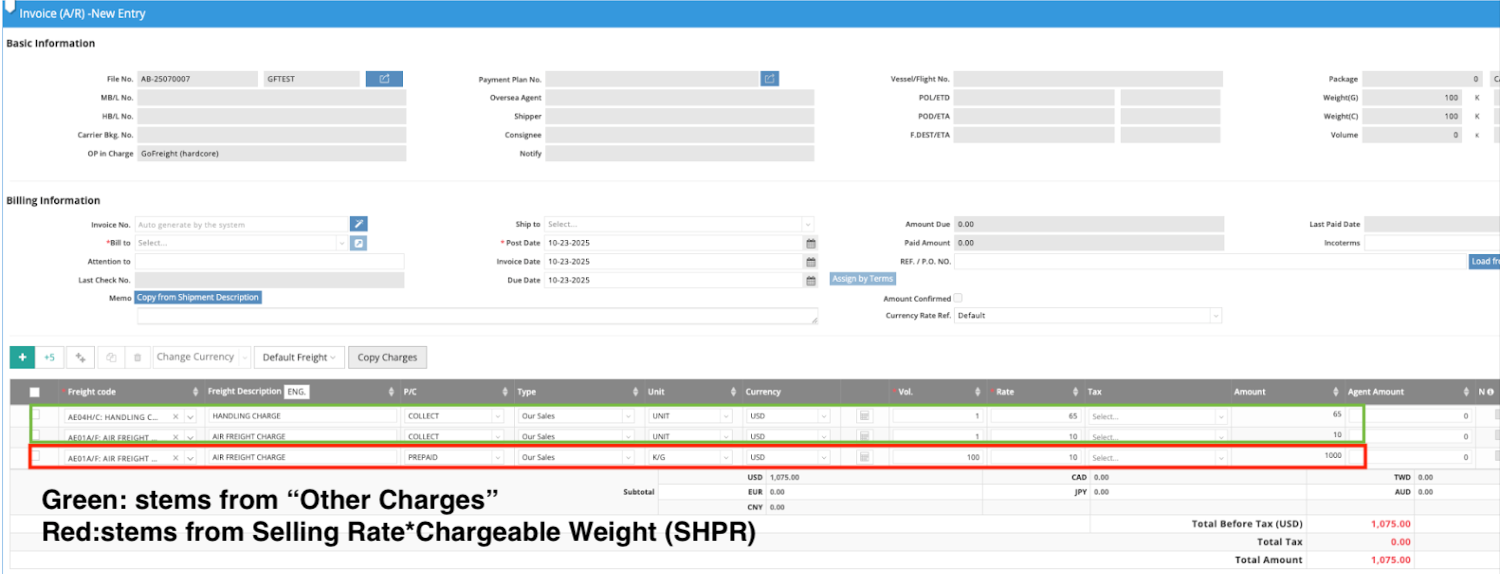
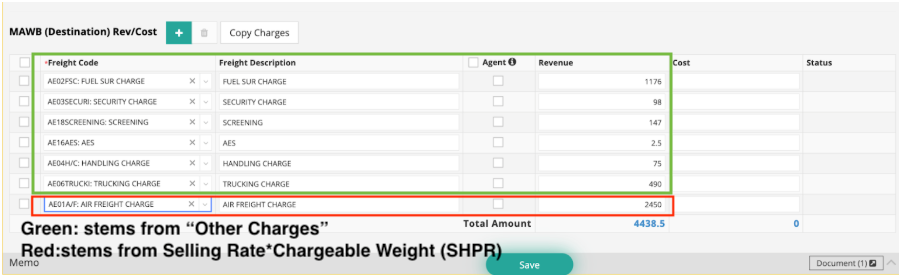
The system now copies both Other Charges and Air Freight Charges automatically.
2. How Freight Charges Are Calculated
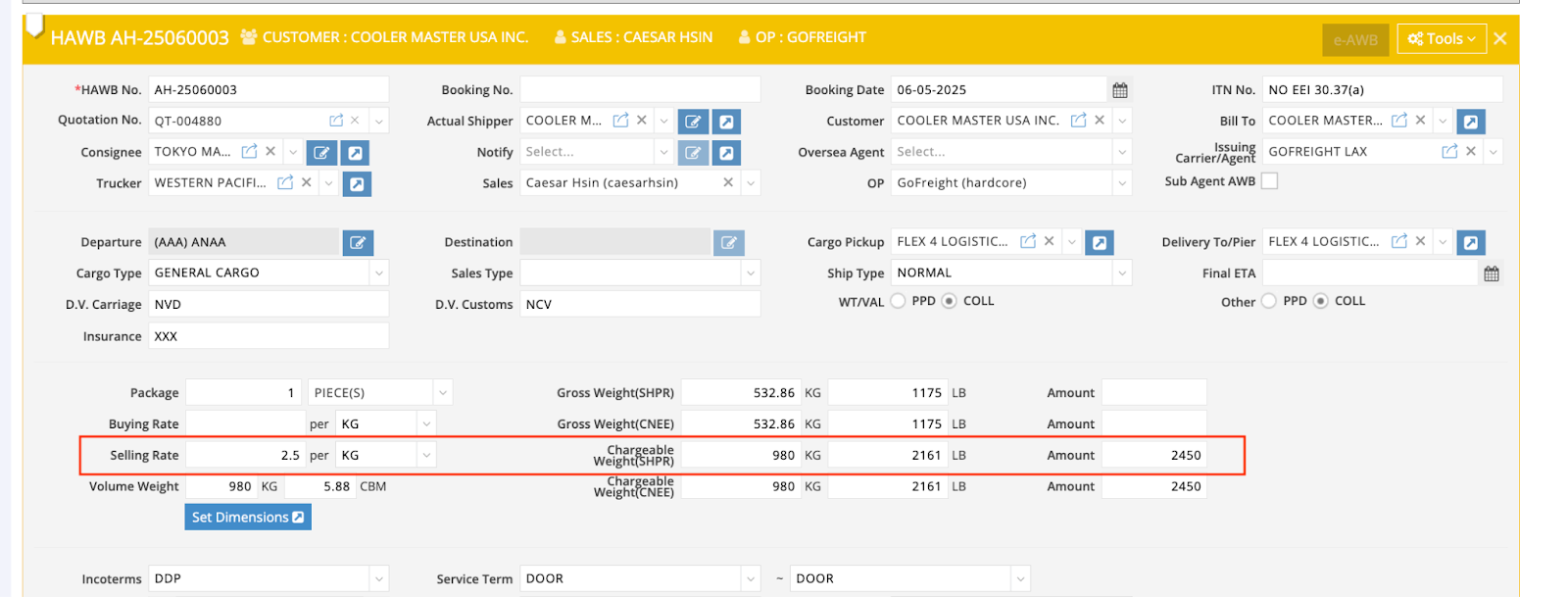
- The system reads the weight from the House Waybill (HWB).
- It multiplies the weight by the selling rate.
- The resulting amount becomes the Freight Charge, which is copied along with other billing items.
3. Where “Copy Charges” Is Available
The Copy Charges button can be found in:
- Accounts Receivable (AR)
- Debit/Credit Notes (D/C)
- MAWB (Destination) Rev/Cost area under the A/R Accounting tab
4. Scenarios & Step-by-Step Instructions
*Scenario 1 – Create AR or D/C Note under HAWB
Step 1:
- Go to Air Export > New Shipment.
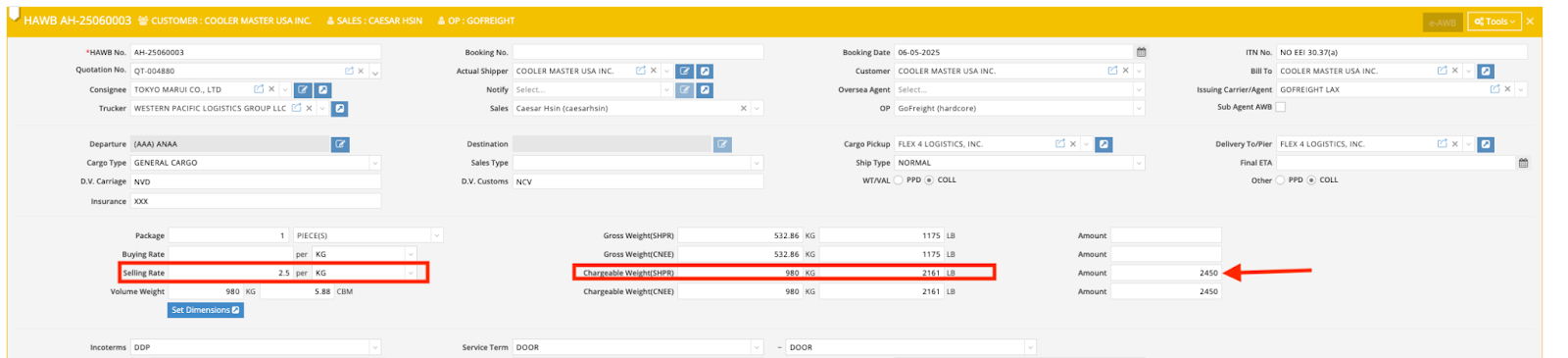
- Enter HAWB details: Selling Rate and Chargeable Weight (SHPR).
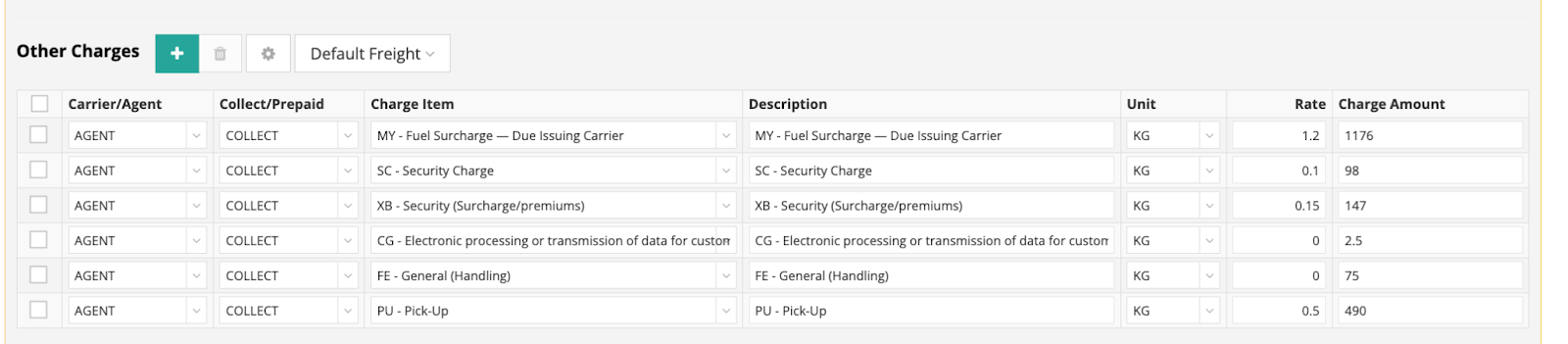
- Fill in the Other Charges section.

Step 2:
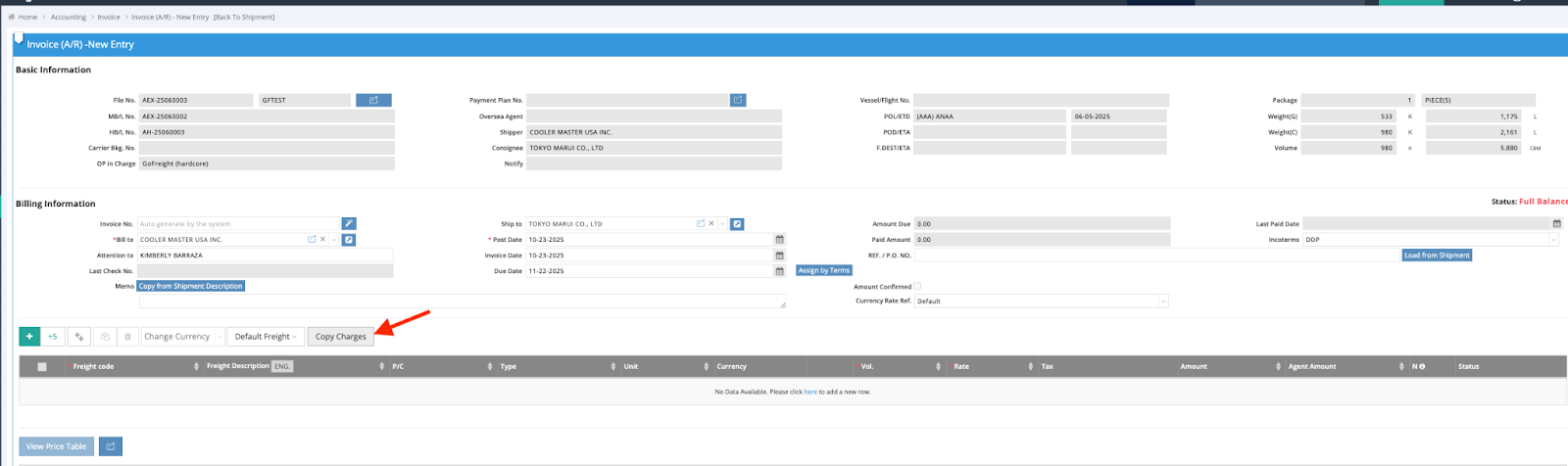
- Create a new AR or D/C Note under the HAWB.
- Click Copy Charges.
Result:
- All Other Charges and the Air Freight Charge are copied automatically.
*Scenario 2 – Create AR or D/C Note under AE Booking
Step 1:
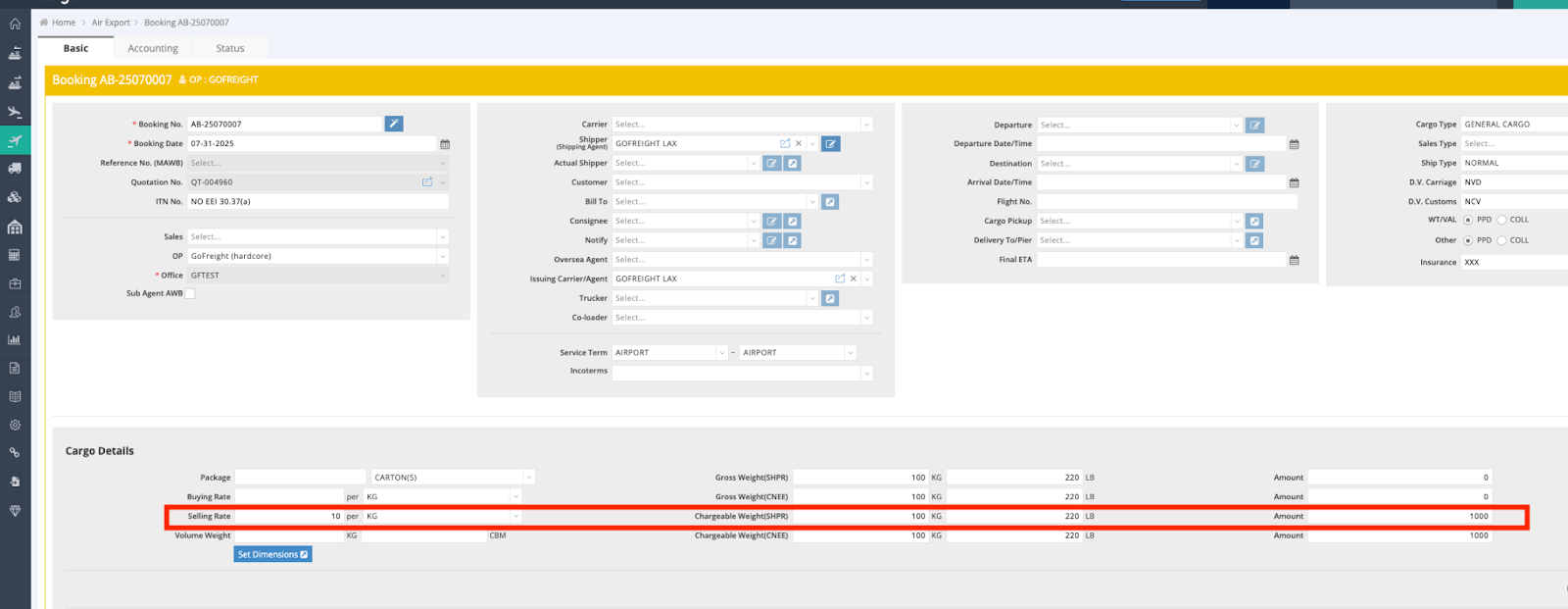
- Go to Air Export > New Booking > Input Booking & Cargo Details.
- Enter Selling Rate, Chargeable Weight (SHPR), and Other Charges.

Step 2:
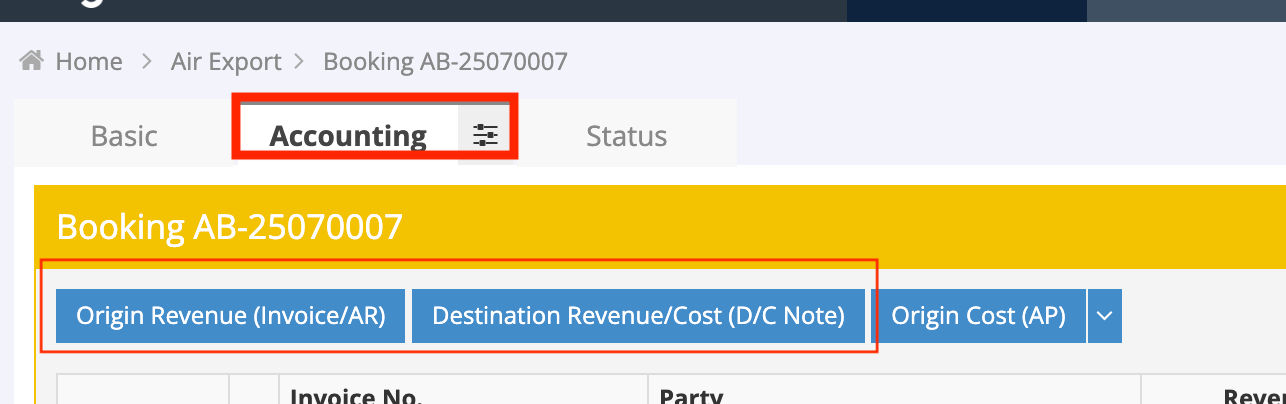
- Go to the Accounting Tab.
- Create a new AR or D/C Note under the HAWB.
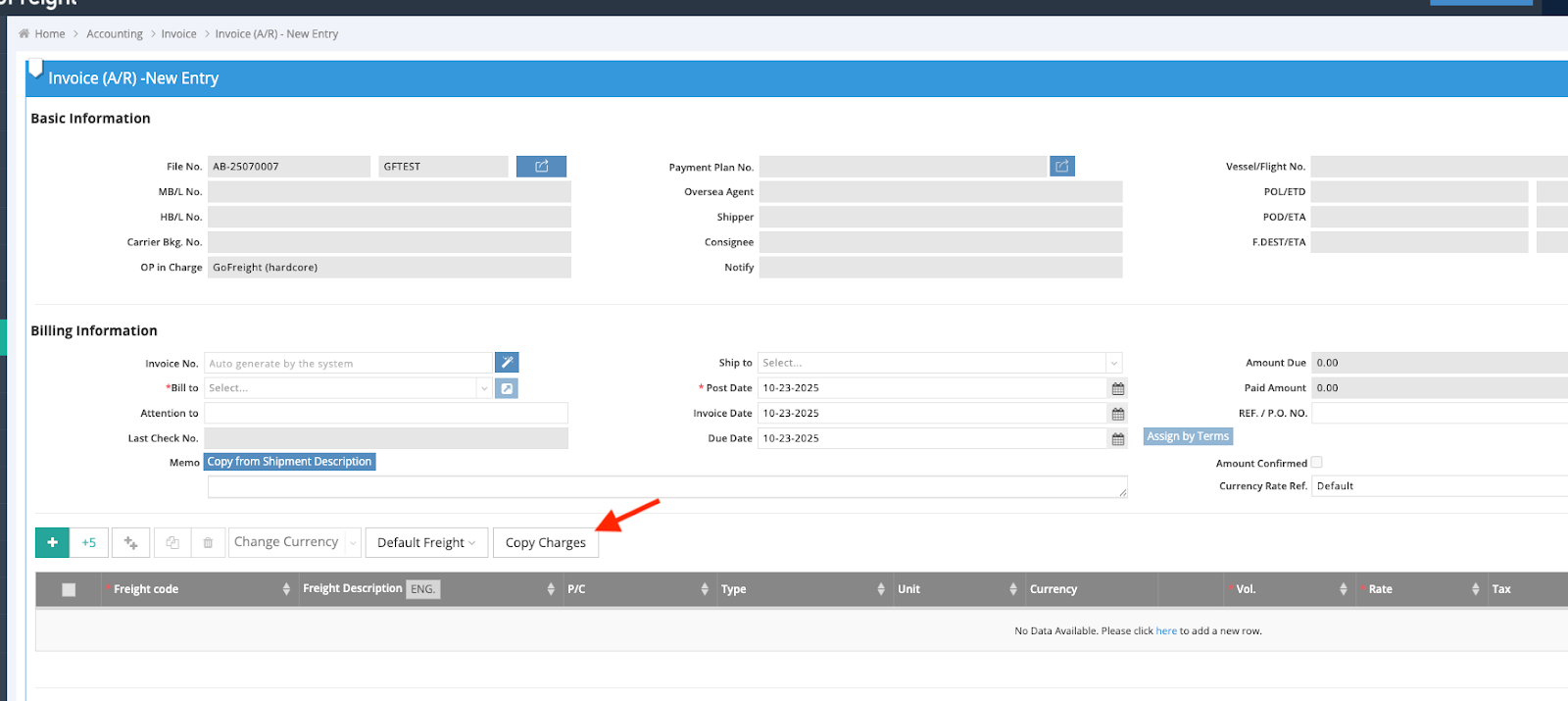
- Click Copy Charges.
Result:
- Both Other Charges and Air Freight Charge are copied automatically.
*Scenario 3 – HAWB Accounting Tab
Step 1:
- Go to Air Export > New Shipment and input HAWB details: Selling Rate, Chargeable Weight (SHPR), and Other Charges.
Step 2:
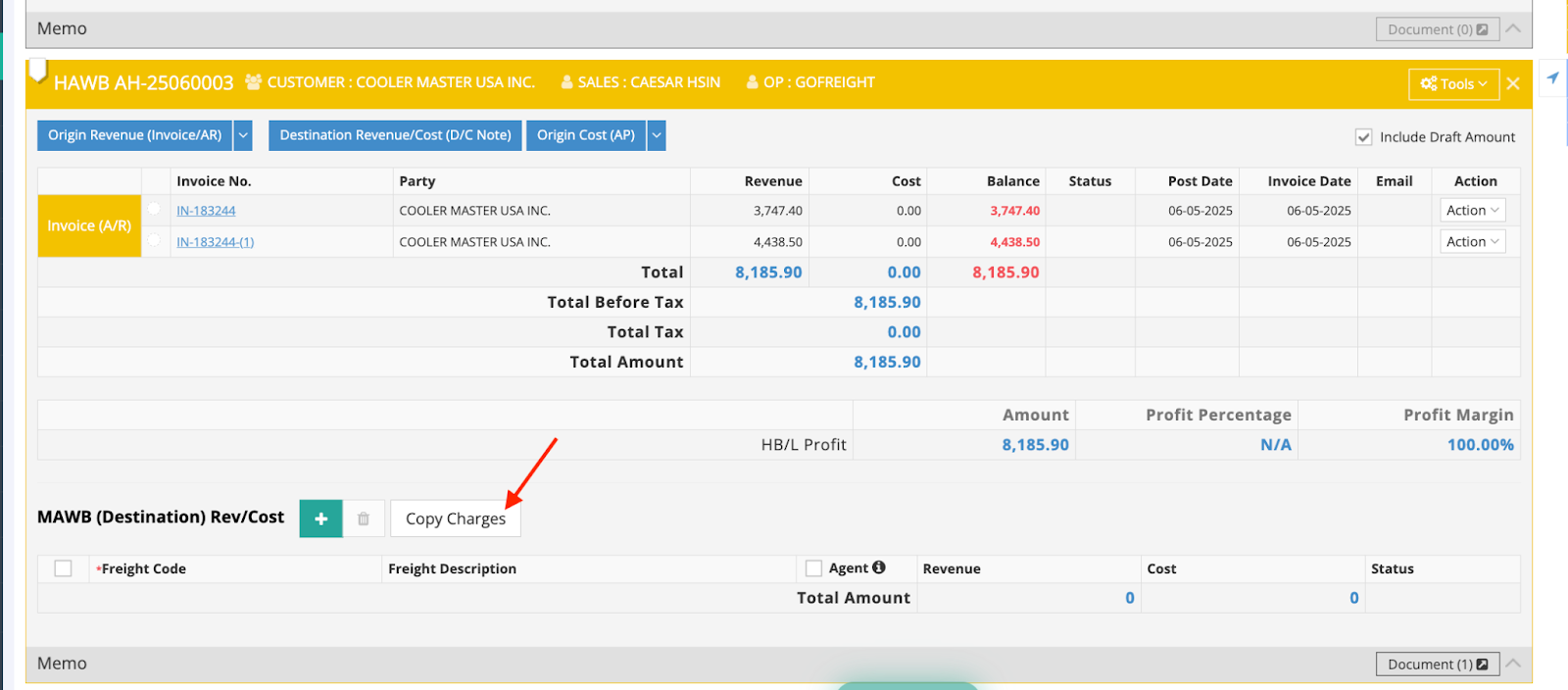
- In the Accounting Tab, locate the MAWB (Destination) Rev/Cost section at the bottom.
- Click Copy Charges.
Result:
- Both Other Charges and Air Freight Charge are copied automatically.
--------------------------------------------------------------------------------
5. Important Note on Billing Codes
- When you change a Billing Code, the system remembers your last selection for the specific office.
- This behavior now applies to the Copy Charges feature.
- The next time you use Copy Charges, the system automatically applies the most recently used Billing Code.