
To access the Billing Usage Report in the system, please follow these steps:
- Navigate to the Report tab.
- Select Advanced Report.
- Choose [LA] Customer Billing Usage Report.
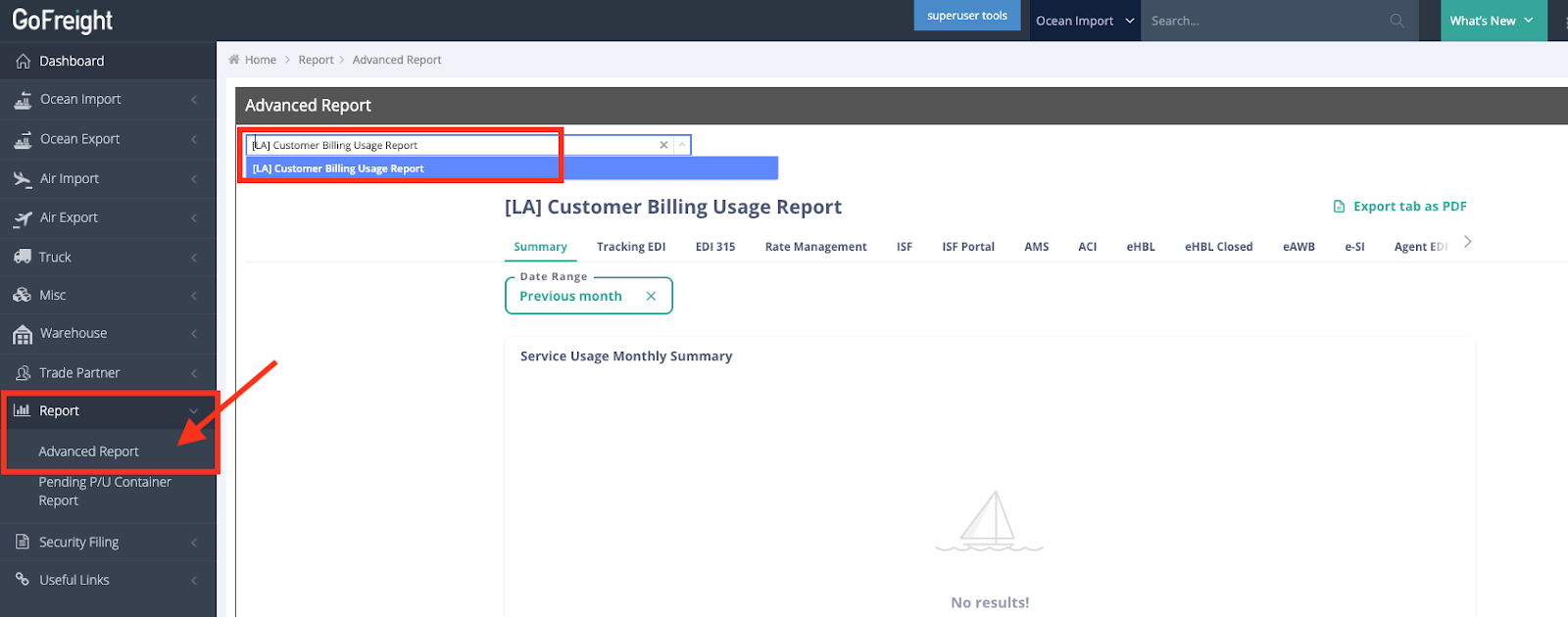
- Select the desired Date Range to view the results.
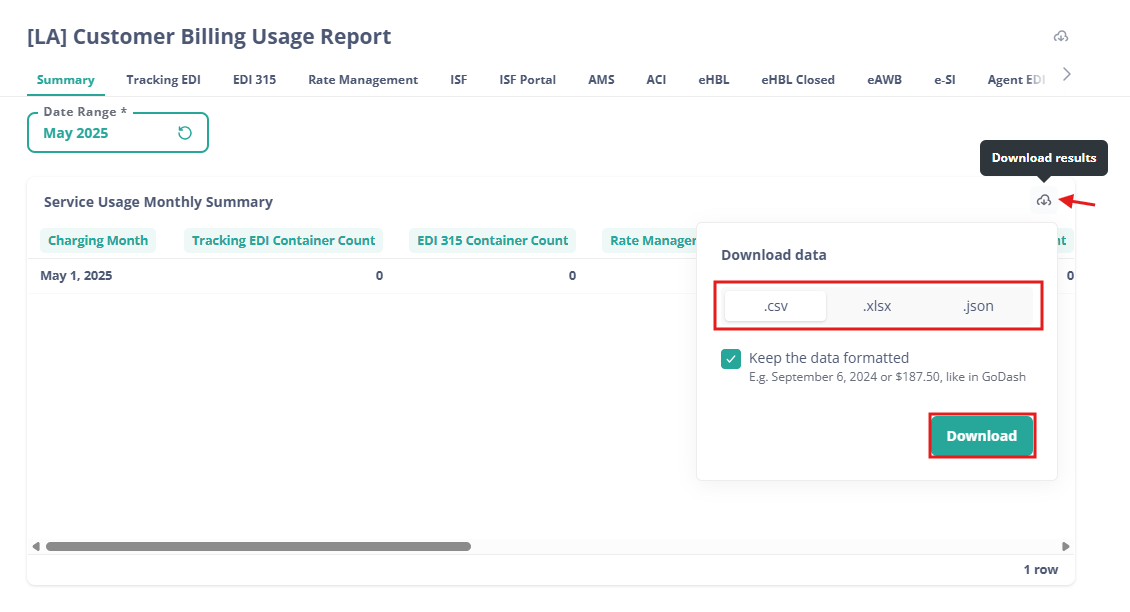
- To download the results, hover your mouse over the table and click Download results.
- Choose the preferred data format and click Download.
FAQ
Q: Could you tell me the number of Tracking EDI usages for May and June? Thank you!
A: Regarding the Tracking EDI usage for May and June, we now have a tool that allows users with General Manager or Accounting Manager roles to check this information directly, without contacting the accounting department. Please go to Report > Advanced Report > [LA] Customer Billing Usage Report.
-
Select the product name, e.g., Tracking EDI.
-
Select the date range, e.g., May 2025 or June 2025.
-
On the right-hand side, click the three dots to download the report.
Please note: this tool is only available for users with General Manager or Accounting Manager roles and cannot be assigned to other roles. Kindly ask a user with the appropriate role to assist in obtaining this data.