
Follow the instructions below using the quotation we created in the article How to create a new quotation more efficiently with simple steps?
- In this scenario, we already have two routes:
Route 1: Shanghai to Los Angeles
Route 2: Shanghai to Los Angeles, Final Destination: Phoenix
Destination Charges:
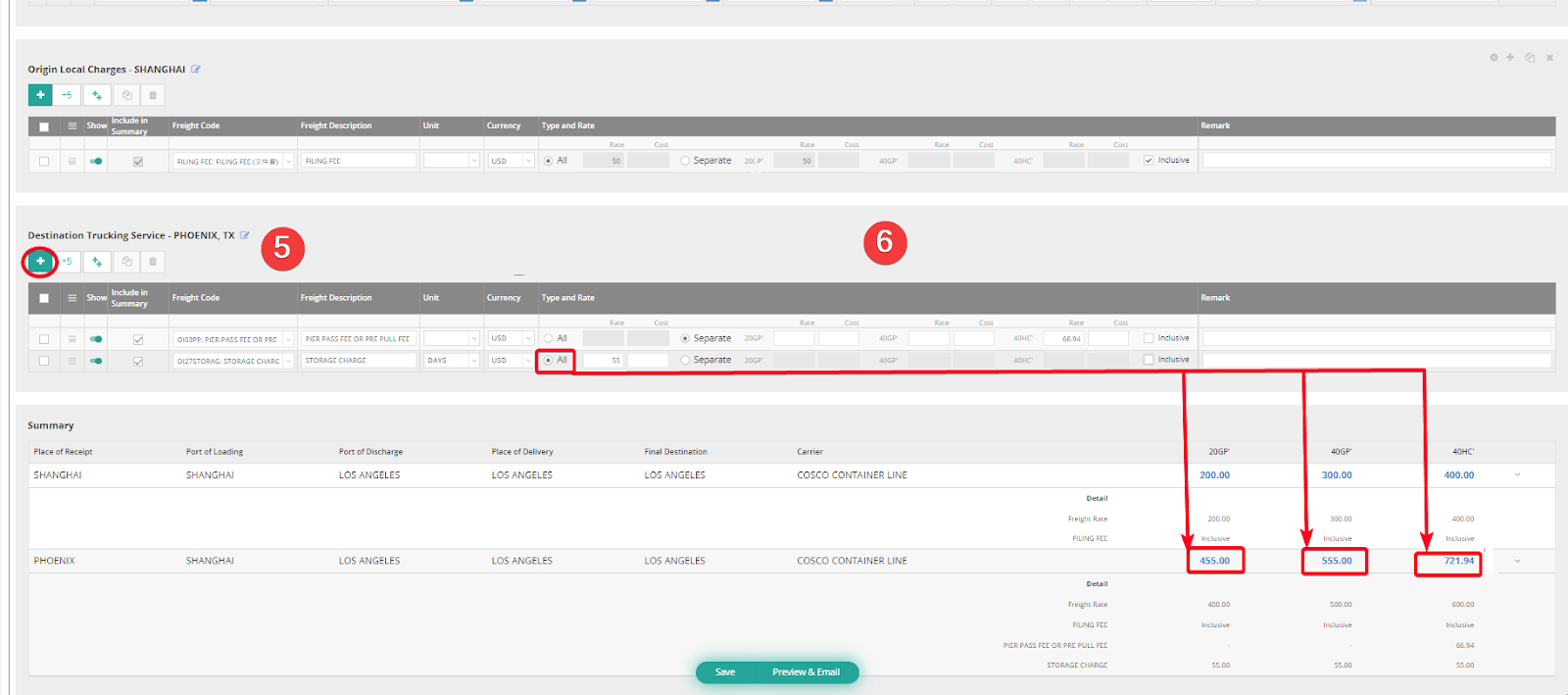
- Charge 1: Origin Local Charge - SHANGHAI
- Charge 2: Destination Trucking Service - PHOENIX, TX
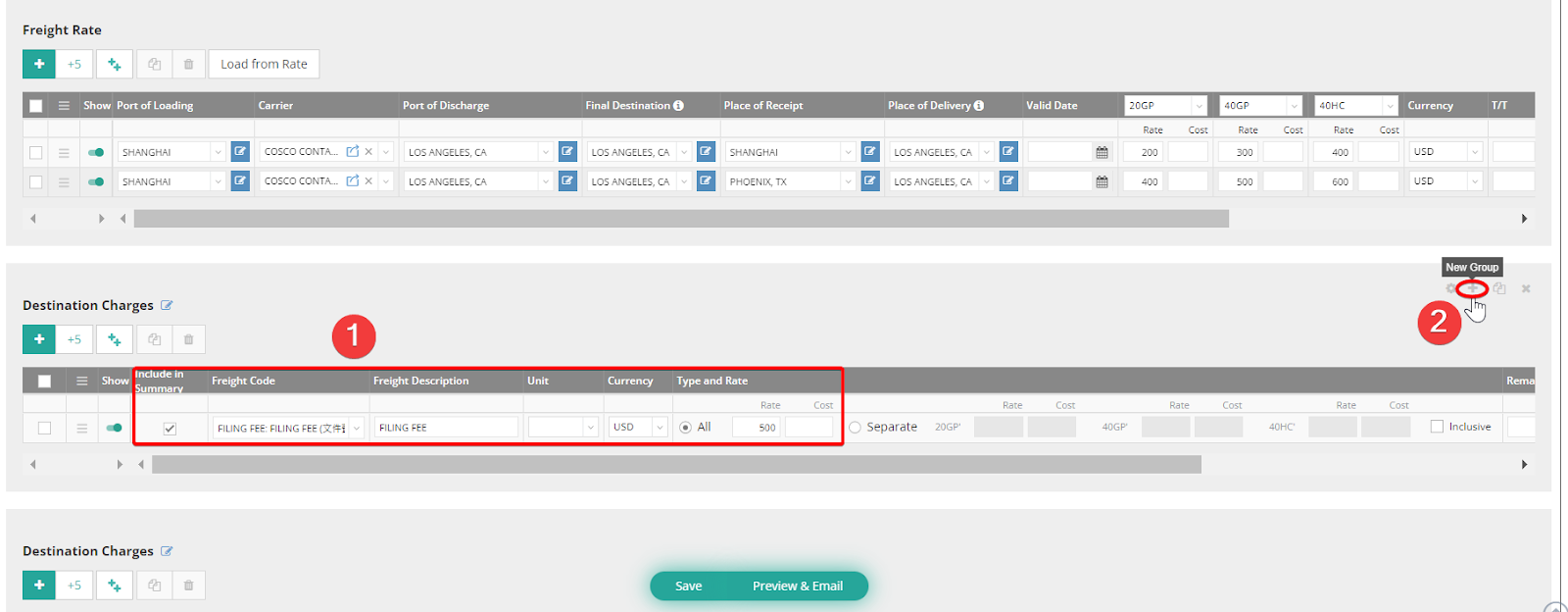
- Input charge details in the Destination Charges field to create the first Destination Charges group.
- Click the small gray plus button in the right corner to create additional Destination Charges groups.
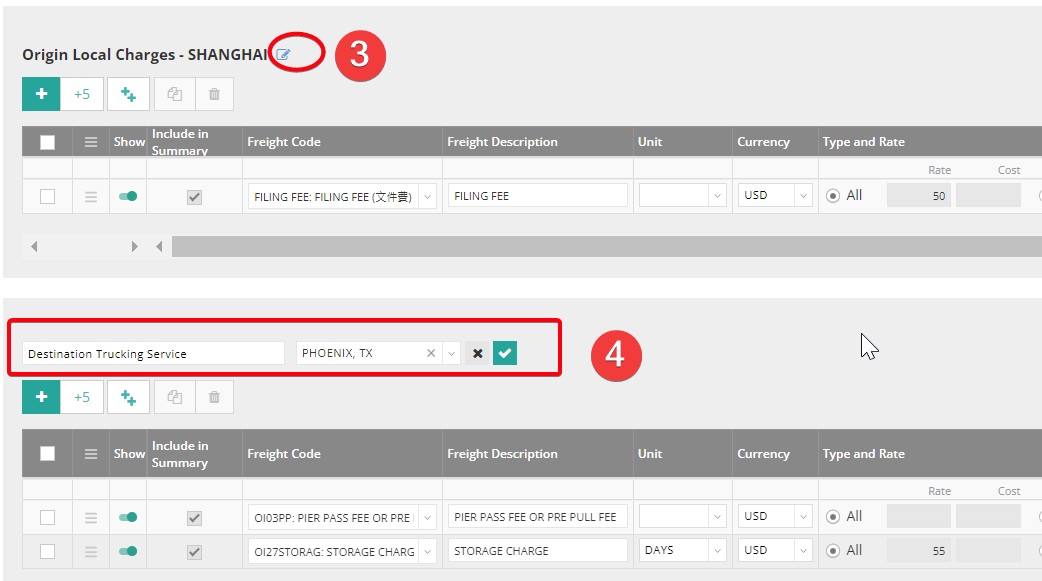
- Click the Edit button to modify the title and location.
- Edit the title and select the appropriate location.
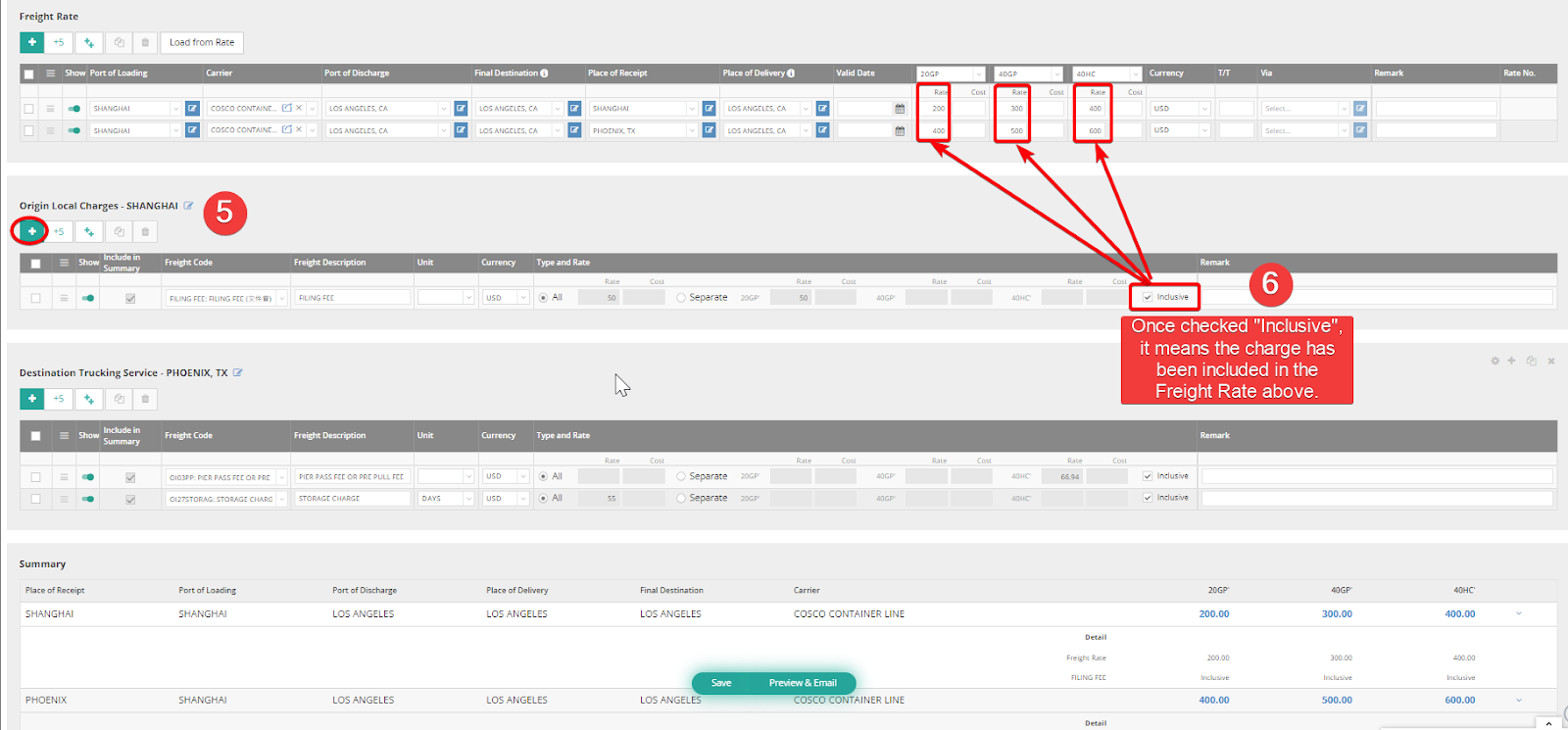
- Click the Green Plus button to add a freight charge.
- Select the method for applying the amount to the freight above.
- Check the Inclusive option if you want the freight to be included in the Freight Rate above.
- Select Separate to see the amounts applied to the necessary container fees automatically in the summary below.
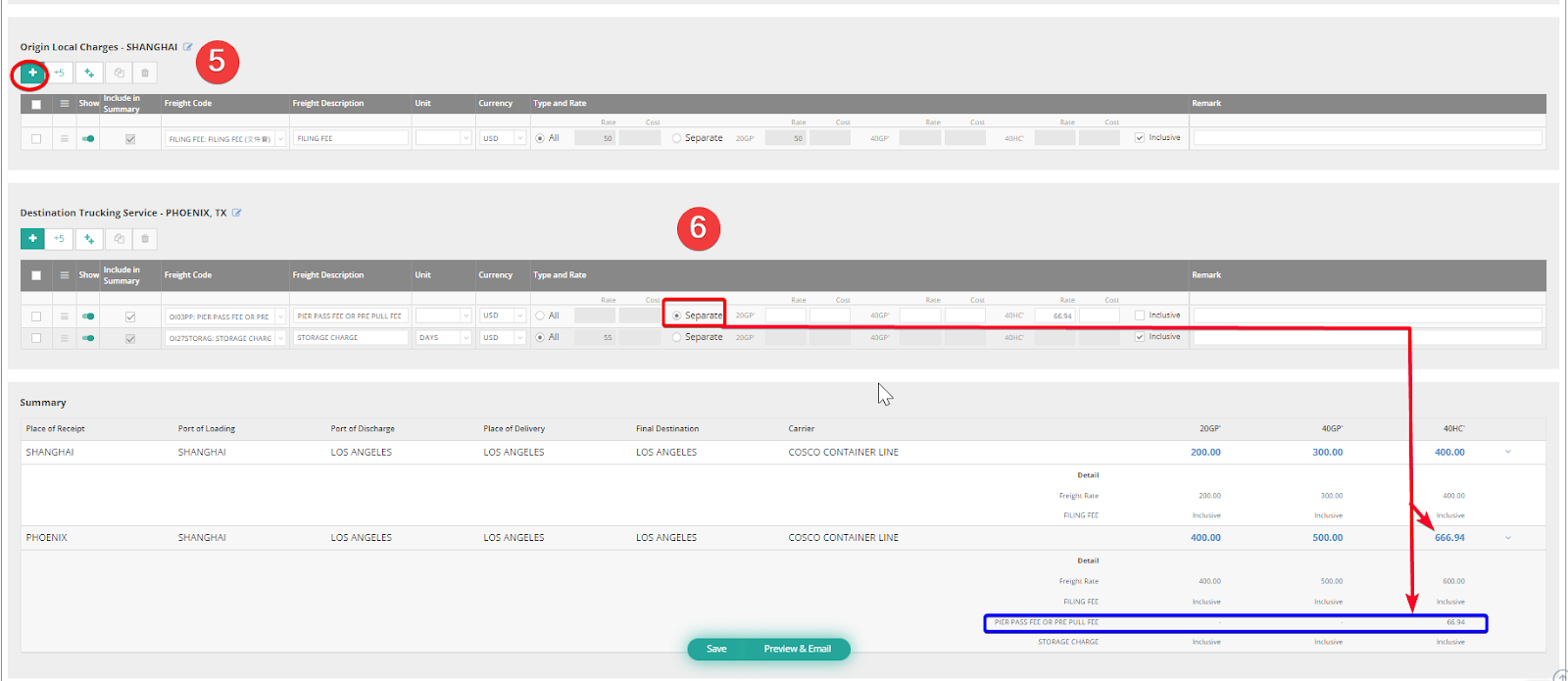
- Select All and input the amount; you will see the amount applied to all container fees automatically in the summary below.
Once you confirm the freight rate and charges, click Save.