
By default, only users with the roles of General Manager, Operation Manager, Accounting Manager, and Accounting can create and edit Trade Partners in the GoFreight system.
Users in other roles can request this functionality with approval from an Admin or General Manager, after which a GoFreight support agent can grant access.
If your trade partner has fixed charges, you can set up these charges for each trade partner in GoFreight. Please follow the steps below.
(A) Adding Default Freight Code (also known as Billing Codes) for Your Trade Partner
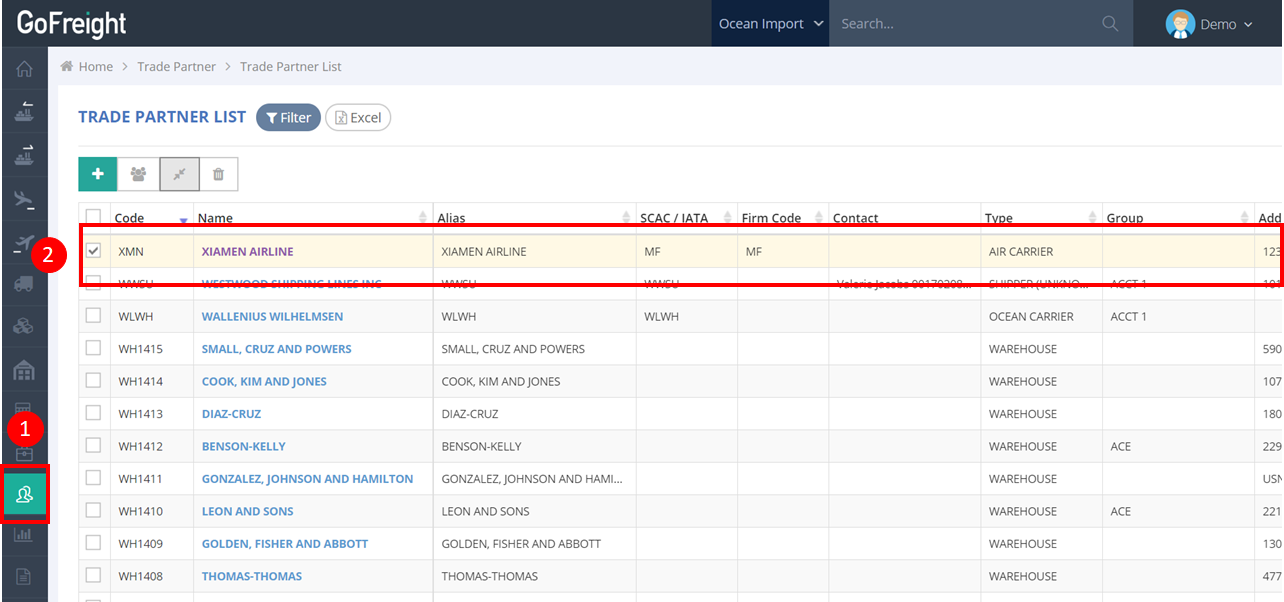
- Click on “Trade Partner” > “Trade Partner List” in the navigation bar.
- Select the desired trade partner by clicking on their name to open the trade partner profile page (e.g., we will use Xiamen Airlines as an example).
- Click the “Accounting Setting” tab at the top.
- Select the module that applies to the trade partner (e.g., Air Import in this example)
- Under “AP Default”, click the “+” add icon to add a Freight Code. (AP means Accounts Payable)
- Choose the Freight Code and enter any additional required information.
Note: The Freight Code and Rate fields are required. If the rate for this Freight Code is fixed, you may enter the specific amount directly. If it is variable, you can simply enter $0.
- Click “Save” to confirm the changes.
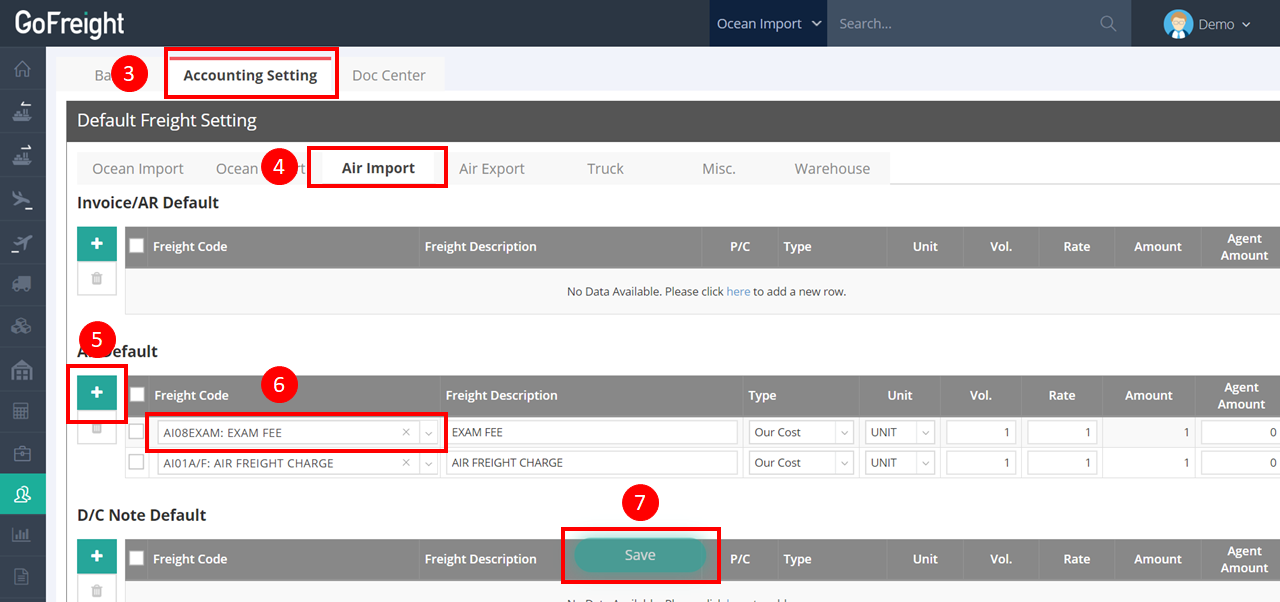
- Repeat the same steps for Invoice/AR Default (Accounts Receivable) and D/C Note Default (Debit Credit Note), if applicable.
Note: After assigning the trade partner's default freight, whenever you create AR/AP/DC for this trade partner, the system will automatically pull in the billing items.
(B) Using in the Operation Module
After the setup, every time you create an AP in the Air Import module and select the vendor for this trade partner, the system will automatically display the freight you set as the default.
For a visual guide on this feature, please refer to the following video: