- Why is my account ID frozen, and how can I unfreeze it?
According to our vendor, Crimson, the password must be updated every 90 days for security reasons. A notification email will be sent to the user’s registered email address before the password expires.
Additionally, the account ID will be frozen automatically if an incorrect password is entered more than five times.
If your account ID is frozen, please contact us at support@gofreight.com , or our vendor, the CrimsonLogic team, at support@crimsonlogic.com for immediate assistance.
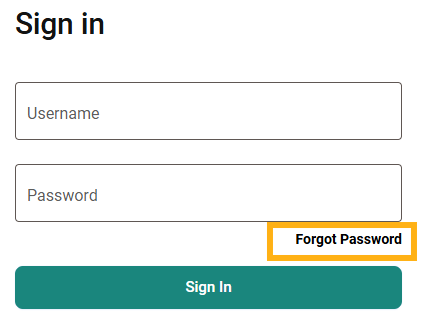
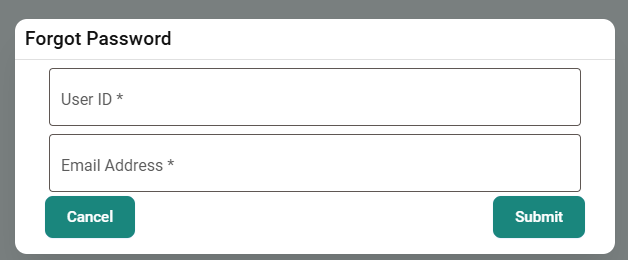
If you have forgotten your password, you can click "Forgot Password" and enter your account's user ID and registered email to request your credentials.
- What if the status of AMS is stuck in “Sent”?
Typically, the CBP (Customs and Border Protection) responds shortly after successfully submitting the AMS filing.
If your AMS status has remained stuck in "SENT" for more than one hour, please contact us at support@gofreight.com or our vendor, the CrimsonLogic team, at support@crimsonlogic.com for assistance.
- What is the invalid character?
The Shipper, Consignee, and Marks of Goods Description fields have character limits and restrictions on certain special characters.
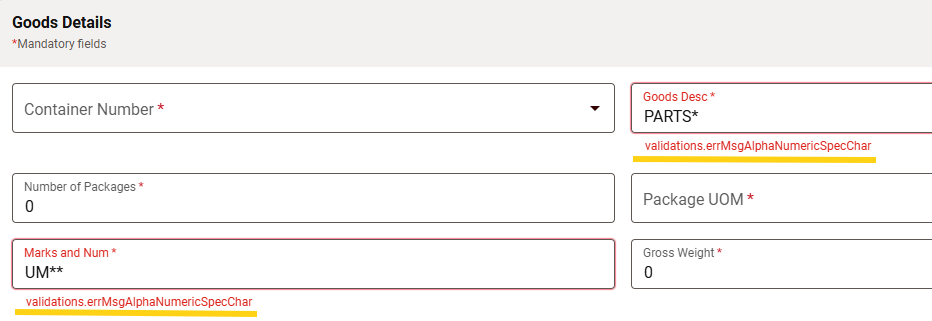
If invalid characters are detected, an alert message will appear in red below the relevant fields, showing which special characters are accepted.
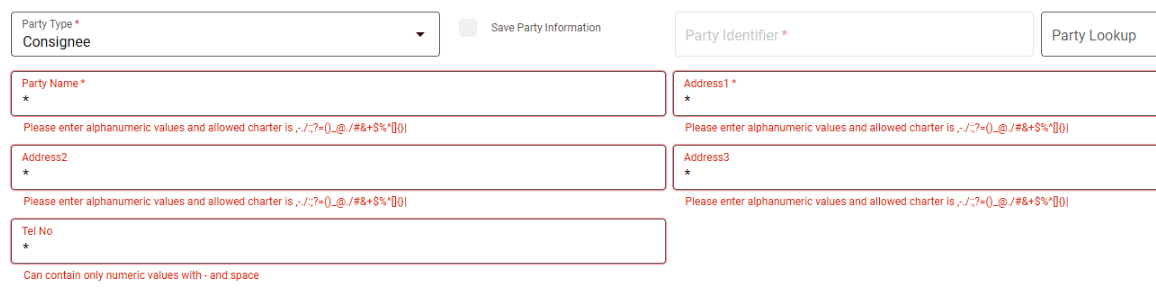
If you copy and paste into these fields and they contain invalid characters, you will see a red error message indicating a validation error as shown in the screenshot below.
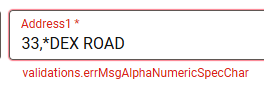
These are all applied not only to the Shipper and Consignee but also to the Goods Details of Goods Description and Marks and Num.
- Where can I find the submission result?
To view submission results:
- Go to Manifest
- Click on the manifest data
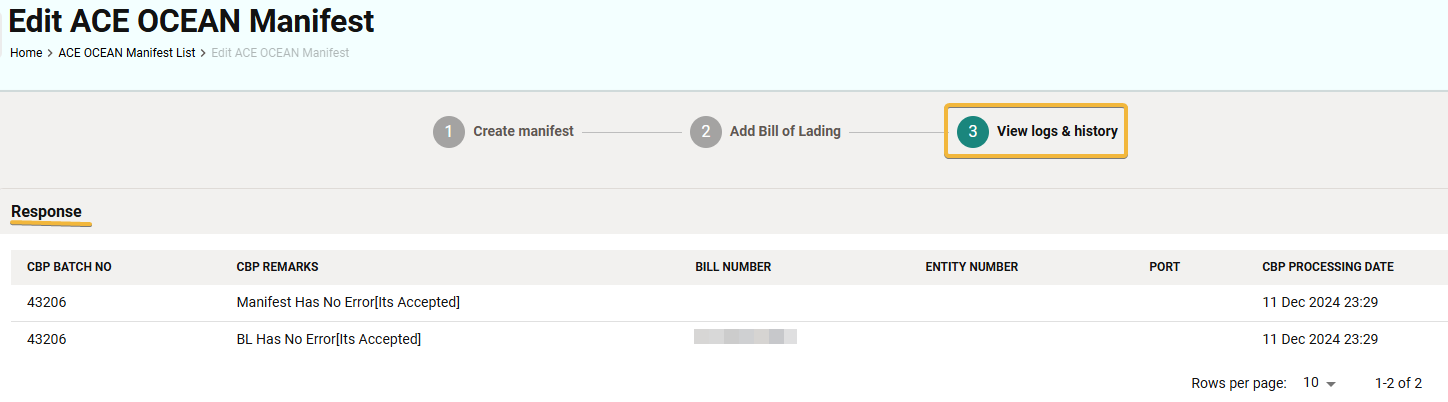
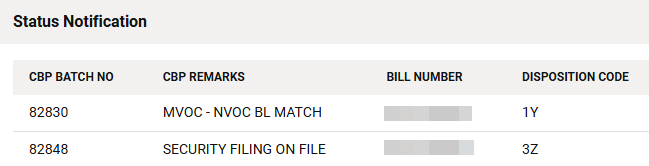
- Navigate to “3. View logs & history” to see the Response and Status Notification for all B/Ls attached to the manifest.
- Why was my B/L rejected?
Both the Manifest and Bill of Lading List views have a column that displays the AMS status.

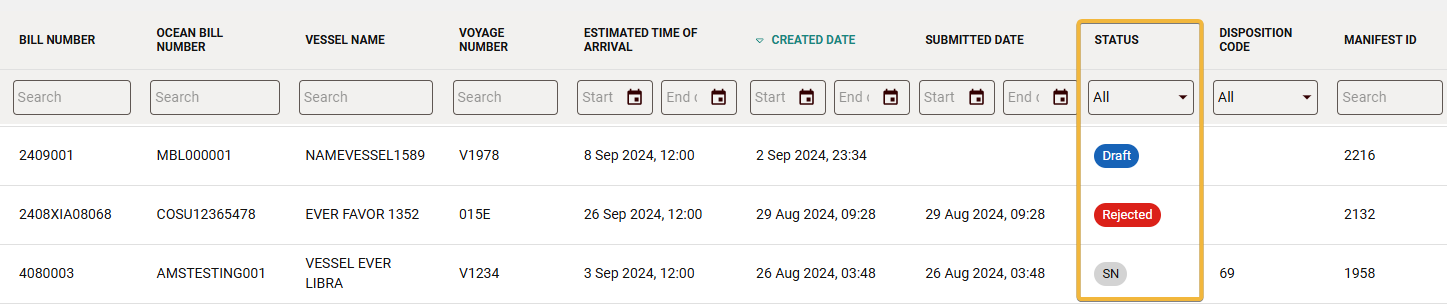
If a B/L has been rejected, the CBP remarks can be found under the Response section.
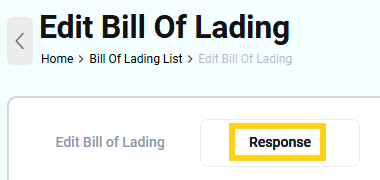
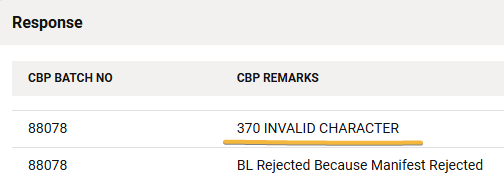
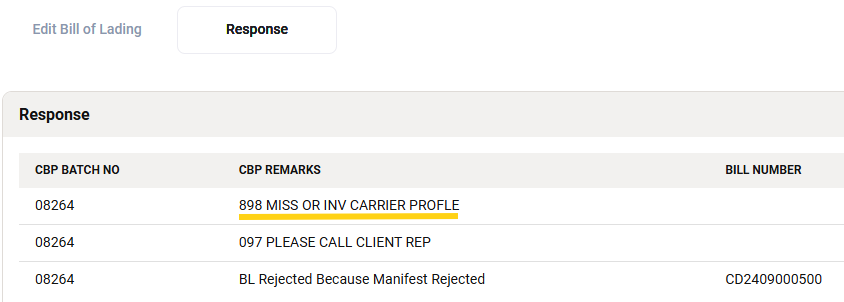
If you are unclear about the CBP remarks for the rejection, please feel free to reach us at support@gofreight.com or our vendor, CrimsonLogic team, at support@crimsonlogic.com
- How can I update the package details without canceling B/L?
You can modify the Piece Count or Number of Packages in AMS without canceling the Bill of Lading:
- Go to the Manifest and click ‘2. Add Bill of Lading” at the top

- Click the “3 dots” of the Manifest.
- Select Edit, and the page will be transferred to “Edit ACE OCEAN Manifest”.
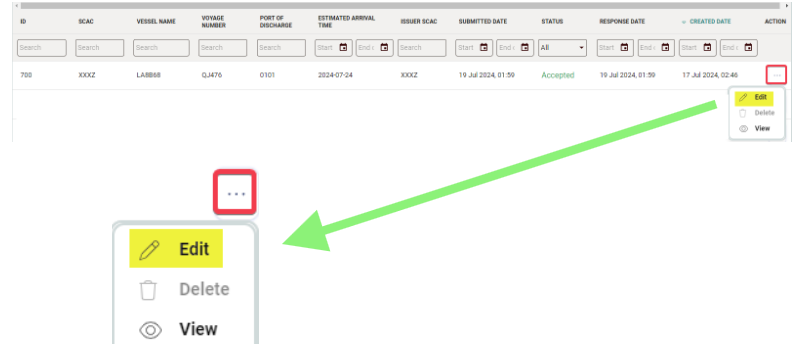
- Click “ 2 Add Bill of Lading” on the top and tick the checkbox of Bill Of Lading to be modified/edited.
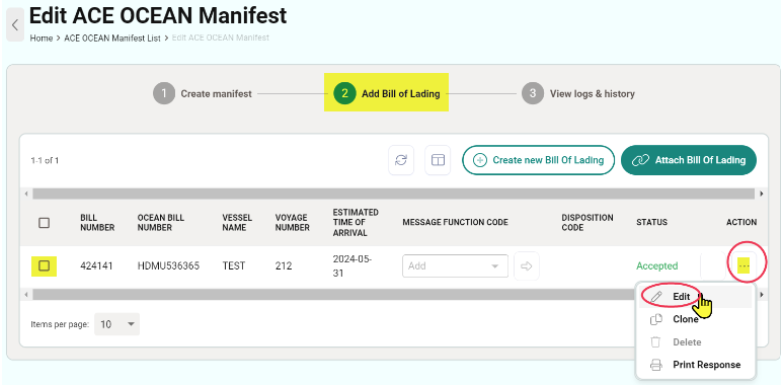
- Click “Update” to save the quantity (total packages) changes in the Bill of Lading.

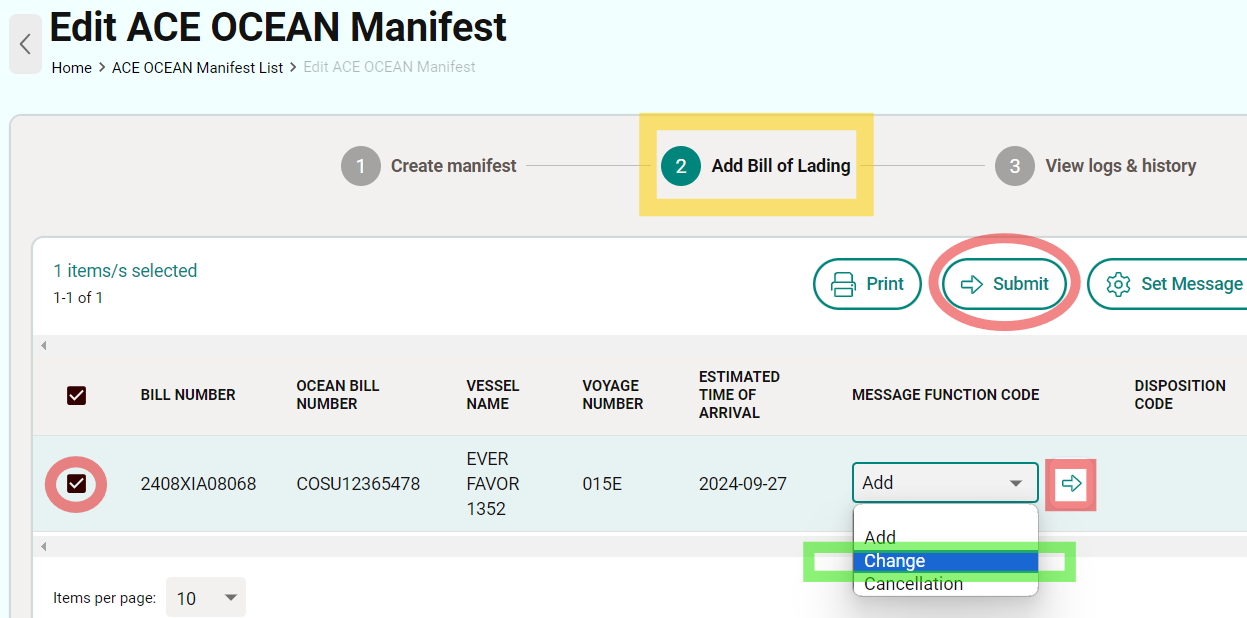
- Navigate to the Edit ACE OCEAN Manifest
- Click “2 Add Bill of Lading” on the top.
- Tick the Bill number and Select "Change".
- Click Submit.
- What are the steps to change the vessel for a submitted Manifest?
To change the Bill of Lading vessel, you need to:
- Cancel the original submission.
- Detach the B/L from the original manifest (old vessel).
- Attach the B/L to the new manifest (new vessel) and submit it again.
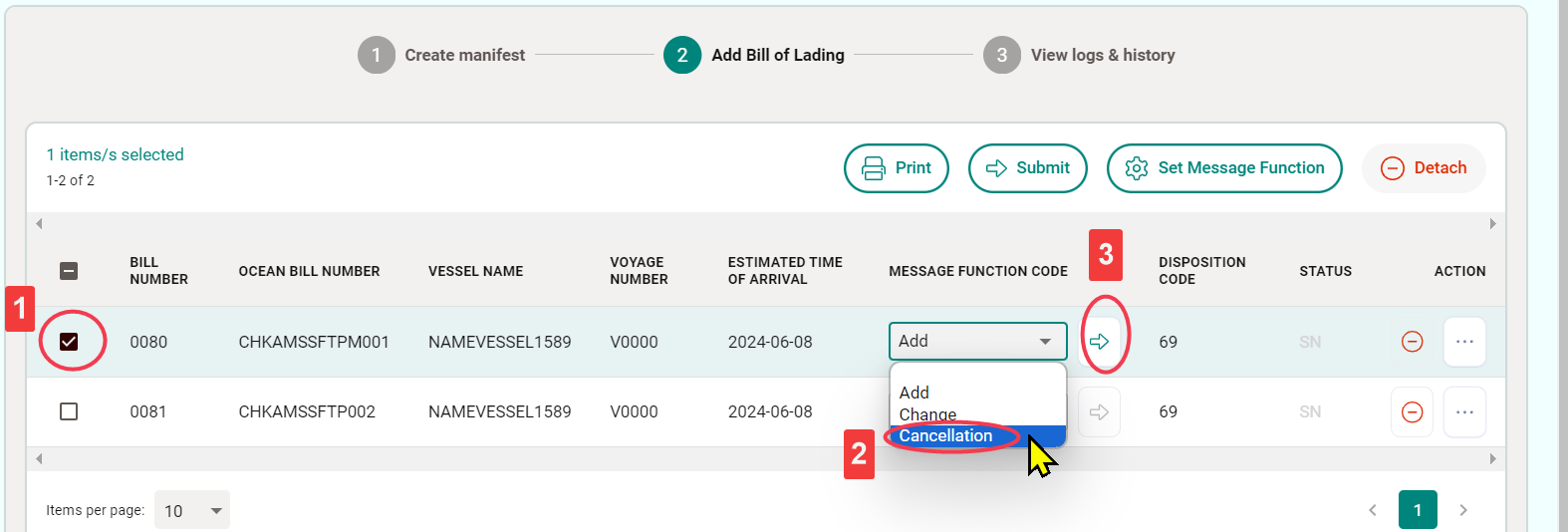
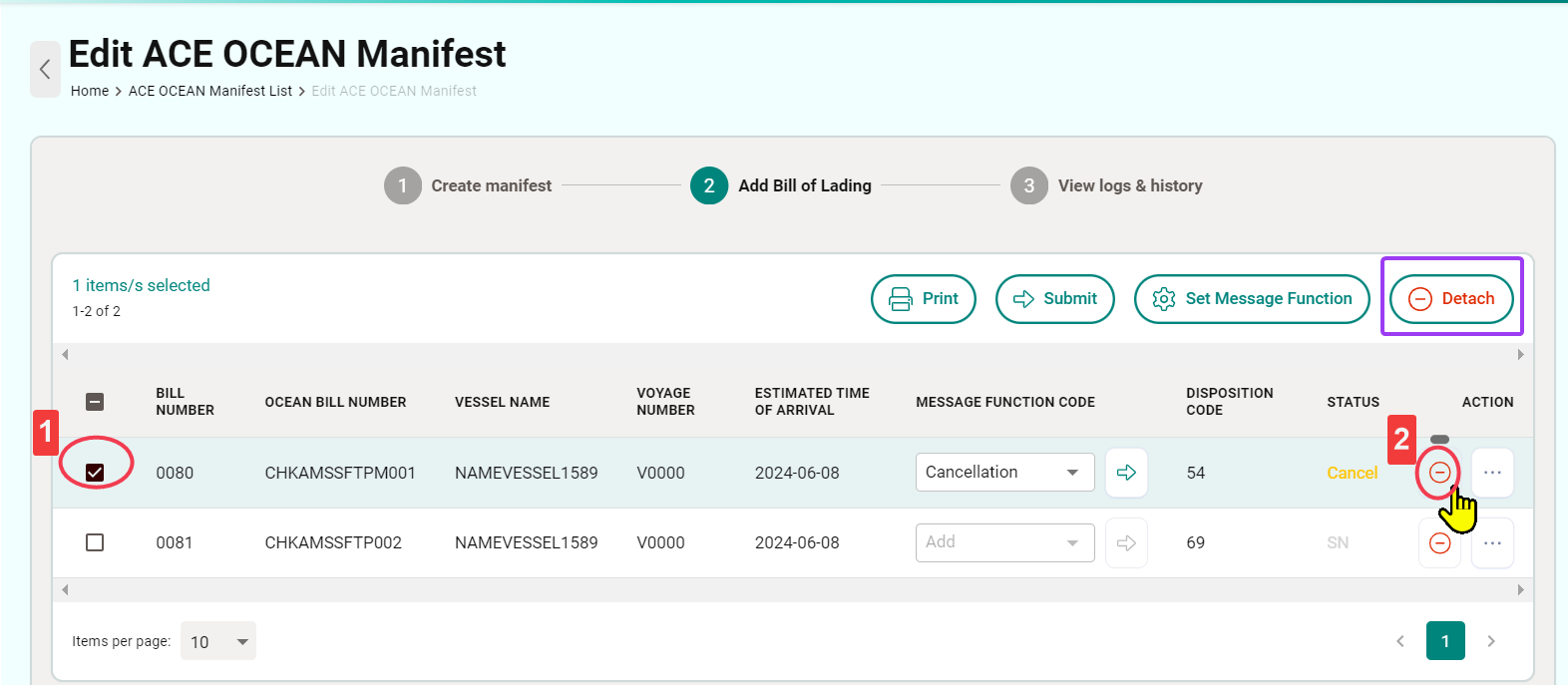
Step 1: Remove Bill Of Lading from a Manifest
1. Select the checkbox for the Bill Of Lading to be removed
2. Choose “Cancellation” under “MESSAGE FUNCTION CODE”
3. Click ”Submit” to complete the cancellation.
Step 2: Detach the Bill Of Lading from this manifest:
1. Select the checkbox for the Bill Of Lading to be removed.
2. Click ”Detach” to remove it from this manifest
(There are two detaching buttons; using either is fine).
Step 3: Add/Attach the Bill of Lading to the newly created vessel.
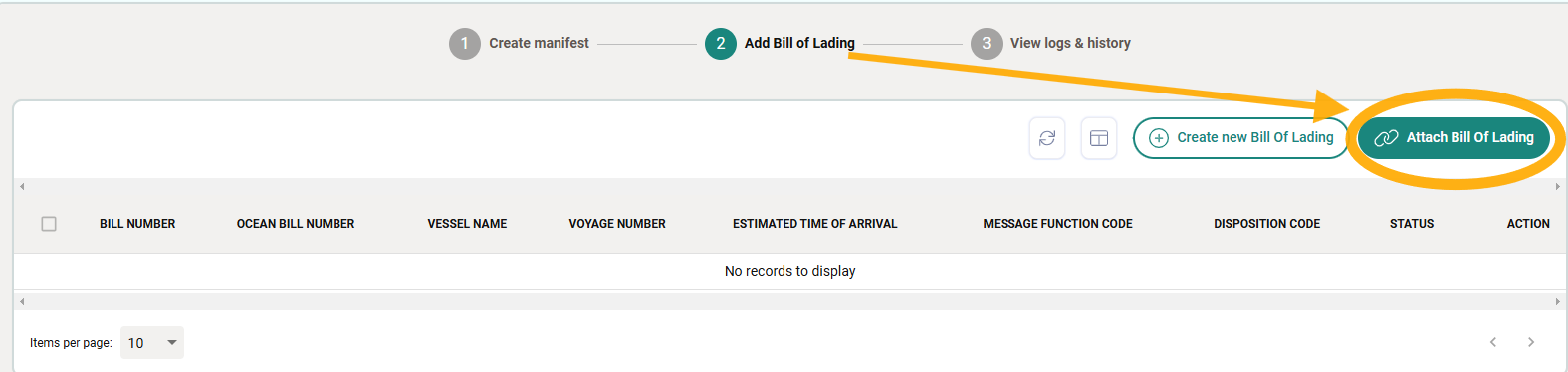
1. Create a new Manifest for the new Vessel
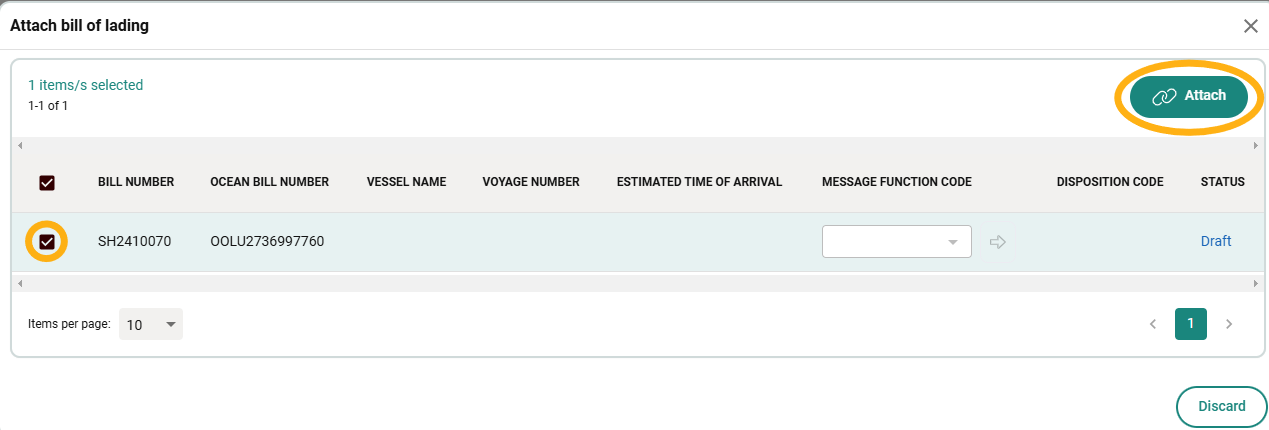
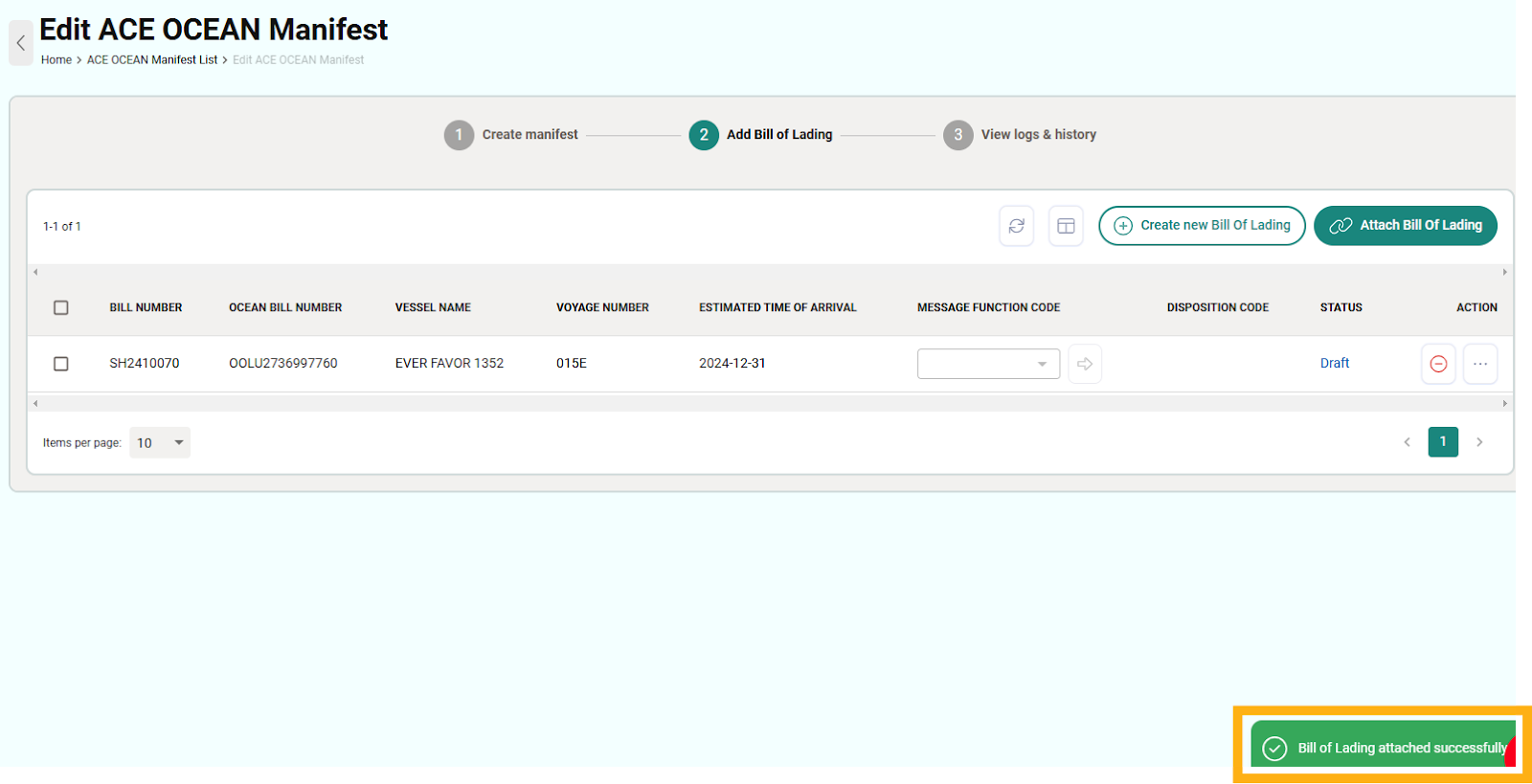
2. Move to the “Add Bill of Lading” tab and click the icon “Attach Bill of Lading”

- Select the Bill of Lading and click on Attach.
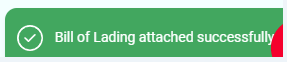
5. Once the bill of lading has been attached to the Manifest, there will be a pop-up notice showing “attached successfully” at the bottom of the page.
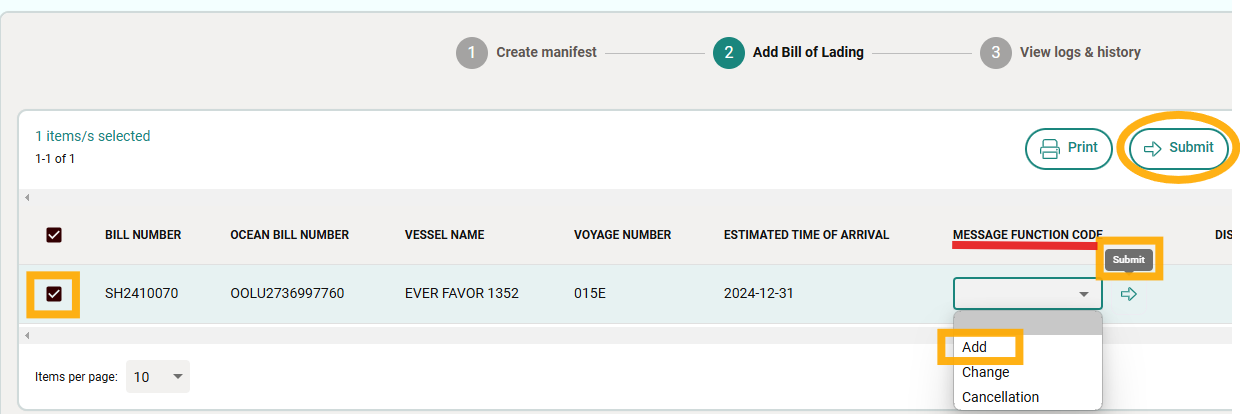
6. Check on the Bill of Lading and Select “Add” under “MESSAGE FUNCTION CODE”
7. Click ”Submit” to complete the submission
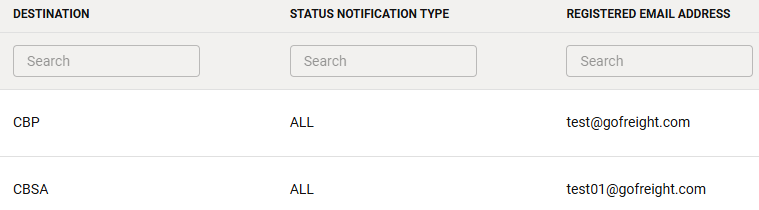
- Where can I add a notification email for this Account ID?
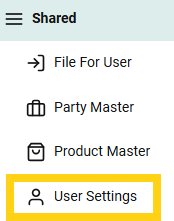
- Goto Shared > User Settings in the menu bar.
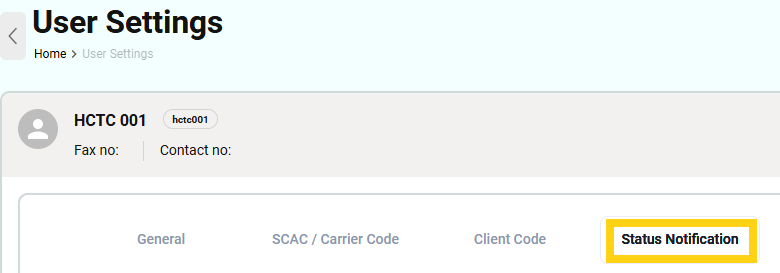
- Select the “Status Notification” tab.
- Click “+ Add Status Notification”

- Choose the notification type and fill out the Email Address field.
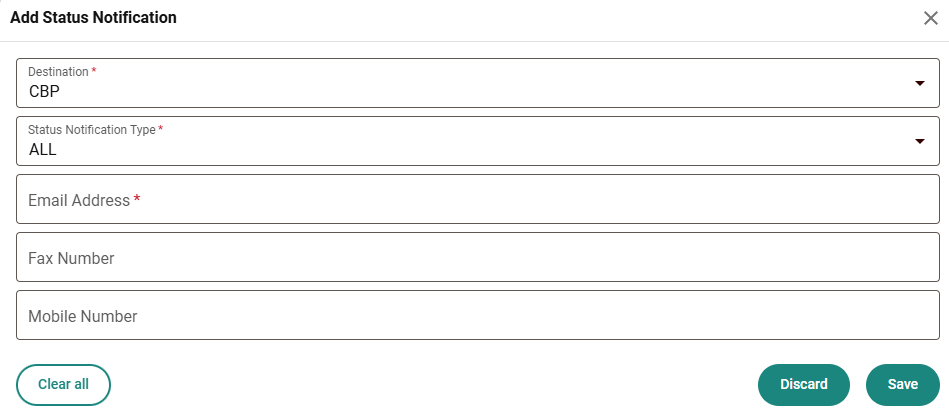
You can add multiple email addresses and modify the information anytime.