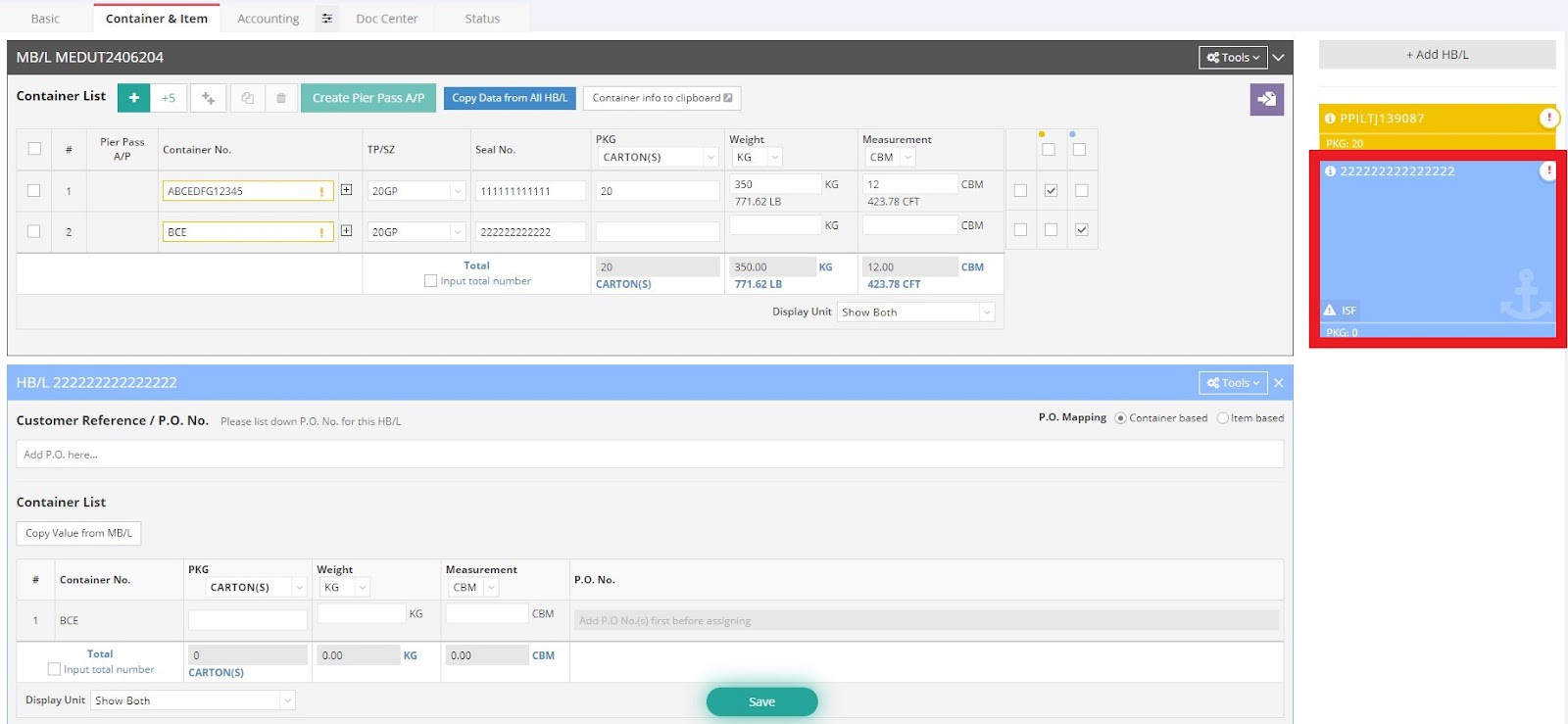
Please follow the instructions below to assign containers to your HB/L.
For ocean shipments (ocean import and ocean export):
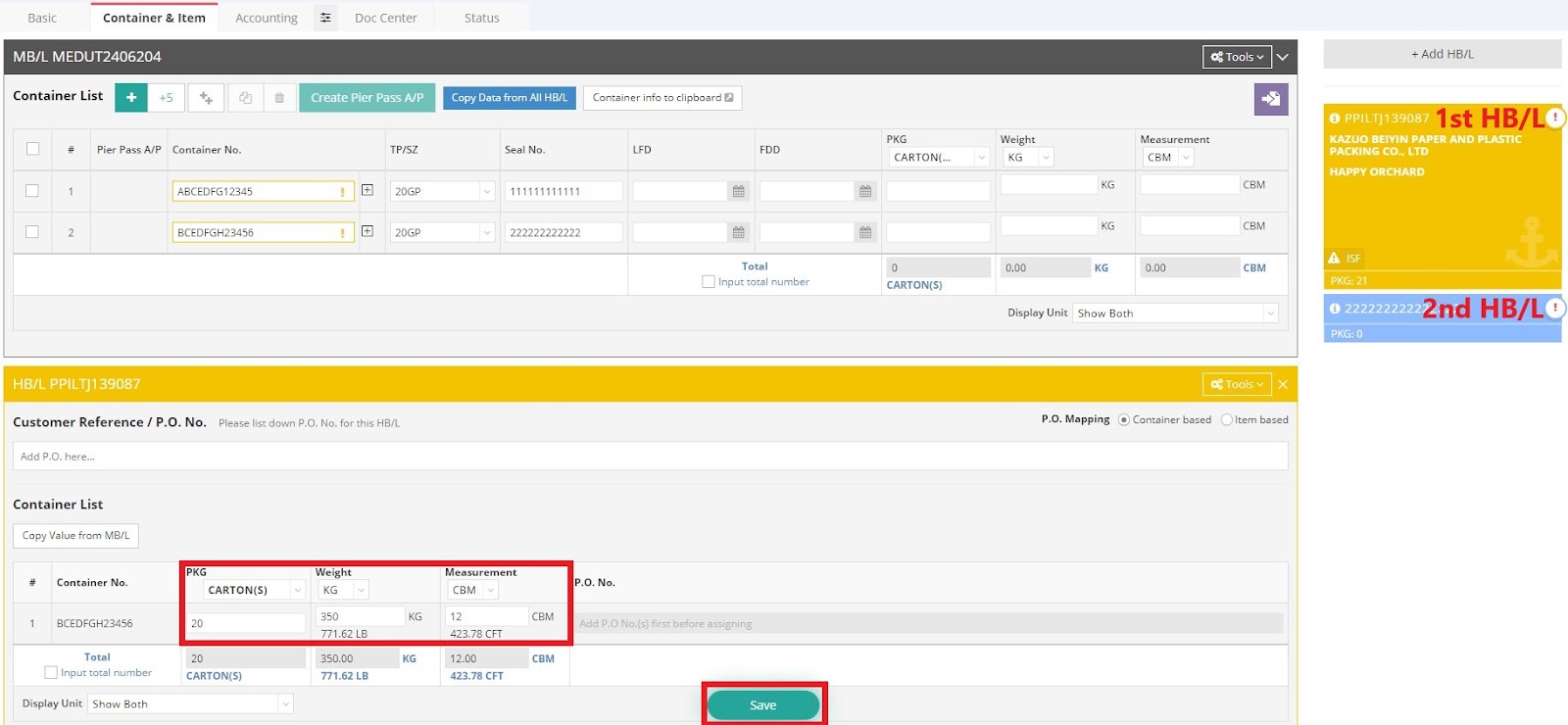
1. Complete the required information on your first HB/L (yellow), then click “Save”.
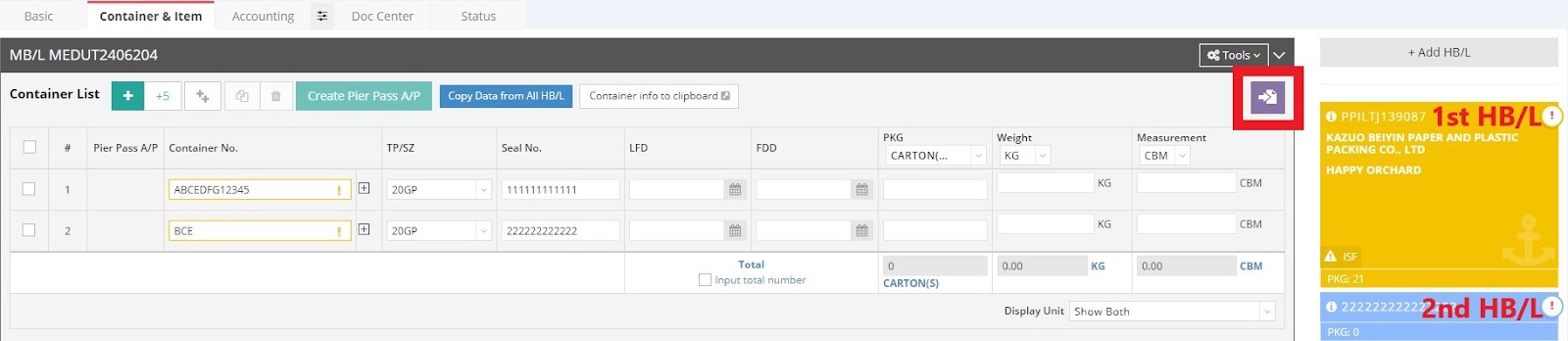
2. Scroll up to the MB/L and click the purple icon “Assign Container” located at the upper right corner.
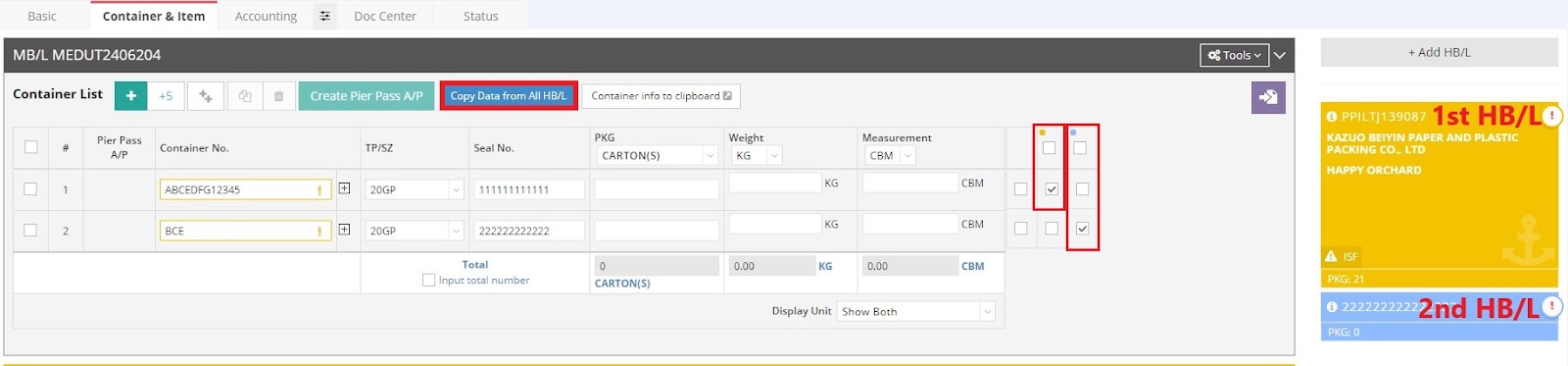
3. Assign your containers to different HB/Ls. For example, assign container 1 to the first HB/L (yellow) and container 2 to the second HB/L (blue). Click “Copy Data from All HB/L” to import HB/L information.
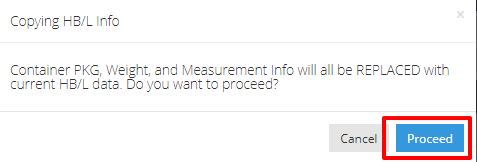
4. In the pop-up message, click “Proceed” to continue.
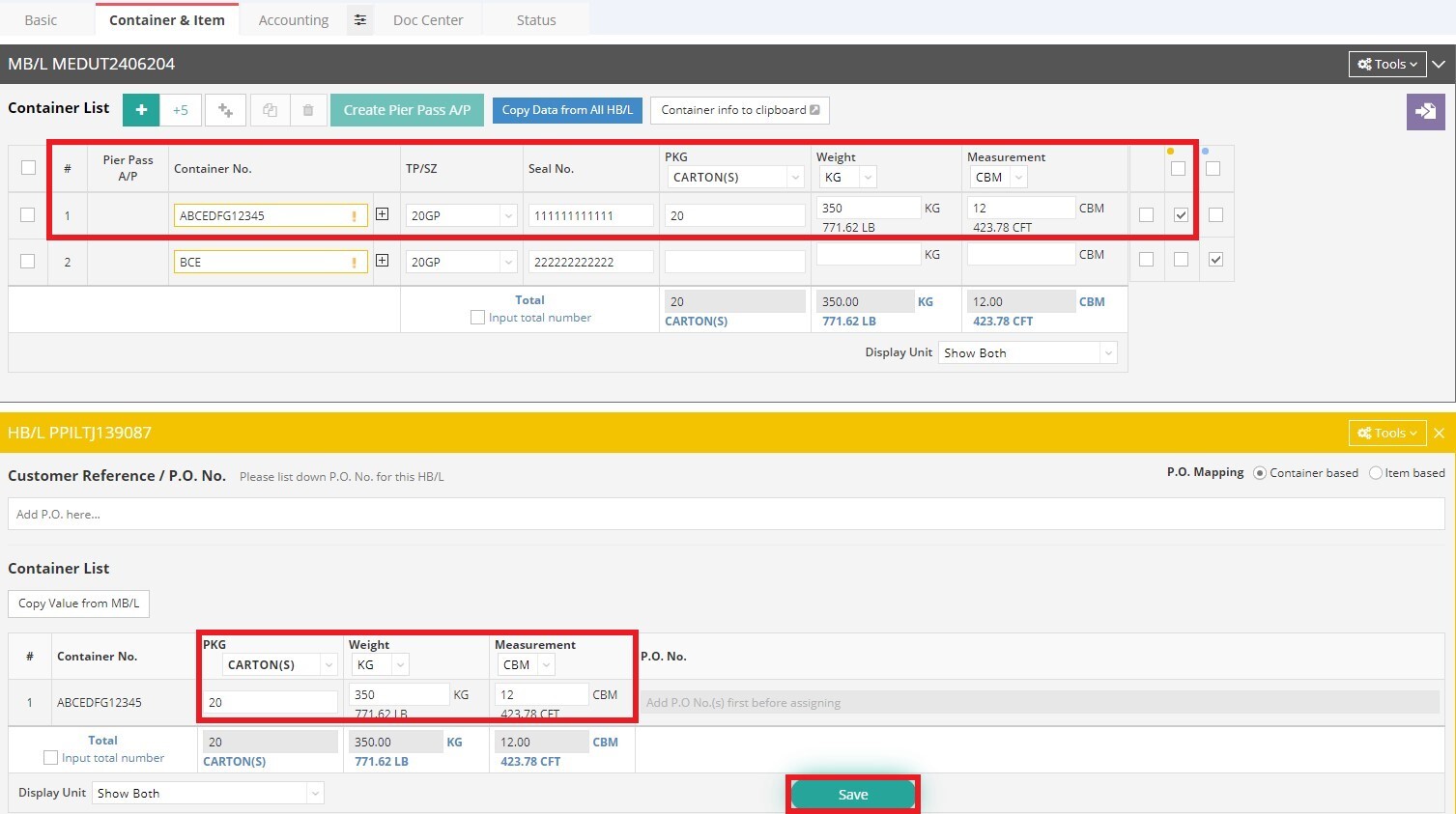
5. The PKG/Weight/Measurement from the first HB/L will be synchronized to container 1 on the MB/L. Click “Save”.
6. Click on the blue HB/L on the right-hand side to switch HB/Ls, and follow the procedures above to complete the assignment.