
This manual will walk you through the process of quickly and accurately importing multiple journal entries into GoFreight using a CSV file. By following these steps, you can streamline your accounting workflow, reduce manual errors, and save valuable time during critical posting periods.
The following benefits highlight the value of efficiency and accuracy, the two main concerns for accounting users.
- Significant Time Savings: Save hours on data entry by importing multiple journal entries at once, instead of manually posting them one by one.
- Maximize Data Accuracy: Virtually eliminate manual errors by preparing and validating your data in a standardized spreadsheet format before uploading it to the accounting system.
- Maintain Data Consistency: Ensure every transaction adheres to the correct structure and GL mapping, which is essential for accurate reporting and reliable financial statements.
- Easy Review and Adjustment: Validate and adjust the data in the file before uploading to significantly reduce time-consuming corrections after posting.
How to Import Journals in GoFreight
This guide explains how to import journal entries into GoFreight using a CSV file. You can start the import either from the General Journal List or directly within a Journal Entry page.
Step 1: Open the “Import Journal” Modal
You can access the Import Journal modal from two paths:
Path 1:
- Go to Accounting → Journal → General Journal List
- Click Import Journal
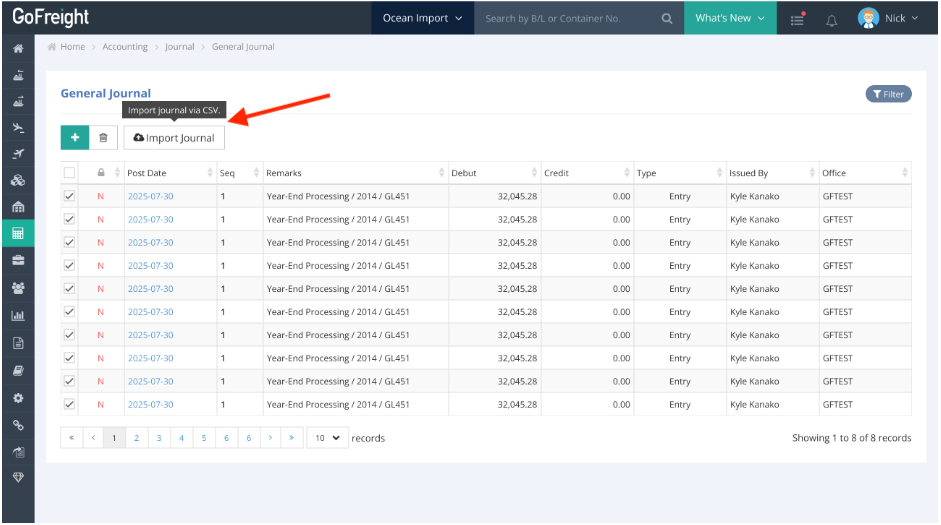
Path 2:
- Go to Accounting → Journal → Journal Entry
- Click Import Journal
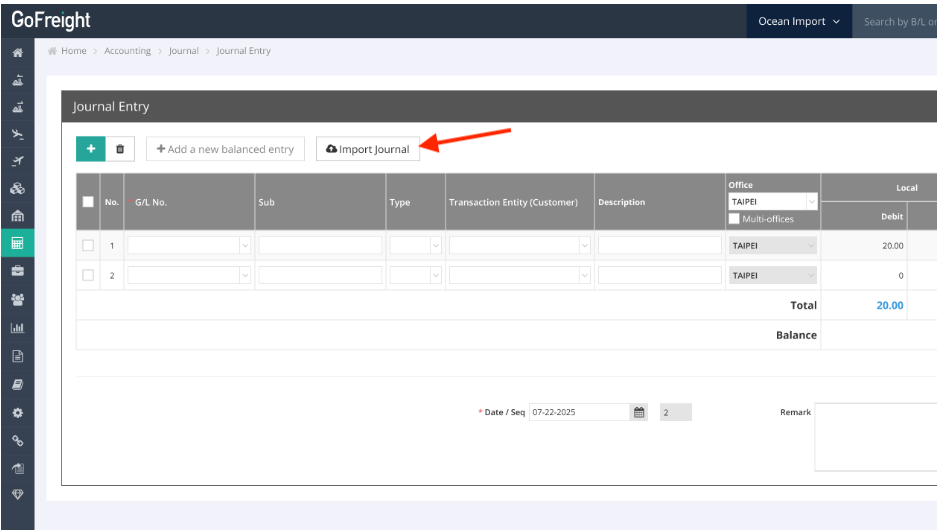
Note:
Clicking the button will redirect you to the Journal Entry page and open the Import Journal modal pop-up.
Step 2: Prepare the CSV File
Press the “Download Template” button, and a blank file will be downloaded to your device for manual entry.
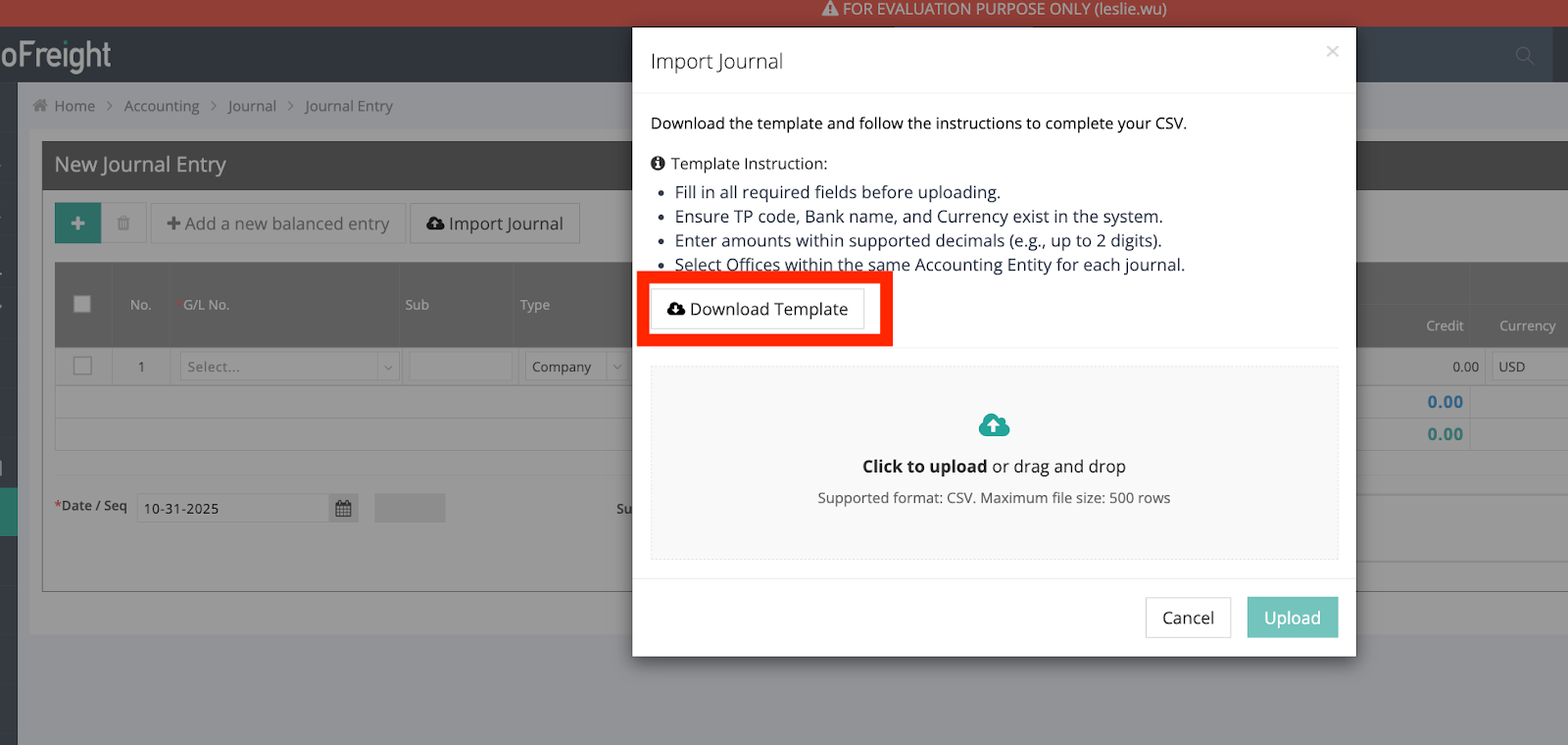
Before uploading, ensure your file includes all mandatory fields and follows the correct format.
Mandatory Fields:
- G/L No.: Confirm each G/L number belongs to the correct Office Code.
- Office Code: Ensure the office exists and is configured in your system.
- Currency: Required for companies using Multi-Currency.
- Debit Amount & Credit Amount: Totals must be equal.
Recommended Fields (Optional):
- Sub: For sub-ledger or additional classification.
- Type (Bank / Company): Specify whether the transaction relates to a bank or company account.
- Transaction Entity (TP Code) or Bank: Enter the Trade Partner Code (TP Code) or Bank Name.
- Description: Optional note to clarify the transaction’s purpose.
Step 3: Import the CSV File into GoFreight
- Open the Import Journal modal.
- Drag and drop your CSV file into the upload area, or click Select File.
- The system will validate your file automatically.
- ✅ Successful Upload: You’ll see a confirmation message.
- ⚠️ Errors Found: The system will display them in the modal. Correct your CSV and re-upload until validation passes.
Step 4: Review the Import Log
After uploading, you will see one of the following outcomes:
- ✅ Successful Import: Confirmation message “Journal imported successfully.”
The imported journal will appear in the General Journal List.
⚠️ Tips To Prevent Import Errors
- Do not edit, rename, re-position, or move column headers from the original template.
- Use proper decimal formats for numeric values (e.g., 0.00).
- Ensure all offices belong to the same accounting entity.
- Confirm that total Debit equals total Credit before uploading.
⚠️ Common Import Failures
The import may fail due to:
- Missing mandatory fields
- Using TP Name instead of TP Code
- Non-existent TP Code, Bank Name, or Currency
- Invalid amount formats (only up to two decimal digits supported)
- Selected Offices belong to different Accounting Entities
Additional Information:
- Learn How to Review your Bank Names (LINK)
- Learn How to Review your Currency Options (LINK)
- Learn How to Review Your TP Code (LINK)
- Learn How to Review Your G/L No. (LINK)
How to Fix Errors
- Review error messages shown in the Import modal.
- Correct your CSV file accordingly.
- Re-upload the updated file.
- Once validation passes, confirm the import.