
This article will guide you through the concepts of shipment blocking and unblocking during the finalization of a shipment file, illuminating the practical steps for effectively using these features.
Blocking and unblocking shipments are crucial functions that empower authorized users to secure all relevant information within a shipment file, including shipment and accounting details. Authorized Users: By default, only the General Manager role has the capability to perform shipment blocking and unblocking.
These functions come into play when:
- You have dispatched your shipment for export or have received it for import.
- All payable and receivable invoices are meticulously recorded in the shipment file.
At this point, locking the data is essential to ensure that other users cannot alter these critical records.
Follow the instructions below to block or unblock shipments in the system.
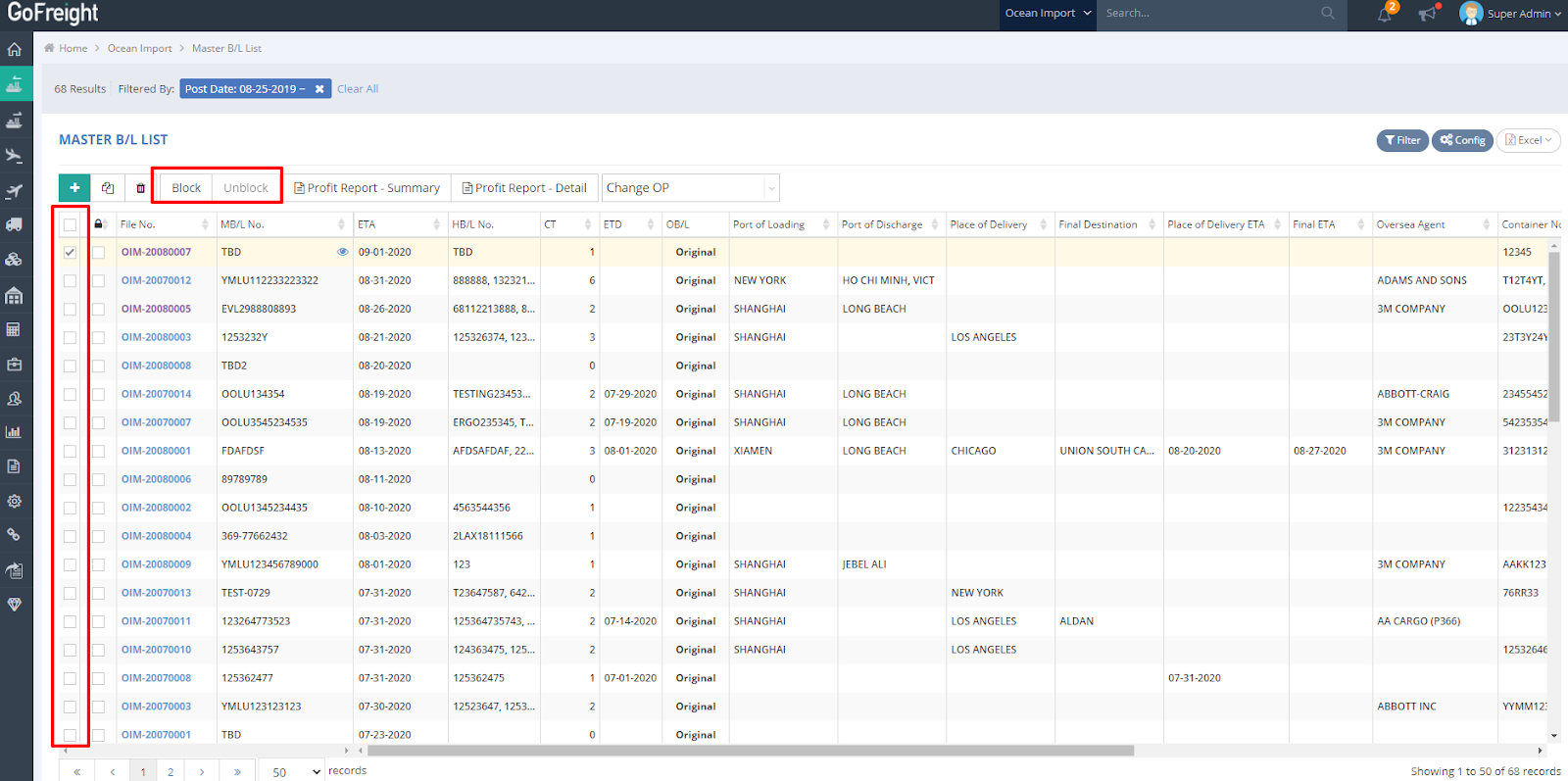
- Check the shipment(s) you wish to block under the “Lock” icon row.

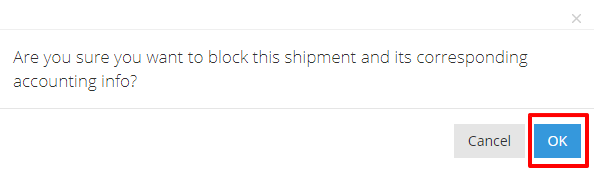
- In the pop-up message, click “OK” to block the shipment. This action will block the corresponding accounting information as well.
- Check the shipment(s) you wish to unblock in the first row, then click “Unblock.”
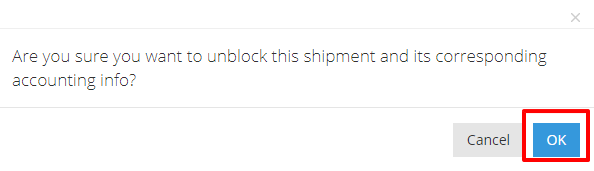
- In the pop-up message, click “OK” to confirm the unblocking of the shipment.
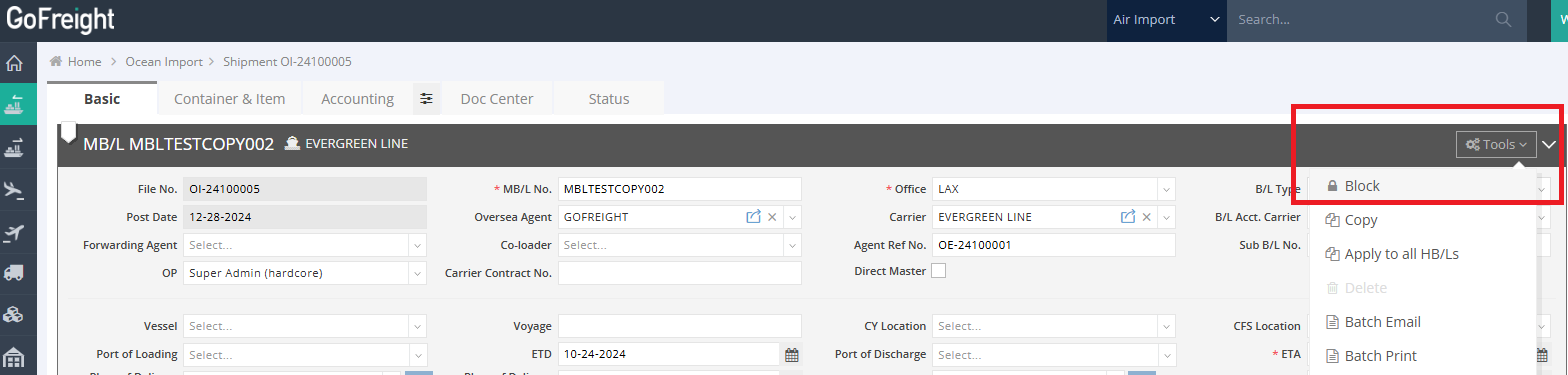
Also, you can find the feature "block/unblock shipment on the Tools menu on the upper-right-hand side of the shipment entry page.
For a visual guide on this feature, please refer to the following video(s):
Shipment Block/Unblock .