
How to create a new Air Export shipment for e-AWB
1. Go to the Navigation bar on the left-hand side, and select “New Shipment” under the “Air Export” section.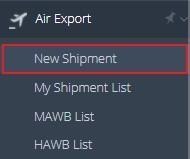
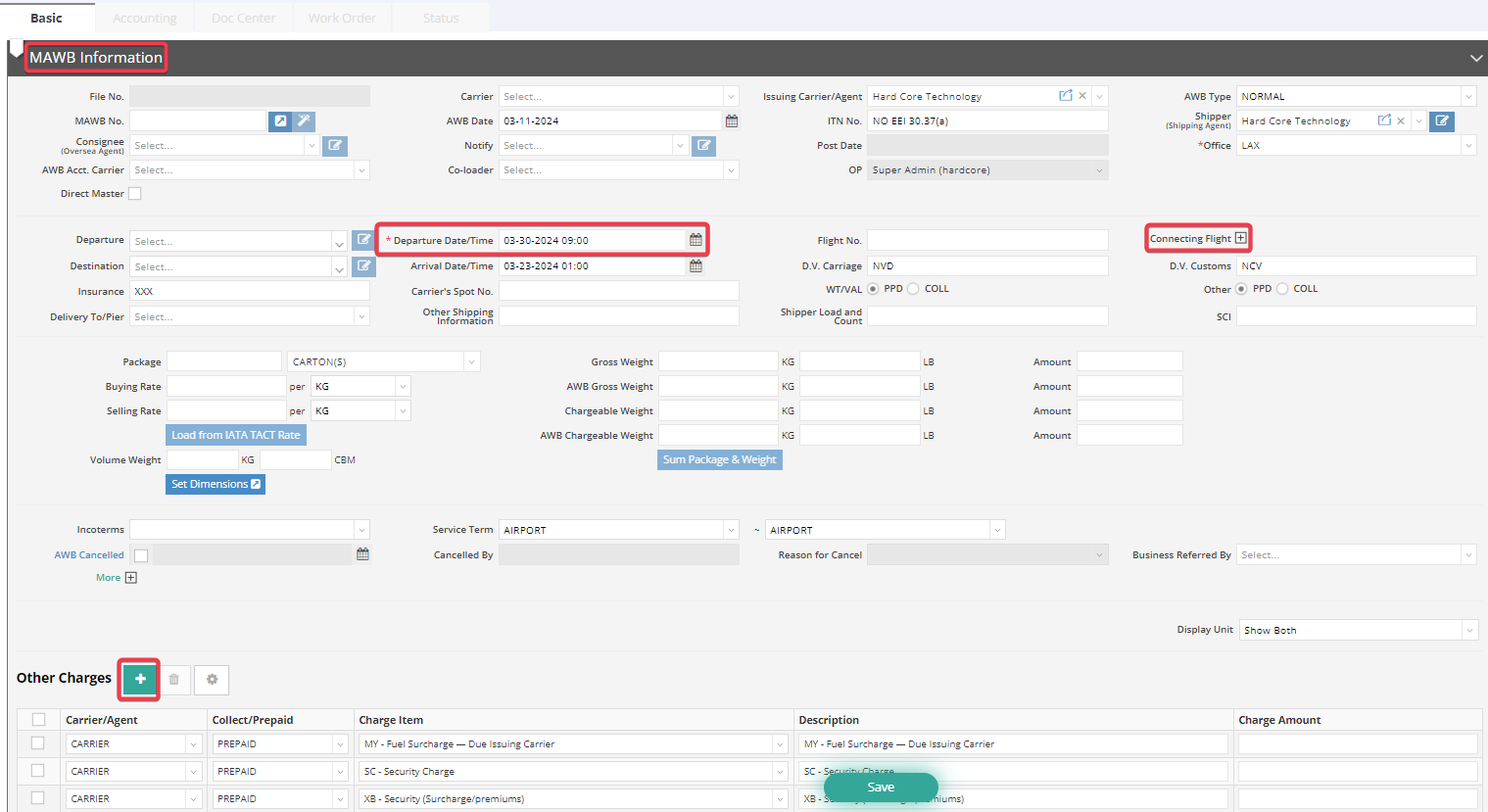
2. You will see a place to create MAWB. The cells with a red asterisk are the compulsory info you must fill in. If the shipment has connecting flights, click “Connecting Flight” to record it.
You can add Charges of Carriers by clicking the “+” at the bottom.
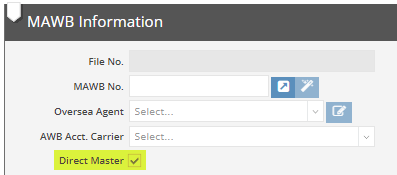
*If it is a Direct Master Shipment, please tick the checkbox and start to fill out the shipment data.
Let’s say your client has 2 pallets of goods (100*120*110cm each), and they say the total Gross weight is 1000kg. Your selling price is 4 dollars per kg. How do we do it in the system?
3. Select the unit as pallets at the “Package” and input 2, and click “Set Dimensions” at the bottom left to input the Gross Weight and calculate the Volume Weight. 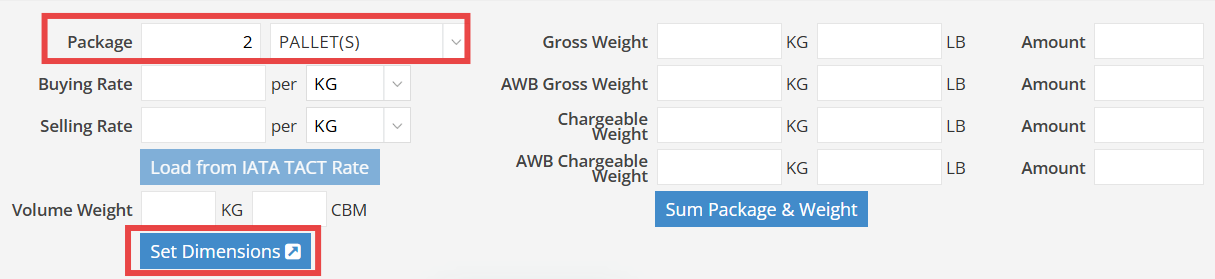
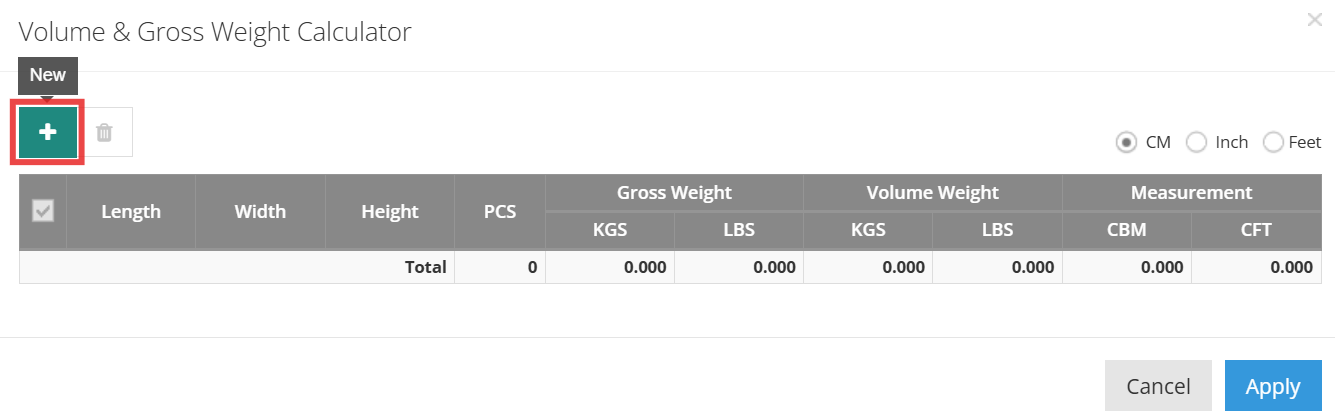 5. Select the preferred unit of measurement above the input fields, including cm (centimeters), inches, or feet, then enter the length, width, and height accordingly. The Gross Weight can also be entered directly in this window and will be automatically applied to the shipment page.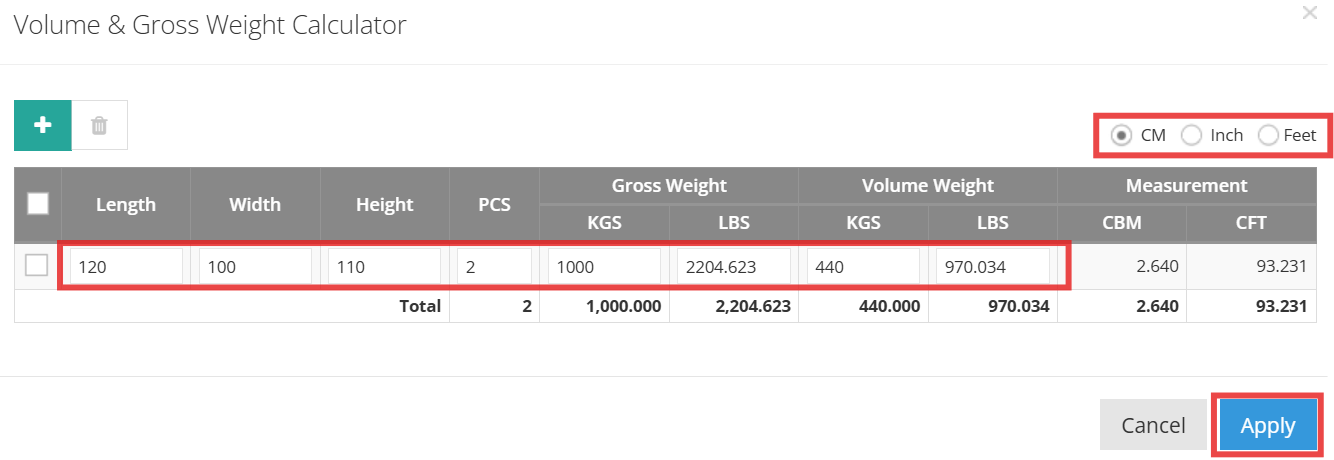
Note: If you have entered a Gross Weight before clicking “Set Dimensions,” please ensure that the same Gross Weight value is entered in the Set Dimensions window. Entering 0 or leaving the field blank is not recommended, as the values entered under Set Dimensions will overwrite the Gross Weight field in the HAWB Basic information. A pop-up notification will appear to remind you of this overwriting action.
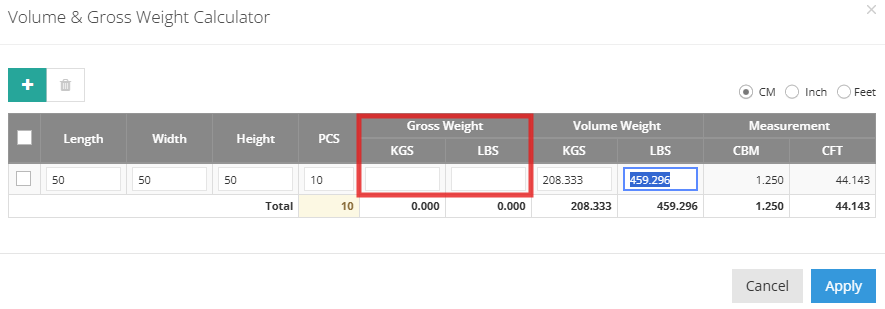
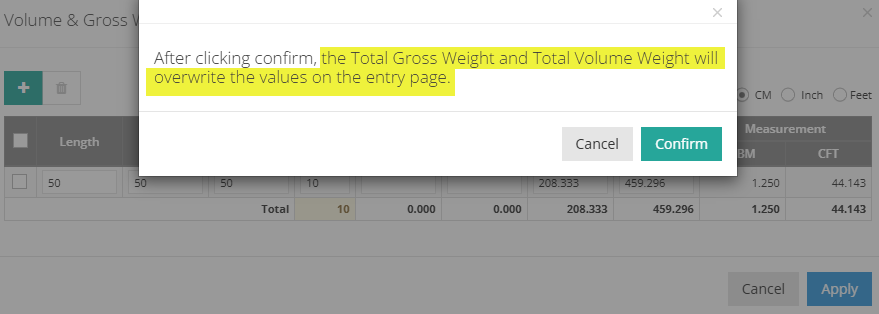
6. Both Gross weight and volume weight from the Set the Dimension will be synchronized in the shipment basic page. Since the Gross Weight of 1000 KG is greater than the Volume Weight of 440 KGS, the Chargeable Weight will now be 1000 KGS.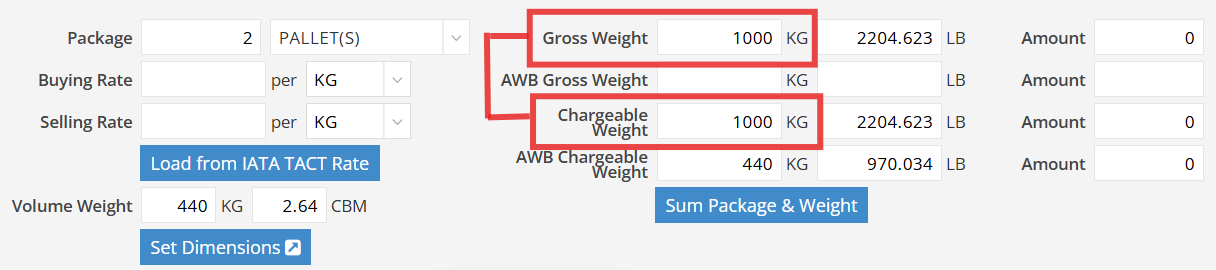
7. When the shipment is received, you will measure the weight again. Let’s say this shipment actually weighs 1050 kg according to your warehouse or terminal. Input 1050 kg at “AWB Gross Weight”; since 1050 kg is greater than 1000 kg, the AWB Chargeable Weight will be 1050 kg. 
8. Input 4 per kg at the “Selling Rate”, and GoFreight will calculate the total price automatically. 

10. You can also click the gear icon at “Other Charges” to edit default charges.
For example, on Screening, kindly choose XB and modify the Description to Screening.
| MAWB other charges | |
|---|---|
| Charge Item | Description |
| MY-Fuel Surcharge - Due Issuing Carrier | MY - Fuel Surcharge |
| SC-Security Charge | SC - Security Charge |
| XB-Security (Surcharge/premiums) | XB - Screening |
| CG-Electronic processing or transmission of data for customs purposes | CG - Electronic data |
| RA-Dangerous Goods Fee | RA - Dangerous goods |
12. Click “Add HAWB” at the upper right-hand side of the MAWB Basic tab if this is not a Direct Master shipment.

13. If you have multiple HAWBs under the same MAWB, click “Add HAWB” to add additional HAWBs. Each HAWB will be displayed in a different color on the right-hand side of the page for easy identification.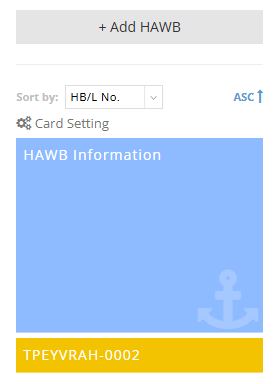
14. For the total Package and Gross Weight, you can click on “Sum Package & Weight” under MAWB. 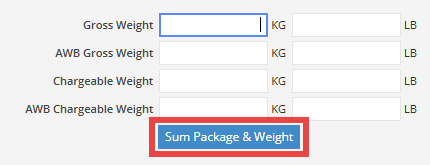
Remember to “Save” after completing as well. 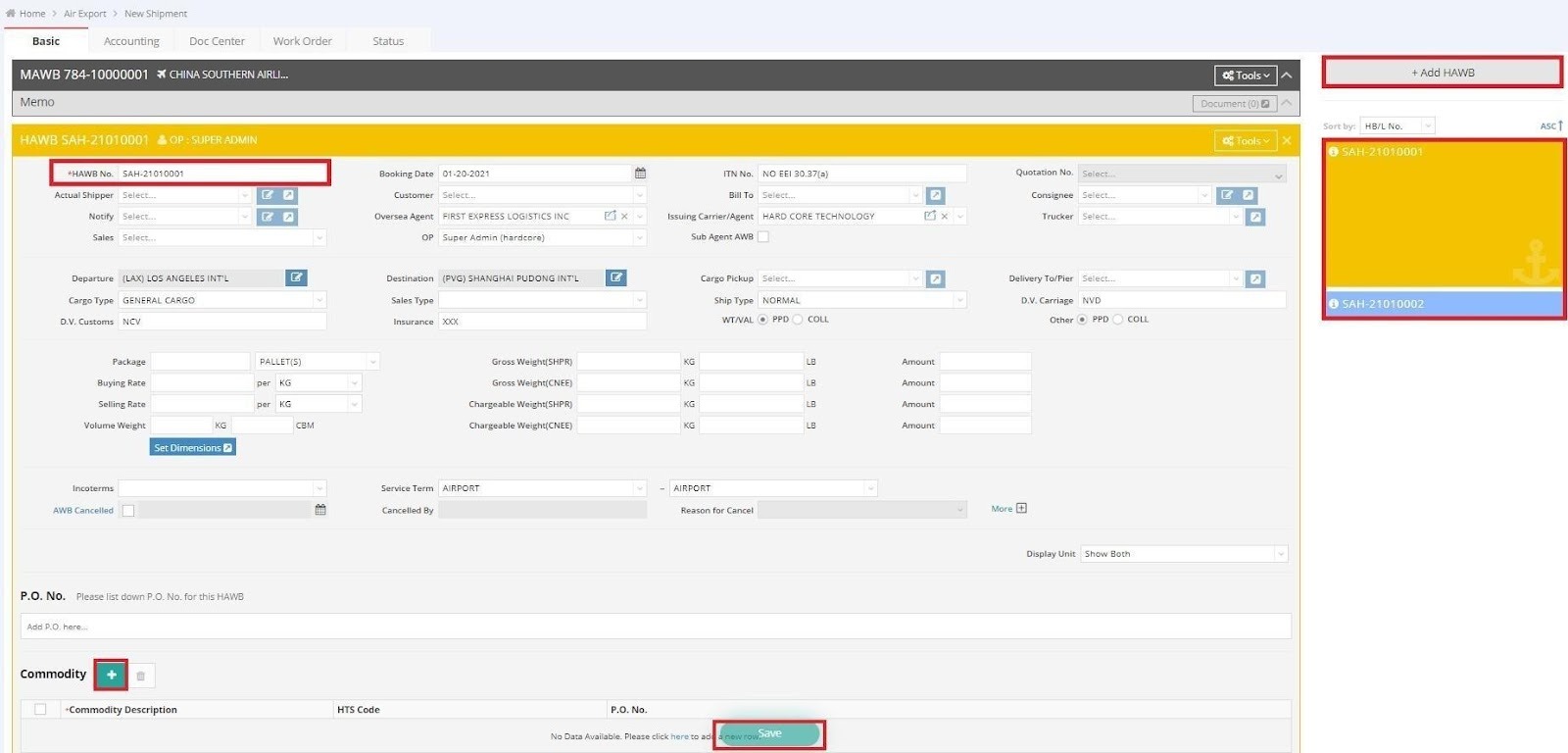
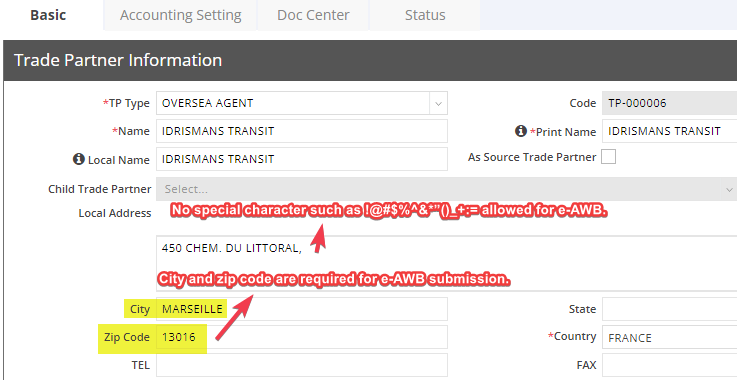
15. For Shipper and Consignee Columns, please ensure no special character such as !@#$%^&*”()_+:= is filled in the Trade Partner profile.
16. Zip code is required for e-AWB, please ensure the zip code has been filled in the Trade Partner before being selected to be the Shipper, Consignee, and oversea agent. Please refer to the list below for reference.
17. In the field of Nature and Quantity of Goods.
Kindly be reminded to avoid the special characters “#” and”&,” and please keep the commodity name at the top of the field. Please find the example for reference.
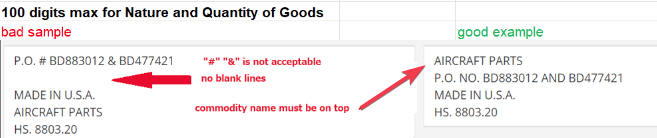
Nature and Quantity of Goods in the shipment basic tab.
