In this article, you will learn how to create a new quotation more efficiently using the latest features released in the Quotation module. Here are the new features:
- Streamline the Basic Information section with fewer input fields.
- Set dimensions for volume weight that automatically syncs with Quantity data in the Freight rate for Air cargo.
- Customize the visibility and order of rate items.
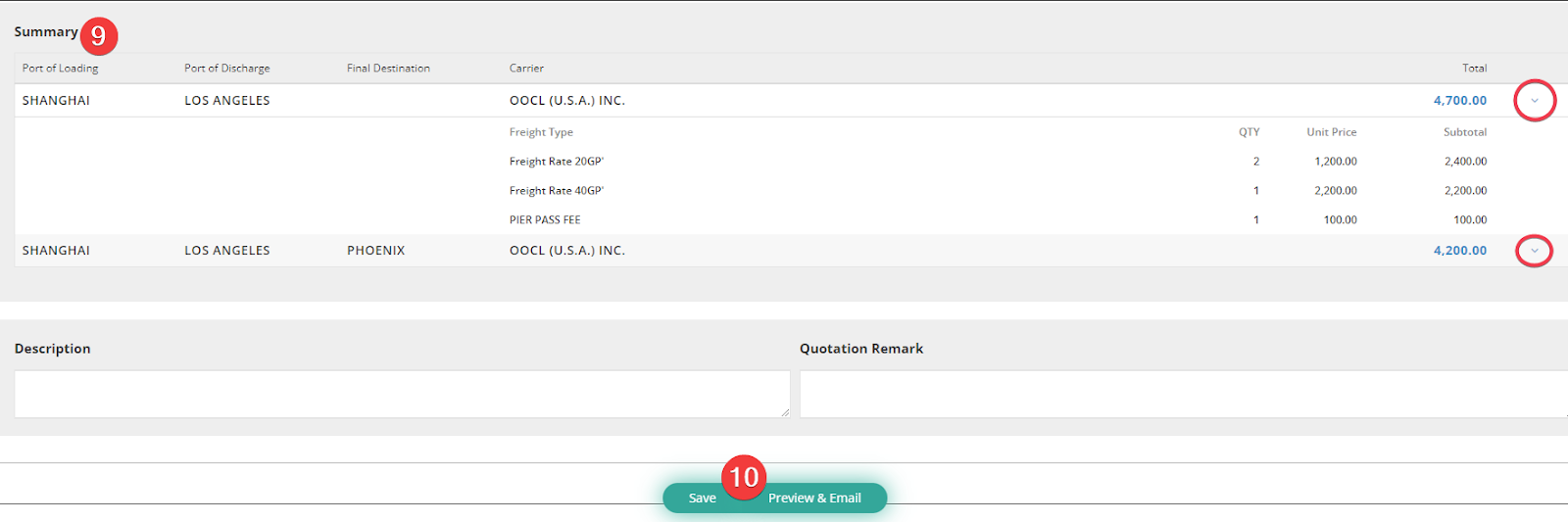
- Add Quantity information in the summary table to automatically calculate subtotal and total price.
- Expedite the quotation process with an instant preview button in the summary column.
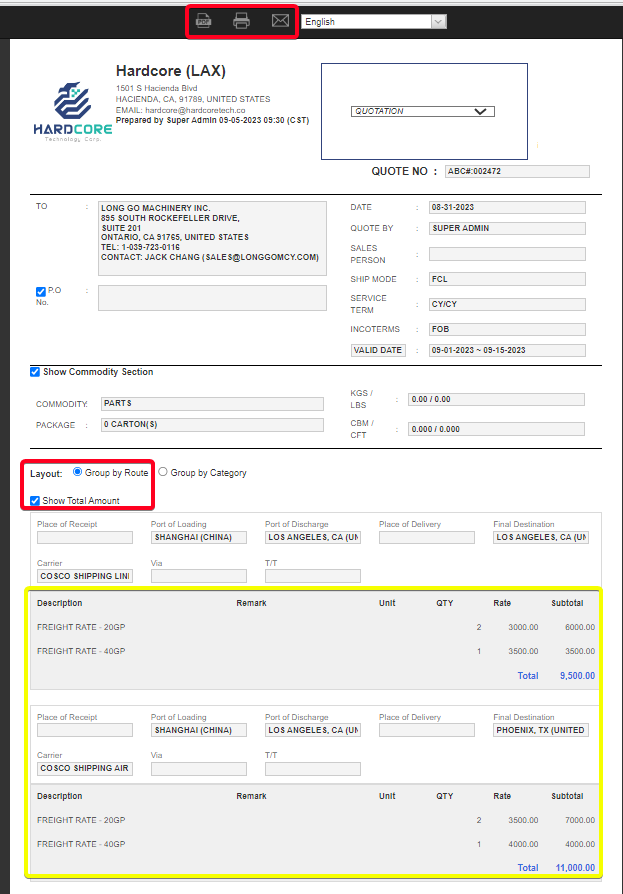
- Display a price summary including Unit, Quantity, Rate, and subtotal using the layout option: Group by Route.
Steps to Create a New Quotation:
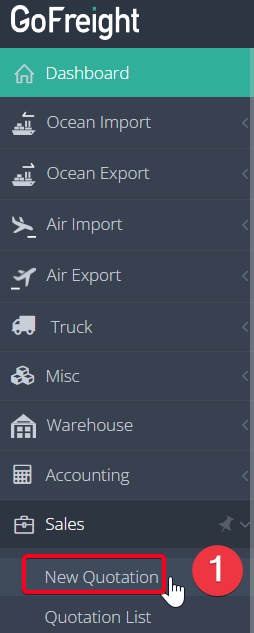
- Navigate to New Quotation under Sales in the menu bar.
- Select the Shipping Type; once it is selected, the Ship Mode in the Basic Information section will be updated accordingly.
Note: Once the quotation is saved, the Shipping Type can no longer be edited.
- Fill in the necessary data in the Basic Information. Please note that while our auto-generate feature automatically fills in the quotation number, you have the option to uncheck the box and enter your own quotation number if needed. You can tap the More Fields button at the upper right-hand side to enter additional required data, such as package details. For Air cargo, utilize the Set Dimension function to expedite the calculation of volume weight, which synchronizes the chargeable weight directly to the Quantity in the freight rate. (Note: Quantity is referred to as QTY in this context.)
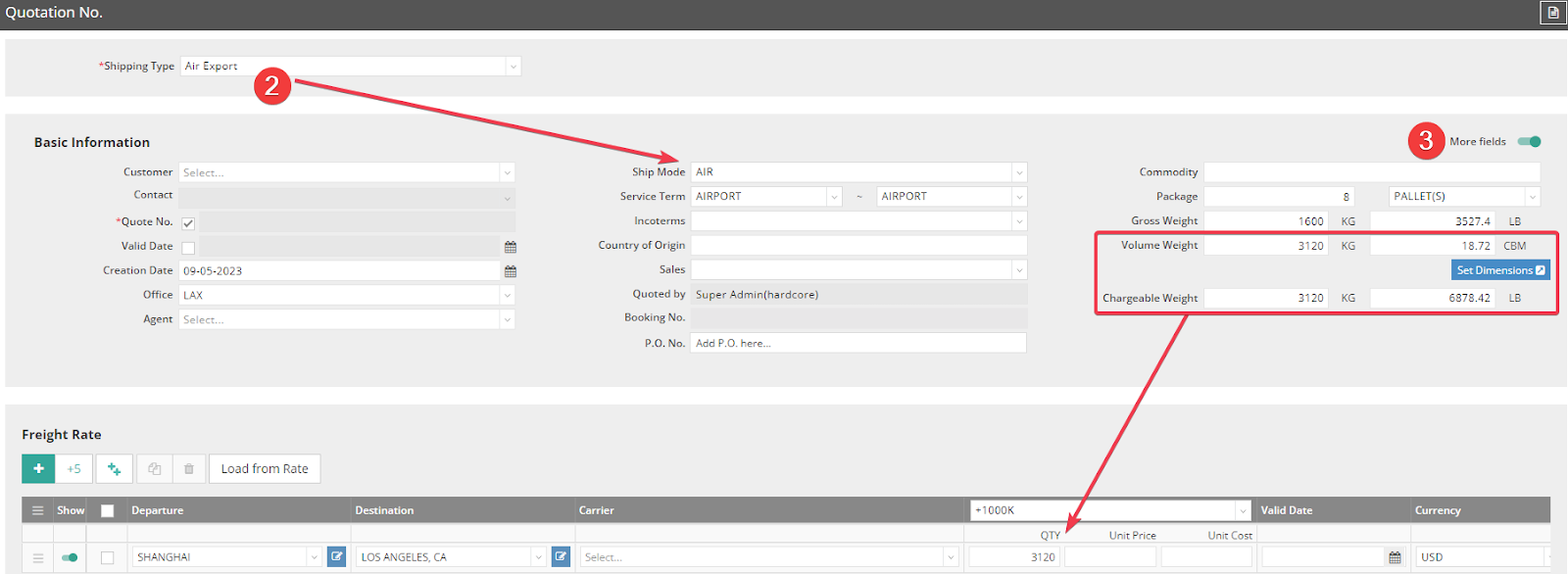
- Press the green plus (+) button to add a new freight rate; alternatively, you can use +5 or ++ to add multiple rates.
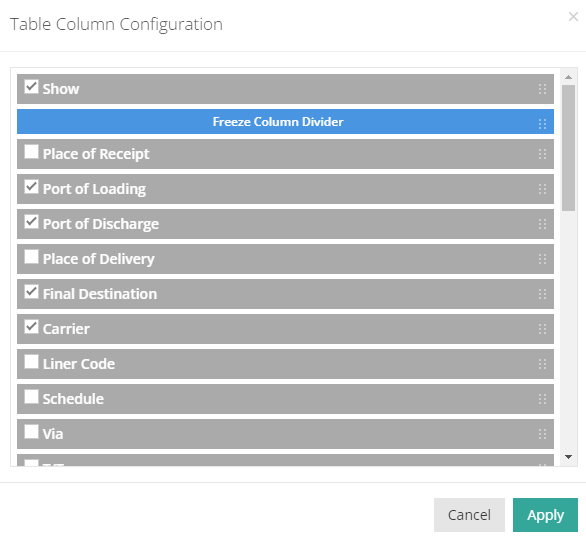
- Enter the UN LOCODE for the Port of Loading, Port of Discharge, Final Destination, etc., and select the Carrier. (Click Config to display Place of Receipt or Place of Delivery and other necessary items.)
- Select the Container Type and input the Quantity and Unit Price accordingly. For each rate, you can add more Container Types and respective Quantity and Unit Prices by clicking the plus (+) sign in the column. To remove any container types for a rate, simply click on the three-dot icon (⋮).


- With multiple freight rates added, easily swap the order of freight rates or simply grey out the show button.

Tip: To adjust the layout of each rate, such as removing the Final Destination or adding ETA to the Freight Rate, click on Config in the upper right corner to customize the column layout.
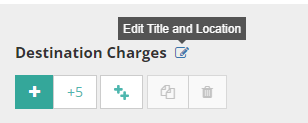
- Edit destination charges by clicking the blue pen icon next to the location. You can create distinct groups for Origin charges and Destination charges.

- All freight with additional charges can be viewed directly in the Summary column at the bottom for easy checking before clicking Save or Preview & Email. Click on the V icon to expand the field for more details.
- Save the quotation and press Preview & Email to preview it. Select the layout "Group by Route" and check "Show Total Amount" to display the Total Amount by different routes. Click the icons for Download PDF, Print, or Send Email to generate the quotation, print it, or send it directly to the customer.