
Introduction:
In this article, you will learn how to streamline the process of creating a new shipment from a previously approved quotation in the GoFreight system. This feature is designed to reduce redundant data entry and save you time.
This function is available in the Ocean Import, Ocean Export, Air Import, Air Export and Truck modules.
The following demonstration will be based on the Ocean Import module.
Creating a New Shipment from a Quotation:
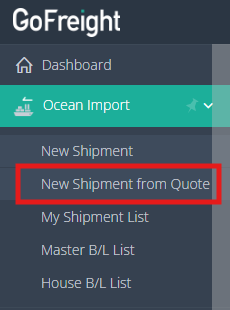
- Navigate to the "Ocean Import" section and select "New Shipment from Quote" on the navigation bar.
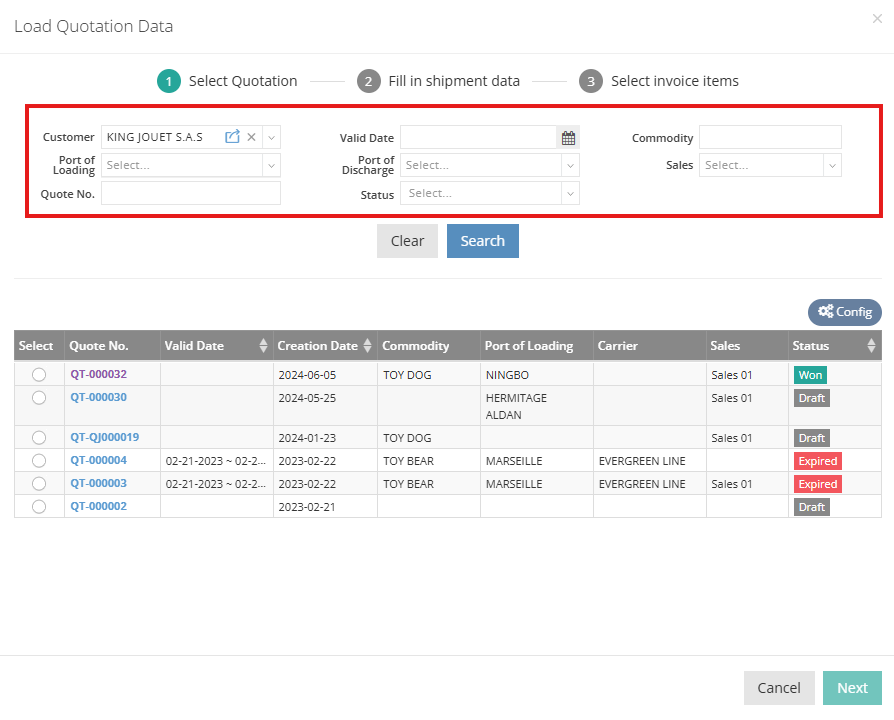
- In the pop-up window, filter quotations based on Customer, Valid Date, Commodity, Port of Loading(POL), Port of Discharge(POD), Sales, Quote No., and Status.
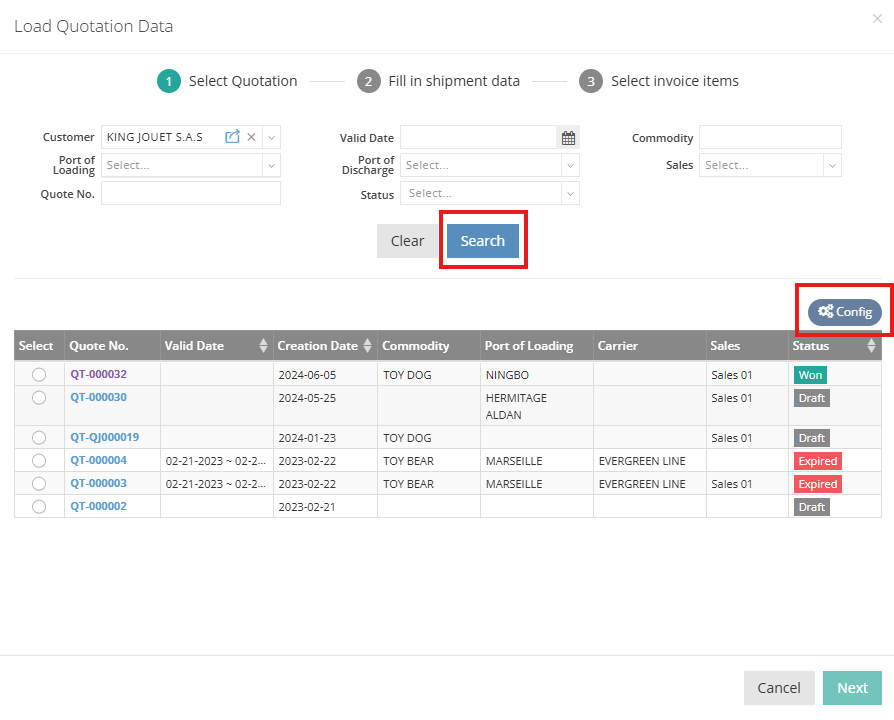
- Click "Search" to retrieve the list of results. You can also click "Config" to customize which items are displayed in the list (e.g., Port of Loading, Port of Discharge, Create Date, etc.).
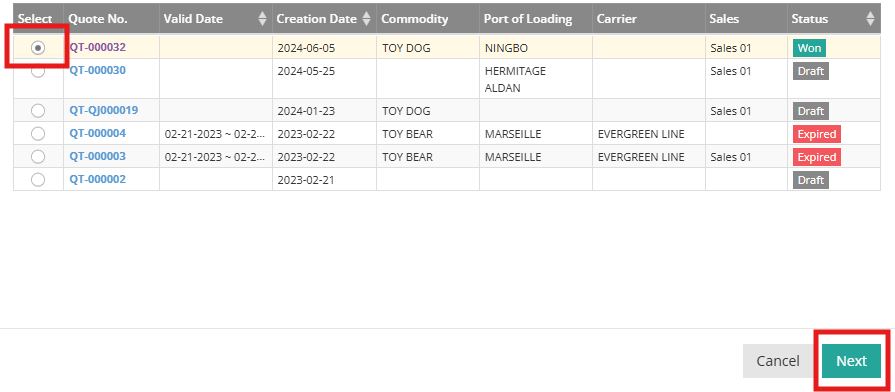
- Select the quotation you want to use for creating a shipment.
- Click "Next" to proceed to the shipment data entry.
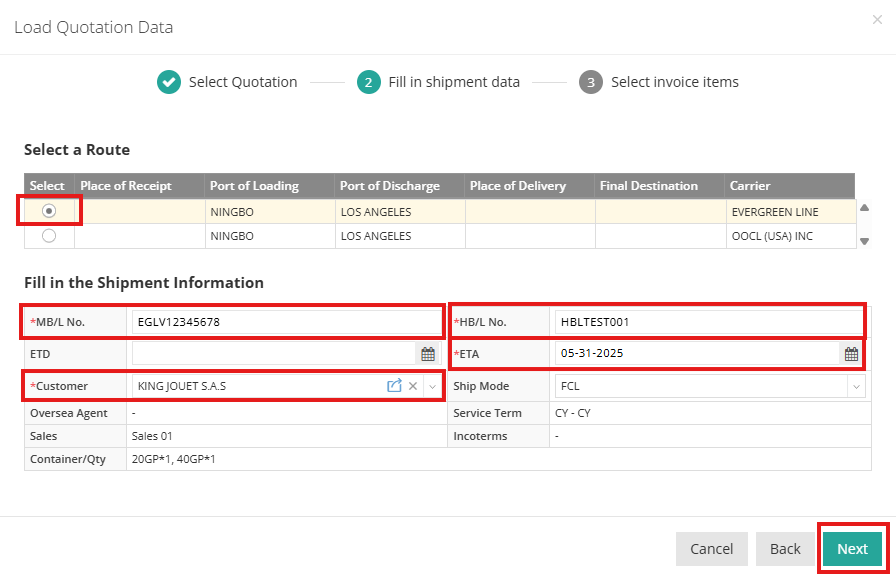
- Select the desired Route for your shipment.
- Fill in the shipment details. Fields marked with a red asterisk are required (e.g., for Ocean Import shipments: MB/L No. (Master Bill of Lading Number), HB/L No. (House Bill of Lading Number), Customer, and ETA (Estimated Time of Arrival)).
Note: Only one HB/L No. can be entered at this stage. You can add additional HB/Ls after the shipment has been created.
- Click “Next” to select invoice items.
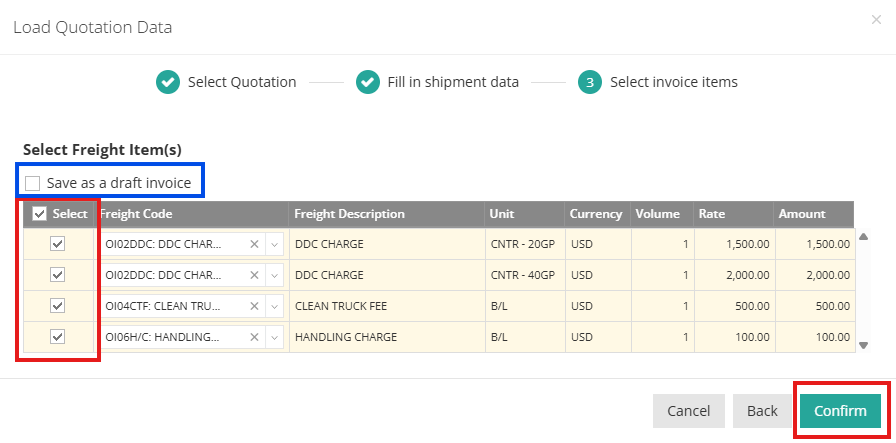
- Select the invoice items. By default, the system selects all items. If any items do not apply to this shipment, uncheck the relevant box(es) next to the Freight Code. If the invoice is not finalized, check the "Save as a draft invoice" option to create a draft invoice.
- Click “Confirm” to be directed to the shipment page.
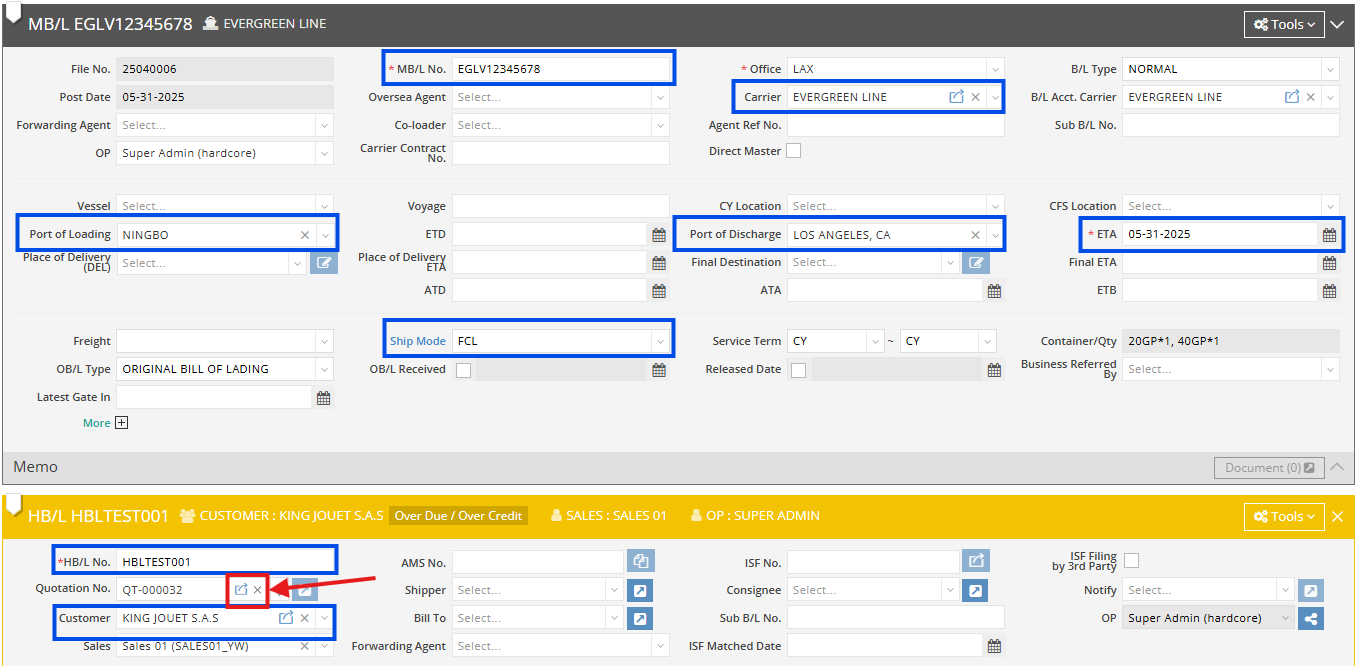
- After completing the previous steps, you'll notice that basic information from the quotation, such as POL, POD, ship mode, service term, customer, and sales, is automatically populated on the shipment page. The “Quotation No.” used for this shipment is displayed on the HBL, and you can access the quotation page through the quick link.
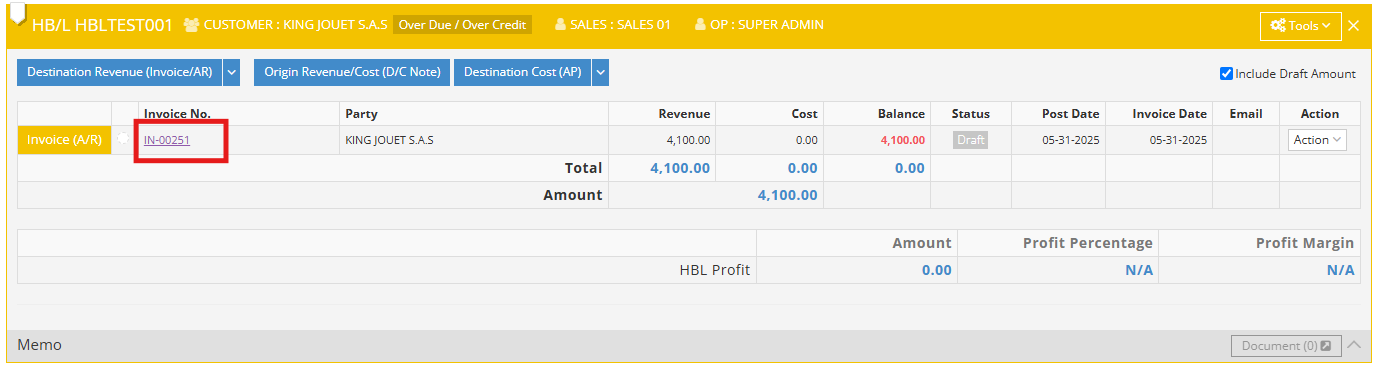
- Accounting Tab: Under the HBL, an Accounts Receivable (AR) is automatically created, including invoice items and essential information from the quotation. You can click on the invoice number to view or edit the details.
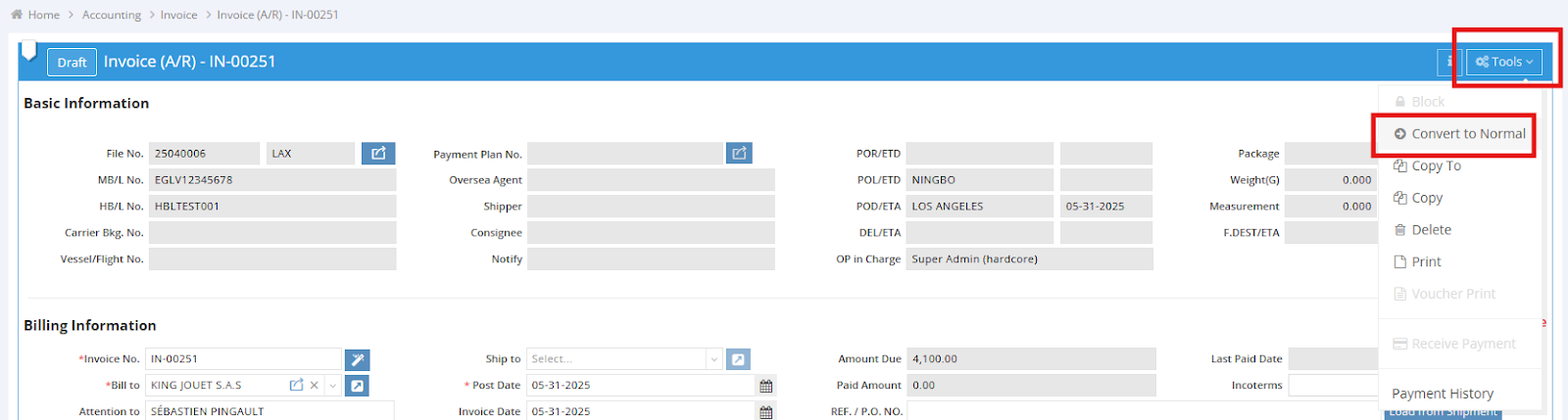
- Finalizing the Draft Invoice: If the invoice is in draft mode, convert it to a normal invoice by clicking "Tools" and selecting "Convert to Normal." This enables you to print or send the confirmed invoice to your customer.
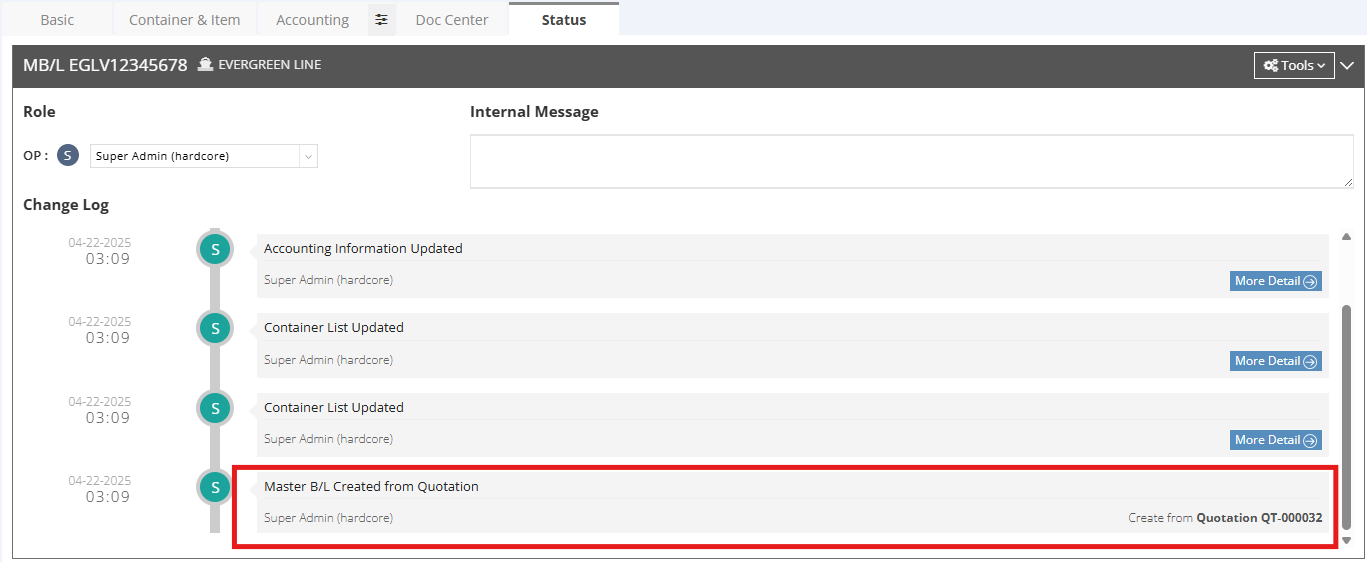
- Status Tab: In the "Status" tab, view the history of your shipment creation, including details on when and by whom the shipment was created from a particular quotation.
For a visual guide on this feature, please refer to the following video: