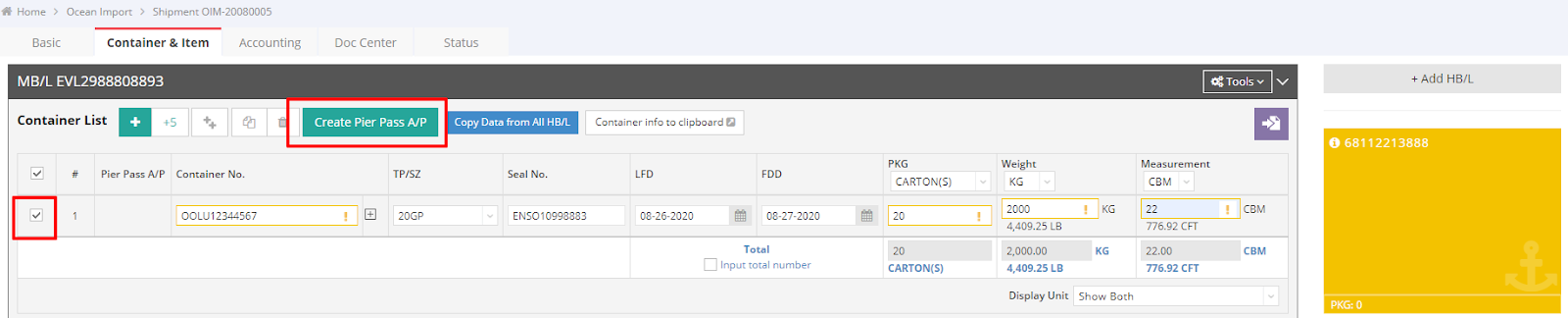
After adding your container to the "Container & Item" tab in your shipment file, you can conveniently create a Pier Pass using the shortcut located in the same tab. Kindly follow these steps:
- Select the container for which you want to create a Pier Pass fee, then click “Create Pier Pass A/P.”
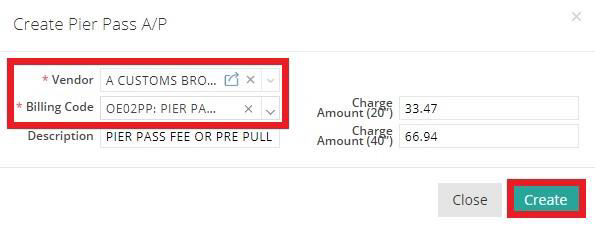
- Complete the required information, “Vendor” and “Billing Code” in the pop-up window and click “Create.”
You may update the “Charge Amount” for the 20” and 40” containers as needed. Once you click “Create,” the new account will be automatically saved in the system and made accessible to your entire team.
- Upon successful creation, a notification will pop up stating “Pier Pass A/P Created Successfully.”

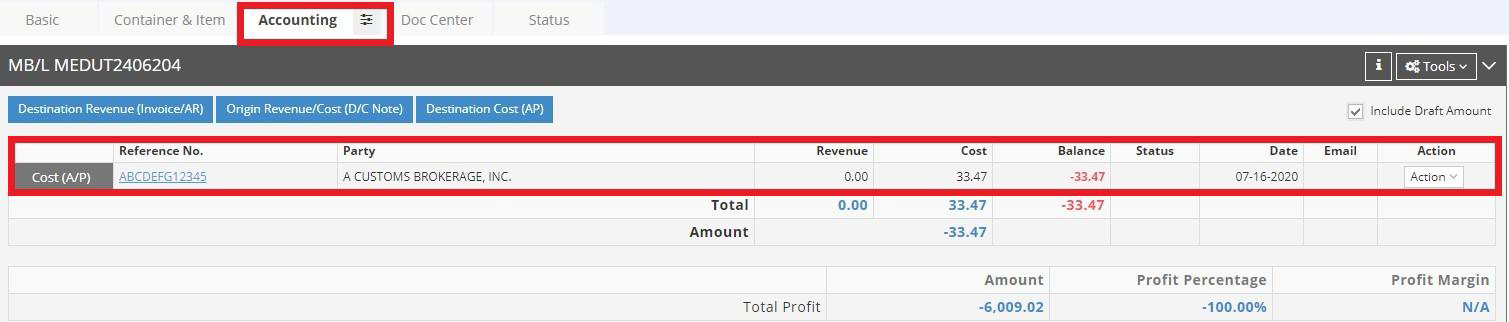
- To verify that the Pier Pass has been created, navigate to the “Accounting” tab and check for a new Cost (A/P). If it appears, you have completed the process successfully.