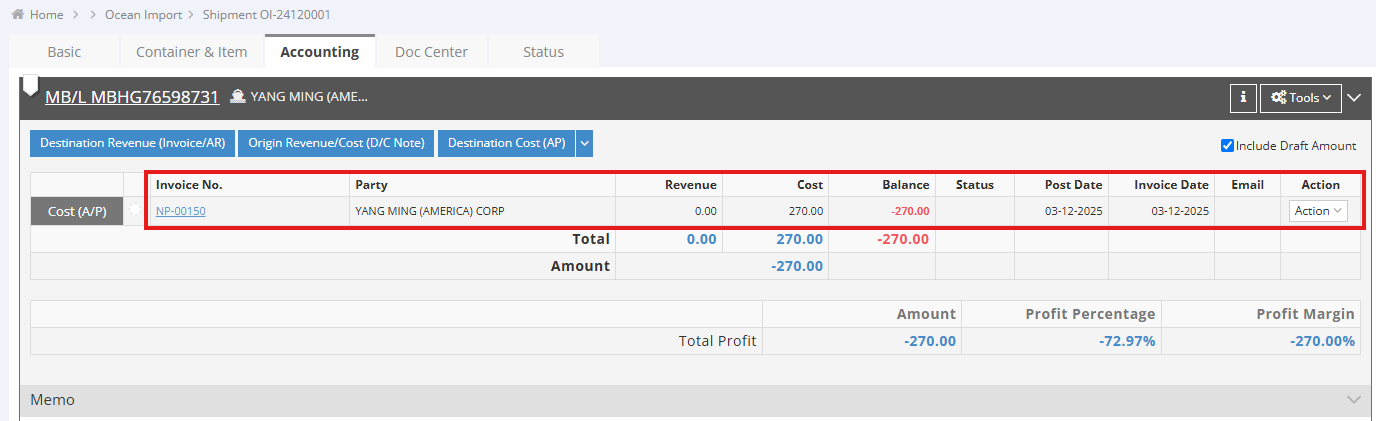
This guide outlines the steps for creating an Accounts Payable (AP) invoice from a quotation within the system.
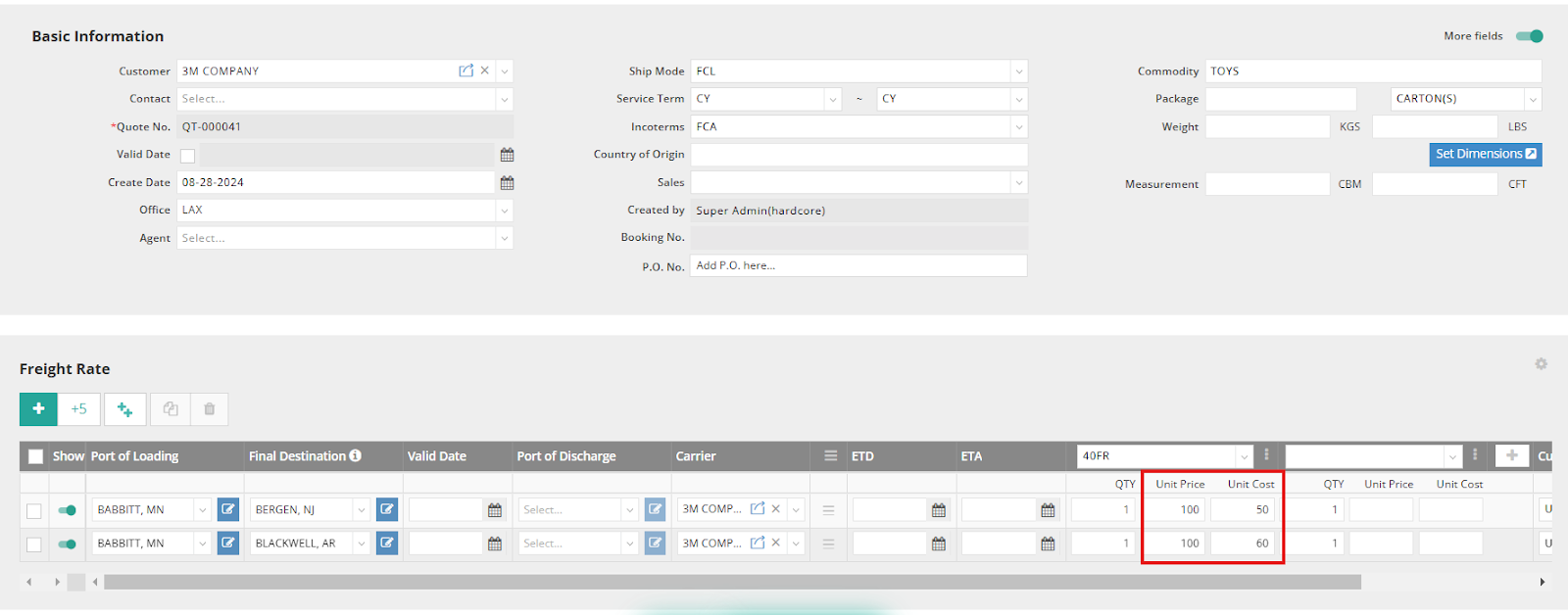
Step 1: Input Price, Cost, and Freight Codes in the Quotation
- Ensure that both the Unit Price and Unit Cost fields are completed in the Freight Rate section. Also, make sure to include the Freight Code, Unit Price, and Unit Cost in the Destination Charges section.

Step 2: Create AP (Accounts Payable) Invoices in the Shipment
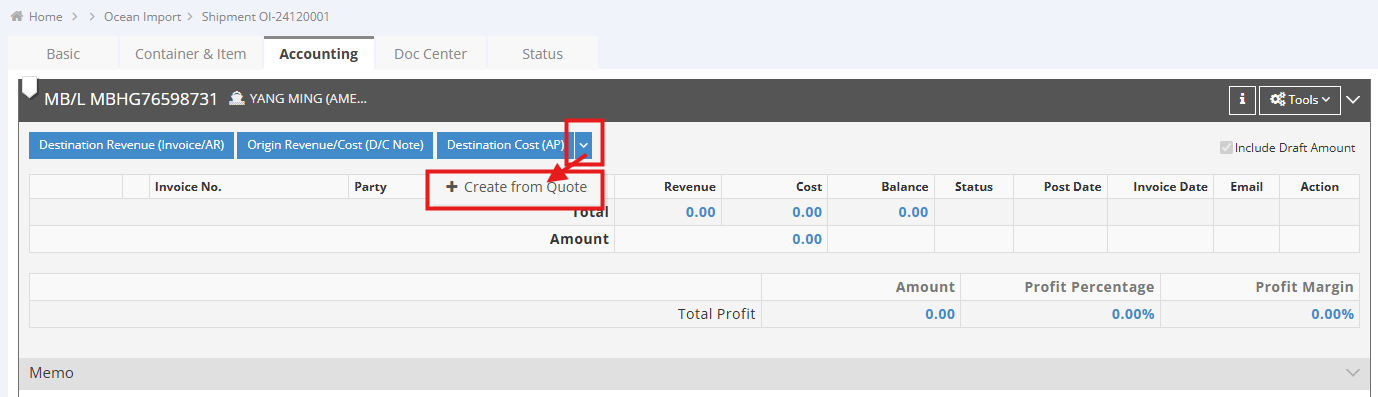
- Open the shipment where you wish to create the Accounts Payable (AP).
- In the Accounting tab, click the arrow next to "Destination Cost (AP)" and then select “+ Create from Quote”.
Note: We recommend creating AP invoices at the MBL (Master Bill of Lading) level for the following reasons:
- Centralized cost management: Charges from vendors, such as carriers or co-loaders, are typically issued at the MBL level, making it more efficient to manage and reconcile costs.
-
Charge allocation on the MBL level will be split: If you create an AP invoice at the Master B/L (MBL) level and the MBL contains multiple HBLs, the invoice amount will be distributed to each HBL based on the volume (CBM, refer to Cubit Meter) ratio.
However, the system does not restrict you from creating AP invoices at the HBL(House Bill of Lading) level. You may choose the appropriate level based on your actual business needs.
Step 3: Select the Quotation
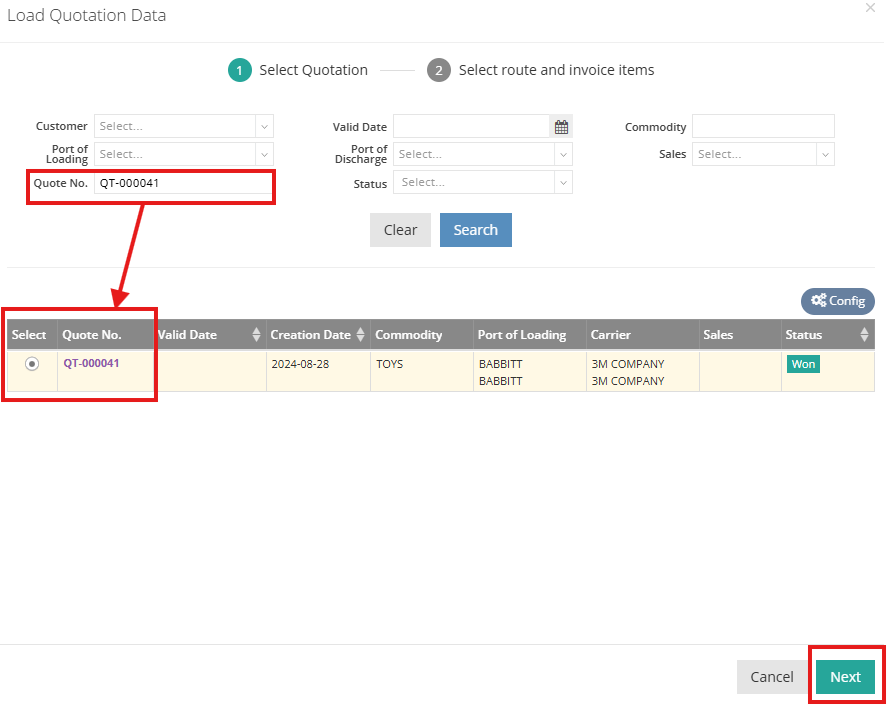
- In the Load Quotation Data page, utilize the Customer and Quotation No. fields or other filters to narrow your search results.
- Select the relevant quotation and click "Next."
Step 4: Select the Vendor
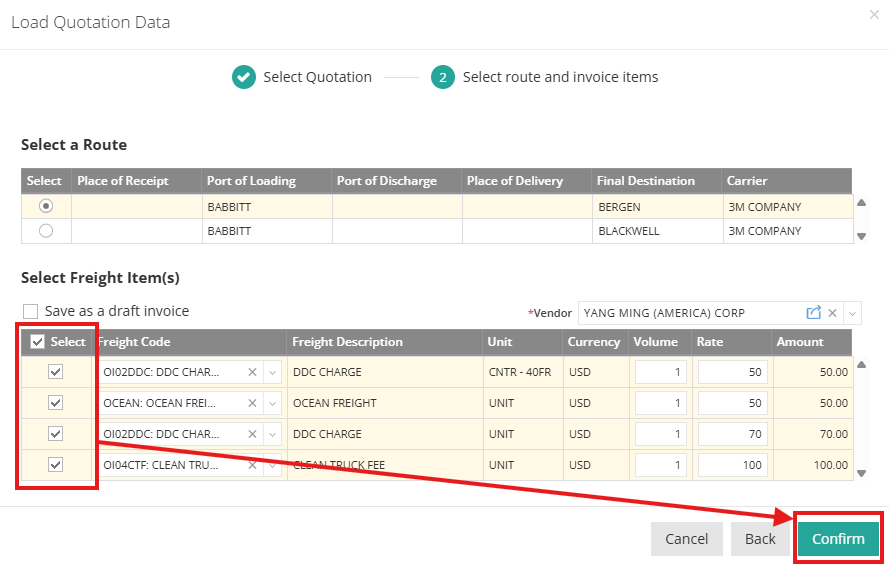
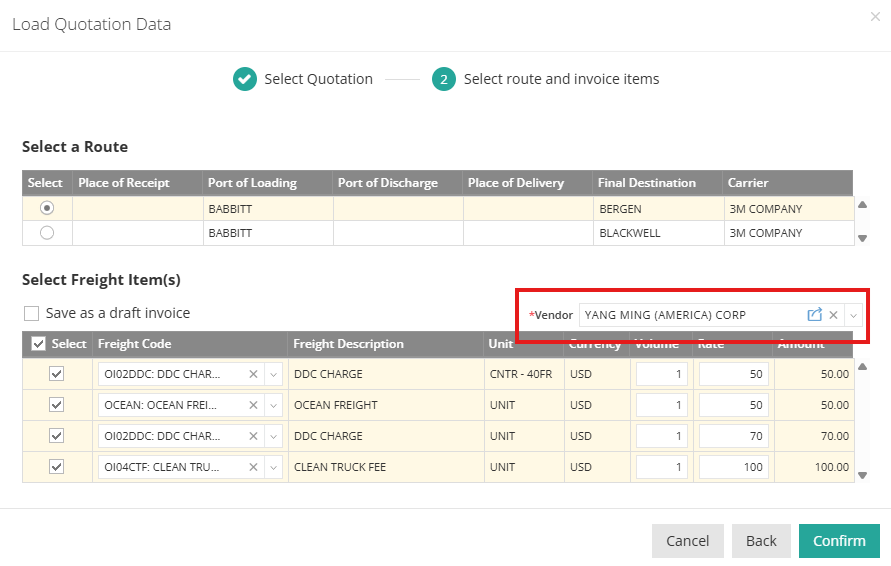
After selecting the quotation, you will be prompted to choose the vendor for this AP, as well as the freight codes. Please note that selecting a vendor is mandatory for creating an AP, and you will not be able to proceed without this information.
Step 5: Select Freight Codes
Choose the freight codes you wish to include in the AP invoice. Click "Confirm" to complete this process. Your AP invoice will be automatically created under the Accounting tab.