
Introduction:
In this article, you will learn how to streamline the process of creating an AR (Accounts Receivable) invoice from an existing quotation in the GoFreight system. This feature reduces the need for redundant data entry and saves time.
This function is available in the Ocean Import, Ocean Export, Air Import, and Air Export modules.
Below, we take Ocean Import as an example.
Creating an AR Invoice from Quotation through the Accounting Tab
Step 1: Go to the shipment entry page where you want to create the AR and navigate to the "Accounting" tab.
Step 2: Under the HBL(House Bill of Lading), click the dropdown arrow on the right side of “Destination Revenue (Invoice/AR),” then click “+Create from Quote.”
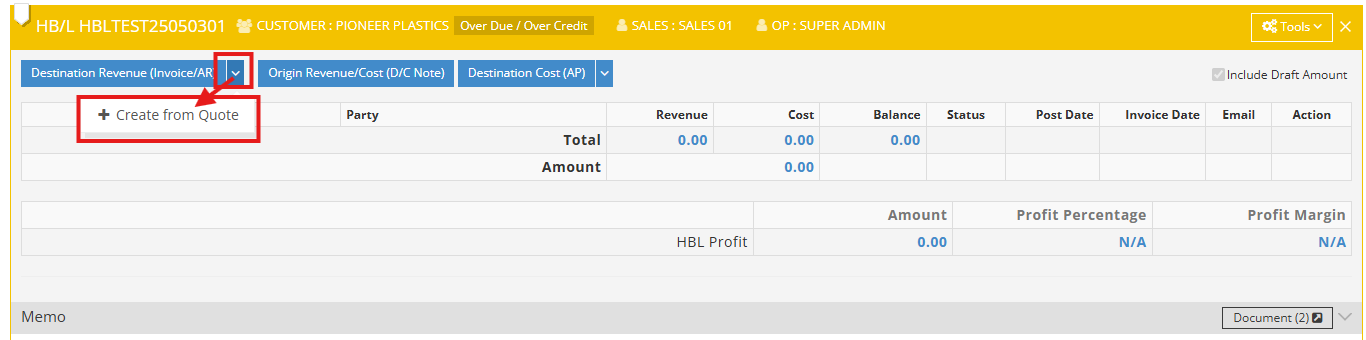
Note: We recommend creating AR invoices at the HBL level for the following reasons:
-
Clear customer association: The HBL usually represents the actual shipping client (e.g., the shipper or consignee), making it easier to associate each invoice with a single customer.
-
Charge allocation on the MBL(Master Bill of Lading) level will be split: If you create an AR invoice at the MBL level and the MBL contains multiple HBLs, the invoice amount will be distributed to each HBL based on the volume (CBM) ratio.
However, the system does not restrict you from creating AR invoices at the MBL level. You may decide whether to create them at the MBL or HBL level based on your actual business needs.
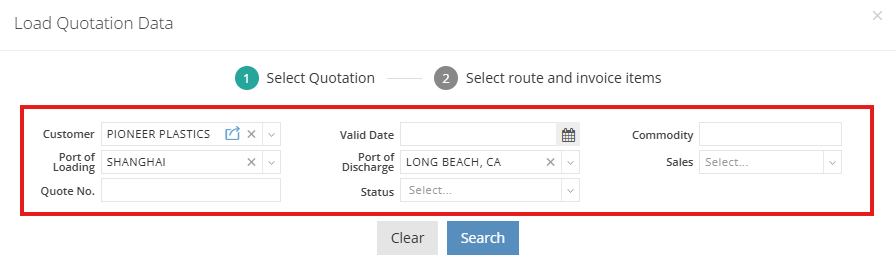
Step 3: In the pop-up window “Load Quotation Data”, filter quotations based on Customer, Valid Date, Commodity, Port of Loading, Port of Discharge, Sales, or Quote No.
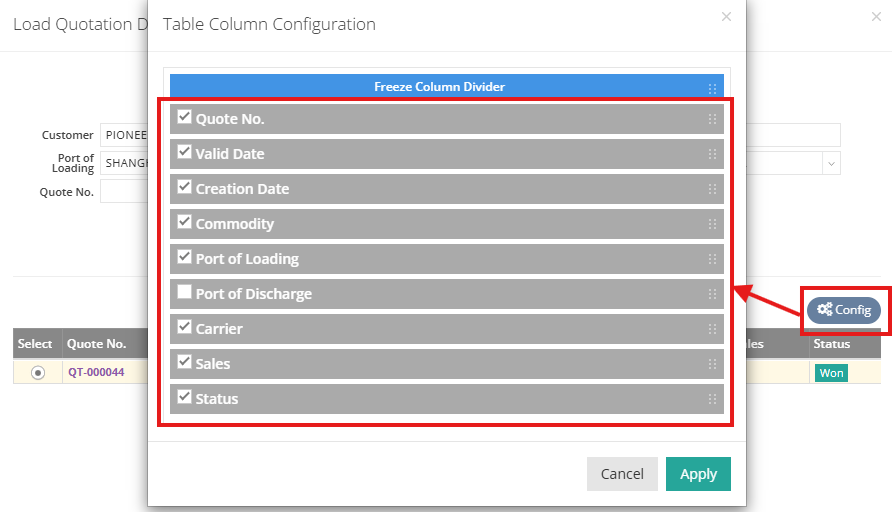
Step 4: Click "Search" to display the searched results for the quotation(s) under the customer. (Note: In the Config table, options include Quotation No., Valid Date, Creation Date, Commodity, Port of Loading, Port of Discharge, Carrier, Sales, and Status. You can click "Config" to determine which items to display in the search results.)
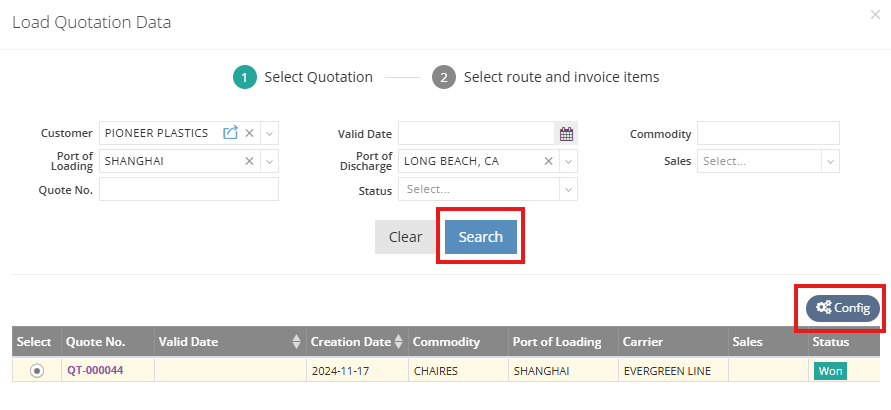
Step 5: Select the quotation you want to use for creating the AR.

Step 6: Click "Next" to proceed with the selection of route and invoice items.

Step 7: In "Select a Route," the system will automatically pre-select the best-matched route based on shipment information, including POL (Port of Loading), POD (Port of Discharge), carrier, and other relevant locations.

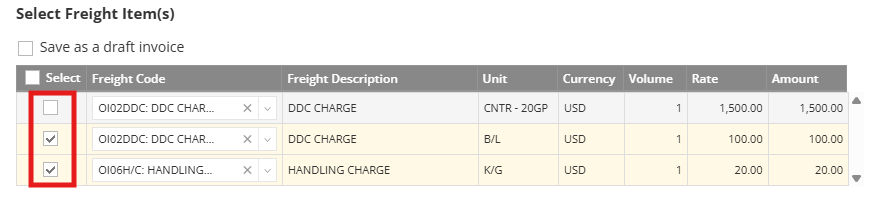
Step 8: In “Select freight item(s),” all items are selected by default. If any items do not apply to this shipment, simply uncheck the relevant box(es) next to the Freight Code.
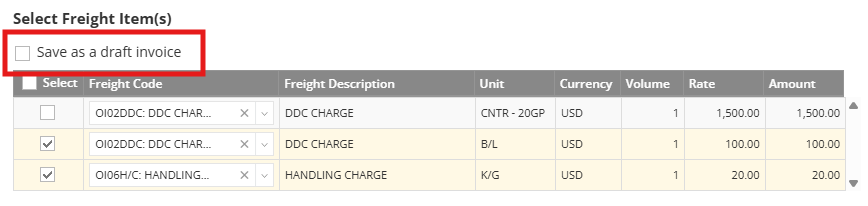
Step 9: To ensure that the invoice is not considered final, select the "Save as a draft invoice" option.
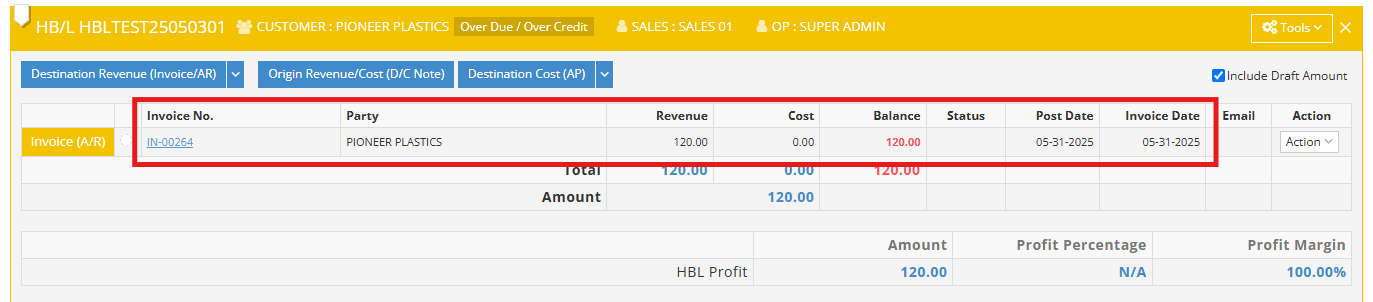
Step 10: Click “Confirm” to be directed back to the Accounting tab. Under the HBL, you’ll find an AR (Accounts Receivable) that is automatically created, including invoice items and other essential information from the quotation. Click on the invoice number to view or edit the details.
Finalizing the Draft Invoice
If the invoice is in draft mode, you can convert it to a normal invoice by clicking "Tools" and selecting "Convert to Normal." This allows you to print or send the confirmed invoice to your customer.

Change Log
The "Change Log" of the AR invoice allows you to view the history of your AR creation, including when and by whom the invoice was created from a particular quotation.

Once completed, the “Quotation No.” used for this shipment will be displayed on the HBL, and you can access the quotation page by clicking the quick link icon.
