
How to create an Ocean Import Shipment from ISF Filing
If you have enabled Security Filing as an add-on service in GoFreight, you can file the ISF in the system and seamlessly generate an Ocean Import Shipment directly from the ISF page, eliminating the need for duplicate data entry.
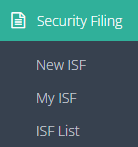
- Navigate to Security Filing in the menu bar.
- Click on New ISF.
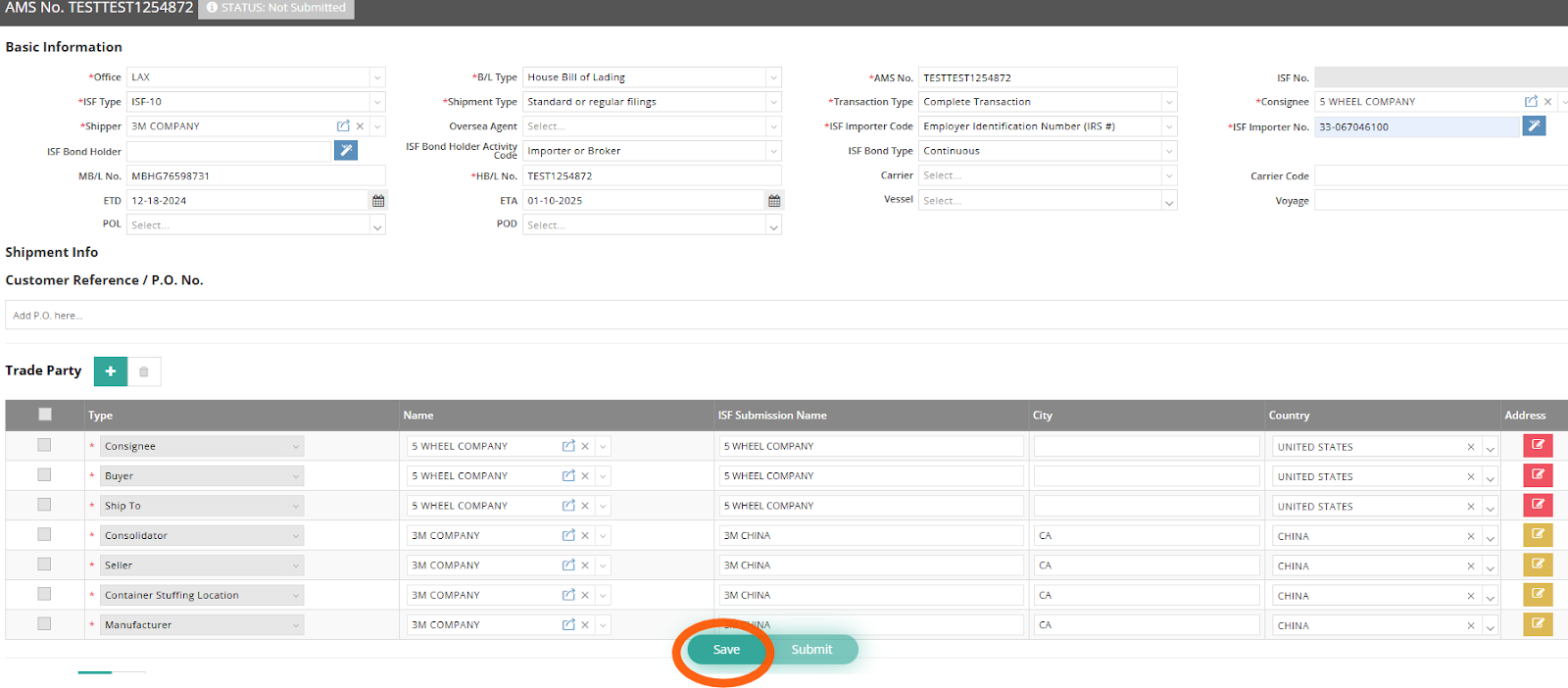
- Fill out the required information for your ISF
- Once you have entered all the necessary data, click SAVE. A Tool icon will appear on the upper right-hand side of the page.
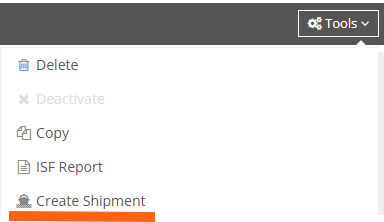
- Select “Create Shipment” from the Tools dropdown list.

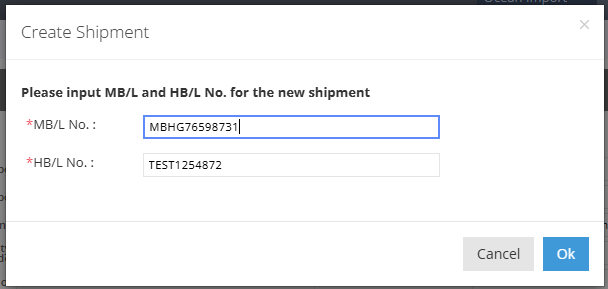
- A pop-up message titled Create Shipment will appear to confirm both the MB/L and HB/L No. Click “OK” to proceed.
- You will be redirected to the shipment entry page under the Ocean Import module. The system will pre-fill the shipment info with the data you entered in the ISF.
- You can input additional information, such as Port of Loading (POL), Port of Discharge (POD), and Place of Delivery (DEL).
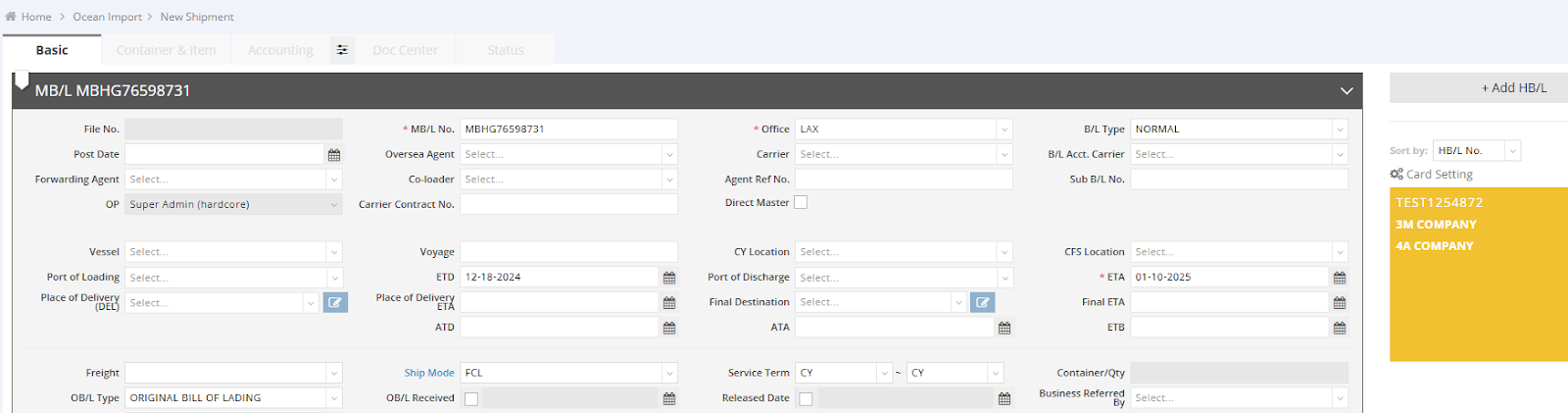
Further Actions on the Shipment Page:
- Update cargo details in the Container & Item tab.
- Issue AR/AP or Debit/Credit notes in the Accounting tab if needed for this shipment.

ISF Number Linkage:
- The ISF number will also be linked under the HB/L.
- To review the ISF, click the blue arrow icon in the ISF field. This action will redirect you to the corresponding ISF for further review.


Should you have any questions, please feel free to contact our Support team at support@gofreight.com .