
Step 1: Log In
Log in to the new GoFreight AMS website using your user ID and password. For security reasons, the password will expire every 90 days, so make sure to update it regularly.
Home Page: https://compliance.globaletrade.services/na-mig/home
Step 2: Create a New Manifest
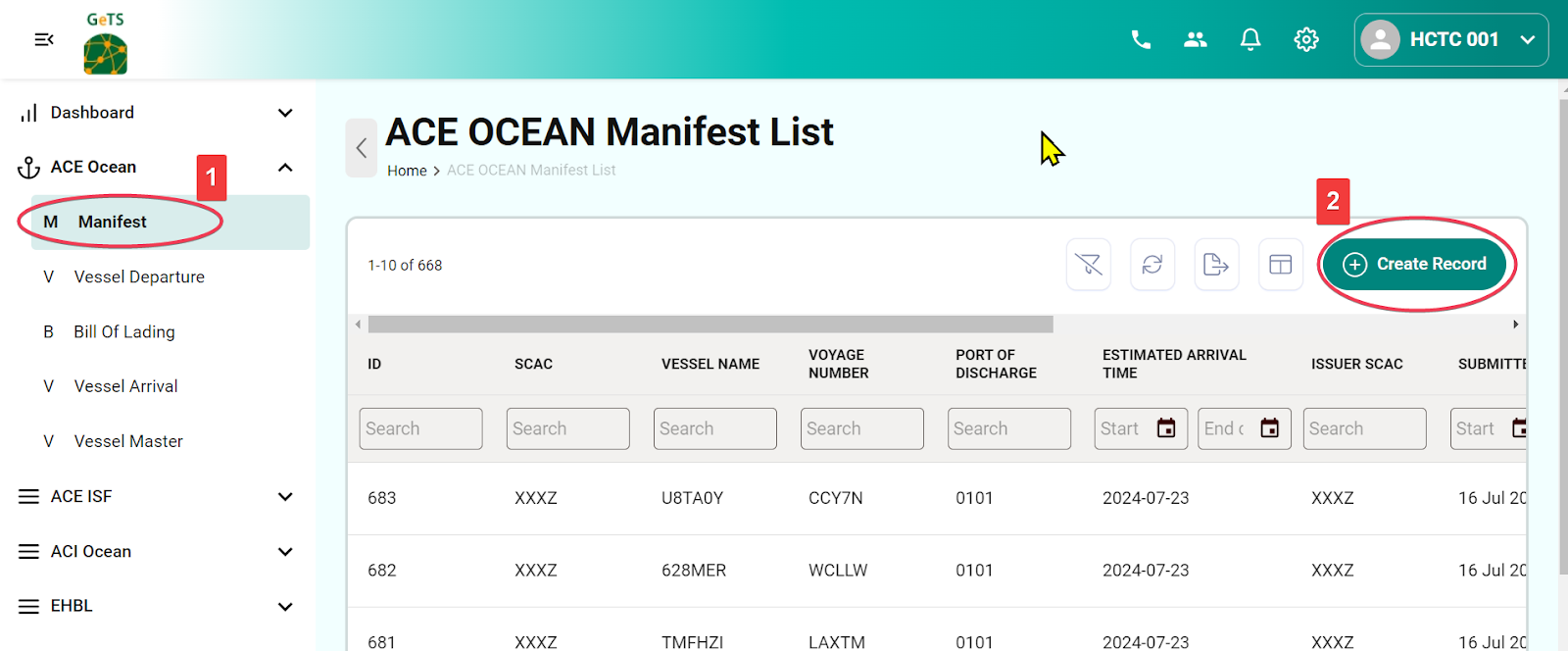
2-1. Click on ACE Ocean > Manifest in the menu bar.
2-2. Click Create Record to begin creating the manifest.
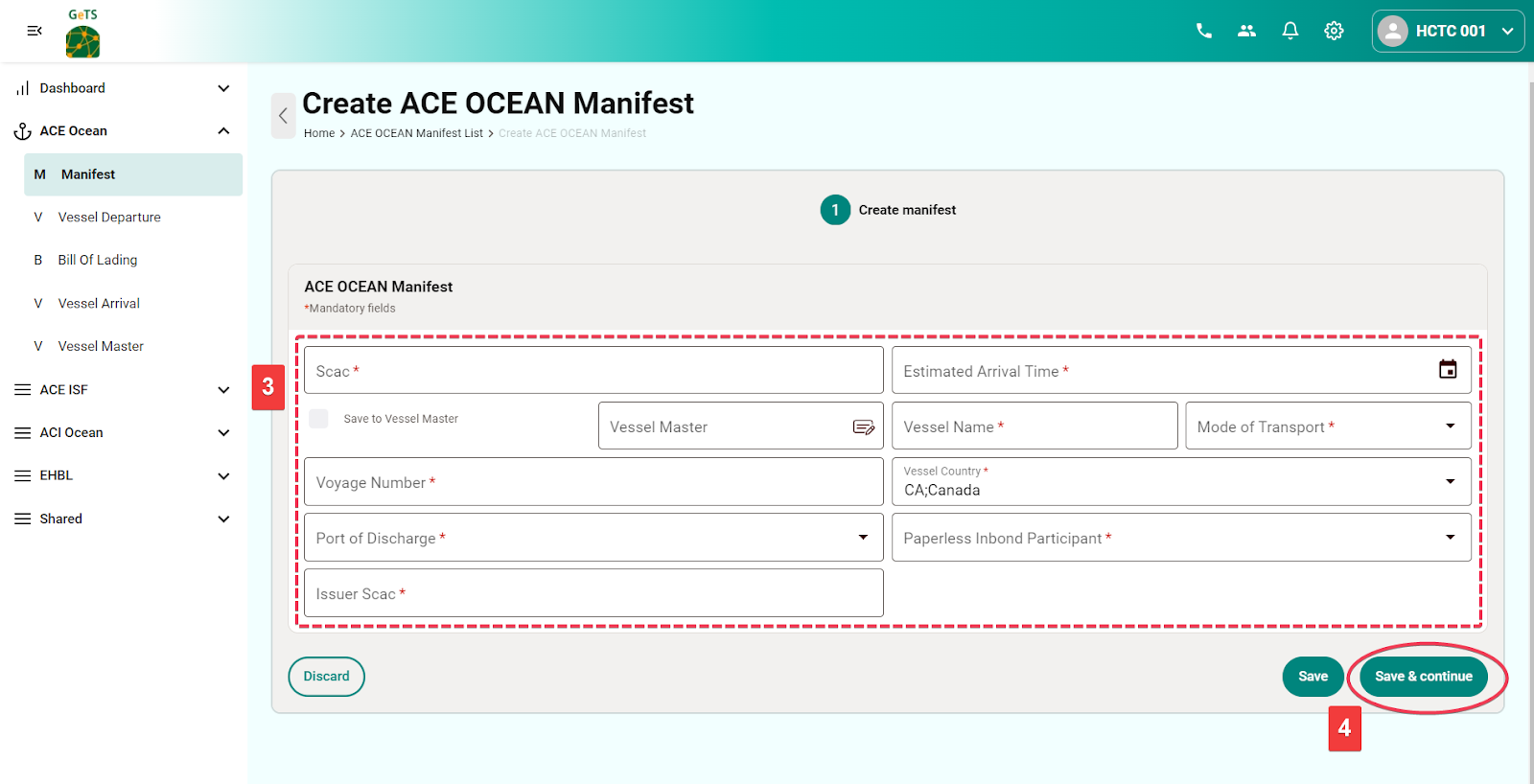
2-3. Fill in the manifest information.
2-4. Click Save & Continue to complete the manifest creation and proceed to the next step of Bill of Lading creation.
Definitions of Columns:
- SCAC: Sender’s SCAC code
- Vessel Name: Name of the vessel
- Voyage Number: Voyage number
- Vessel Country Code: Enter the country code to save the vessel info into the Vessel Master under the Manifest menu for future reference.
- Port of Discharge: Port of Discharge (POD)
- Estimated Arrival Time: Estimated time of arrival (ETA)
- Mode of Transport: The usual case is "Vessel Containerized"
- Paperless In-bond Participant: Use the default value "Yes" for standard cases
- Issuer SCAC: The SCAC of the party who issued the Bill of Lading, which is typically the same as the SCAC code.
Step 3: Add a Bill of Lading to the Manifest
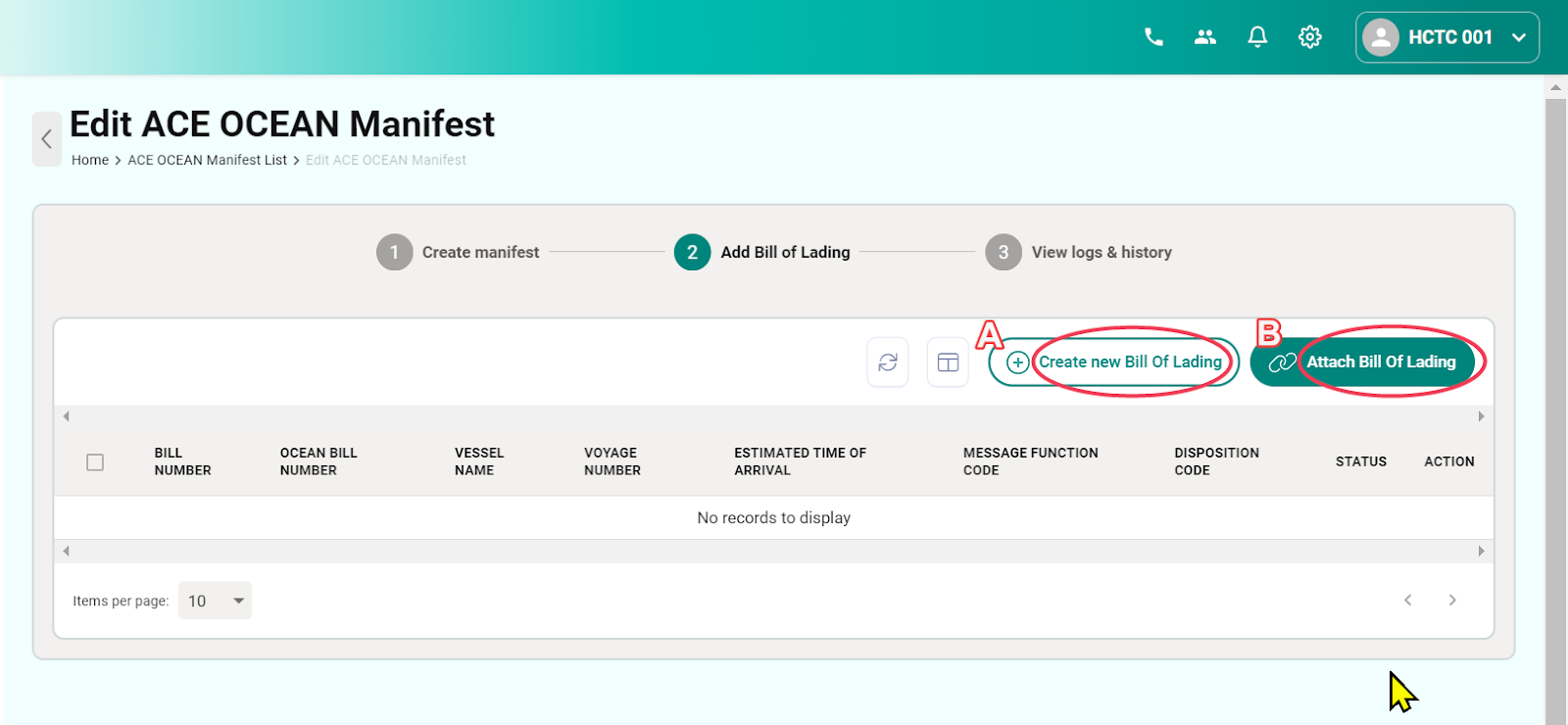
3-1. On the ACE OCEAN Manifest page, you can add a Bill of Lading in two ways:
- A. Click Create new Bill of Lading
- B. Click Attach Bill of Lading if there are existing Bills of Lading already created in the system.
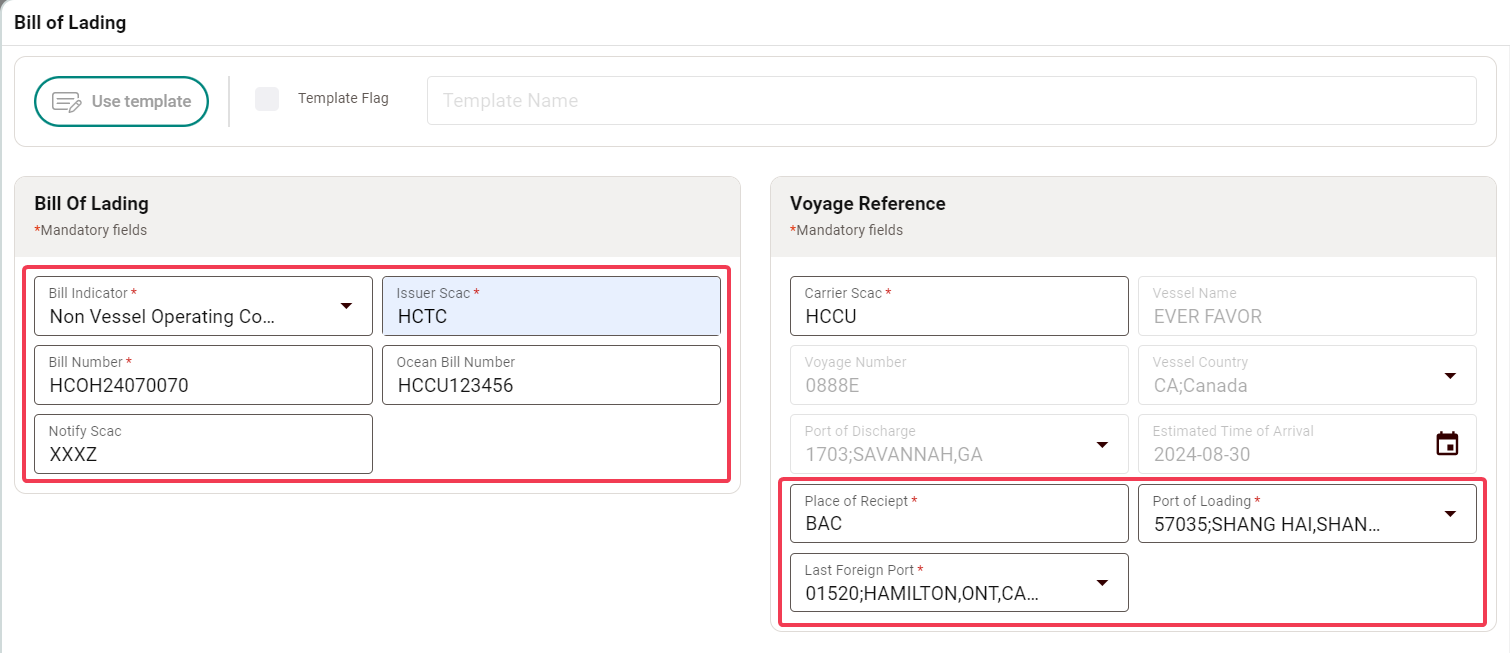
3-2. For creating a new Bill of Lading, fill in the required information and pay attention to the following fields:
Definitions of Columns:
- Bill Indicator: Choose the appropriate option based on your scenario; most will be 'Non Vessel Operating Common Carrier' (FROB)
- Issuer SCAC: The SCAC of the party who issued the Bill of Lading.
- Bill Number: Fill in the House Bill of Lading number.
- Ocean Bill Number: Fill in the Master Bill of Lading number.
- Notify SCAC: Usually the first 4 letters of the Ocean Bill of Lading number.
- Note: Notify SCAC is mandatory for NVOCC (insert SCAC of vessel operator).
- Place of Receipt: Indicate the place of receipt.
- Port of Loading: Specify the port of loading.
- Last Foreign Port: Indicate the last foreign port before arriving in the U.S.
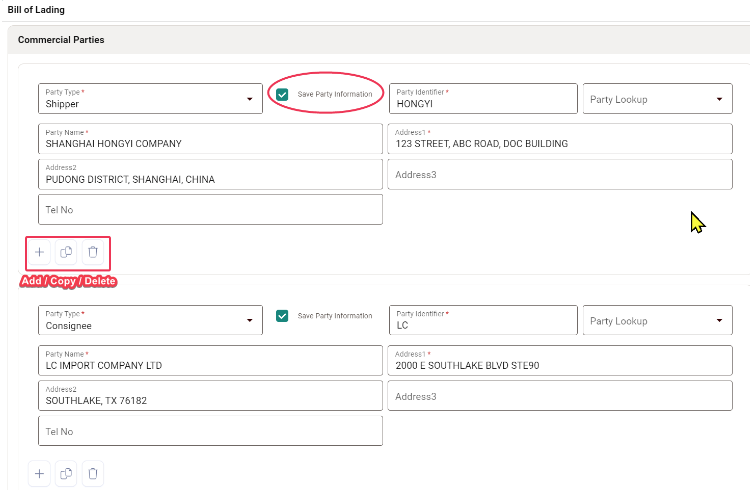
3-3. Fill in the details of commercial parties. Check Save Party Information for future use if necessary.
If you need to add more parties or copy/delete party information, click the icons below: + icon as Add and there are also Copy and Delete icons for selection based on the required information for AMS filings.
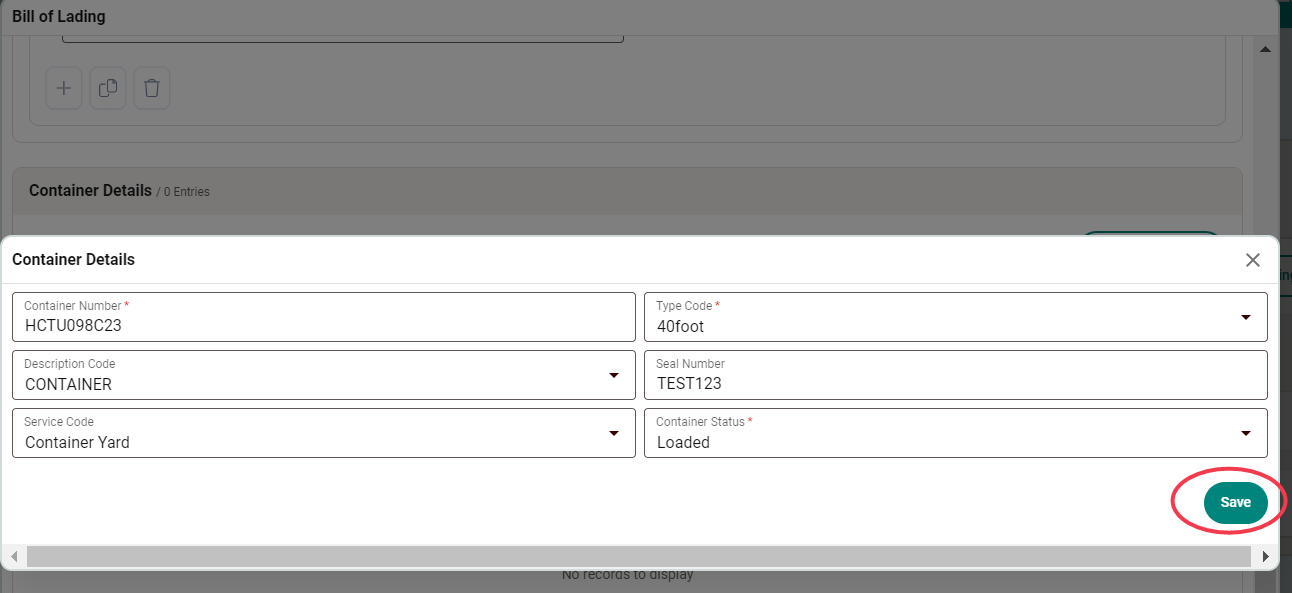
3-4. To fill in the Container Details, click Add Container, input the necessary information, and click Save.

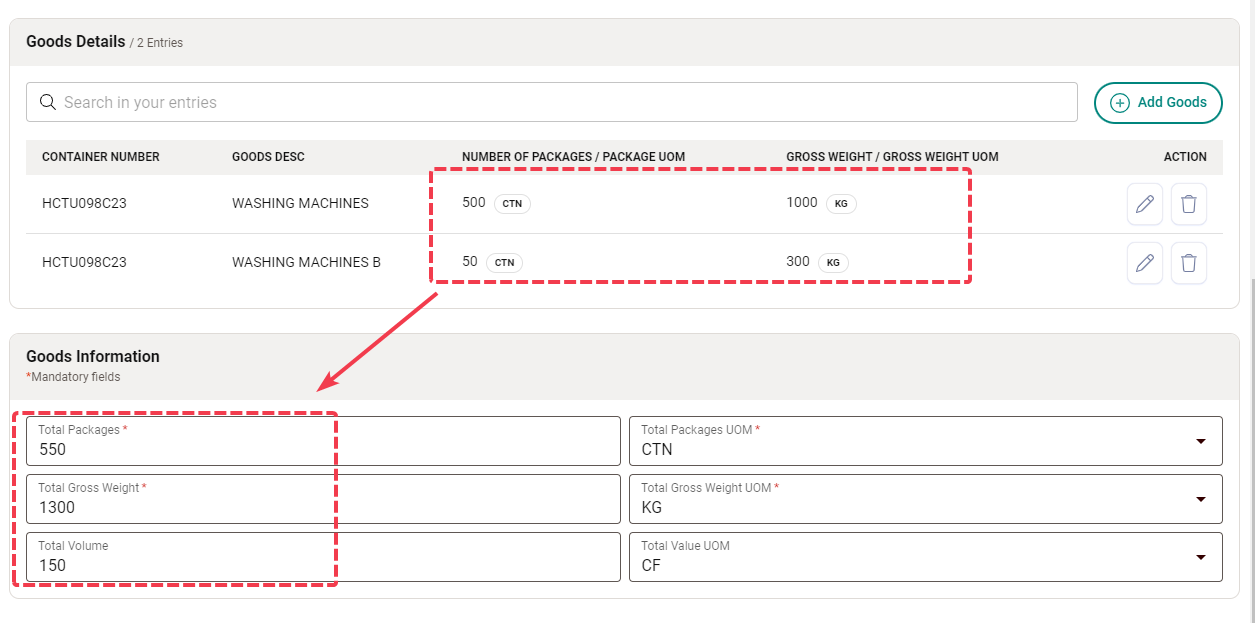
3-5. Fill in the Goods Details by completing the mandatory fields. If it involves dangerous goods, toggle on the button beside Dangerous Goods and input the relevant information, then click Save.
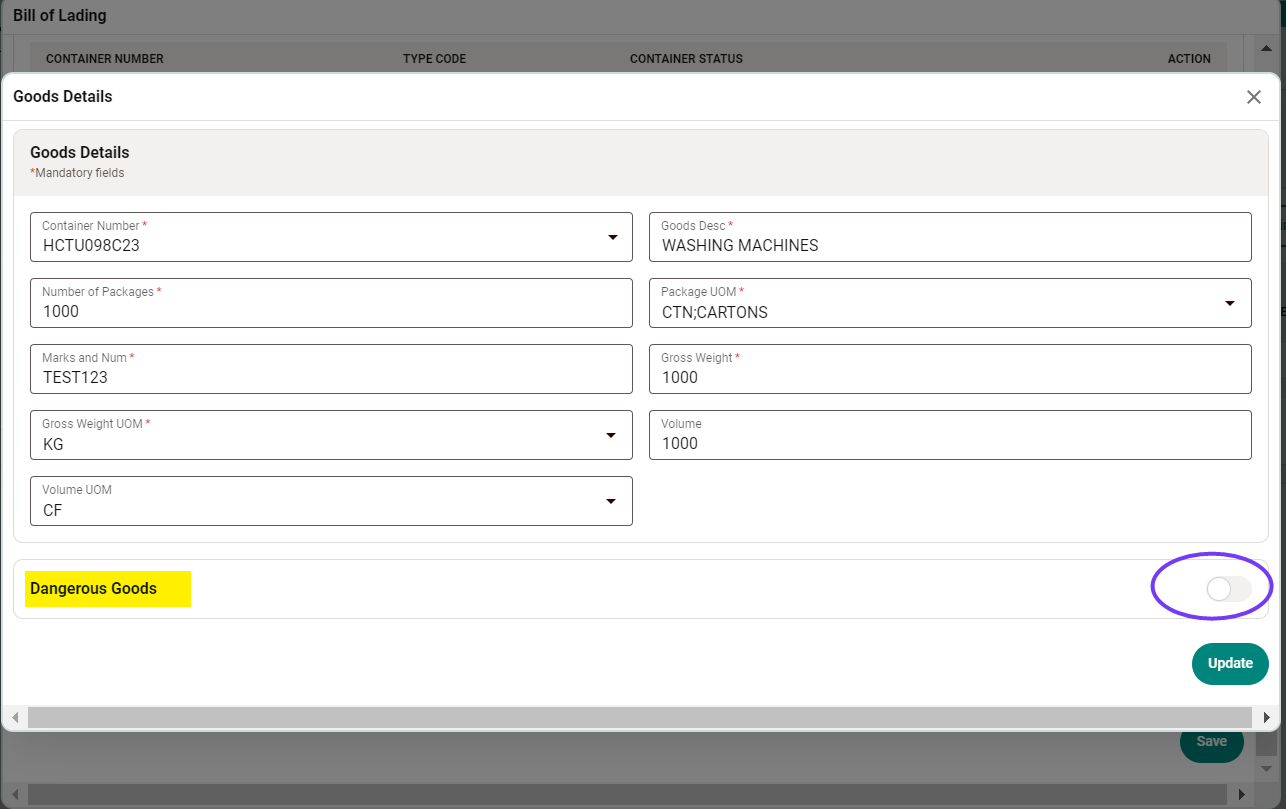
3-6. After completing the Goods Details, the total amount of goods will be automatically calculated and displayed in the Goods Information section. When all necessary information is filled, click the Save button to finalize the Bill of Lading creation.
Step 4: Submit AMS
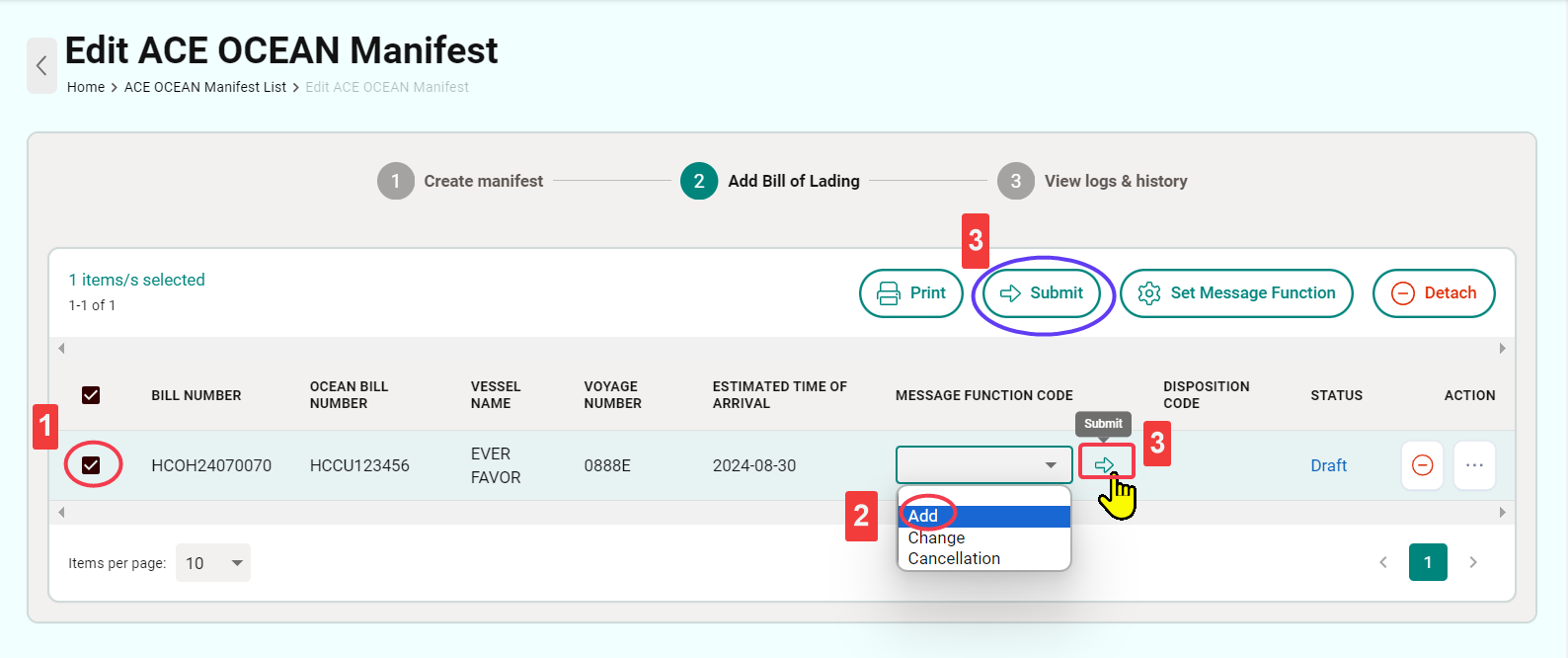
For first-time submissions or to add another Bill of Lading to the manifest:
4-1. Select the checkbox for the Bill of Lading to be submitted.
4-2. Select Add under MESSAGE FUNCTION CODE.
4-3. Click Submit to complete the submission. (Either of the two buttons for submission will work).
Step 5: Check Submission Status
The overall submission status can be found under the Manifest or Bill of Lading listing pages where you will see the following statuses:
- Draft
- Sent
- Accepted
- Rejected
- SN (Status Notification)
- Cancel
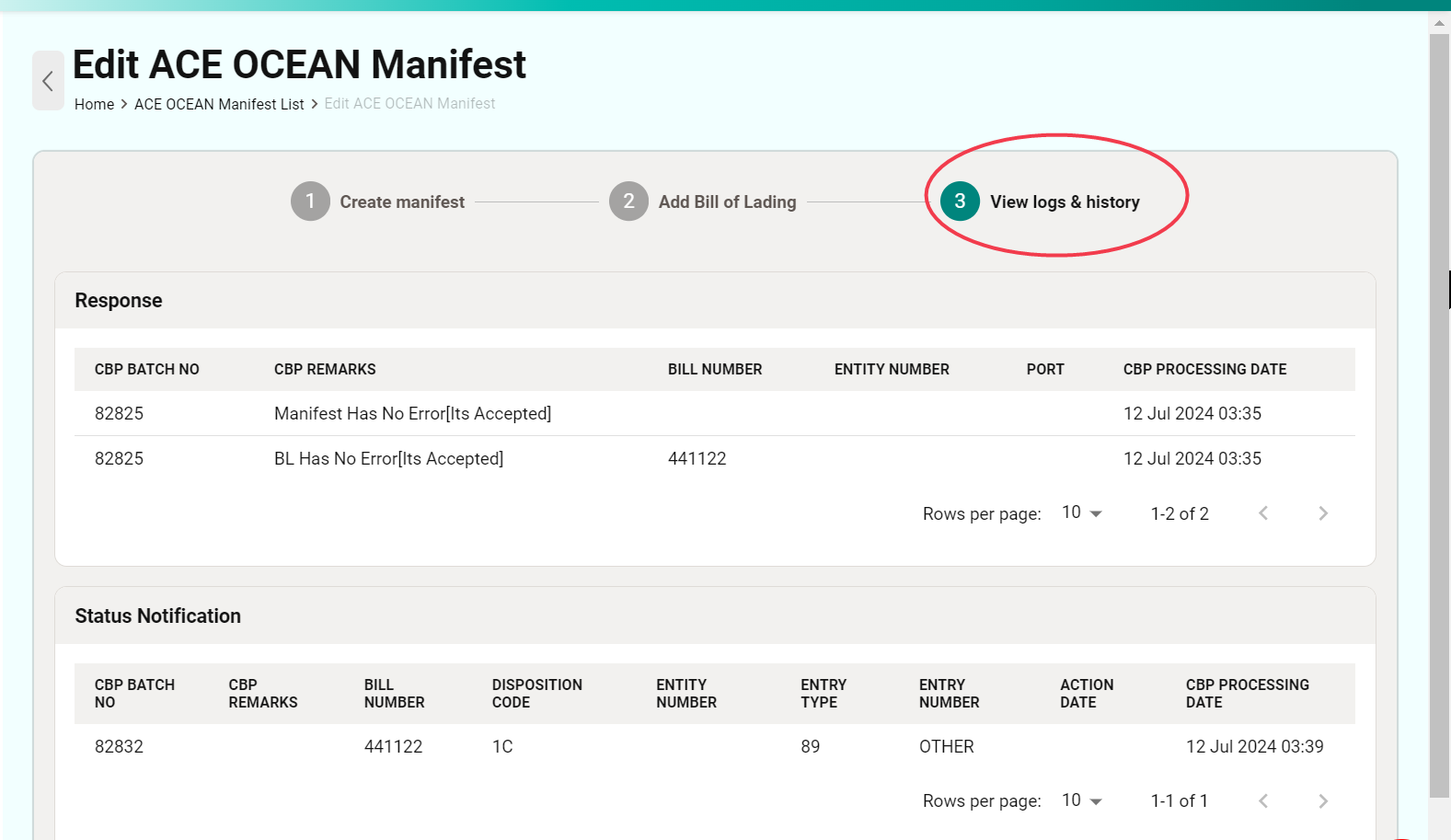
For detailed response histories, click View logs & history on the Manifest page.
Alternatively, you can click the Response tab on the Bill of Lading page.
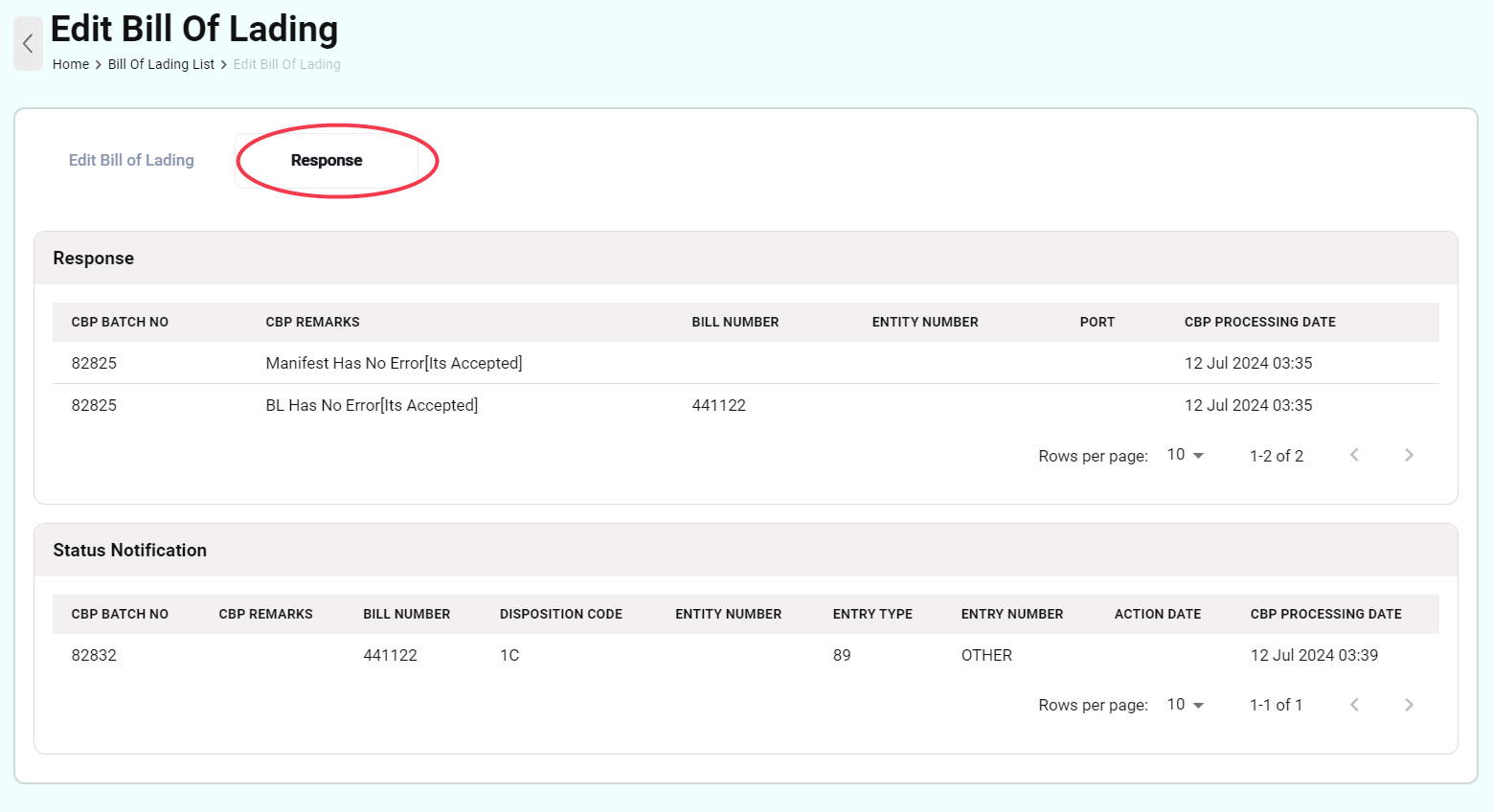
For a successful AMS filing, you should see the following responses:
3Z : SECURITY FILING ON FILE
1Y : MVOC - NVOC BL MATCH
If you have any questions, feel free to contact us at: support@gofreight.com.