
Who can delete a payment?
By default, the following user roles can delete a payment file:
- General Manager
- Accounting Manager
- Accounting
If other user roles need this access, please email the GoFreight Support Team (support@gofreight.com ). Please make sure to CC an Admin or General Manager in the email to approve the request, and we will help enable this function.
Important Reminder
Deleting in GoFreight is permanent. Once a payment is deleted:
- It cannot be restored
- There is no system record kept
Please double-check carefully before deleting.
About the Examples
The examples below use Payment Received. The steps are the same for Payment Made.
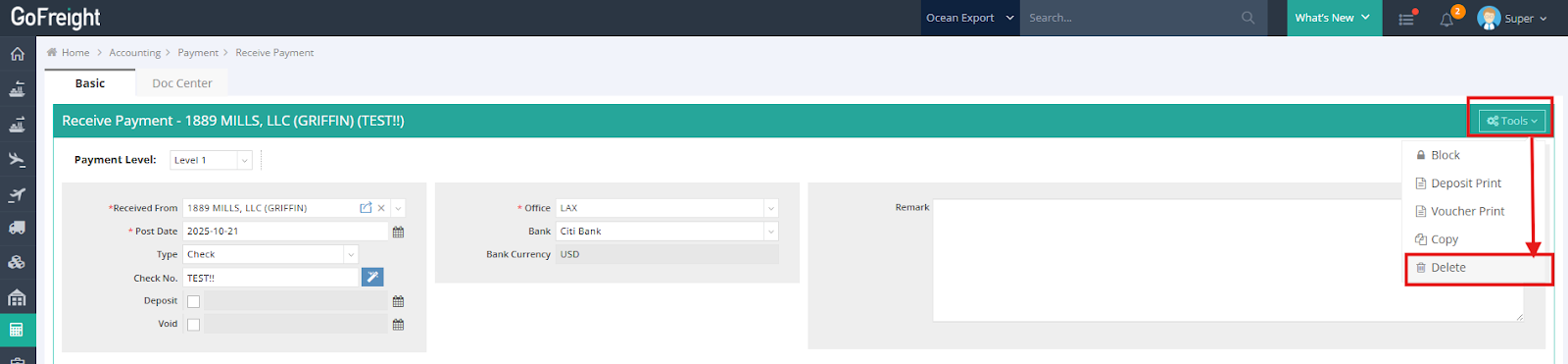
Scenario 1: Delete a payment directly from the Tools menu
This is the simplest case. If the payment is not blocked and has no special status, you can delete it directly from the Tools menu.
Scenario 2: The payment is blocked
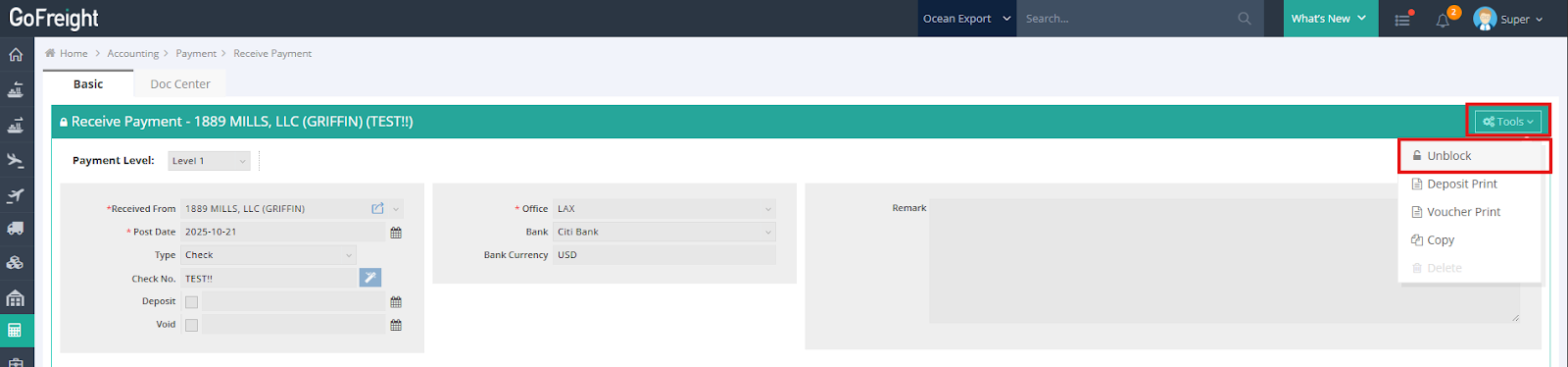
If the payment is blocked, you must unblock it first before deleting it.
When you first open this payment page, you will see a yellow pop-up message at the top telling you that the payment is blocked.
In the Tools menu, the Delete option will appear greyed out. If you hover your mouse over it, a small tooltip will appear saying: “You are not allowed to delete due to payment blocked.”

At the bottom of the page, the Change Log will show a record of the payment being blocked.

By default, only the following roles can Block/Unblock payments:
- General Manager
- Accounting Manager
After unblocking, you can delete the payment.
Scenario 3: The payment is marked as “Cleared” or “Deposited.”
If the payment has Clear or Deposit checked:
- First, uncheck Clear /Deposit
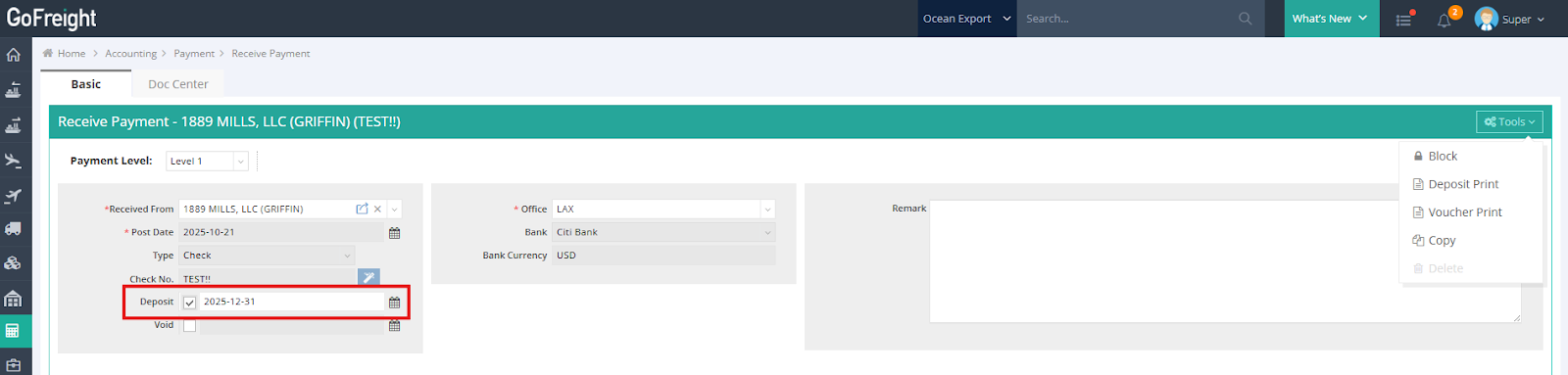
- Press “Save”
- Then delete the payment
Scenario 4: The payment is marked as “Void.”
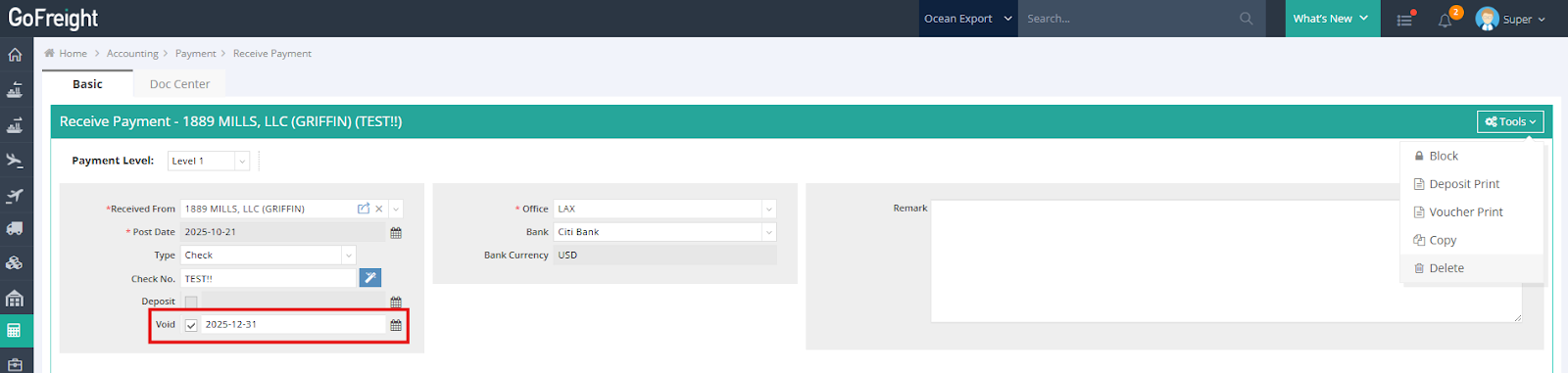
If the payment is Void, you can still delete it. But please note:
- Marking a payment as Void means the system keeps a record that it was voided
- If you delete the payment, the void record will also be removed
So, 👉 If your internal process requires keeping the void record, do NOT delete the payment.
Scenario 5: The payment is blocked due to “Accounting Block.”
If a payment is blocked because of an Accounting Block, the screen looks the same as in Scenario 2:
- When you first open this payment page, you will see a yellow pop-up message at the top telling you that the payment is blocked.
- In the Tools menu, the Delete option will appear greyed out. If you hover your mouse over it, a small tooltip will appear saying: “You are not allowed to delete due to payment blocked.”
The difference is in the Change Log at the bottom of the page:
- You will see a note saying: “Blocked due to Accounting Block being performed.”

By default, users with the Accounting Block/Unblock and Accounting Block Maintenance access can unblock payments:
- General Manager
- Accounting Manager
- Accounting
For more details, see these guides to perform the Accounting Unblock:
After unblocking, you can delete the payment.
Scenario 6: The payment is blocked due to “Year-End Closing.”
If a payment is blocked because of Year-End Closing, you will see the following:
- When you first open the payment page, a yellow pop-up message at the top tells you: “This payment is blocked by Year-End Operation.”
- In the Tools menu, the Delete button is grayed out. Hovering your mouse over the button shows: “You are not allowed to delete due to payment blocked.”

By default, users with the Year-End Closing role can unblock these payments:
- General Manager
- Accounting Manager
- Accounting
After the Year-End Closing is removed, the payment can be deleted.
For more details, please refer to the following relevant guides on Year-End Closing operations.