
As an Admin or General Manager role in the GoFreight system, you can access and manage the user list for all designated offices. This includes the ability to disable accounts for users who have left or as needed.
Note: Please note: Users can only be disabled and not deleted. Disabling a user will prevent access, but their information will remain in the system for future reference.
Steps to Disable a User Account:
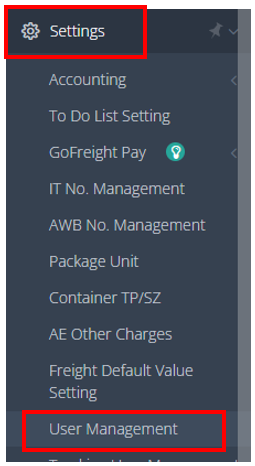
- Navigate to "Settings" > "User Management" in the left-side navigation bar.
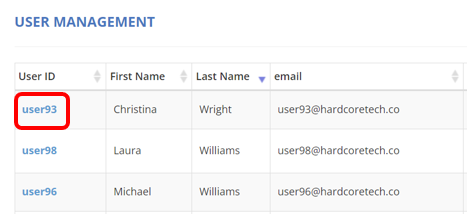
- Use the "Filter" option to locate the user ID you wish to disable.

- Click on the user ID to access the account profile.
- On the user profile page, scroll down to find the "Status" section, then select "Disable".
- Click "Save Changes" to apply the modifications to the user profile.

6. In the confirmation pop-up, click "Sure" to confirm the changes.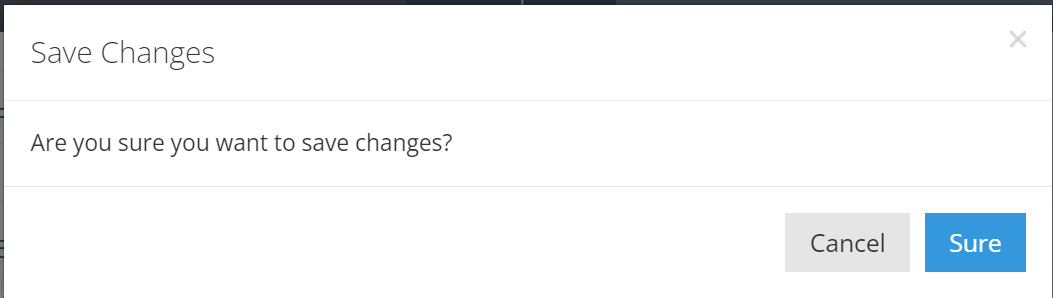
7. Return to "User Management" to verify that the status of the user ID now displays as "Disabled".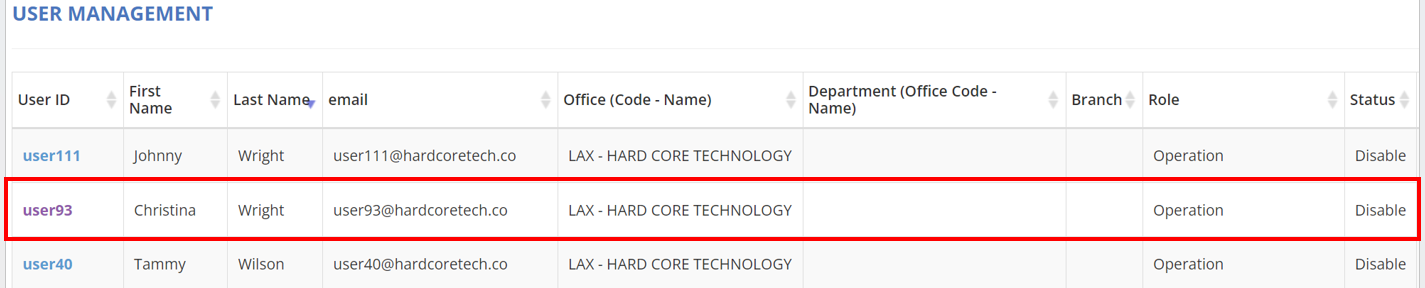
Note: If you need to re-enable the user account or create a new user ID, please contact the GoFreight support agent for assistance.