Introduction
Under the Shipment List overview, GoFreight provides a feature that allows you to export data from the list into an Excel file.
The overview lists are available under Master B/L List ( Bill of Lading), House B/L List, and My Shipment List across all modules, including Ocean Import, Ocean Export, Air Export, and Air Import.
For Air modules, these lists are referred to as the MAWB List (Master Air Waybill) and the HAWB List (House Air Waybill).
NOTE: By Default, this function is available for the role of General Manager, Accounting Manager, Accounting, Operation Assistant, Operation, and Operation Manager.
Steps to Export the Shipment Lists
Follow the steps below to export the list view table as an Excel file under the Master Bill of Lading List (B/L) in the Ocean Import module, as an example.
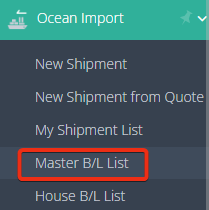
1. Navigate to Ocean Import > Master B/L List.
2. Click on Filter, and fill in filter criteria such as the Carrier, POL ( Port of Loading), POD (Port of Discharge), or Post Date to narrow down the data.
3. After entering your criteria, click Apply Filters. 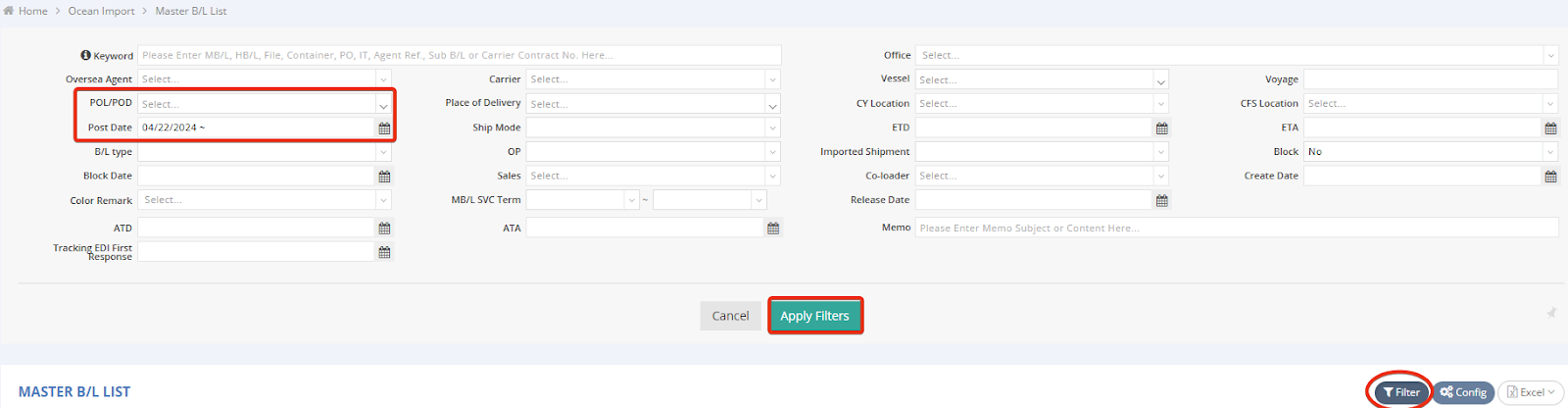
4. Once the filtered list appears, locate the Excel icon at the top-right corner of the List. Click the icon to reveal two options: Download and Config. 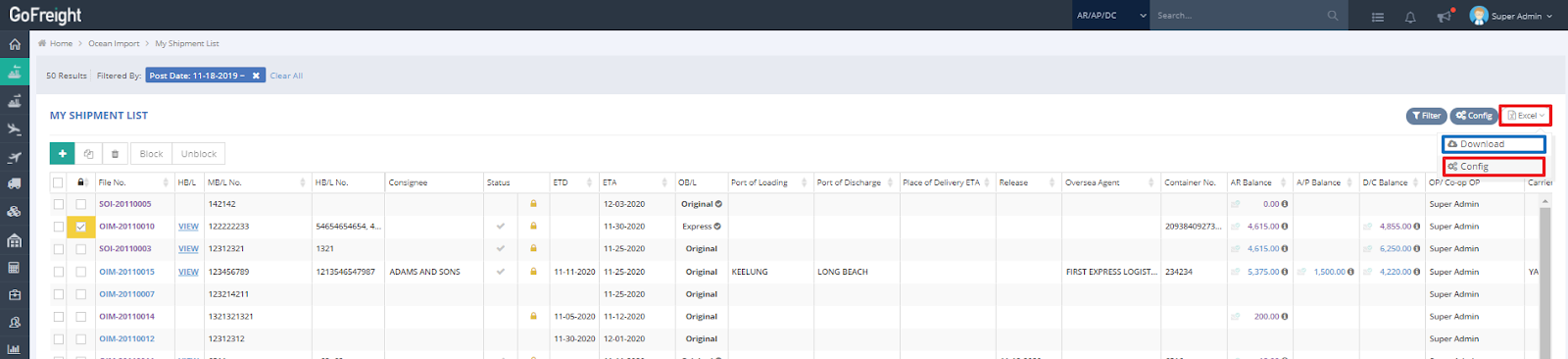
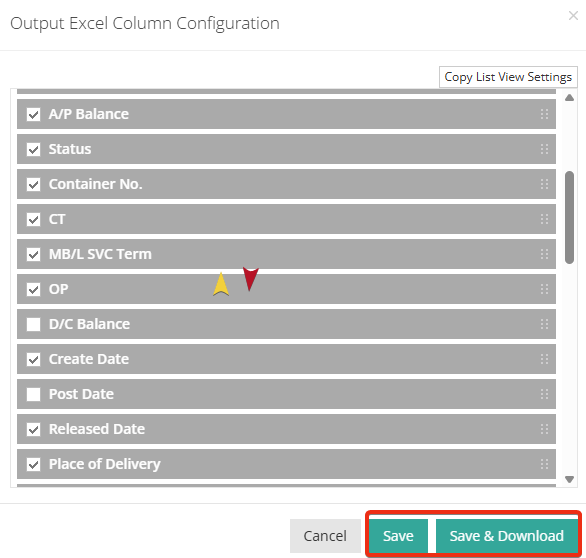
5. Before downloading, you can click Config to customize the column order in your Excel output by adjusting the column configuration settings.
6. After configuring (if needed), click "Save & Download" to export the Excel file.