
GoFreight supports ACI/eManifest (Automated Commercial Information) submission for both Ocean Import and Air Import shipments.
Once the feature is fully enabled for your account, you can submit, edit, and resubmit ACI/eManifest directly in GoFreight, eliminating the need for double data entry through another portal.
By default, this function is accessible to users in the roles of Operations (OP), Operations Manager (OP Manager), and General Manager (GM) within the system.
Steps to Submit ACI/eManifest
- Navigate to the Ocean Import module.
- Under MBL Tools, click “eManifest Filing.”

- The shipment data will be automatically synchronized to the eManifest fields under both the MBL and HBL, including:
- MB/L No.
- Carrier Name
- Ship Mode
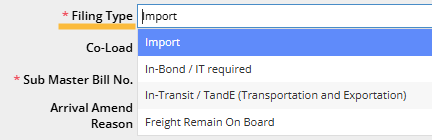
- Filing Type
The corresponding columns will be displayed under different Filing Types.
- Vessel
- Voyage
- Port of Loading
- ETD (Estimated Time of Departure)
- Port of Discharge
-
ETA (Estimated Time of Arrival)
- The first section reflects MBL-level data.
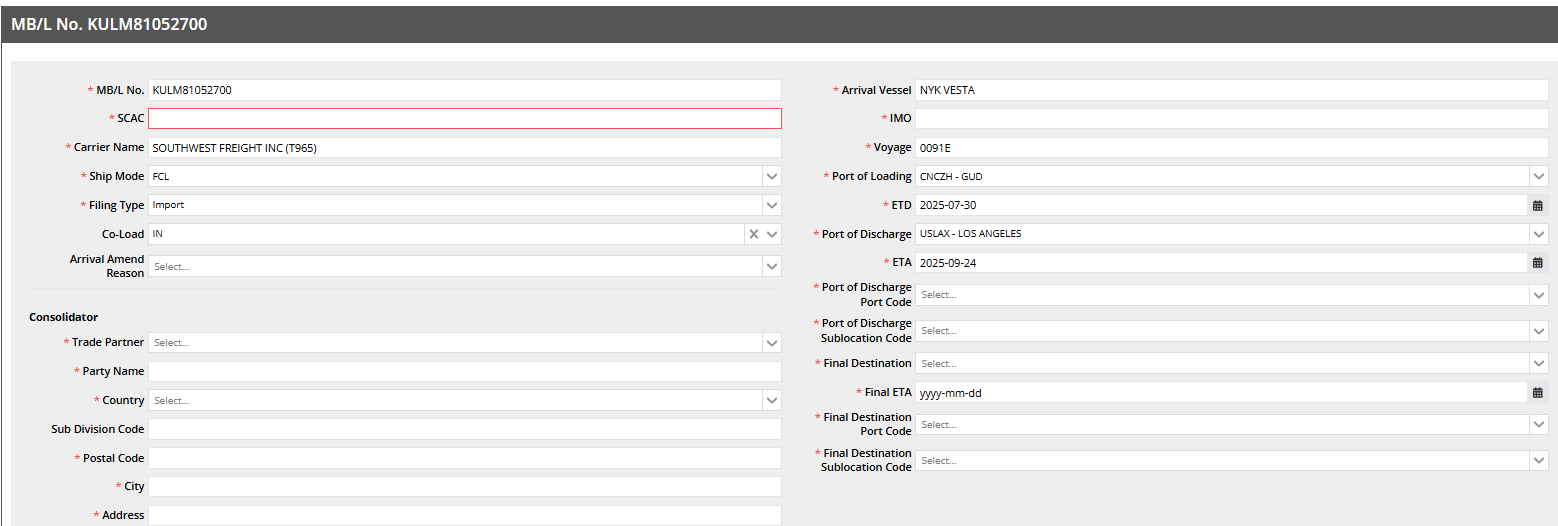
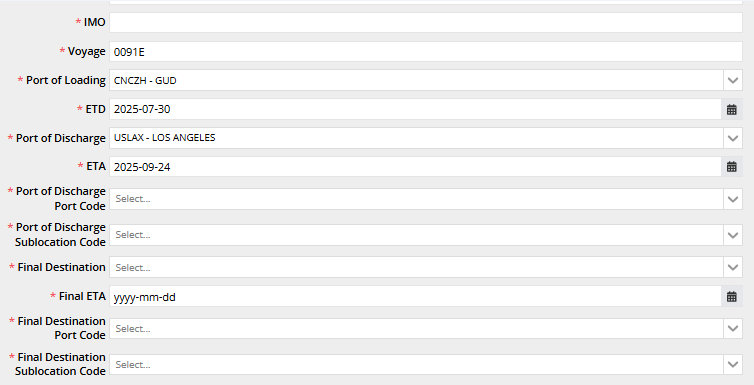
- Columns marked with a red asterisk (*) are mandatory and must be filled out accordingly. For the following fields, ensure that you select valid entries based on the official website of CBSA (Canada Border Services Agency) port codes.
- Port of Discharge Port Code
- Port of Discharge Sublocation Code
- Final Destination Port Code
- Final Destination Sublocation Code
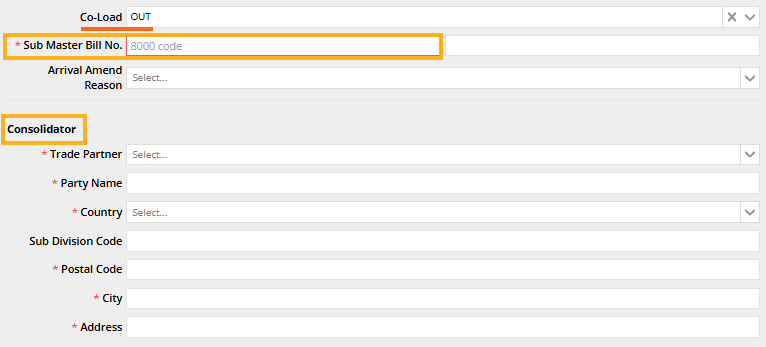
- If the shipments are co-loaded, please select the appropriate Co-load Type:

Co-load In:
The Consolidator and Place of Consolidation fields will appear and must be completed. 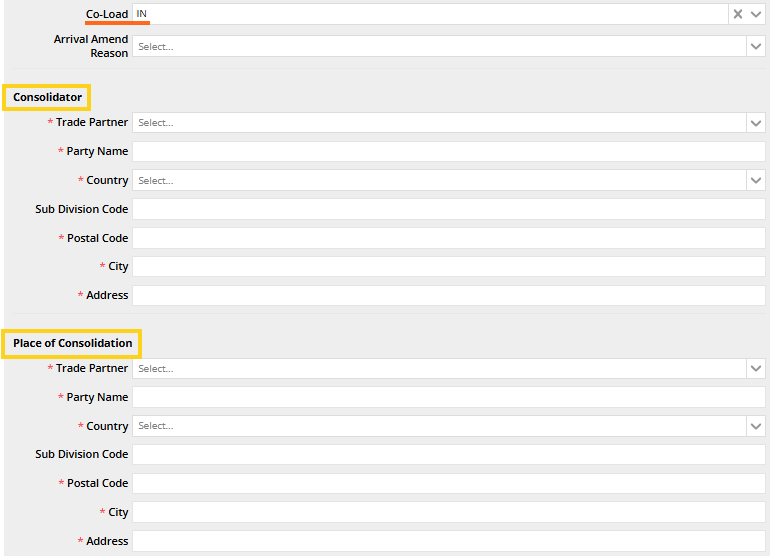
Co-load Out:
The following fields will become mandatory:
- Sub Master Bill No.
- Consolidator
- Container List
The Container Data will be automatically synchronized from the shipment entry page. Please review and confirm the details. 
- HBL Data Section
This section pertains to HBL-level data, which will be automatically synchronized from the shipment entry page.
- All relevant information will populate under the HBL section.
- The Contact Name and Phone Number fields are mandatory and must be completed for each HBL.
- If the filing type is “In Transit” or “Freight Remain on Board”, the “Delivery To” section under HBL is not mandatory.

- Container and Package Details under HBL
Each HBL will display the associated Container details, including Package information.
- For the Package Unit, manual selection is required at this step.
- All other data entered in the HBL shipment entry will be automatically populated here.
- Save and submit the data once all have been completed.

- After the HBL has been submitted and a response from CBSA is received, the status will be displayed right next to the HBL no.

The status of ACI will also be displayed on the right side of each HBL box for easy visibility.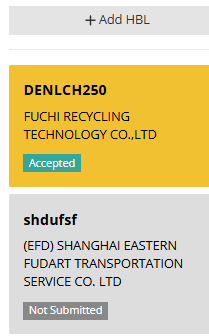
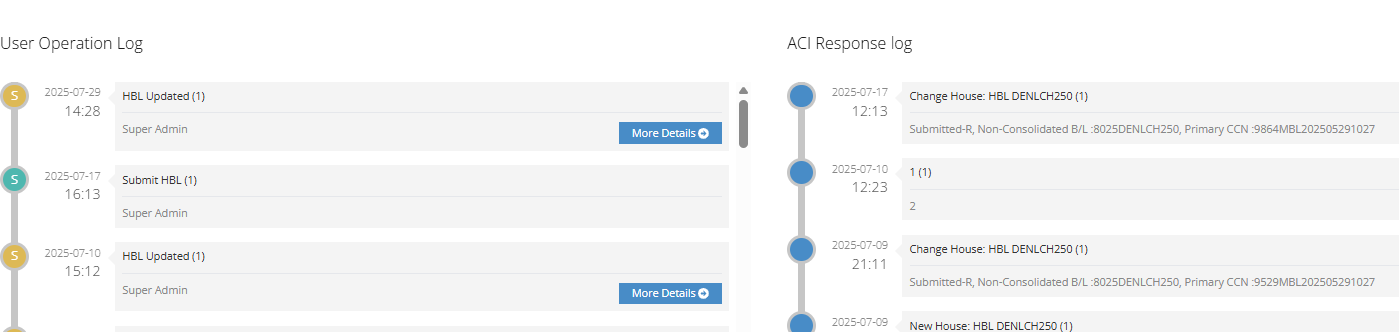
- All user operations and ACI responses will be displayed under the Log section of the HBL.
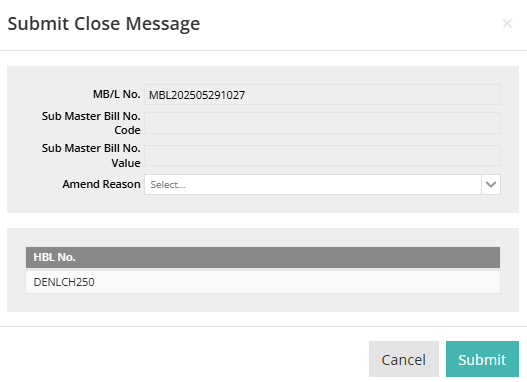
- For Consolidated Shipments, a Close Message under MBL tools must be sent once all HBLs have been submitted under the same MBL.

Overview of the eManifest List
You can also view the eManifest List to check all shipments for eManifest by navigating to Security Filing > eManifest List


You can also utilize the “Filter” function to search for eManifest filings based on specific criteria, such as Consignee or First/Last Submitted Date.


ACI Submission Status Overview
Once the HBL has been submitted and a response is received from CBSA,
The submission status will be displayed next to the HBL number in the system.
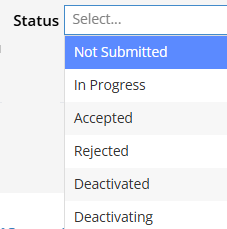
This allows users to easily track the current status of their filing. The possible statuses are as follows:
- Not Submitted – Filing has not yet been initiated.
- In Progress – Filing has been submitted but has not yet been responded.
- Accepted – Filing was successfully accepted by CBSA.
- Rejected – Filing was not accepted; corrections may be required.
- Deactivating – A deactivation request is in process.
- Deactivated – Filing has been officially deactivated.
- Closing – Submitting close message
- Closed – Submitted close message
How to Edit and Resubmit ACI/e-Manifest After Sending the CLOSE Message
If the shipment data changes after submitting the ACI/ e-Manifest and the CLOSE message is completed, you can directly edit the required fields.
Steps to Resubmit:
- Edit the required information on the shipment.
- Select an “Arrival Amend Reason” from the dropdown under MBL.
- Click “Save” to update and resubmit the ACI/e-Manifest.
Once all changes are completed and all HBLs have been accepted,
Go to “Tools” on the MBL and re-submit the CLOSE message.
You can also select the “Amend Reason” in the Close Message.
