
GoFreight supports AES (Automated Export System) submission for Ocean and Air Export.
Once this feature has been applied completely and enabled for your account, you can submit AES filings directly from the shipment page, eliminating the need for double data entry.
The AES Filing function is available for Ocean and Air Export shipments to users with the roles of OP (Operations), OP Manager, and General Manager within the system.
Steps to Submit AES Filing
1. Go to the Shipment Page
Create a new Ocean Export shipment and fill out all required shipment details.

2. Access the AES Filing Tool
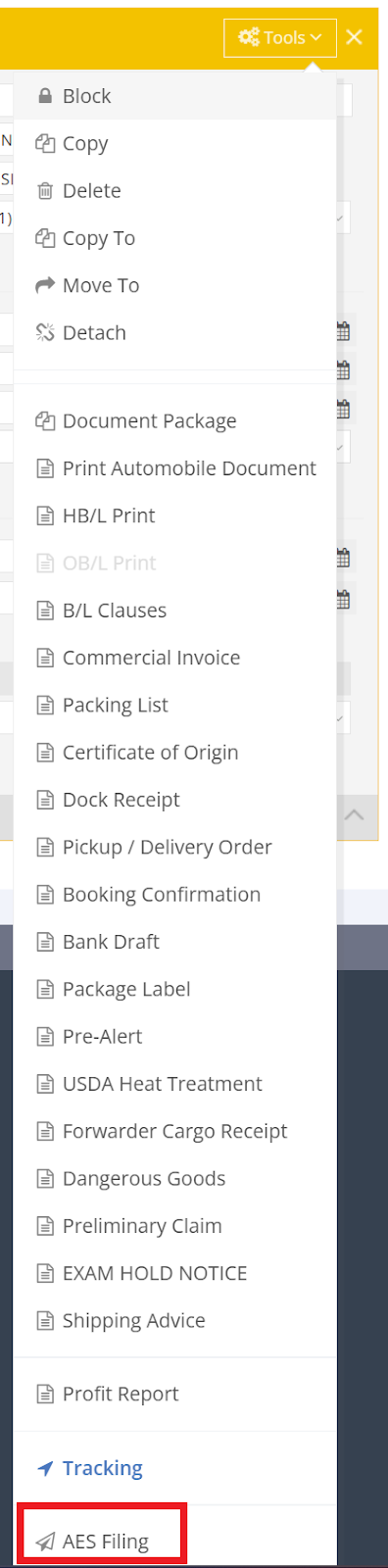
Once all shipment data has been completed, navigate to the HB/L tab, then click the Tools button under the HB/L tab, and select “AES Filing”.
3. AES Filing Interface Overview
You will be directed to a new window for AES Filing. The interface is divided into two main sections:
Upper Section – Basic Shipment Information
This section displays key shipment details such as:
- Shipment File No. (used as the MBL number)
- Shipment Reference No. (HB/L reference)
- Vessel Name and Departure Details
- Most fields in this section are auto-filled from your shipment record. However, the following fields require manual input:
- State of Origin
-
Ultimate Country of Destination

Mandatory Fields
Fields marked with a red asterisk (*) are mandatory. Please ensure all required fields are completed before scrolling down to fill in details for Shipper, Consignee, and Forwarder.
On the right side of the upper section, displaying basic shipment information:
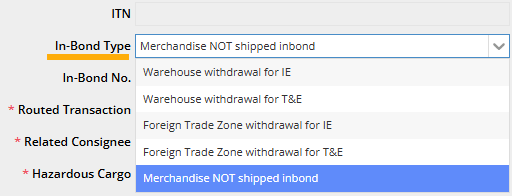
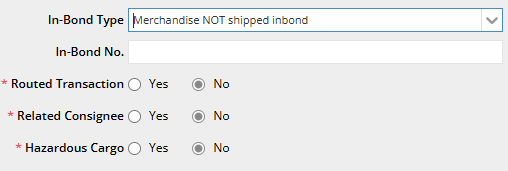
- In-Bond Type is defaulted to “Merchandise Not Shipped In-Bond”, as this is the most commonly used option.
- You may re-select another In-Bond type from the drop-down list if applicable to your shipment.
- You may re-select another In-Bond type from the drop-down list if applicable to your shipment.
- The fields Routed Transaction, Related Consignee, and Hazardous Cargo are all defaulted to “No.”
- Please change to “Yes” if these conditions apply to your cargo.
4. Fill in Trade Party Information
After completing the upper section, please scroll down to the middle section to enter details for the following parties:
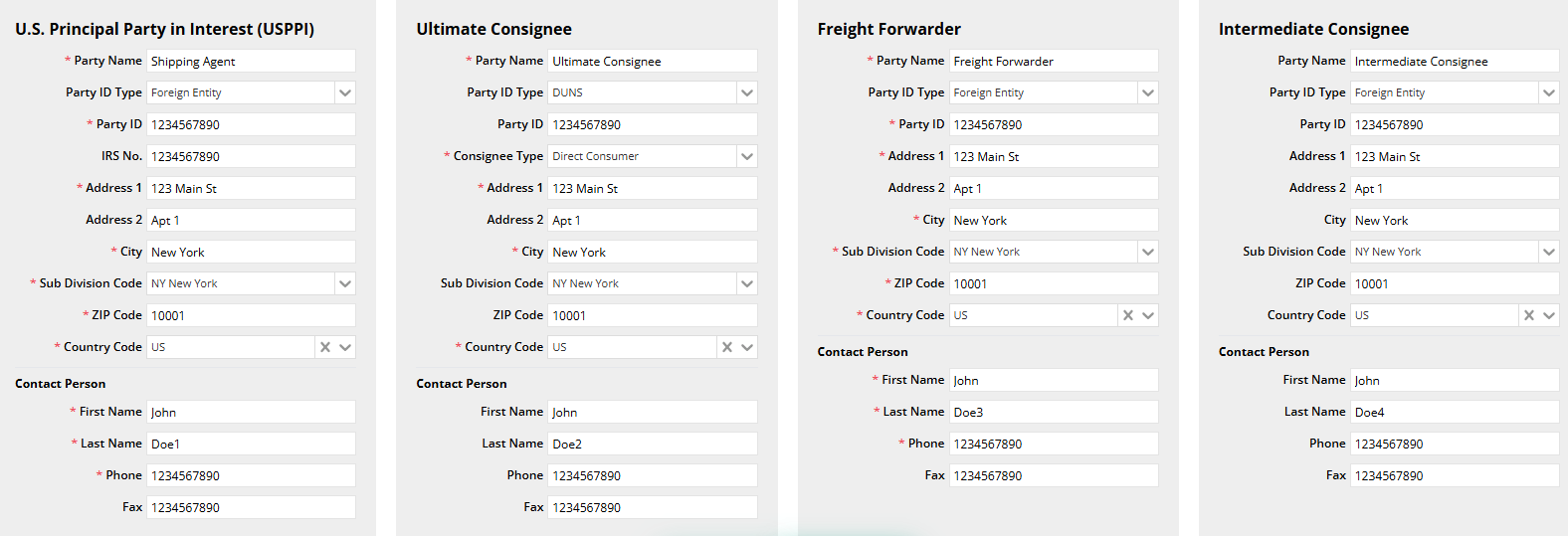
- U.S. Principal Party in Interest (USPPI) ( Shipper)
-
Ultimate Consignee
The Party ID Type and Party ID fields are optional. If you select DUNS or EIN, the Party ID (marked with a red asterisk) becomes mandatory.
Alternatively, you can leave both fields blank.
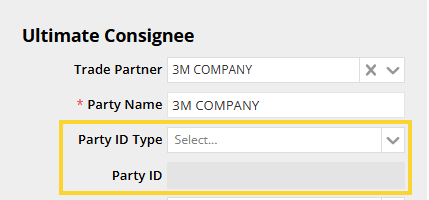
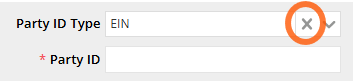
If you accidentally select DUNS or EIN, click the "X" in the Party ID Type column to cancel the selection, and then SAVE the change before submission.
- Forwarding Agent
- (Optional) Intermediate Consignee.
- If there is no Intermediate Consignee, you may leave that section blank.
- All Trade Partner information will be automatically synchronized from the shipment page.
- The address will be pulled directly from the Trade Partner profile through the shipment page. If the address is too long, the system will automatically fit the first part into Address 1, and the remainder will continue in Address 2.
- The Last Name of the Contact Person under both Shipper and Forwarding Agent must be entered manually.
5. Review Cargo Information
Once the middle section is completed, proceed to the last section: Cargo Information.
This section displays the cargo details previously entered and saved from the Shipment page, including:
- Export Information
- HTS Code
- Description of Goods
- Country of Origin
- Package Type and Quantity
- Value of Goods
- License Type – Please select the appropriate license type for your cargo from the drop-down menu.
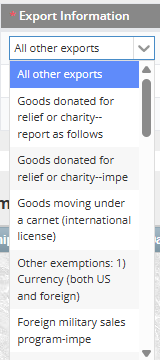
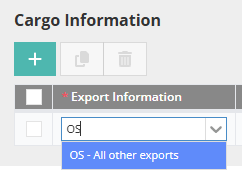
- The Export Information field is defaulted to “All other exports”.You may select other export types from the drop-down list if applicable to your cargo.
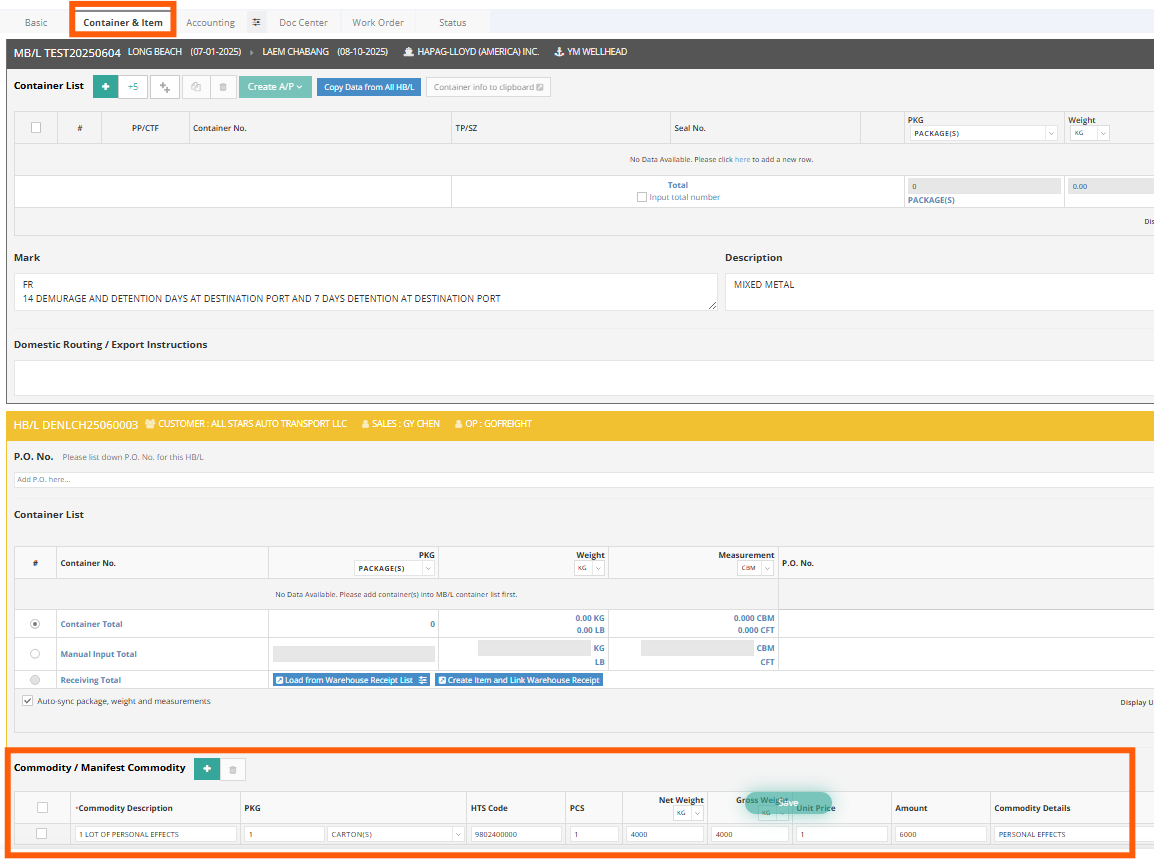
- For Ocean Export, the HTS Code will be synchronized from the codes you have entered in the “Commodity / Manifest Commodity” of this HB/L under the Container & Item tab.
You can type the 2-letter code directly on the Export Information for quick selection.
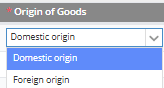
- The Country of Origin field is defaulted to Domestic Origin. If this does not apply, please select “Foreign Origin” from the drop-down menu.
-
Next will be the package and value of this cargo – choose the package type and quantity that fits your shipment, along with entering the corresponding value to be declared.

-
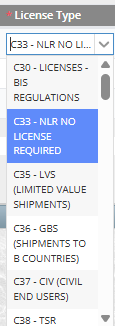
The License Type is defaulted to C33 – NLR (No License Required). In case your shipment requires another license, please select the appropriate option from the drop-down menu.
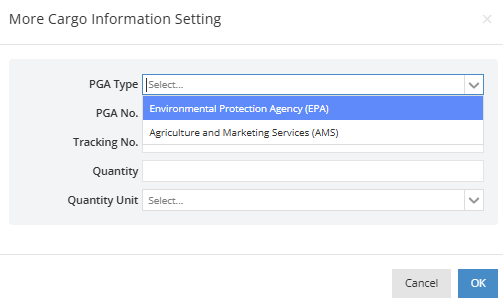
- The last field is “Detail” – this section is used for special shipments, such as those regulated by the Environmental Protection Agency (EPA) and Agriculture and Marketing Services ( AMS). Required fields will appear for completion if applicable.
If your shipment is general cargo, you may skip this section.

- Last Step – Save and Submit
Once all required data has been completed and reviewed, simply click Save and Submit to complete the AES filing process.

✅ Be sure to double-check all mandatory fields and shipment information before submission.
6. Submission Result
After submitting the AES filing, a Submission Result section will appear at the bottom of the AES window for your reference.
You may see one of the following statuses:
- Submit Added – Your submission has been added to the processing queue.
- In Process – Your submission is being processed.
- Accepted – Your filing has been successfully accepted.
- Rejected – There was an issue with the submission. Please review the error message and correct the data before resubmitting.

You can view all submitted AES filings by navigating to Security Filing > AES List in the menu bar.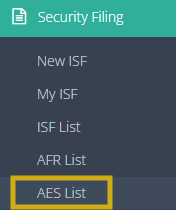
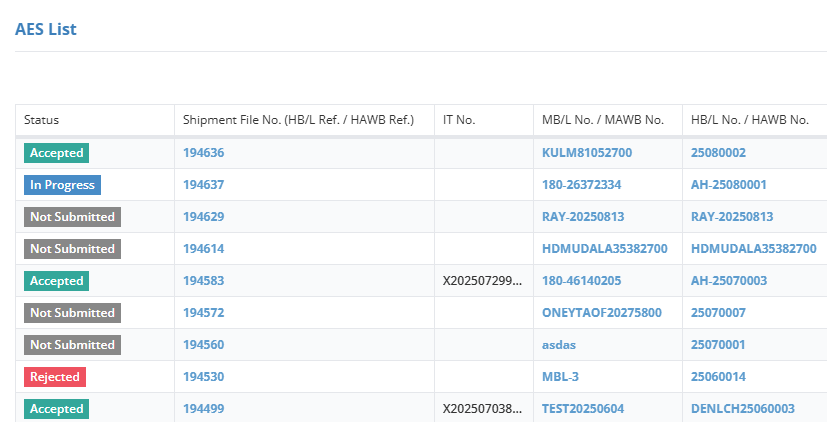
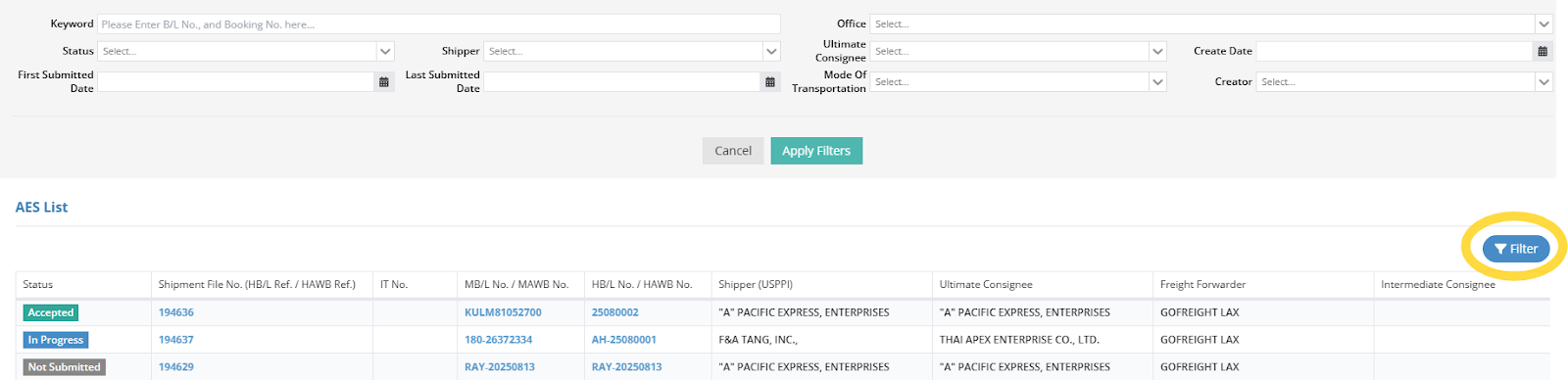
Please use the “Filter” function to search or narrow down AES filings based on your criteria.
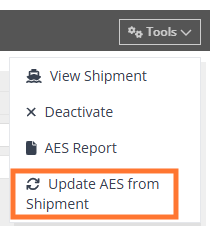
If any updates were made in the Shipment Basic tab after submissions, you can synchronize the changes to the AES filing page directly for the shipment.
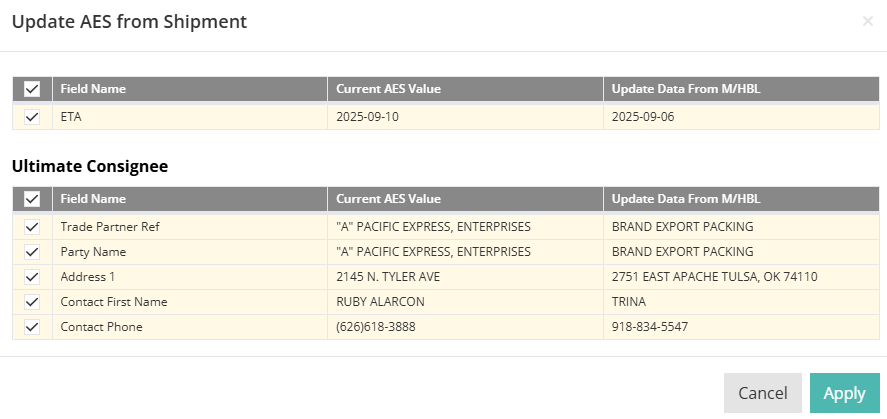
Under the AES Filing page, click Tools > Update AES from the Shipment.
A pop-up window will display the updated columns made in the shipment.
Please review the listed items, tick the applicable column, and click Apply.
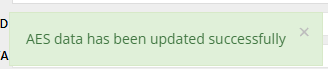
Once the data has been synchronized to the AES filing page successfully, a pop-up window will be shown at the top of the page.
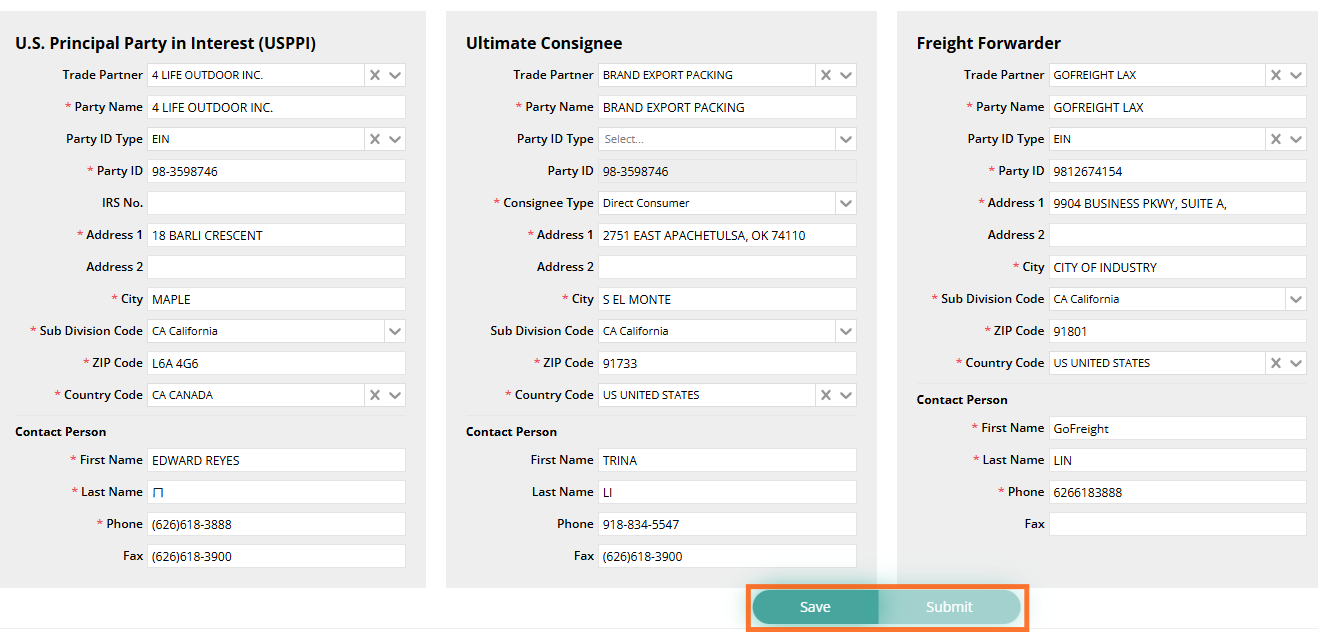
After all data has been reviewed, you can then save the AES filing and resubmit it.
Should you have any questions, please feel free to contact support@gofreight.com . Thank you.