
GoFreight ICS2 (ENS) Filing Guide
GoFreight supports ICS2 (ENS) submissions for Ocean Export shipments to the EU. This feature is not enabled by default. Before filing, you must:
- Apply for an EORI number from European Customs
- Provide the EORI to GoFreight Support for activation
Setup takes a few business days. Once approved, a support agent will enable ICS2 for your account.
Who Can File
ICS2 can be filed for Ocean Export shipments by users with these roles:
- Operations (OP)
- OP Manager
- General Manager
For more detailed information about the application process and pricing, please contact support@gofreight.com.
How to File an ICS2 (ENS)
Step 1: Navigate to the ICS2 (ENS) Filing Page
- Go to: Ocean Export > Shipment Entry,
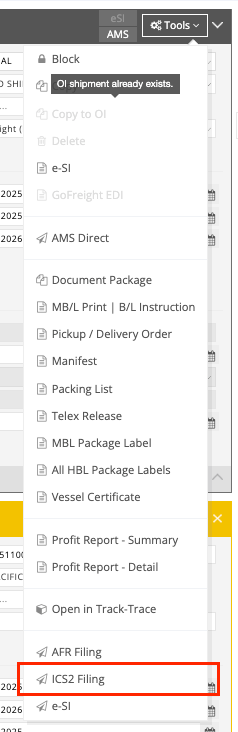
- Click the Tools button at the top right of the MBL section
- Select: “ICS2 Filing.”
Step 2: Complete MBL Information (ZONE 1)
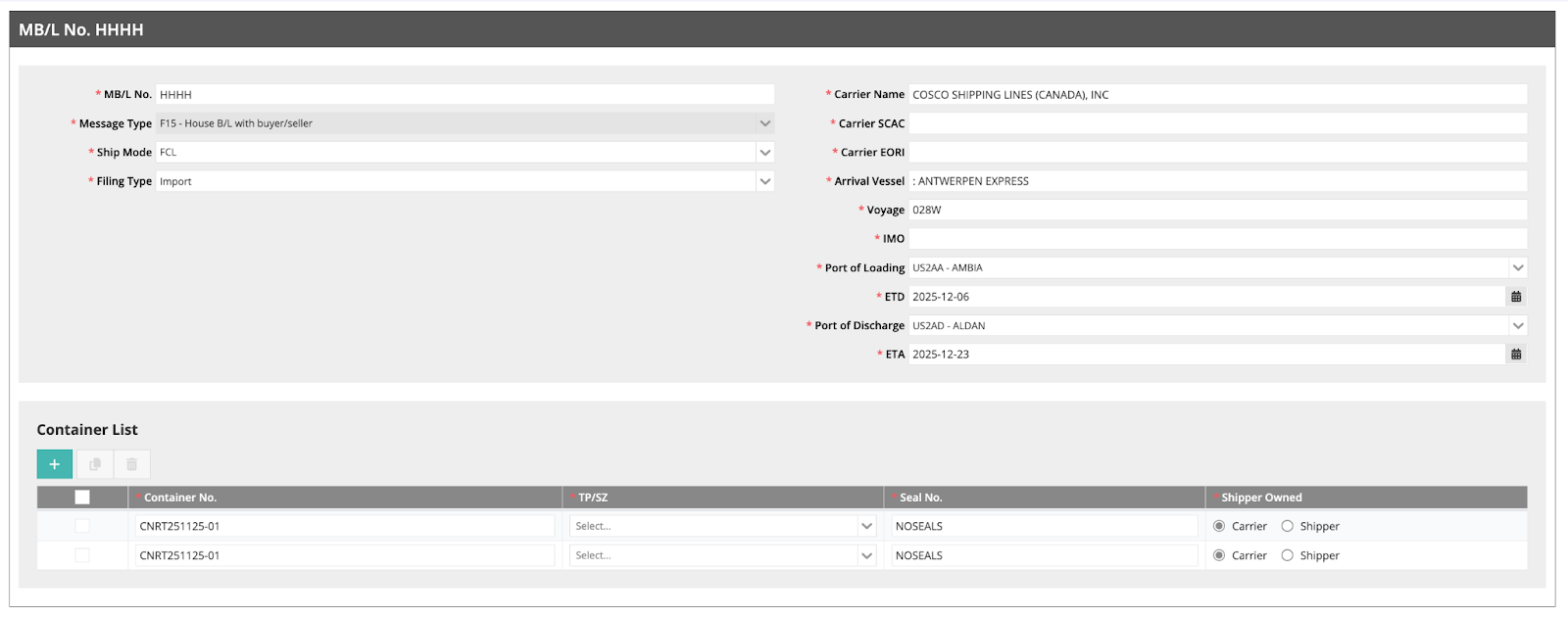
- All fields in this section are mandatory.
- Data will be auto-filled from the Shipment page
- Review carefully and correct any missing or incorrect details
**** Please note that GoFreight currently only supports sending F15 messages. Other message types (F14, F16, F17) will be added in the future. We welcome your feedback if additional message types are needed.****
Step 3: Complete HBLs Information (ZONE 2)
- HBL data is also pre-filled
- Carefully verify that all required fields for each HBL are correctly filled out.
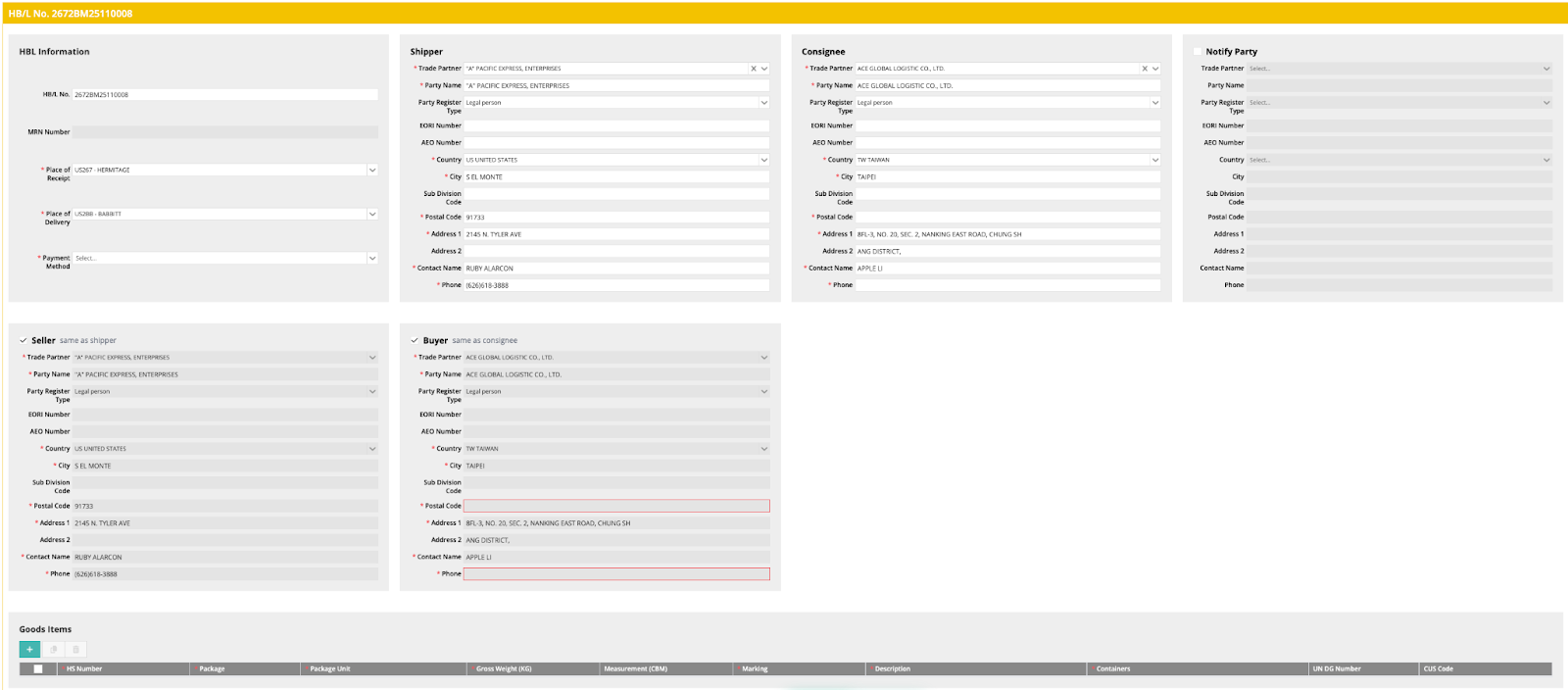
- If you have multiple HBLs, use the right pane to switch between them and confirm each one is complete.

Step 4: Confirm and Submit
- Ensure all details match the carrier’s information
- Click: Save > Submit
- You can return to the shipment page anytime via:
Tools > View Shipment (top-right in MBL section)

How to Read the Logs on the AFR Page
You will see two log sections:
User Operation Log:
- Who edited the MBL/HBL
- What was changed
- When it was saved or submitted
ICS2 Response Log:
- Appears after submission
- Status is tracked per HBL
- An Accepted status on one HBL does not mean all HBLs were accepted
- Scroll to the bottom of each HBL to verify its individual result
Look for: Accepted confirmation from Customs
Filing Statuses Explained
You can view the response statuses of all HBLs by navigating to “Security Filing > ICS2 List”. Use the Filter function to locate the specific filing you're seeking quickly. Alternatively, you can also check the response status directly within each individual HBL filing.
Below are the common ICS2 response statuses you may encounter:
- Not Submitted: Filing has not been sent
>> Click Submit when ready
- In Progress: Filing is sent, awaiting response.
>> If no update appears after 10 minutes, please email support@gofreight.com.
- Accepted: Customs has completed the assessment.
>> If no update appears after 10 minutes, please email support@gofreight.com.
- Rejected: Filing has errors or the wrong format.
>> Check Response Log, fix errors, and resubmit
- Deactivating: Cancellation request has been sent and is awaiting final confirmation.
>> Open MBL or HBL and click Tools > X Deactivate (top-right)
Use this when:- The shipment does not require filing
- A locked field was entered incorrectly
- MBL number
- Carrier EORI
- HBL number
- HS Number (adding or removing any items)
- Port of Discharge
<Deactivate Important Rules>
>> After deactivation, the Shipment Reference No. cannot be reused
>> To resubmit, you must create a new MBL/HBL No. (B/L No.)
>> If the filing was deactivated, you must wait until status shows Deactivated before creating a new one
- Deactivated: ICS2 (ENS) has been successfully canceled
>> You may create a new filing if needed
FAQ
Q: How should I fill out the Filing MBL? Do I need to include the prefix?
A: Please strictly follow the rules below; otherwise, the filing will not be accepted.
- Do NOT include the prefix: CMDU, HDMU, COSU, OOLU, YMJA, MAEU, EGLV
- DO include the prefix: MEDU, ONEY, HLCU, ZIMU
Q: Which fields cannot be modified after submission?
A: Please ensure all information is correct before sending, as the following fields will be locked after ”Accepted“ is issued.
- MBL number
- Carrier EORI
- HBL number
- HS Number (adding or removing any items)
- Port of Discharge
If any of the above fields are entered incorrectly, you need to go to ICS2 Filng → Tools → click X Deactivate, and only after receiving a “Deactivated” response status can you submit a completely new ICS2 (ENS) filing.
Q: What should I do if my ICS2 (ENS) changes vessel?
A:
- If the following fields are incorrect or have changed: Arrival Vessel, Voyage, ETD, ETA, Port of Loading, no modification is needed, as these changes will not affect the accepted response.
- However, if after changing the vessel the shipment no longer passes through an EU country, you must go to MBL → Tools → click X Deactivate before submitting a new ICS2 (ENS) filing.
Q: What is the latest time I can modify the ICS2 (ENS)?
A: You can make changes anytime before the vessel arrives.
Q: How should I fill in the port fields?
A:
- Place of Receipt: The actual place where the cargo is picked up.
- Loading Port: The port where the cargo is loaded onto the EU-bound main vessel.
- Discharge Port: The actual port where the cargo will be unloaded.
Final Destination: The customs clearance location — fill in the place where the shipment will be cleared.