
In the GoFreight system, users with the General Manager or Sales Manager role have full access to the Volume and Profit Report. Users with other roles have restricted access.
Navigate to the Volume and Profit Report section under the Report menu.
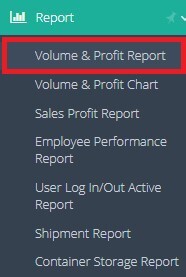
From here, you can generate shipment volume and profit reports based on various criteria.
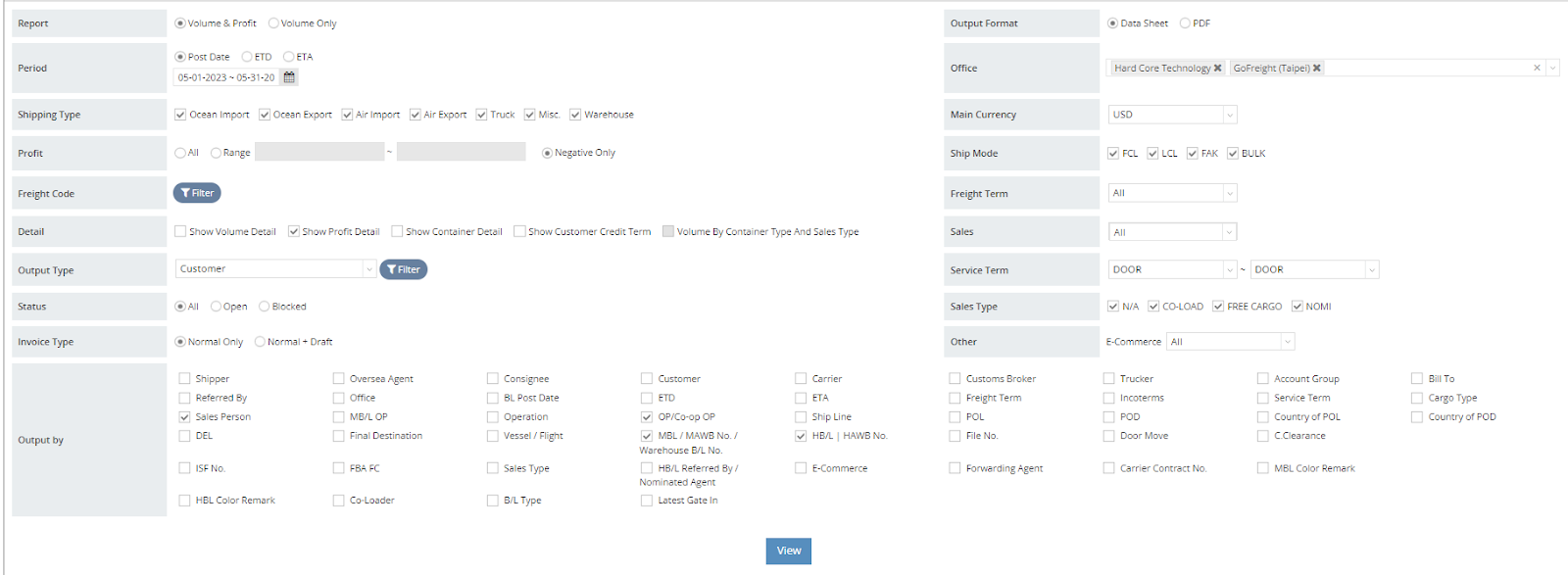
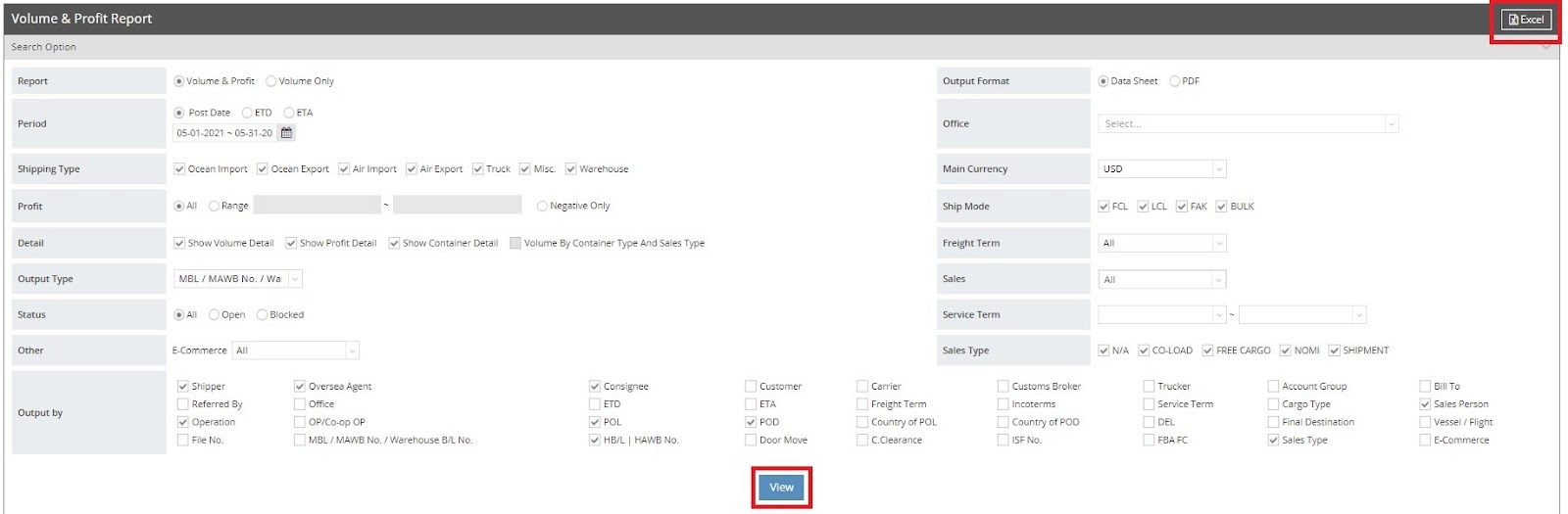
For example, to view the volume and profit report for a specific time period, please follow these steps:
- Select your report type. Note that only authorized users can choose "Volume and Profit"; others will only have access to "Volume Only."

- Select a period. Note that the “Post Date” in the Volume and Profit Report refers to the Shipment Post Date.

- Select the shipping types you want to include in the report. To include all shipping types—OI, OE, AI, AE, Truck, Misc., and Warehouse—simply select all options.

- Set the profit range. To include all profit ranges, select "All."

- If you want to view profits generated by specific freight codes, click on "Filter" in the Freight Code section to expand the list and select the desired freight codes. You may select up to 10 freight codes at a time.

- If you select “Show Profit Detail,” the report will display a full breakdown of AR, AP, and DC, including both revenue and cost details. The system also calculates the profit margin automatically, allowing users to see the relationship between profit and cost (profit ÷ cost). With this option enabled, users can analyze profitability more accurately, including cost structure, gross profit, and profit margin percentage—all commonly requested when reviewing shipment performance or profit reports.


- In this example, we select "Customer" as the output type. However, you can also choose individual customer names or select multiple customers to view the combined profit for a group. If no selection is made, the report will output all available data by default.
TIP: To generate a Volume and Profit report for a specific Trade Partner type or user role in GoFreight—such as Shipper, Overseas Agent, Consignee, Customer, Carrier, Customs Broker, OP, or Salesperson—select the desired option from the dropdown list in the "Output Type" section and click "Filter."
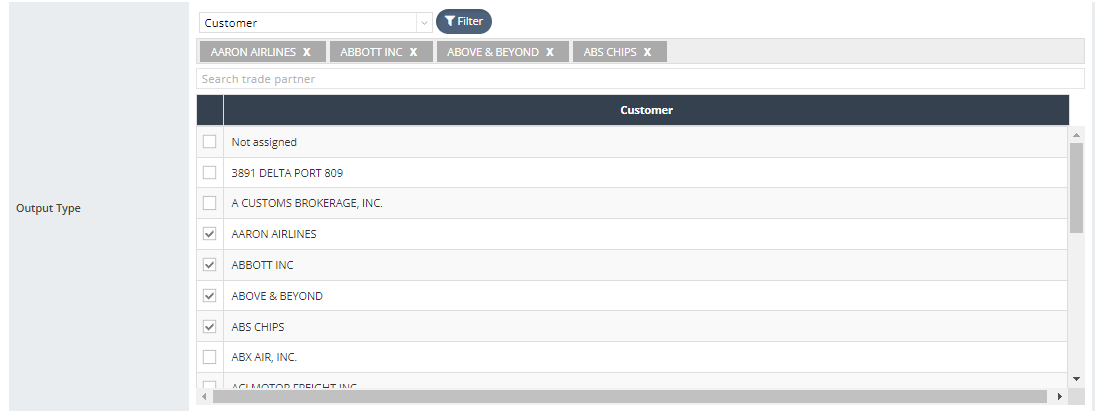
- Select the Status of the shipment: All, Open, or Blocked

- Select the Invoice Type: “Normal Only” or “Normal + Draft”

- Select the Output Format: Data Sheet or PDF

- Select the Office, if you have more than one office.

- Select the Main Currency. If multiple currencies are not enabled in your system, you may disregard this.

- Select Ship Mode: FCL, LCL, FAK, or BULK.

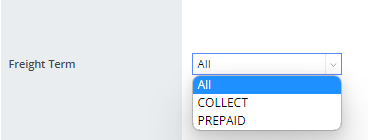
- Choose the Freight Term: Collect, Prepaid, or All.
- Select the Sales, or choose "All".

- Select the Sales Type: Co-Load, Free Cargo, Nomi (Nominated Cargo), or N/A.

- Define the Service Term.

- Specify any other information you wish to include alongside the Volume and Profit Report in the “Output by” section.

- Click “View” to generate the report.
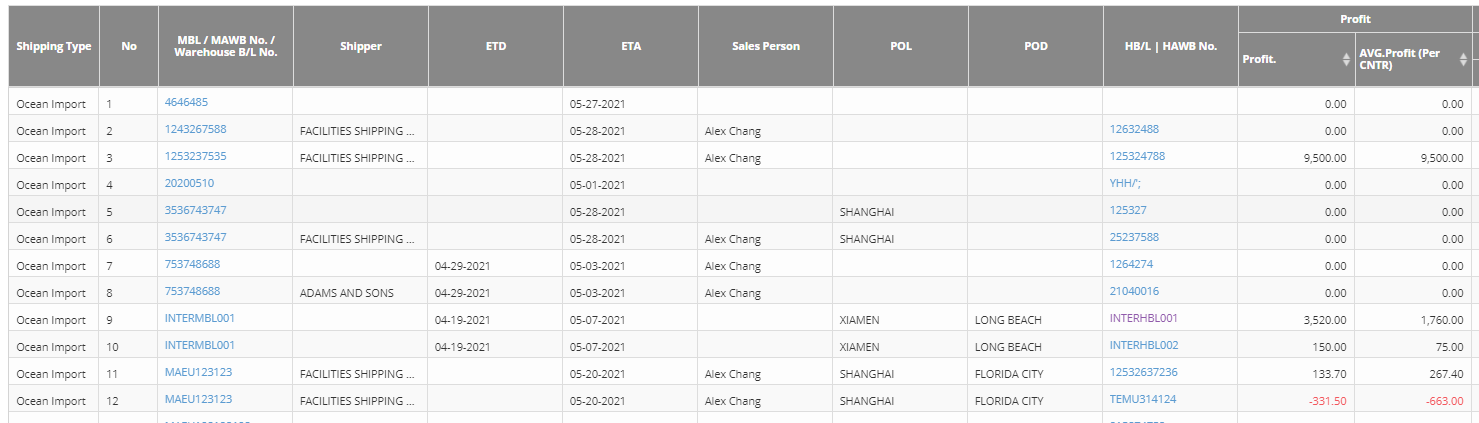
- Subsequently, you can export this report as an Excel file from the upper right corner.
How to Generate a Volume and Profit Report by Template
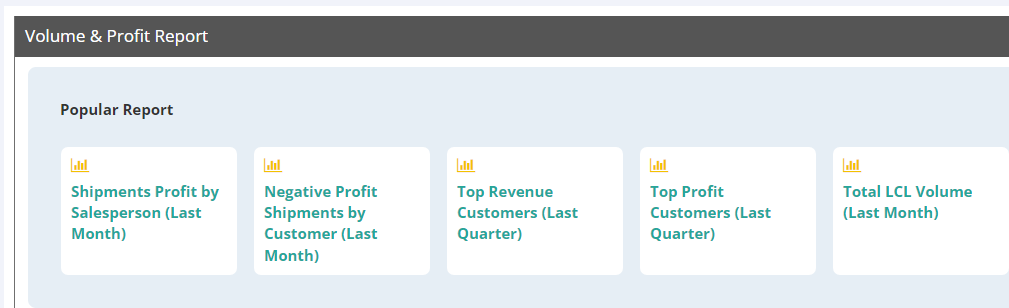
GoFreight offers the top 5 most popular reports with pre-defined templates in the system:
- Shipments Profit by Salesperson (Last Month)
- Negative Profit Shipments by Customer (Last Month)
- Top Revenue Customers (Last Quarter)
- Top Profit Customers (Last Quarter)
- Total LCL Volume (Last Month)
To generate any one of these reports, simply click on the desired template.
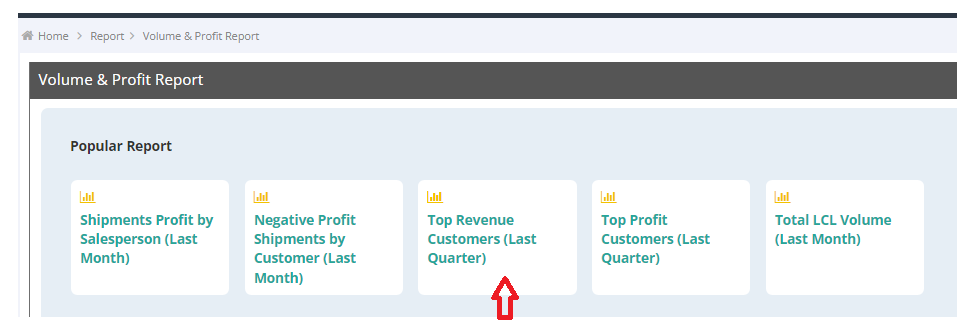
The report will automatically appear at the bottom of the page.

You can refine the results using filters. For example, to compare results for Aaron Airlines and Abbot, uncheck all customers and select the specific customer names you wish to see results for.

To view the conditions associated with the templates, click on “View Report Option”.

For a visual guide on this feature, please refer to the following videos: