
Tracking User Management is a feature that allows certain roles to manage user accounts for the tracking portal. Currently, this feature is accessible to Sales Managers, Operation Managers, and General Managers. If you need to adjust your permissions, please contact our support team.
After this function is enabled, managers will be granted the privilege by default to arrange the trade partner setting. Trade partners' access to the Tracking Portal can be managed through the Tracking User Management system.
How to create a tracking account for your customer through Tracking User Management
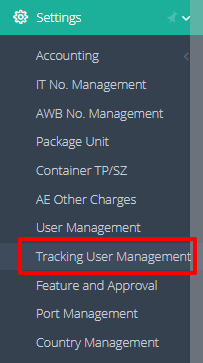
- Navigate to "Setting > Tracking User Management"
- Click the
 button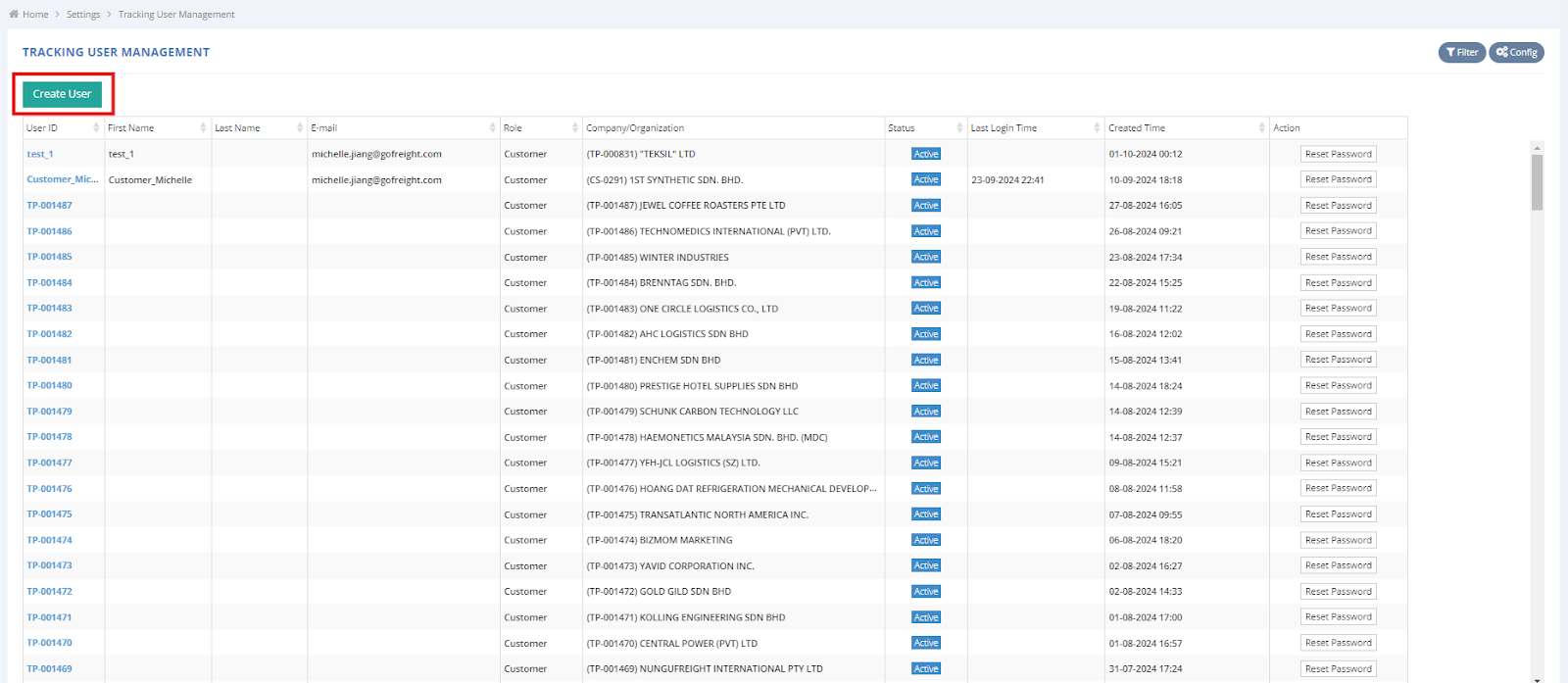
- Fill in the
 &
&  &
& 
- Basic Information
- Compulsory fields (marked with red asterisk):
User ID, First Name, E-mail, Role, and Company/Organization -
User ID:
**Note: You must check the checkbox of "Send password setup email upon user creation", or the system will not send the email to users.**

- Additional Email List:
For customers who want to share an account with a group of people, please simply fill in multiple email addresses for different parties.
- Role and Company/Organization:
- Role: Choose from four different roles: customer, shipper, consignee, and overseas agent
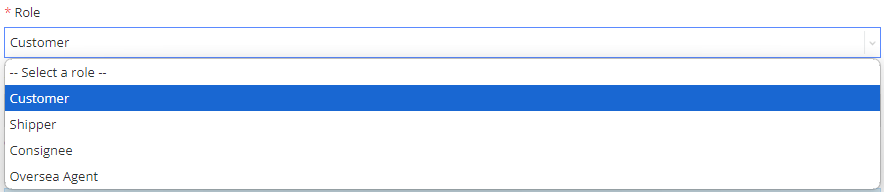
-
Company/Organization:
Select the corresponding company or organization name**Note: Only trading partners created in the system can be selected in this column. If you’re not able to add the trade partner, please go to “Trade Partner > New Trade Partner” to create a new one.**
**Note : The system will remind users to select all relevant Trade Partners if there are several similar names of the Trade Partners.**
The tracking users will be able to see their shipments in the Customer Portal according to their role and company/organization.
- Example 1: If you assign this user the Customer role, you must enter their trade partner details in the customer field of HBL entry. This ensures the customer can view the HBL in the Customer Portal.
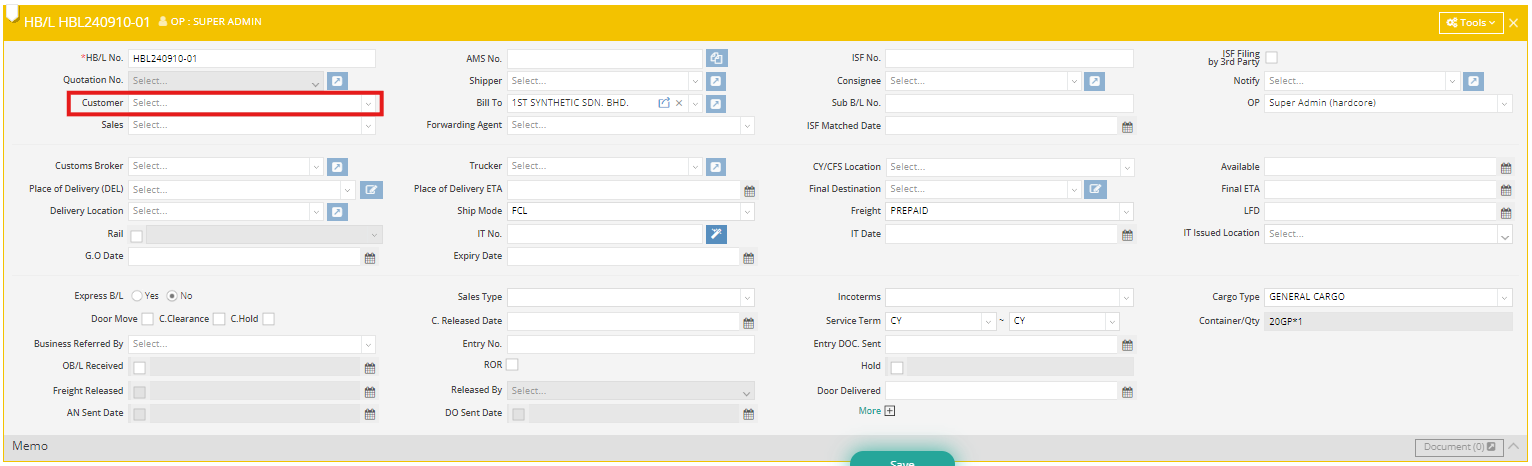
- Example 2: If you assign this trade partner the Overseas Agent role, you have to enter an additional field for specifying which customers' HBL they can view in the Customer Portal.

In the MBL, set the "Company/Organization" field to "Overseas Agent". In the HBL, use the "Customer" field to specify which customers' data the agent can view.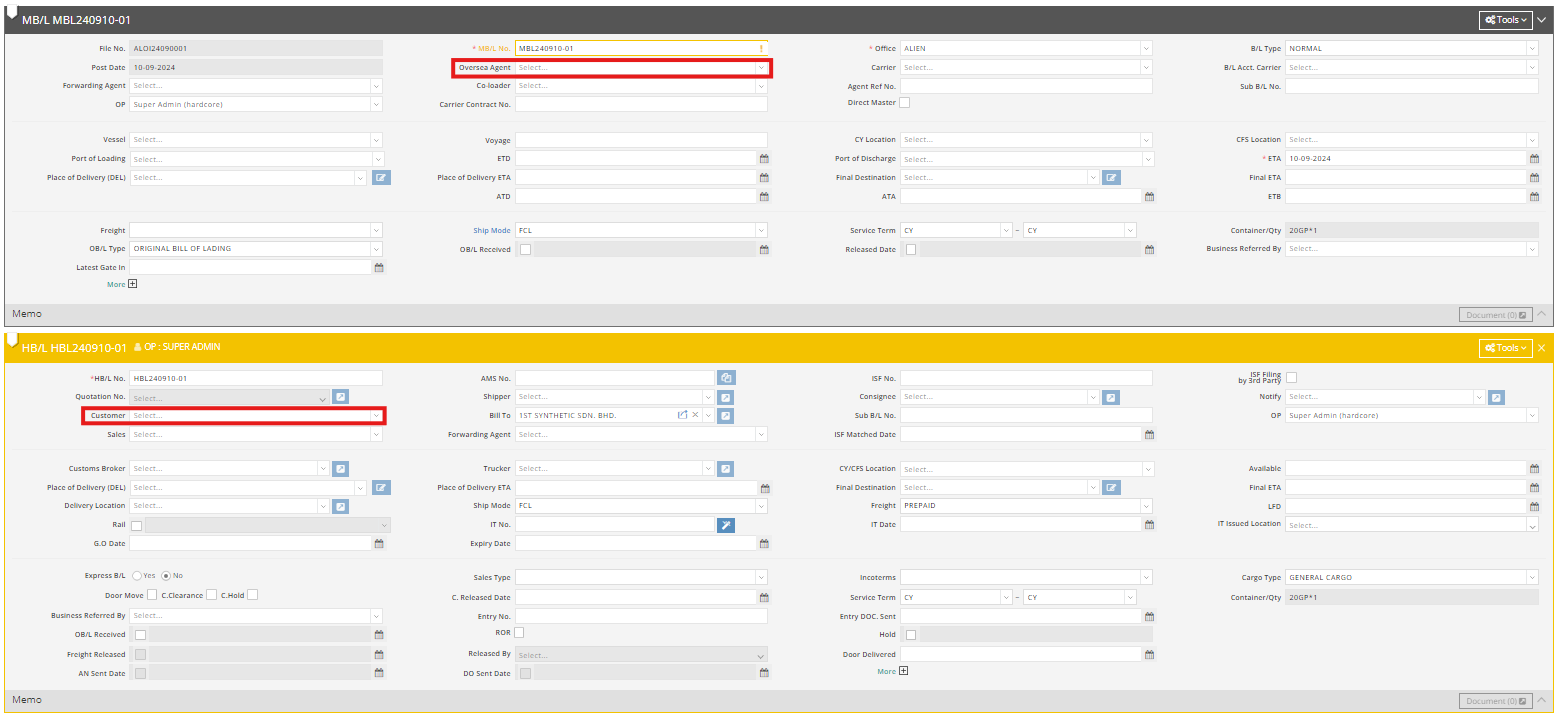
- Role: Choose from four different roles: customer, shipper, consignee, and overseas agent
- Compulsory fields (marked with red asterisk):
- Notification
We have Journey Updated, ETD/ETA Updated, Document Status and Periodic Reports email notification for you and your customers.You can click on the checkbox to decide whether you want to push the email notification at that stage.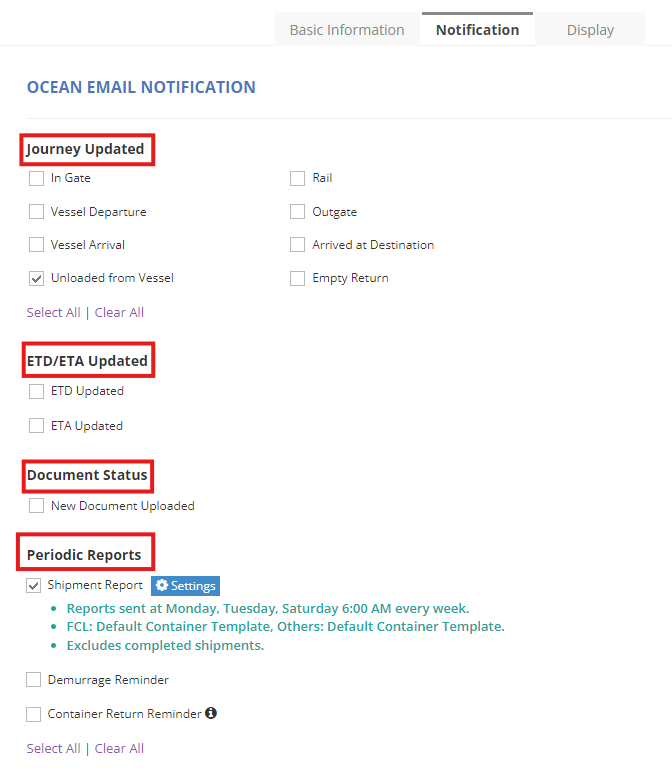
- Shipment Report:
If you want to customize the template and sending frequency of Periodic Reports, you can adjust them in the modal.
The setting configuration will be displayed on the outer page (read mode) after you save.
- Shipment Report:
- Display
Customize user access to Doc Center, Shipper information, and MBL# on the Tracking Portal.
- Basic Information
-
Click
 to send a password setup email to the Tracking user's specified email address.
The Tracking user will receive an email to activate the Tracking Portal. They just need to clicks in the email and sets up password (minimum 6 characters, confirmation required) click “Set Password”.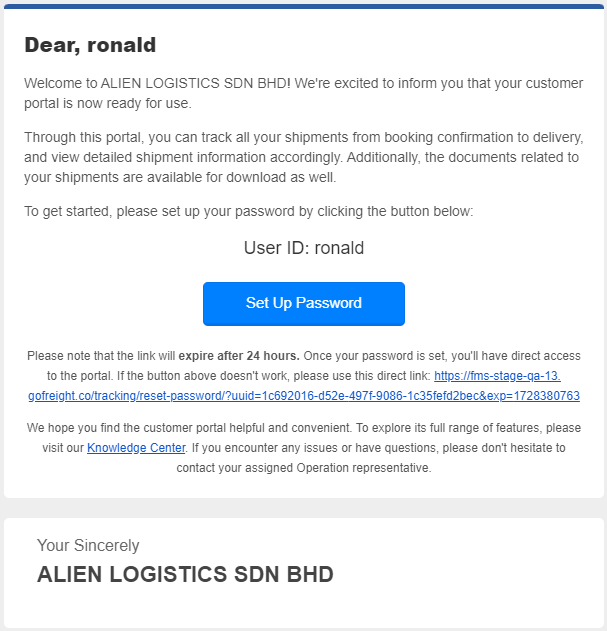
After that they just need to fill out “User ID” & “Password” again, and it will be directed to Ocean Import page in Tracking Portal.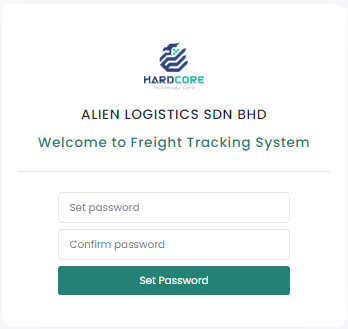
**Note : Link expires after 24 hours. If the link is expired, you must resend it again.**
Please refer to “How to Reset Tracking User password ”.
FAQ
Q: Is there a place I can put a Note or Memo for the customer to see it on the tracking portal?
A:
To leave a note for your customer, you can go to the shipment entry page on your GoFreight > Container & Item tab > scroll down you will see a Description section > here you can enter the note you’d like to leave for your customer. Your customer will be able to see this note in the Detail Info section on the shipment page within their tracking portal.
Q: If there is a direct MBL used, how can it still be tracked/shown in the tracking portal as the HBL Nr. is clearly missing.
A:
Shipments on the tracking portal are HBL-based, meaning shipments without an HBL will not be synced to the portal.
For direct MBL shipments, we recommend entering the MBL number in the HBL field to enable tracking on the portal.
Q: I wanted to see if we can set the password for our customer because the customer usually ignores the set up email or marks it as spam.
A:
Yes, you can set the password manually for your tracking user. To do this, please follow the steps below:
When creating a new tracking user, leave the box “Send password setup email upon user creation” unchecked.
After the user is created, go to the Tracking User Management page.
Scroll to the right-hand side of the user list, and you will find the “Set Password Manually” button.
From there, you can set a password directly for your tracking user.
This way you can avoid the setup email and share the login credentials directly with your customer, and you can also use this same method to reset the password if the customer forgets it.
Q: If the customer and consignee are different, which one sees the shipments on their portal, the customer or consignee?
A:
If you have created tracking user accounts for both the customer and the consignee, and their tracking user roles and organizations match the details on the HBL, then both parties will be able to see their shipments in their separate portal accounts.