
This guide explains how to correctly import shipments on GoFreight using the Tracking EDI service. Follow the steps below to ensure a smooth and accurate process.
Step 1: Enable the Feature & Obtain the Excel Template
Before importing shipments, please contact GoFreight Support to enable this feature for your account. Once enabled, you will receive an Excel template to fill in the shipment details. Additionally, you will need to specify your preferred import method, as this setting must be adjusted in the backend:
- Container-Based: Enter one container per row in the template.
- Shipment-Based: Enter one shipment (by HBL) per row.
Step 2: Prepare the Excel File
Key Points to Remember
- Do Not Rename Tabs: The tabs "Ocean Import" and "Ocean Export" must retain their original names.
- Mandatory Fields: Ensure the following four fields are filled in:
- MBL Number: Must include the prefix, e.g., "MEDU1234567."
- HBL Number:
- Container Number: For shipment-based imports, use ";" to separate multiple container numbers.
- ETA: YYYY-MM-DD is the only accepted format for dates. Ensure the date is written as plain text.
- If using Google Sheets, go to Format > Number > select Plain text.
- If using Excel, refer to this guide for more details.

Recommended Fields
Providing additional information enhances shipment tracking. Below are details for important fields:
- Office Code: Use the code provided during office setup on GoFreight. Contact support if needed.
- PO Number: If multiple PO numbers exist, separate them with semicolons (e.g., "12345;67890").
- Ship Mode: Must be either "FCL" or "LCL."
- Carrier SCAC Code: Ensure the SCAC code matches the one entered in the Trade Partner page.
- Rail Company (if applicable): Use one of the following codes:
- USUPRR
- USBNSF
- CACN
- CACPR
- USNS
- Others
- Terminal Details: If no inland transportation is involved, input the terminal's Firms Code for real-time updates.
- Location Information: For POD (Port of Destination), POL (Port of Loading), and DEL (Delivery Location), use the UN Locode.
- Trade Partner Name: Ensure it matches the name recorded in the GoFreight system.
Step 3: Import the Excel File into GoFreight
- Log in to GoFreight.
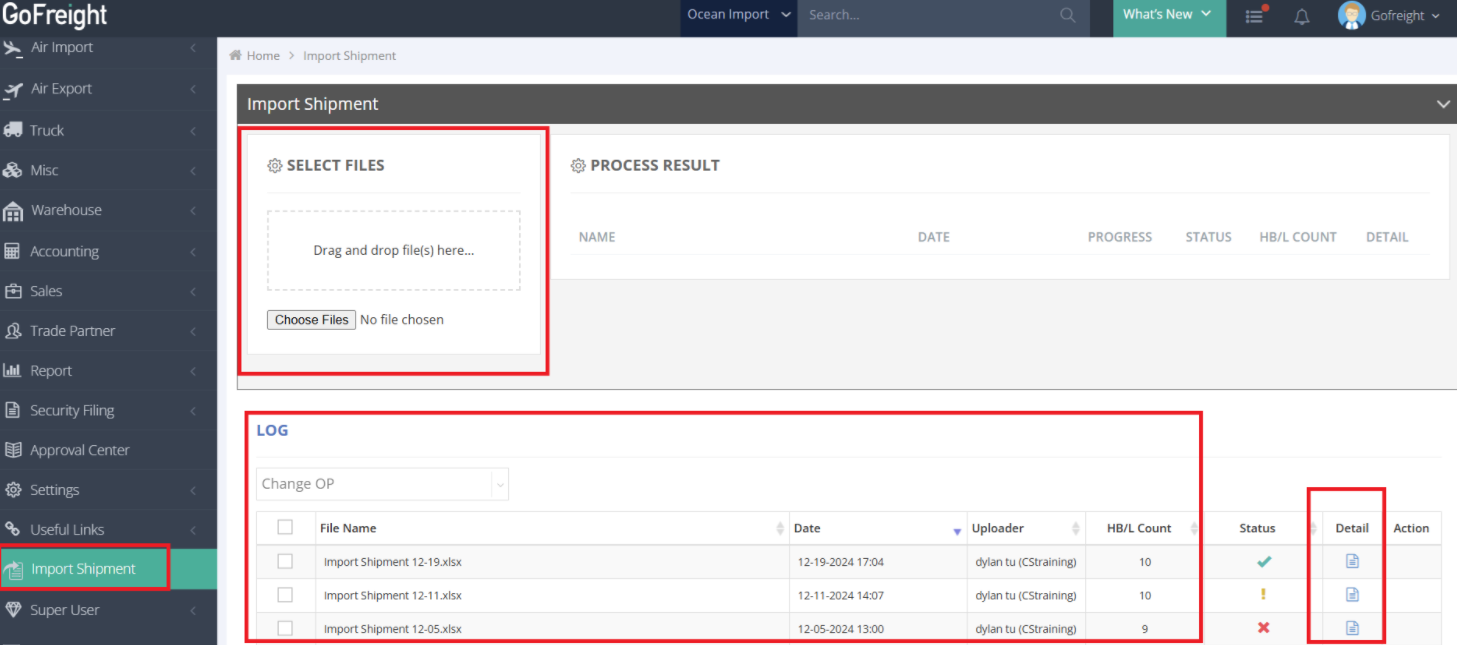
- Click on "Import Shipment."
- Drag and drop the completed Excel file into the "SELECT FILES." section.
Step 4: Review the Import Log
After uploading the file:
- Access the "Log" section in GoFreight.
- Click on "Detail" to confirm the shipment details.
- Look for shipments marked with an "x" status, indicating unsuccessful imports.
- Resolving Issues
- Refer to the "Remark" section in the "Detail" view for error descriptions.
- Correct any errors or discrepancies in your Excel file.
- Re-upload the corrected file into the system.
Note: If the error involves MBL, HBL, or Container numbers, these cannot be corrected by re-uploading, as the system will not recognize the revised entries and will instead create a new MBL, HBL, or container. In such cases, you will need to manually correct the errors directly in the system.

For a visual guide on this feature, please refer to the following videos: