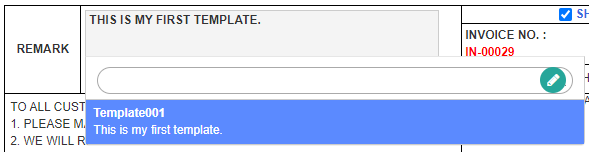
Introducing the “Insert Template” Feature
GoFreight allows you to flexibly customize the editable fields on your document preview pages by creating and inserting templates. These templates are saved as user preferences, so they are only accessible to you and will not be shared with other users. Any edits or information added on the preview page will not impact the live system data, and these changes will only appear on the document you are currently generating.
To enable this feature, please contact our support team at support@gofreight.com.
How to Use the Insert Template Feature: An Example with Arrival Notice
Let’s use the Arrival Notice as an example:
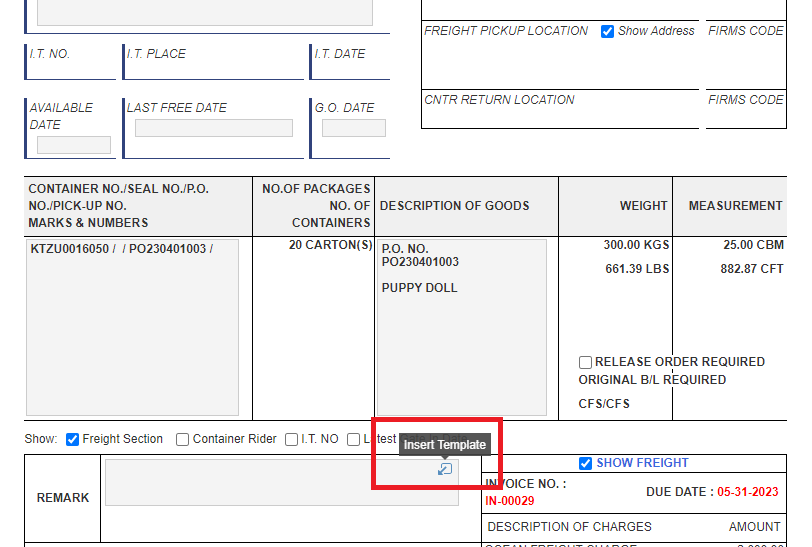
Each gray field is editable. In the upper right corner of each field, you will see a blue arrow icon. Hover your cursor over it, and the "Insert Template" feature will appear. Click on this icon.
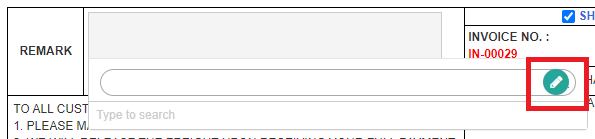
A search bar will open with a green pencil icon located on the right side. If this is your first time creating templates in this field, it is normal that there are no lists to search in this search bar. Click on the pencil icon to access the Text Template page.
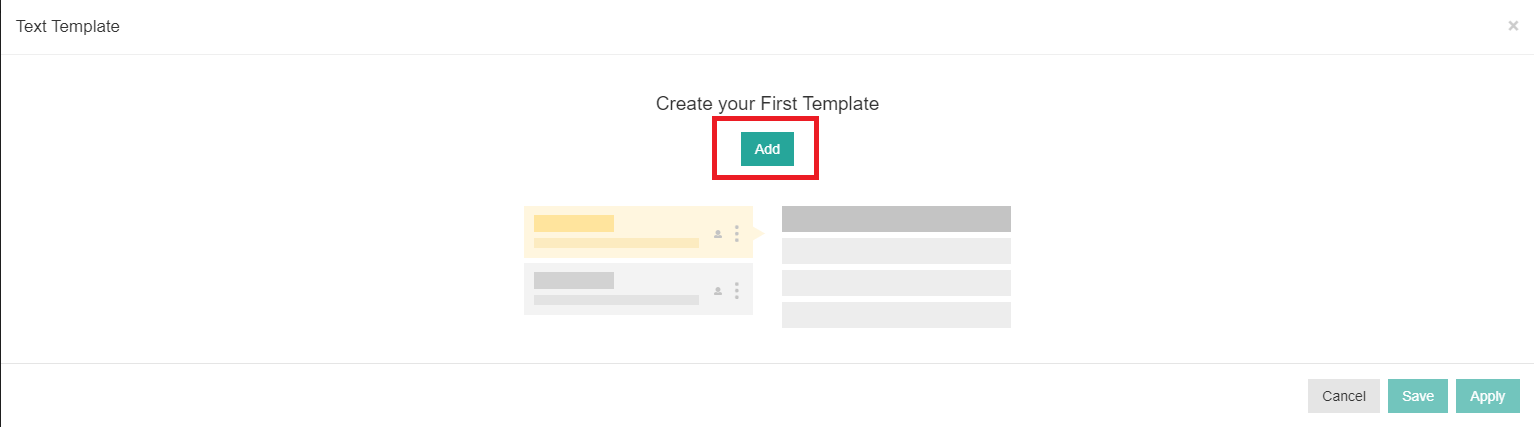
In the Text Template page, click on “Add” to enter the details of your template.
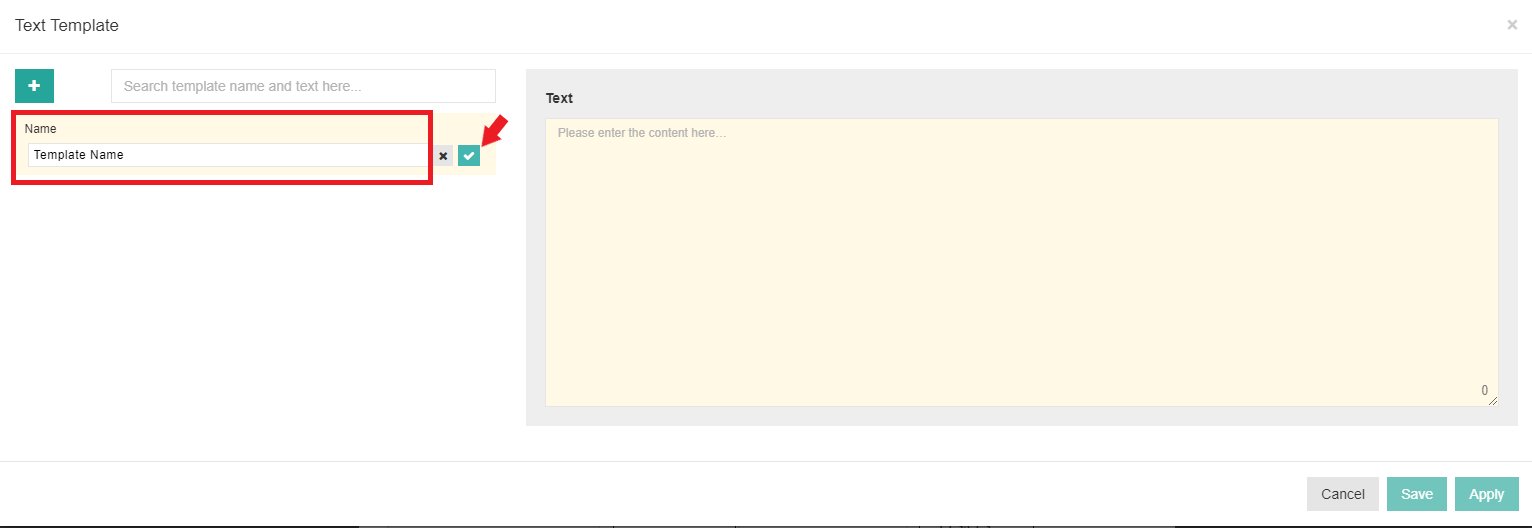
Provide a name for your template and click on the green checkmark icon to save it.
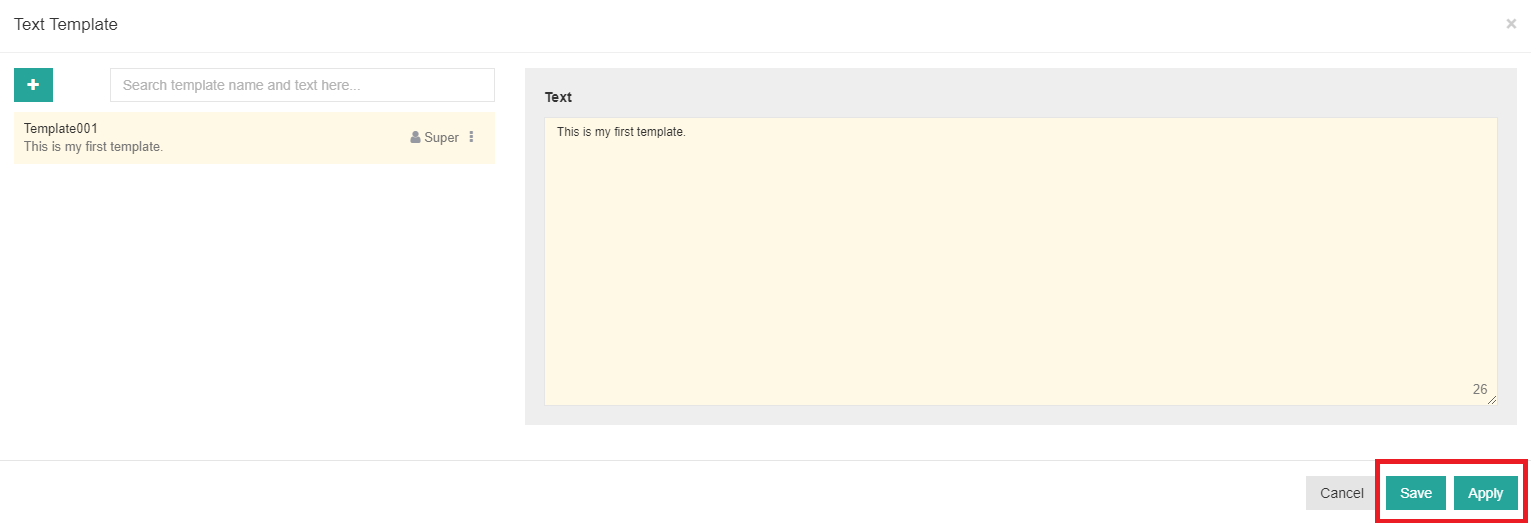
Input the text of the template in the designated area labeled “Text,” then click on “Save” and ”Apply”.
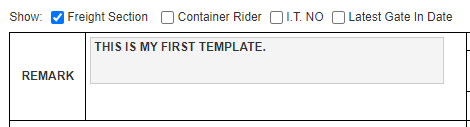
You will see that your template has been successfully applied to the field.
In the future, you can find this template in the search bar mentioned earlier in this article.