
Introduction
This guide explains the process of linking warehouse items to a House Bill of Lading (HBL) when handling their full available quantity for both inbound (receiving) and outbound (shipping) movements. This ensures accurate inventory tracking and streamlines documentation for your operations.
Note: This function is available to users with the following roles: General Manager, Operation Manager, Operation, and Operation Assistant.
Steps to Link Full Quantity Items to an HBL
1. Click on the checkbox next to the item that you desire to link.
2. Select the HBL you wish to link. If you're receiving items, link them to the relevant import HBL. If you're shipping, you'll link to an export HBL or booking file. The system will only display HBLs associated with the same customer receiving the items.
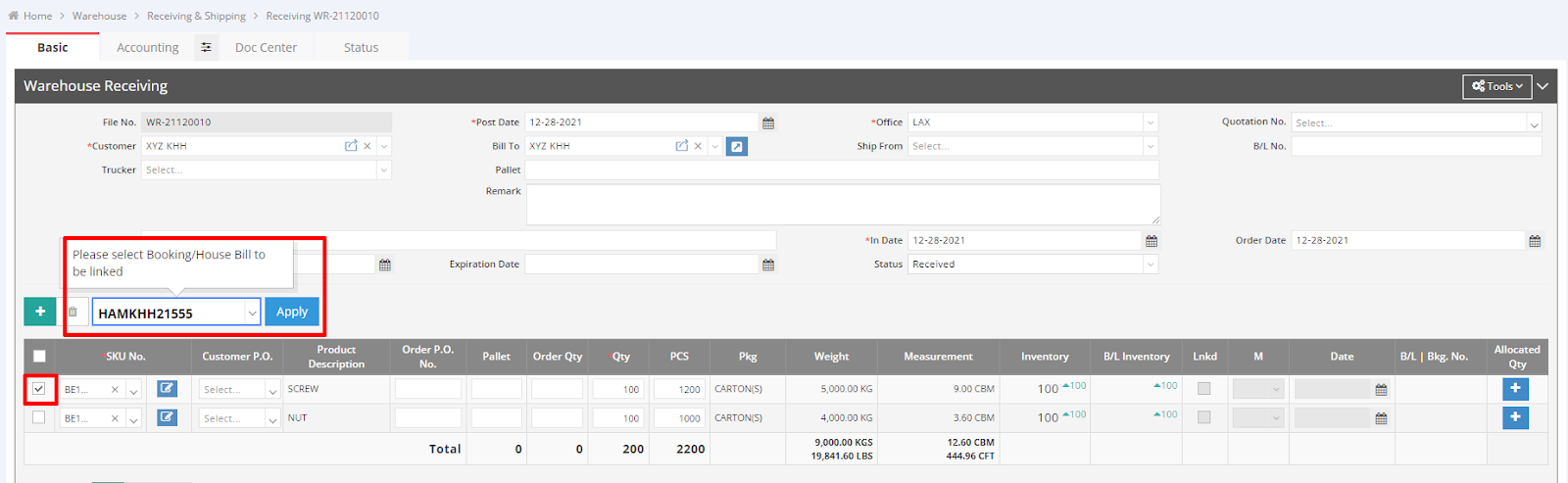
3. Click "Apply." The item will now be linked to the Bill of Lading (B/L) or Booking Number you selected, displayed as a hyperlink in the "B/L | Bkg. No." field. Remember to save this modification before clicking the hyperlink to ensure you can view the updated linkage details within the respective B/L or Booking file.
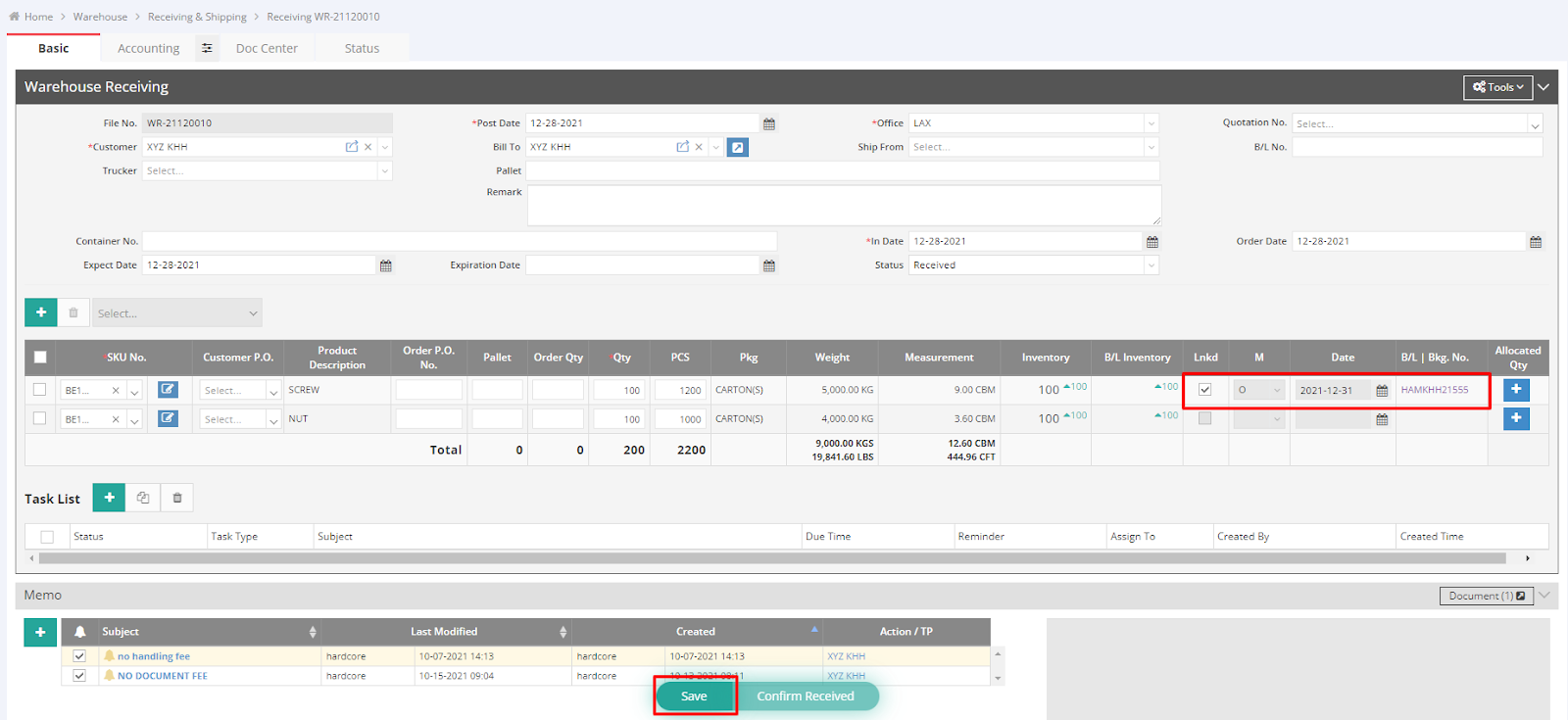
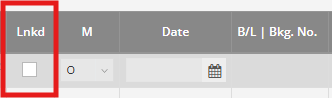
4. To unlink an item, uncheck the "Lnkd" checkbox and then save the file.
For a visual guide on this feature, please refer to the following video: