
Introduction
This guide explains how to link a partial quantity of warehouse items to a House Bill of Lading (HBL). This functionality is essential for accurately tracking inventory and streamlining documentation when only a portion of an item's stock is designated for a specific shipment.
Note: This function is available to users with the following roles: General Manager, Operation Manager, Operation, and Operation Assistant.
Steps to Link Partial Quantity Items to an HBL
1. To link a partial quantity to a House Bill of Lading (HBL), click the blue "+" button located in the "Allocated Qty" field, on the right side of the item row.
2. Enter the allocated quantity directly into the field that appears.
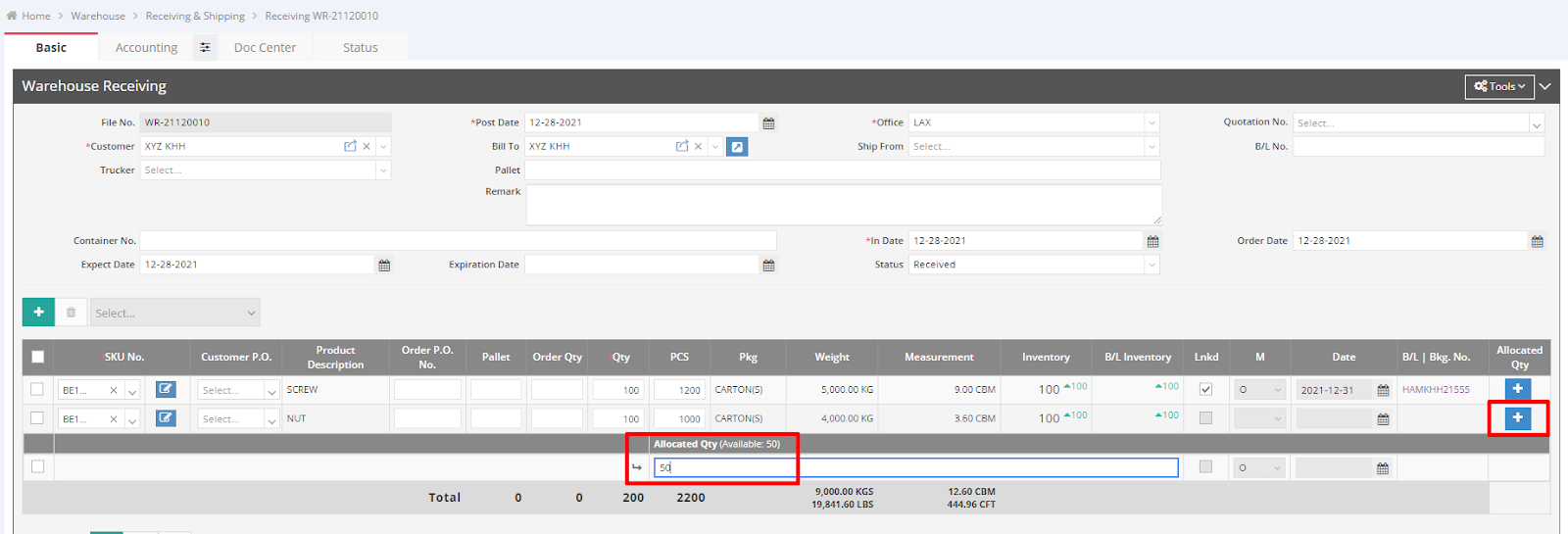
3. Once the allocated quantity is entered, click the item's checkbox.
4. Click the "Select" field, located above the item rows, to reveal the dropdown list. From this list, choose the Bill of Lading (B/L) or Booking Number you want to link. The system will automatically filter this list to display only B/Ls or Booking Numbers associated with the same customer for this receiving/shipping activity.
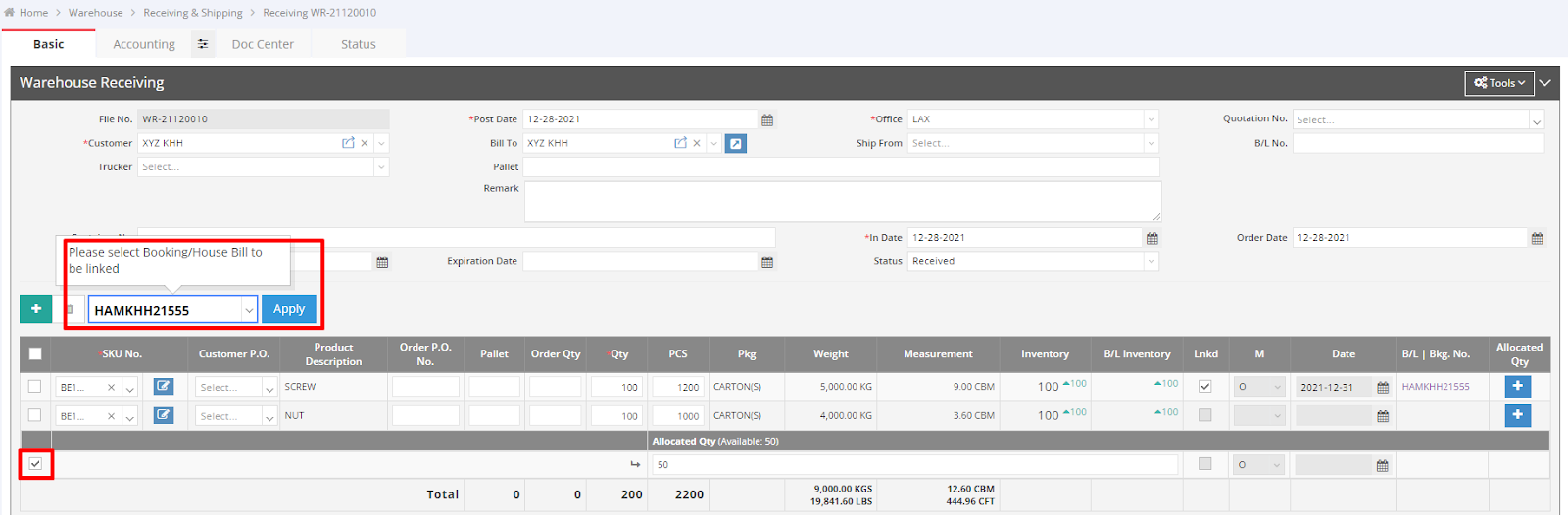
5. Click "Apply." The item will now be linked to the selected Bill of Lading (B/L) or Booking Number, displayed as a hyperlink in the "B/L | Bkg. No." field. Remember to save this modification before clicking the hyperlink to ensure you can view the updated linkage details within the respective B/L or Booking file.
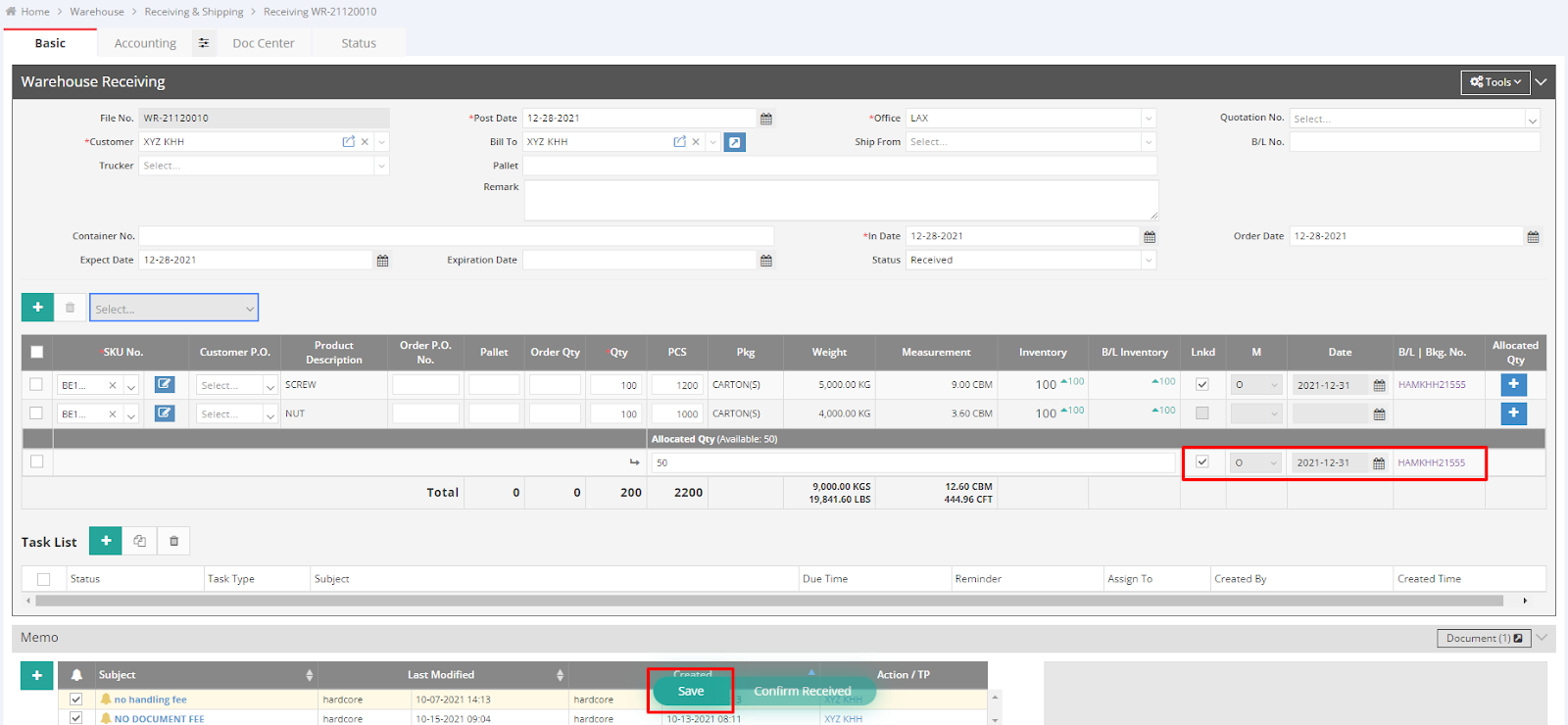
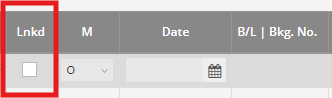
6. To unlink an item, uncheck the "Lnkd" checkbox and then save the file.
For a visual guide on this feature, please refer to the following video: