
Some expenses, such as rental fees, telephone bills, and bank transfer fees, are part of regular business operations. You can record these payments directly by following the examples and instructions below.
Note: This function is only available for the role of General Manager, Accounting Manager, and Accounting.
(A) Create a New Trade Partner
- Navigate to "Trade Partner" > "New Trade Partner" on the navigation bar to create a new trade partner.
- Select "Bank" in the "TP Type" dropdown.
- Enter the name “G&A Transfer Purpose” or another name that represents this G&A expense (e.g., “Company_name G&A Expense”).
- Input the "Country" as this is a required field.
- Click "Save" to save the new trade partner.

(B) Make a Payment for G&A Expenses
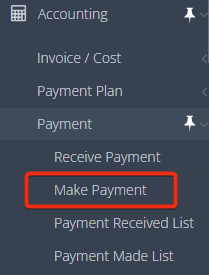
1. Go to "Accounting" > "Payment" > "Make Payment" on the navigation bar.
2. Select a vendor that represents this transaction. In this example, we chose “G&A Transfer Purpose” for the G&A expense created earlier.
3. Select the bank you will use to process this payment.
4. Click the green "+" button to add expense items.
5. In the G/L (General Ledger) field, enter the G/L code for the G&A expenses you are paying. In this example, we listed “50270 Office Rental Expense” and “50100 Payroll Net Salaries”.
6. Enter the amount in the “Payment” field.
7. Click "Save" to complete the transaction.
