In some situations, you may need to make payments using a credit card. In GoFreight, credit cards are treated as banks within the system. You can record a payment using a credit card in GoFreight by following the steps outlined below.
Note: By default, this function to make payment is available for the role of General Manager, Accounting Manager, and Accounting.
The function to set up General Ledger (G/L) code and Bank is available for the role of General Manager and Admin.
(A) Set Up G/L Code and Bank for Your Credit Card
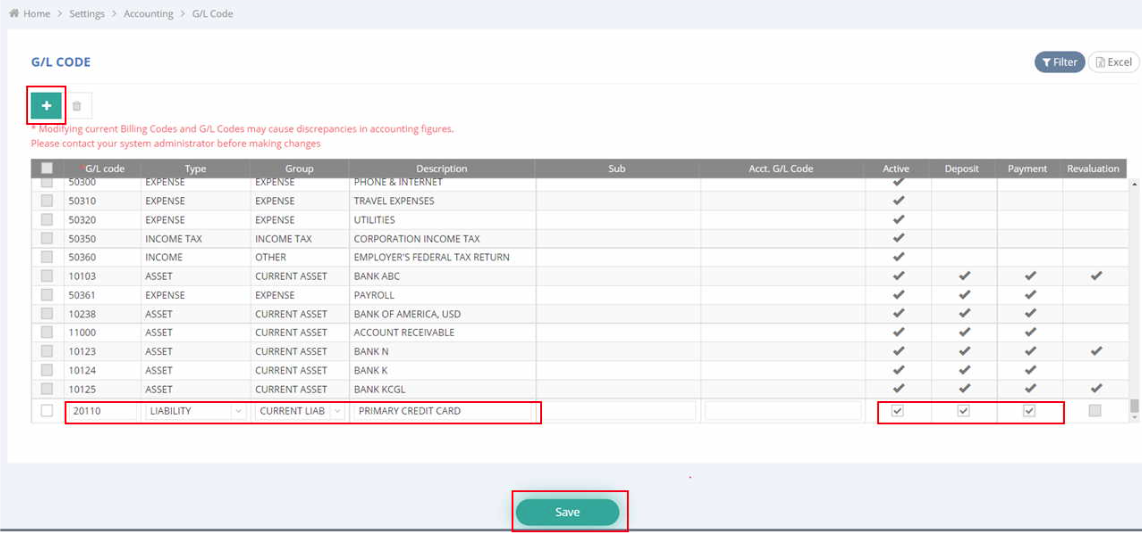
- Navigate to "Settings" > "Accounting" > "G/L Code" on the navigation bar.
- Click the “+” icon to create a new G/L for the credit card.
- Select the Type and Group, and enter the Description field.
- Check the boxes for Active, Deposited, and Payment.
- Click "Save" to complete the G/L code setup for the credit card.
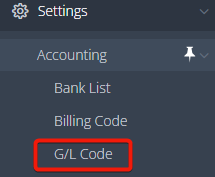
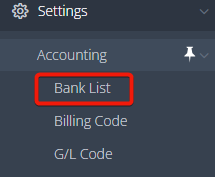
- Navigate to "Settings" > "Accounting" > "Bank List" on the navigation bar.
- Click the “+” icon to create a new Bank for the Credit Card.
- Assign an appropriate name and select the G/L code that was saved for the credit card.
- Click "Save" to finalize the credit card setup.

(B) Make a Payment with a Credit Card
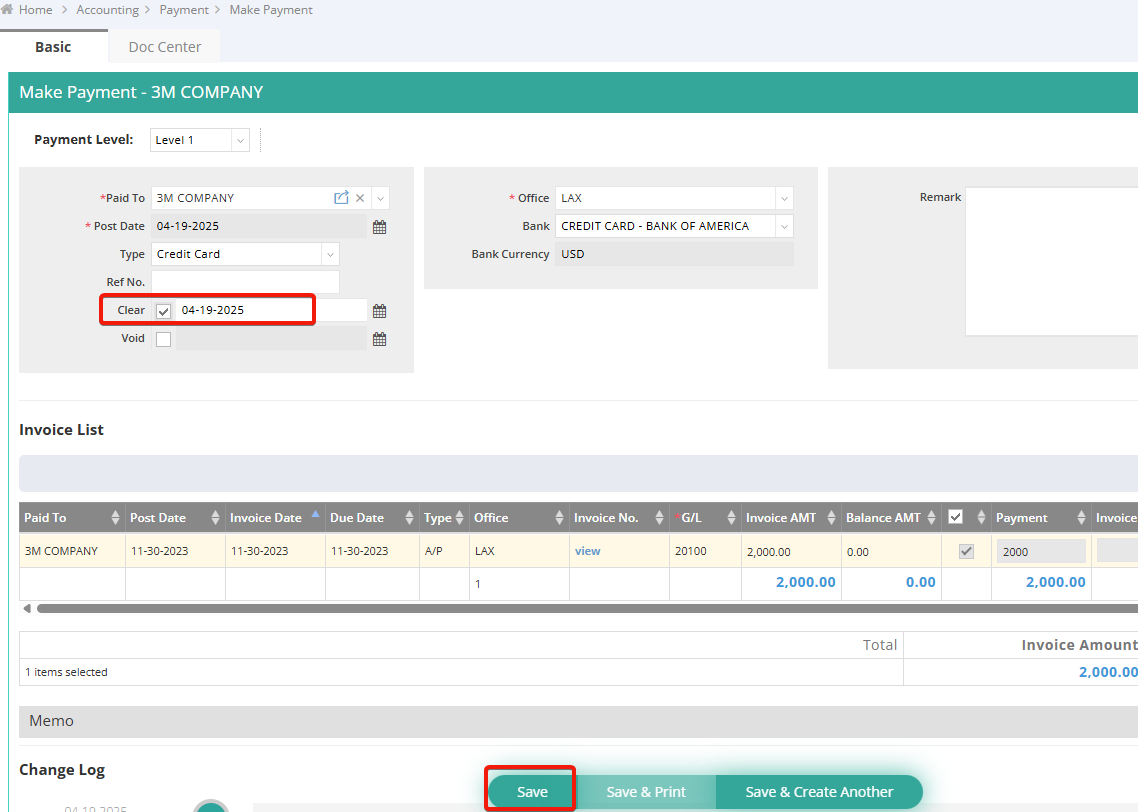
1. Navigate to "Accounting" > "Payment" > "Make Payment" on the navigation bar.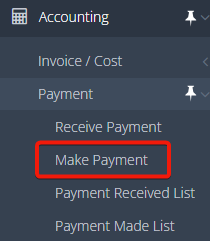
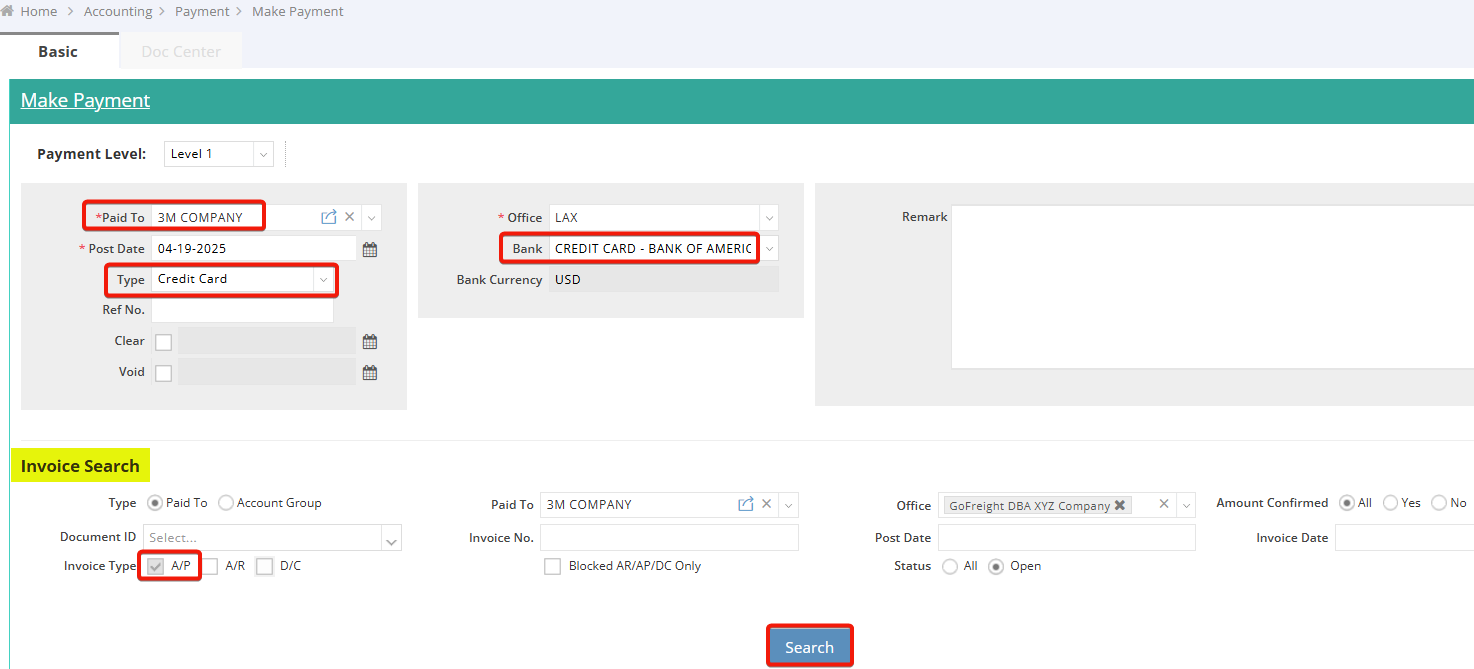
2. Enter the vendor name in the “Paid To” field.
3. Select “Credit Card” for the “Type” field.
4. And select the credit card in the “Bank” field. In this case, we select “Credit Card-BANK OF AMERICA”
5. Under the “Invoice Search” section, check the accounts payable (AP) under the “Invoice Type” and click “Search”.
6. Check the box next to “Balance AMT” for the Invoices you would like to pay. Once it is checked, the amount will be synchronized in the field of “Payment”.
7. Click "Save" to process the payment. 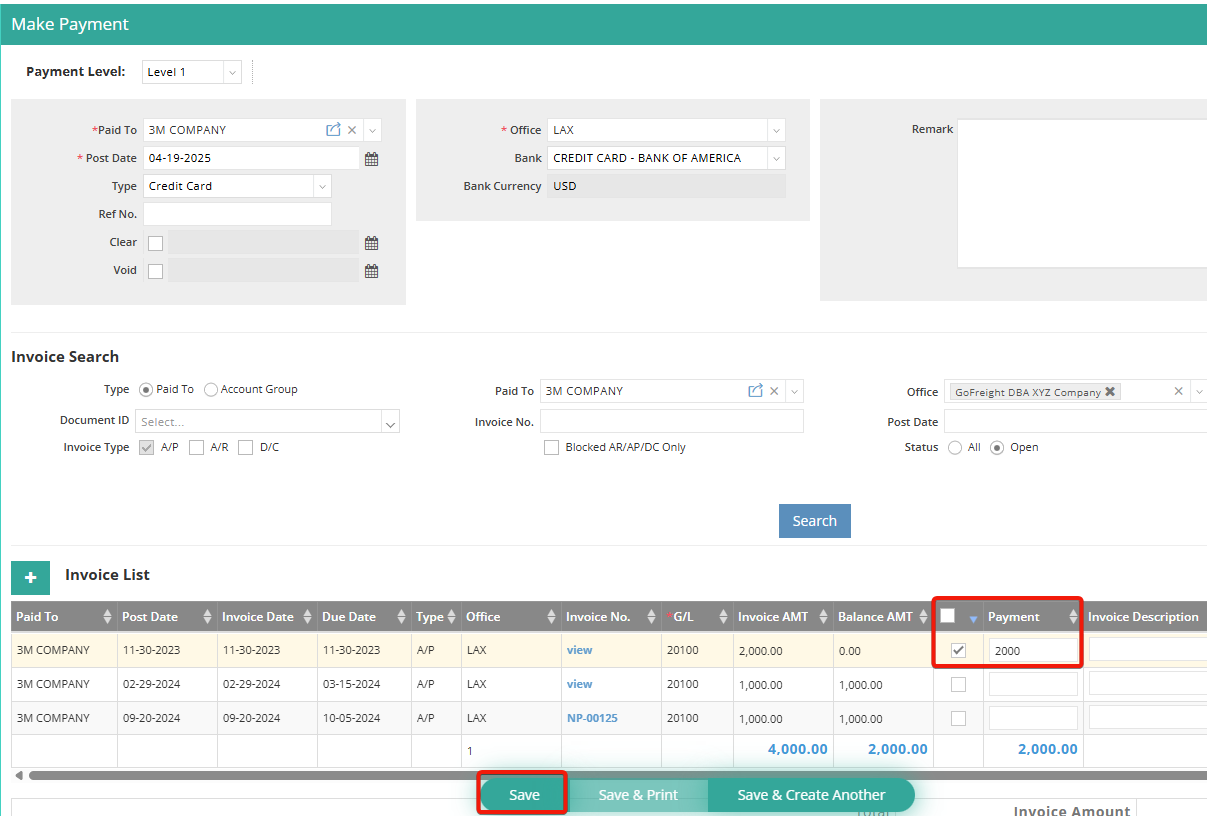
Once the transaction has been transferred from your bank, click "Clear" and then "Save" to complete the payment record.