Some expenses, such as monthly employee salaries or recurring bank charges, are part of regular business operations but typically do not come with an invoice. You can record these payments directly by following the examples and instructions below.
Note: This function is only available for the role of General Manager, Accounting Manager, and Accounting.
(A) Paying Employee Salaries
(A-1) Create a New Trade Partner
Note: In this example, we will pay employee salaries. A virtual employee named Claire Huang has been created in the Trade Partner section. This step only needs to be done once.
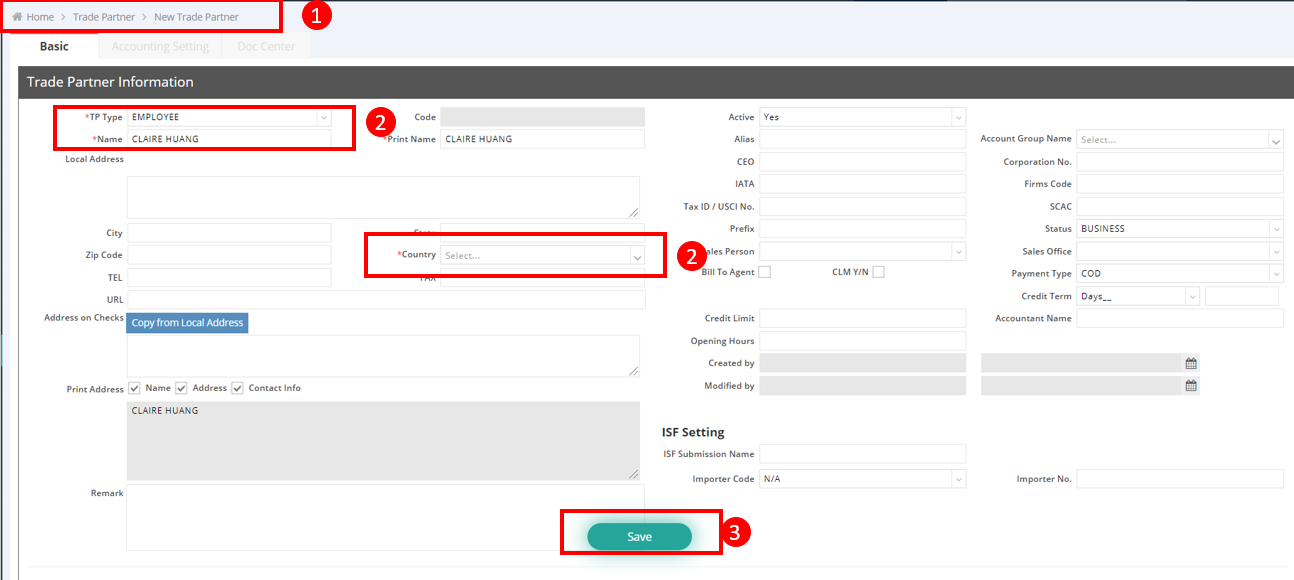
- Navigate to "Trade Partner" > "New Trade Partner" on the navigation bar.
- Select “Employee” for the Trade Partner Type.
- Enter the “Name” and “Country”. The other fields are optional.
- Click "Save" to save the employee profile.
(A-2) Make the Payment Using the Accounting Module
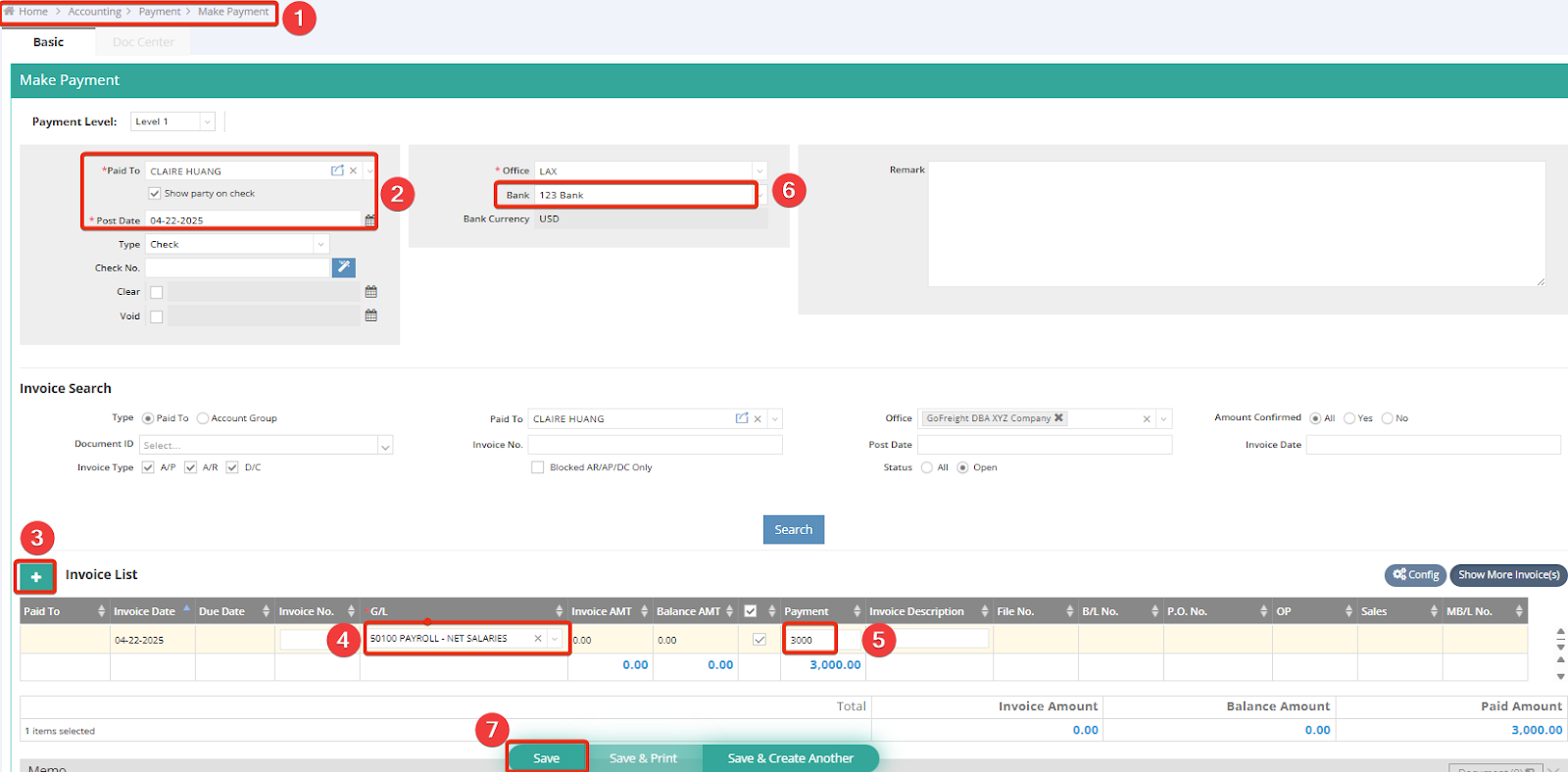
1. Navigate to "Accounting" > "Payment" > "Make Payment" on the navigation bar. 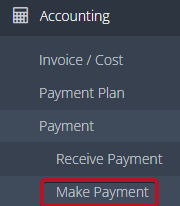
2. Select a trade partner for this transaction. In this example, we choose Claire Huang.
3. Click the green "+" button to add a new entry.
4. Enter the G/L code (General Ledger) or type the name for the transaction. In this case, we enter 50100 “Payroll Net Salaries” as the example.
5. Enter the payment amount.
6. Select the Bank.
7. Click "Save" to complete the transaction.
(B) Paying Bank Charges
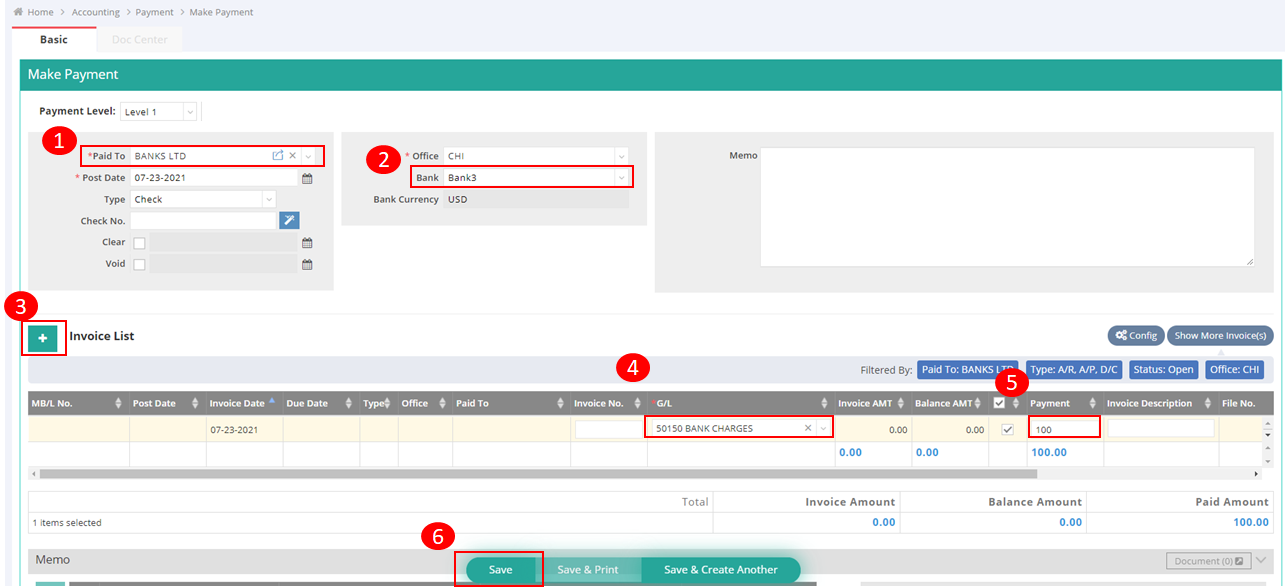
Navigate to "Accounting" > "Payment" > "Make Payment" on the navigation bar.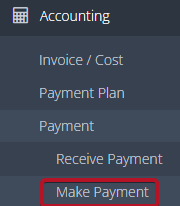
1. Select a trade partner in the “Paid to“ field for this transaction. In this example, we select Bank LTD as the bank to which we are paying the charge.
2. In the “Bank” field, select the bank account from which the payment will be made.
3. Click the green "+" button to add a new entry.
4. Enter the G/L code or type the name for the transaction. In this case, we enter 50150 “Bank Charges”.
5. Enter the payment amount.
6. Click "Save" to complete the transaction.