
1. Purpose
This user guide provides step-by-step instructions on how to set up, manage, and use Carrier Contract Numbers under the Trading Partner (TP) profile for Ocean shipments. The feature allows users to select valid carrier contract numbers during Ocean Export (OE) and Ocean Import (OI) shipment creation.
2. Before You Begin
Please ensure the following prerequisites are met:
- The Trading Partner TP Type is set to Ocean Carrier.
- You have access rights to TP Management.
- The feature is supported only for Ocean Export (OE) and Ocean Import (OI) modules.
If the TP Type is changed to a non-ocean type (e.g. Air Carrier), the Carrier Contract Number tab will not be available.
3. Management Steps
Step 1: Access Trade Partner Profile
- Go to Trade Partner> Trading Partner List
- Search for and open the required Ocean Carrier TP profile.
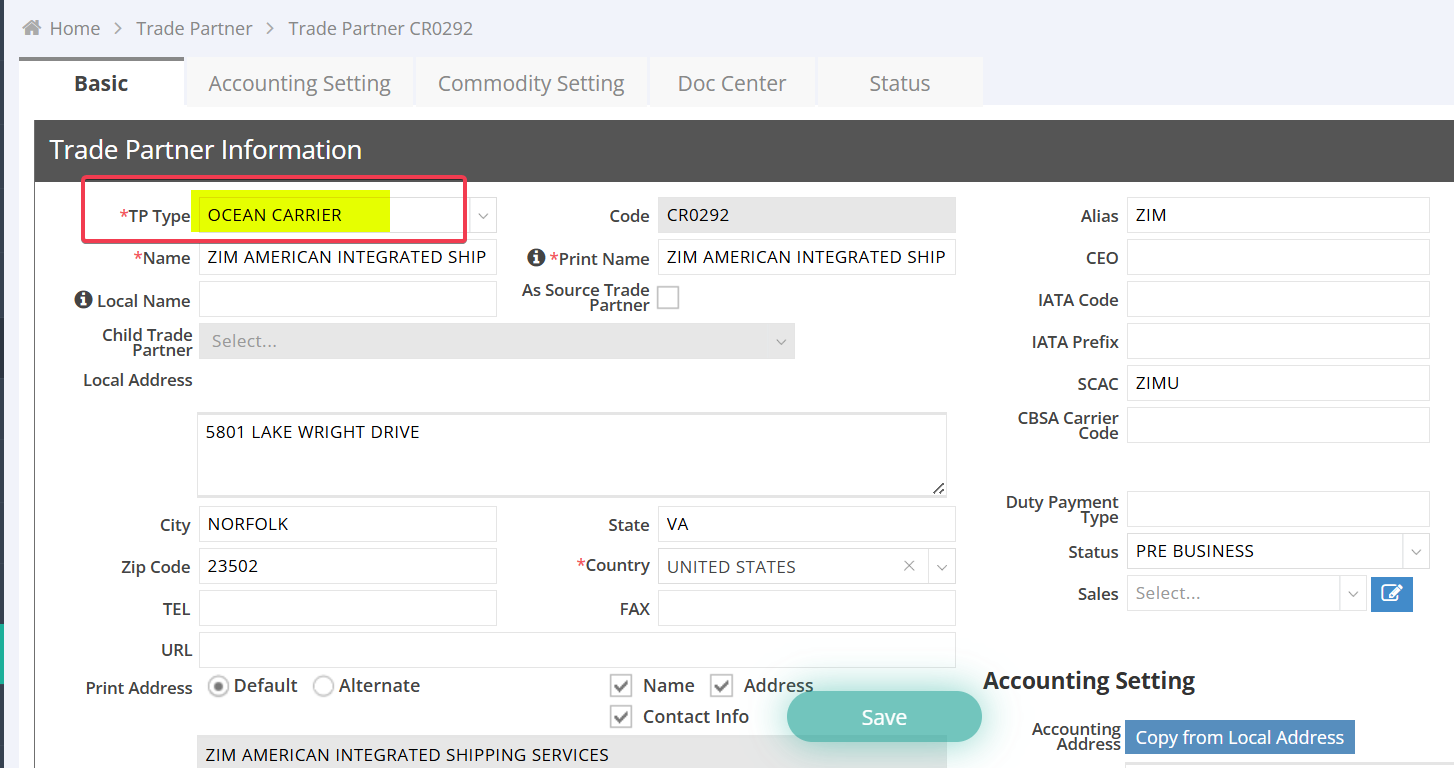
Step 2: Add Carrier Contract Number
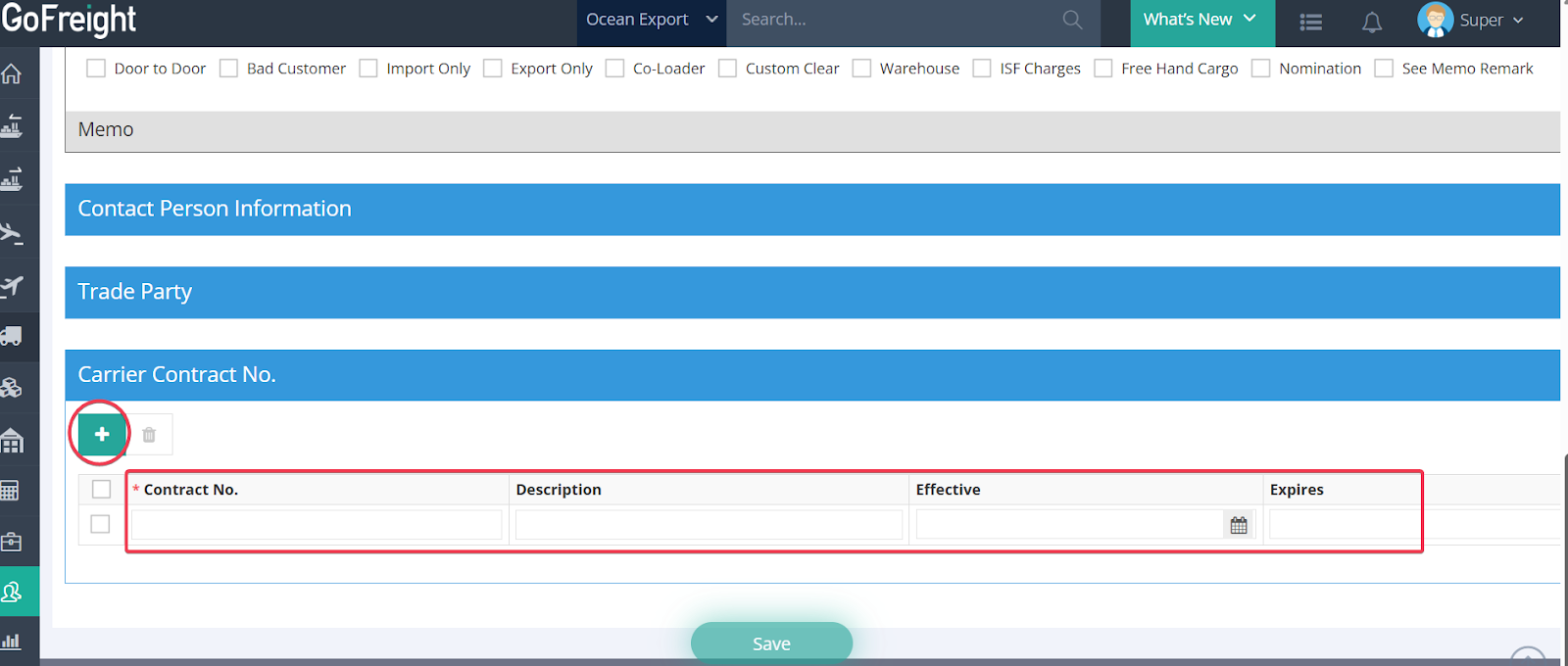
- Within the Ocean Carrier TP profile, locate the Carrier Contract No. tab.
- Click the tab and then click the New icon “+” to add Contract No.
- Enter the following information:
- Carrier Contract Number
- Description
- Effective date
- Expires date
Date Validation Rules:
- The Expires Date must be later than the Effective Date.
- The system will not allow saving if:
- The dates are the same, or
- The Expires Date is earlier than the Effective Date.
- Click Save to complete the setup.
Step 3: Maintain or Delete Contract Numbers
3.1. Delete Invalid or Obsolete Contracts
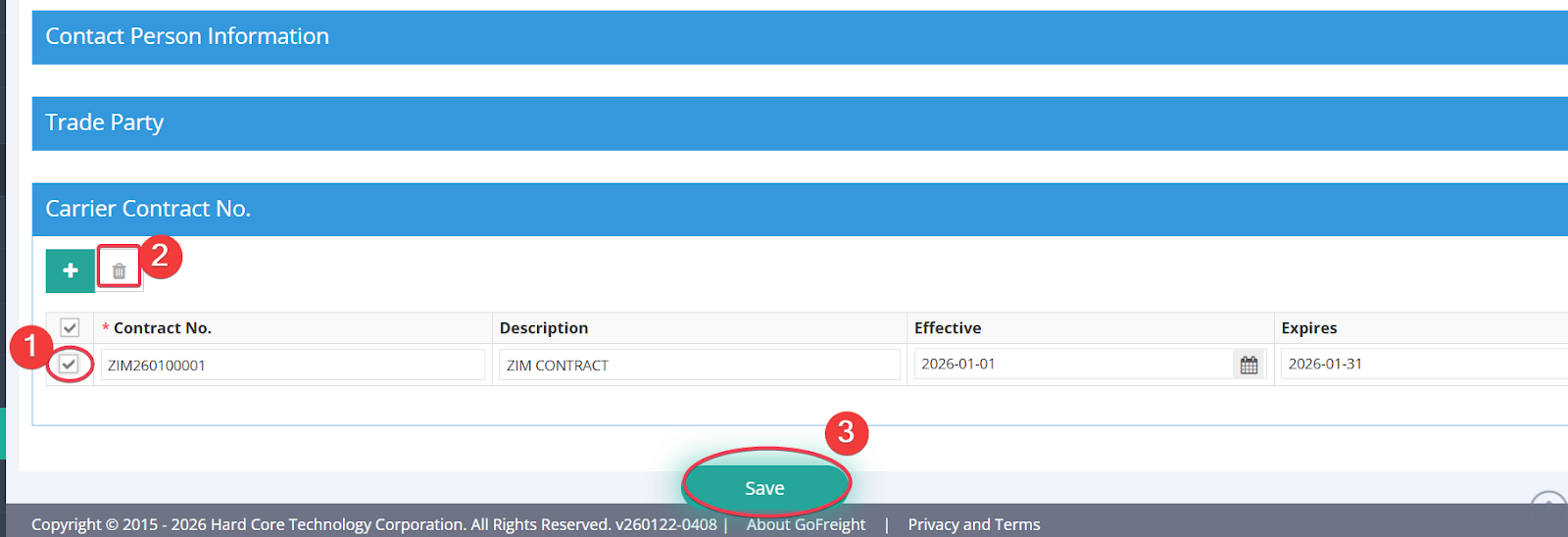
- Select the contract number from the list.
- Click Delete.
- Click Save.
Important Notes:
- Deleted contract numbers will no longer appear in the dropdown list during shipment entry.
- Deleted contract numbers will remain unchanged in historical shipments.
3.2. Modify Contract Dates
- Edit the Effective Date or Expiry Date as needed.
- Save the changes.
Step 4: Use Carrier Contract Numbers in OE / OI Shipments
- Create or open an Ocean Export (OE) or Ocean Import (OI) shipment.
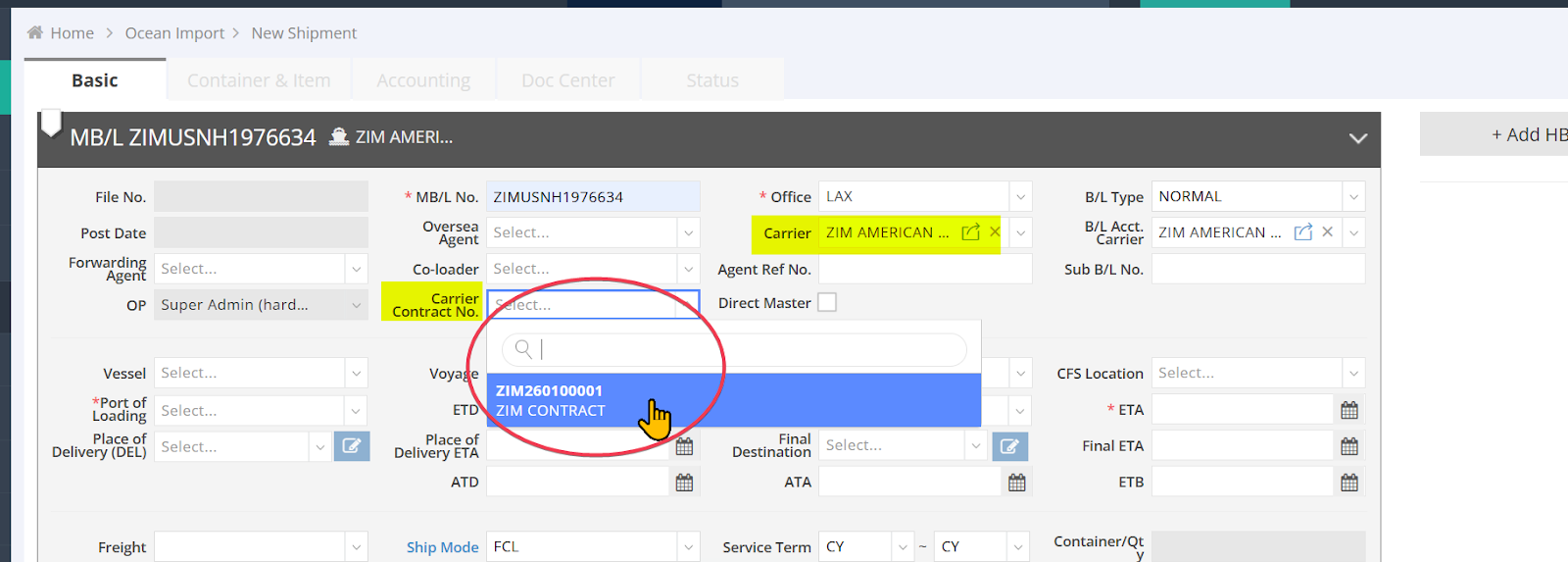
- Make sure the Carrier field is entered with the TP you have maintained the Carrier Contract No.
- Locate the field “Container Contract No.”, click the dropdown list to view available contract numbers; select the appropriate one, and save the shipment.
Selection Logic
- Only contract numbers valid for today’s system date are shown.
- Shipment ETA, ETD, or other dates are not considered.
- If multiple contracts are valid for today, all will appear in the list.
4. System Behavior & Edge Cases
4.1 Expired Contracts on New Shipments
If a contract is no longer valid for the current date, it will disappear from the selection list of Carrier Contract No. on the new shipment entry page.
4.2 Expired Contracts on Existing Shipments
If a contract number was selected previously and later expires:
- The existing value remains displayed in the shipment.
- If the field is cleared, the expired contract cannot be reselected.
5. Reporting and Search
The Carrier Contract Number field:
- Is searchable via Keyword in the Master B/L List
- Can be configured to display in List Views
- Is supported in Excel exports
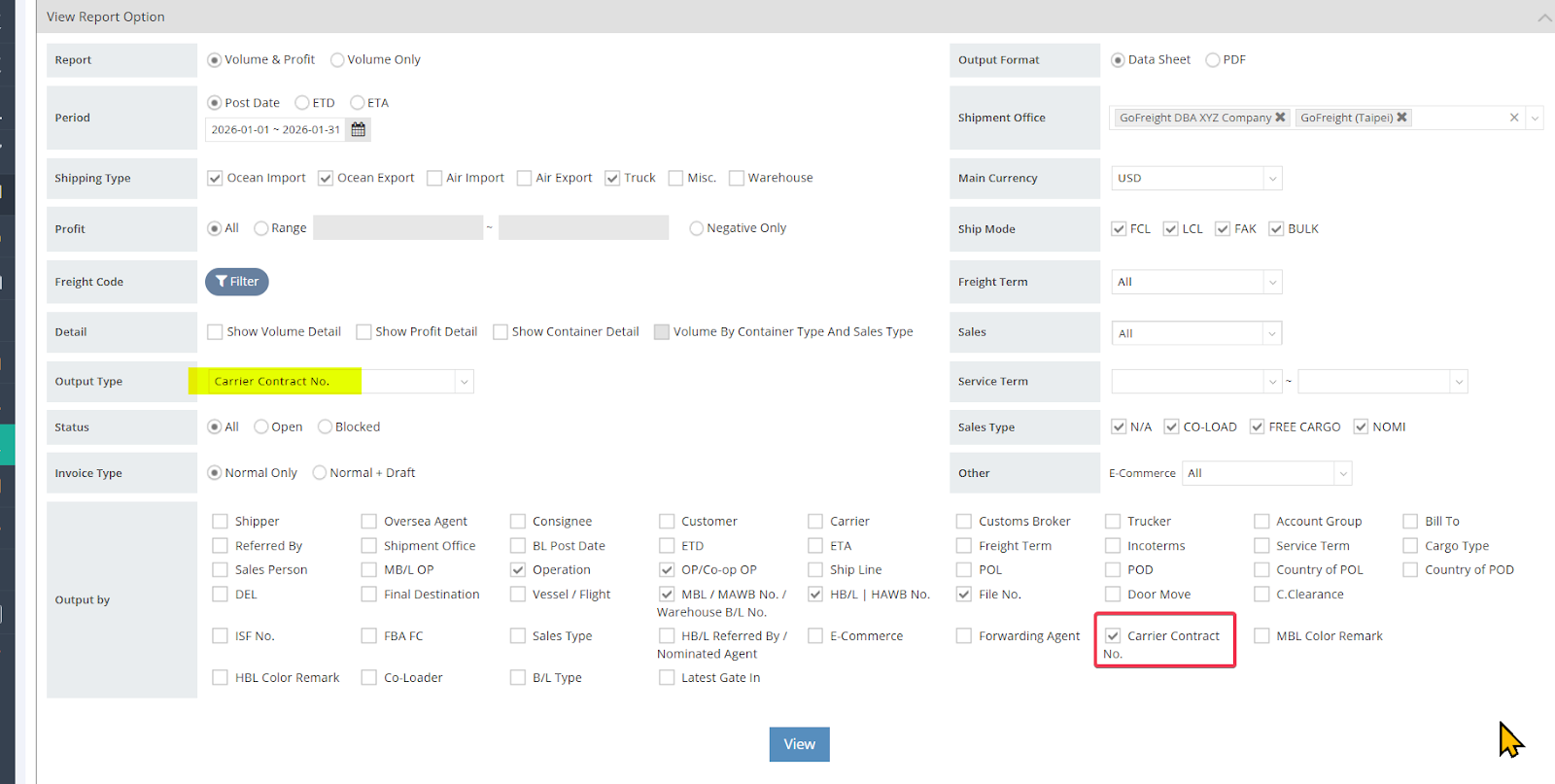
- Can be extracted via the Volume & Profit Report
Searching in the MB/L List:
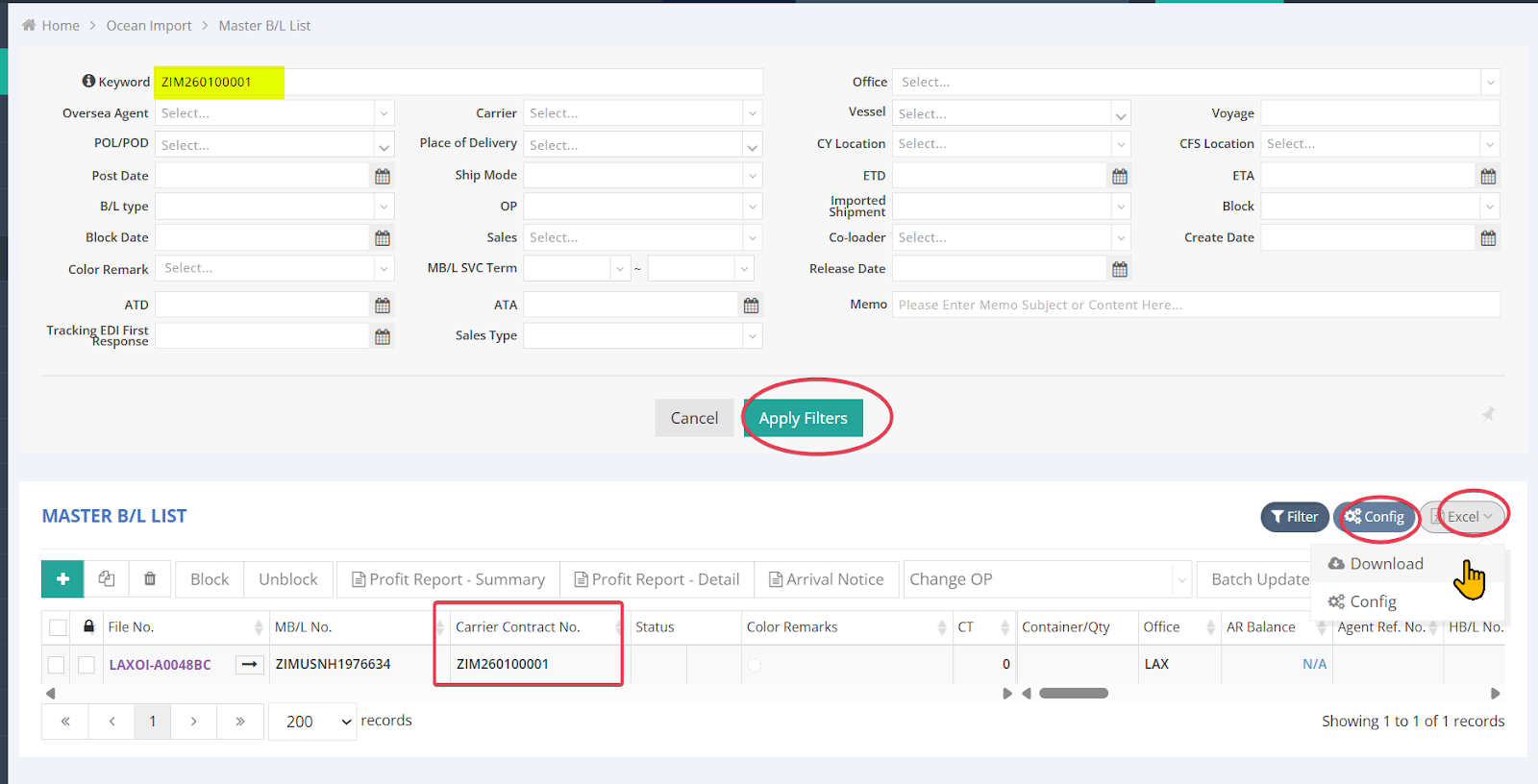
Searching in the Volume & Profit Report:
6. Best Practices
- Review and maintain contract dates regularly.
- Avoid unnecessary overlapping contract periods unless required.
- Do not delete contracts that may still be needed for audit or reference purposes.