
Step 1:
Go to any Ocean Import shipment file.
Step 2:
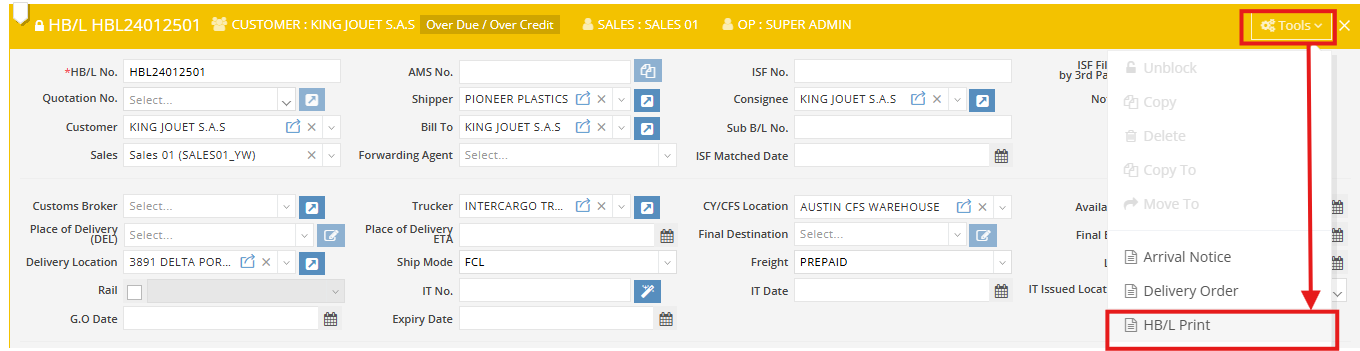
At the HBL (House Bill of Lading) level, open the Tools menu and find HBL Print.
Step 3:
Click HBL Print to open the print preview page.
Step 4:
Check that all information on the page is correct.
Step 5:
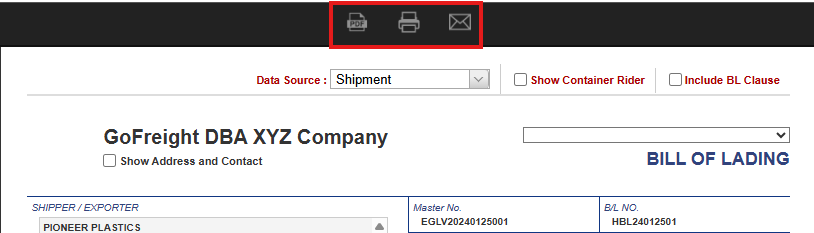
Use the icons at the top of the page to choose how to output your HBL:
-
PDF – save as a PDF file
-
Print – print from your printer
-
Email – send to your trade partners
Tips:
-
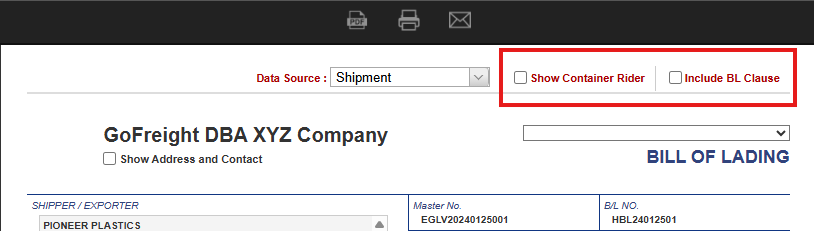
Container Rider / BL Clause
To show Container Rider or include BL Clause, check the box at the top right of the preview page.
-
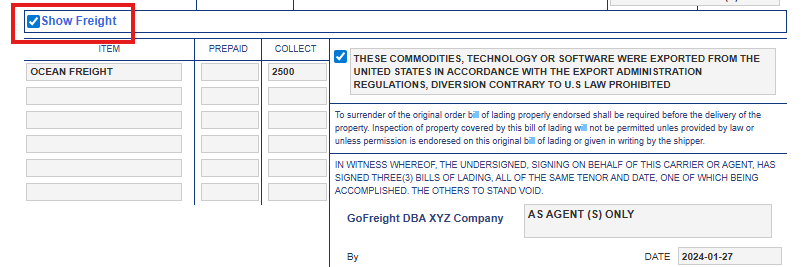
Show Freight Information
To display freight details on the HBL:
-
Create an AR invoice for the HBL.
-
Make sure the invoice Bill To matches the HBL Bill To.
-
In the preview page, check the Show Freight box.
-
Printing a Blank HBL
You have two options:-
Use a PDF editor to remove the content from the generated PDF HBL.
-
Contact the GoFreight Support Team at support@gofreight.com to enable the Word option. This allows you to save the HBL as a Word file and clear the content using Microsoft Word.
-
-
HBL Format Notes
The Ocean Import HBL Print currently uses the standard default format.
At this time, customized HBL formats from the Ocean Export module are not supported in Ocean Import.