
1. Introduction
This guide offers an overview of the Electronic Data Interchange (EDI) services supported by GoFreight. It outlines the mandatory data fields needed to initiate tracking EDI and the functionalities available for both internal and external use.
2. Supported EDI Types
GoFreight supports three types of tracking EDI:
- Ocean EDI
- Terminal EDI
- Rail EDI
Each EDI type requires specific data fields to function effectively.
3. Carrier EDI Requirements
Required Fields:
To initiate Ocean EDI, ensure the following data fields are completed:
- MB/L No.: Please make sure prefix is correct.
- Carrier SCAC Code: After entering the MB/L number, please check whether the Carrier field has automatically populated with a trade partner (TP) that includes a valid SCAC code.
- If not, please make sure to manually enter a carrier with the appropriate SCAC.
- How to check: Click the blue icon next to the Carrier field to open the Trade Partner page, and confirm the SCAC field is correctly filled in.
- For Ocean Export (OE): You may enter both the MB/L number and the Carrier Booking No. at the same time.
If the entered MB/L has not yet been validated by the carrier, the system will temporarily use the Booking No. to bring shipment data. Once the MB/L becomes validated and tracking data is available, the system will automatically switch to using the MB/L as the primary reference for tracking updates. - Important: Please ensure each number is entered in its correct field (MB/L in the MB/L field, Booking No. in the Carrier Bkg. No. field) to ensure accurate tracking results.
- Carrier SCAC Code: After entering the MB/L number, please check whether the Carrier field has automatically populated with a trade partner (TP) that includes a valid SCAC code.
- ETA: If a shipment is created with an ETA over “today - 31” days ago, EDI will not be triggered to prevent tracking of completed shipments and ensure efficiency for current shipments. If you still need EDI for this shipment, please contact support.
- HB/L No.: If not provided, your trade partners won’t be able to see the shipments on customer portal ; if direct MB/L we recommend to fill in MB/L No. as HB/L No.
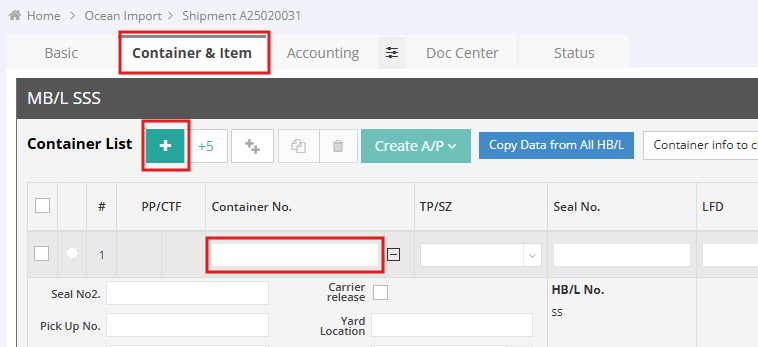
- Container Number


Highly Suggested Additional Fields:
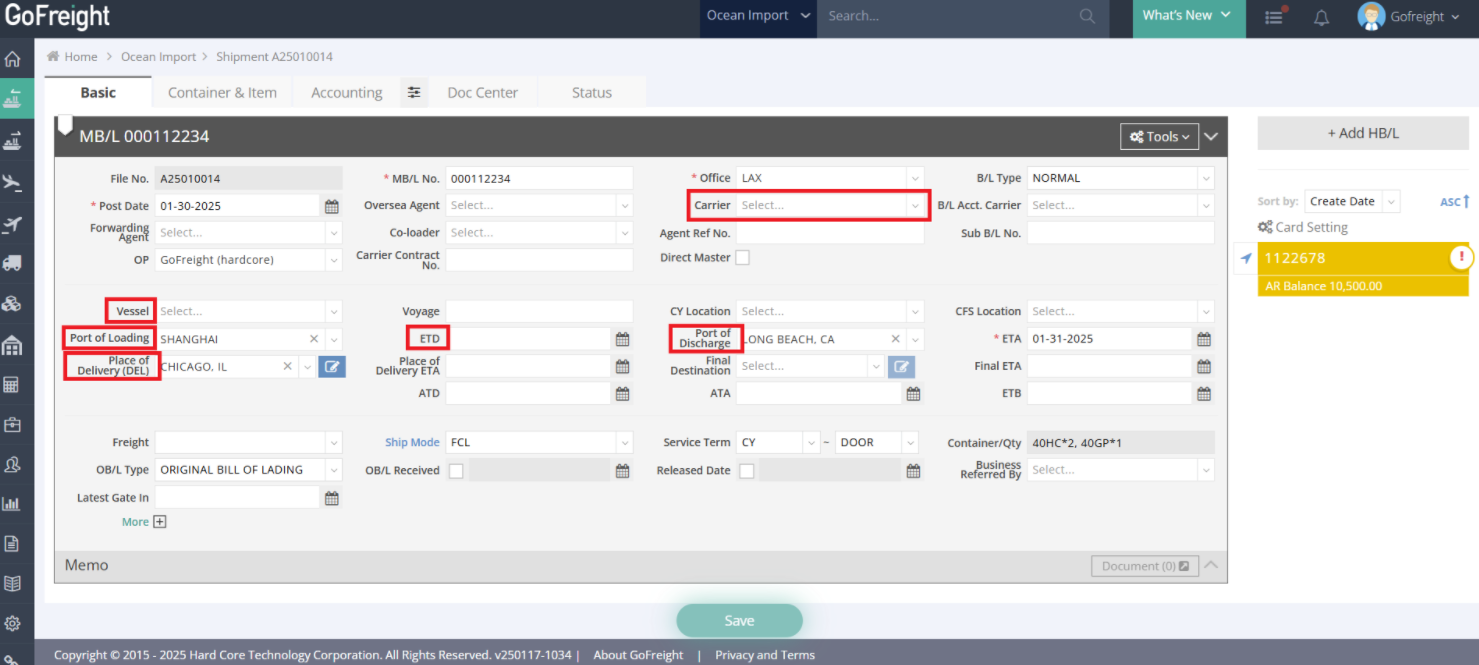
For accurate real-time tracking and optimal EDI performance, we highly suggest completing the following fields. Missing data may prevent accurate shipment stage updates.
- Carrier: Helps the system identify the correct data source for updates.
→ Missing this may prevent the system from obtaining data from the correct source, leading to no data updates. - Vessel Name: If the carrier does not support ATD/ATA, our system uses ETD/ETA along with POL/POD to obtain ATD/ATA from other sources.
→ Missing this may prevent the system from obtaining ATD/ATA. - POL (Port of Loading): Since shipments may transfer through multiple ports, the system needs the original POL to track the first departure.
→ Missing this may prevent accurate ATD updates. - POD (Port of Discharge): The system matches the provided POD with carrier data to track arrival times and destination events like unloading and gate-out.
→ Missing this may prevent ATA, Discharge and Gate out updates. - DEL (Final Delivery Location): Used to track inland transfers and determine gate-out times at the final destination.
→ Missing this may prevent gate-out tracking for rail shipments. - ETD (Estimated Time of Departure): When ATD is unavailable from the carrier, the system uses ETD, POL and Vessel ASI to update departure times.
→ Missing this may impact ATD updates. - Service Term:
Defines the last event stage in the Journey Section of the Customer Portal:- CY to CY or CFS to CFS: Last stage = Unloaded from Vessel
- Others: Last stage = Empty Return
What Shipment Information Does Carrier EDI Update?
Once shipment entries are complete and Carrier EDI is successfully triggered, it will provide updates as following:
MB/L:
- ETD
- ETA
- ATD
- ATA
- Place of Delivery
- Latest Gate In
Container & Item:
- LFD
- Carrier Release Status
- Custom Release Status
- Unloaded from Vessel
- Gate In
- Rail Start
- Place of Delivery ETA
- Place of Delivery ATA (displayed by hovering over the Place of Delivery ETA field when available)
- Carrier release
- Gate Out
- Empty Return
4. Terminal EDI Requirements
To initiate Terminal EDI, complete the following:
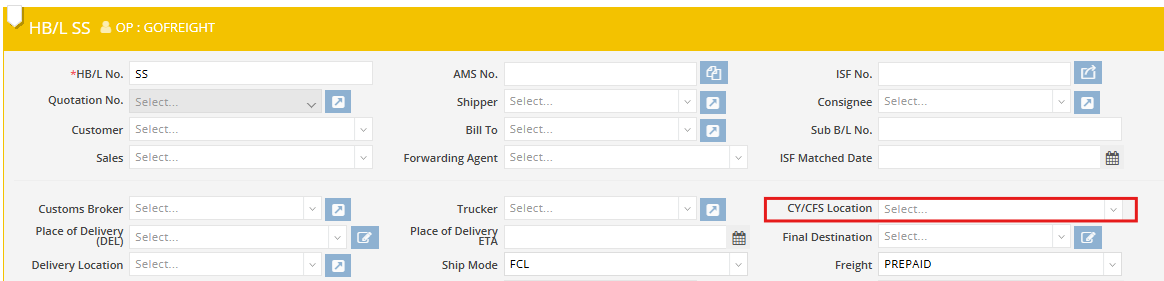
- CY/CFS Location in the HBL section.
- Make sure the TP you fill in has firms code.
-
What Shipment Information Does Terminal EDI Update?
- LFD
- Appointment Time
- Yard location
- Gate Out
- Carrier Release Status
- Custom Release Status
-
Available for pick up
Note: Not all terminals provide all information. Please refer to the Tracking Coverage List for details.
5. Rail EDI Requirements
To initiate Rail EDI, complete the following:
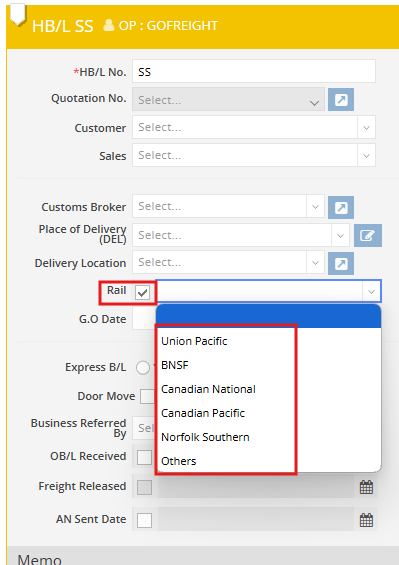
- Rail in the HBL section:
- Check the Rail checkbox.
- Select the appropriate Rail Service Company.
- Supported Rail Companies:
- GoFreight supports five major rail companies in the US and Canada: USUPRR, USBNSF, CACN, CACPR, USNS.
- For unsupported companies, select Others to permit carrier updates for rail-related information.
- Supported Rail Companies:
-
What Shipment Information Does Rail EDI Update?
- DEL ETA
- DEL ATA
- LFD
- Gate Out
6. Fields Requiring Manual Update (Not Updated by Tracking EDI)
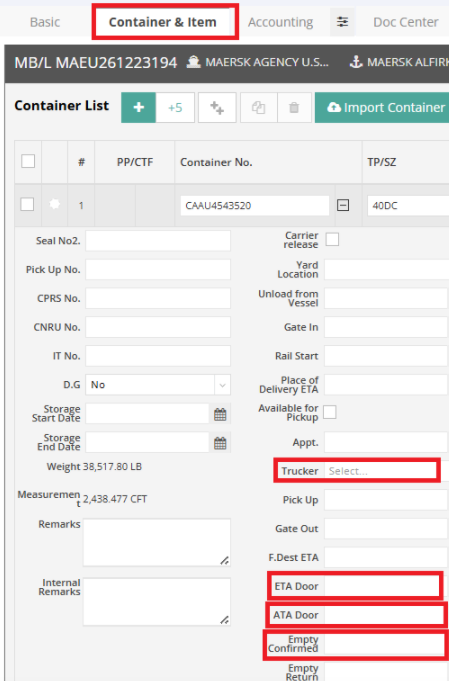
Due to not supporting trucker EDI, trucker information and door deliveries require manual updates. The following trucking-related fields can be synchronized to the Customer Portal for your customers’ reference; however, they must be manually entered:
- Trucker: Used for manually entering trucker (trade partner) information.
- ETA Door / ATA Door: Used for manually entering the ETA Door / ATA door dates.
- Empty Confirmed: Used for manually entering the date when cargo is unloaded from the container but the container has not yet been returned to the carrier. **This is different from Empty Return**
Portal Display:
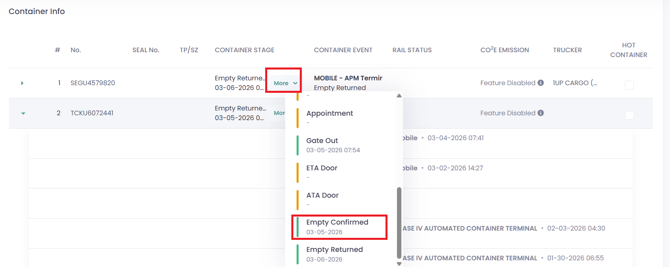
To enable Trucker & Empty Confirmed display please contact customer support.
-
- Once enabled, the Trucker field will be displayed on the Customer Portal Shipment Entry page → Container Info section.

-
- The Empty Confirmed field will be visible after clicking the “More” button on the portal.
7. Additional Information:
- When Ocean EDI is successfully triggered, you will find Last Retrieval Time of the shipment in container or HB/L view.
Please refer to Latest Retrieval Time of Tracking EDI . - If you experience an EDI update error or no update, please ensure that the required fields mentioned above are correctly filled in.
- If all required fields are correctly filled in but there is still no EDI update—and the Last Retrieval Time displays "Not Enabled"—this may indicate that the Selective Tracking feature is enabled in your system, which allows only shipments meeting specific conditions to receive Tracking EDI.

- When multiple EDI sources update the same field:
LFD: If both Carrier and Terminal EDI provide LFD information, the system will use the earliest date as the primary LFD value.
For a visual guide on this feature, please refer to the following videos: