
There are three methods for retrieving shipment status on the HB/L List page. Please select the one that best suits your workflow.
1. Viewing the Latest Event
-
- Navigate to the HBL List section under Ocean Import. This feature is also available in the Ocean Export module.
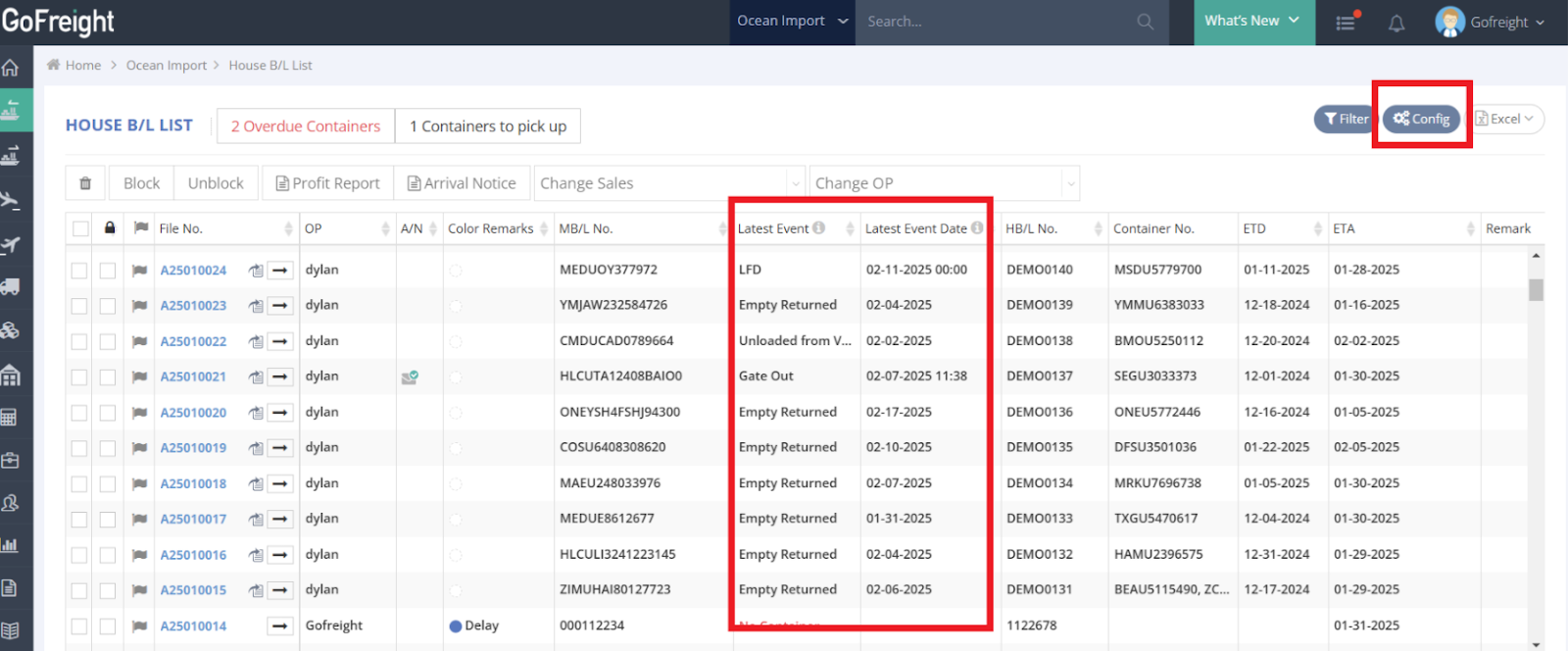
- At the top row of the shipment list, locate the column labeled Latest Event (you can customize the columns via Config button).
-
- This column displays:
- Latest Event:
Displays the most recent update in the shipment’s journey, including key milestones such as Gate In, ETD, ETA, ATA, Unloaded from Vessel, LFD, Appointment, Gate Out, ETA Door, ATA Door, Empty Returned.
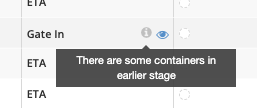
For HBLs with multiple containers, if the containers are at different stages, the latest container status will be displayed, and a warning icon will appear to indicate any discrepancies.
- Latest Event:
- This column displays:
-
-
- Latest Event Date:
The exact date and time when this event occurred.
- Latest Event Date:
-

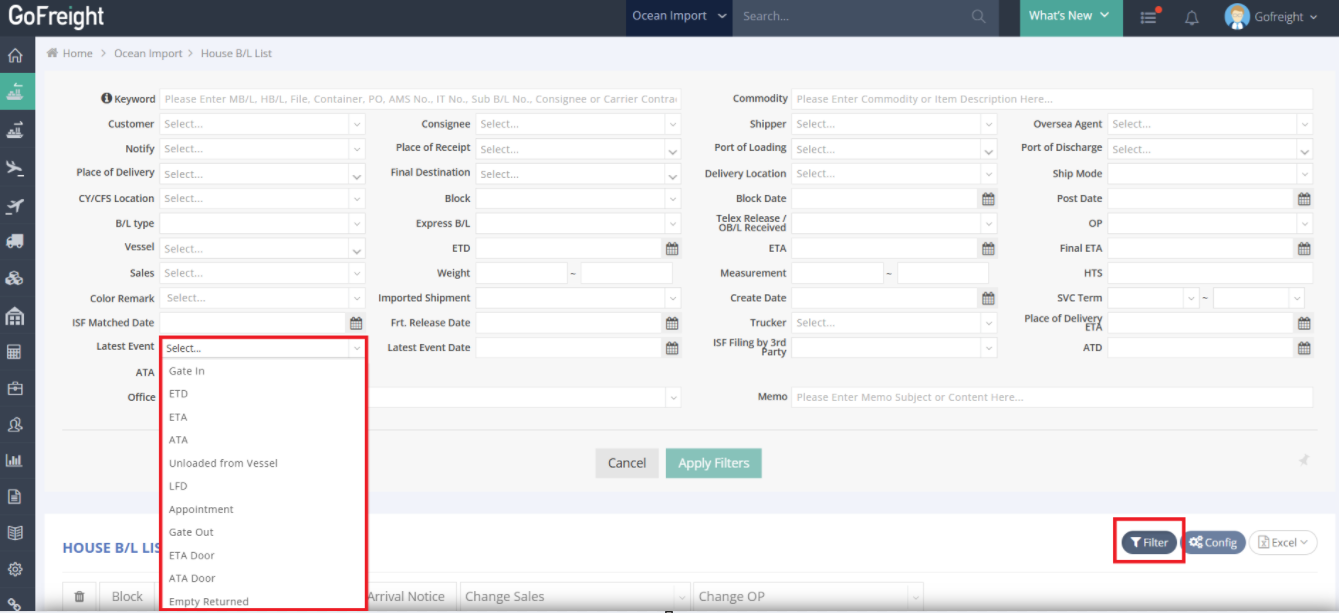
2. Filtering Shipments by Stage
-
- Utilize the Filter feature located in the top-right corner of the screen to view shipments at a specific stage.
3. Detailed Container History
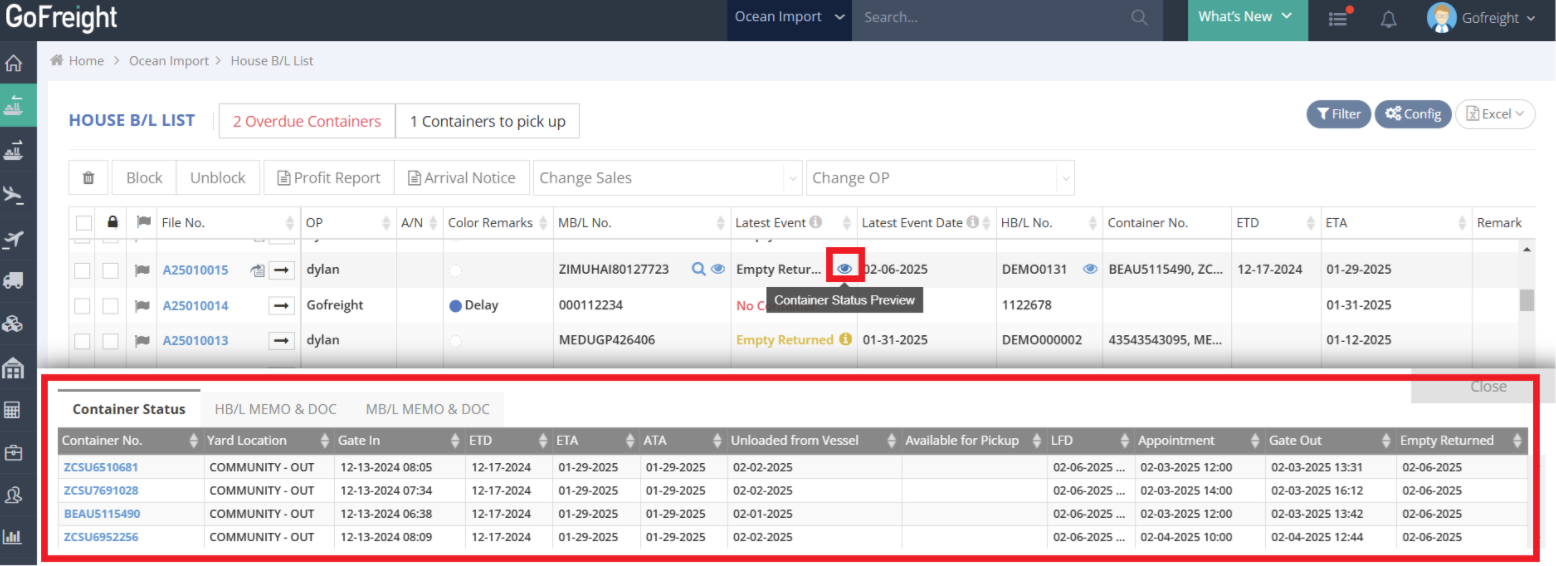
In the HBL view, only the latest event is displayed. If you need to see the individual stages of each container or the exact time each container reached a specific stage, you can use the Detailed Container History feature.
-
-
- Hover over a shipment in the Latest Event column to reveal the eye icon.
- Click the eye icon to access the complete update history.
-
For a visual guide on this feature, please refer to the following videos: