
To reset the password for your GoFreight account, please follow the instructions below:
Note: Only users with the General Manager or Admin role can reset other users' passwords by default.
Resetting Your Password
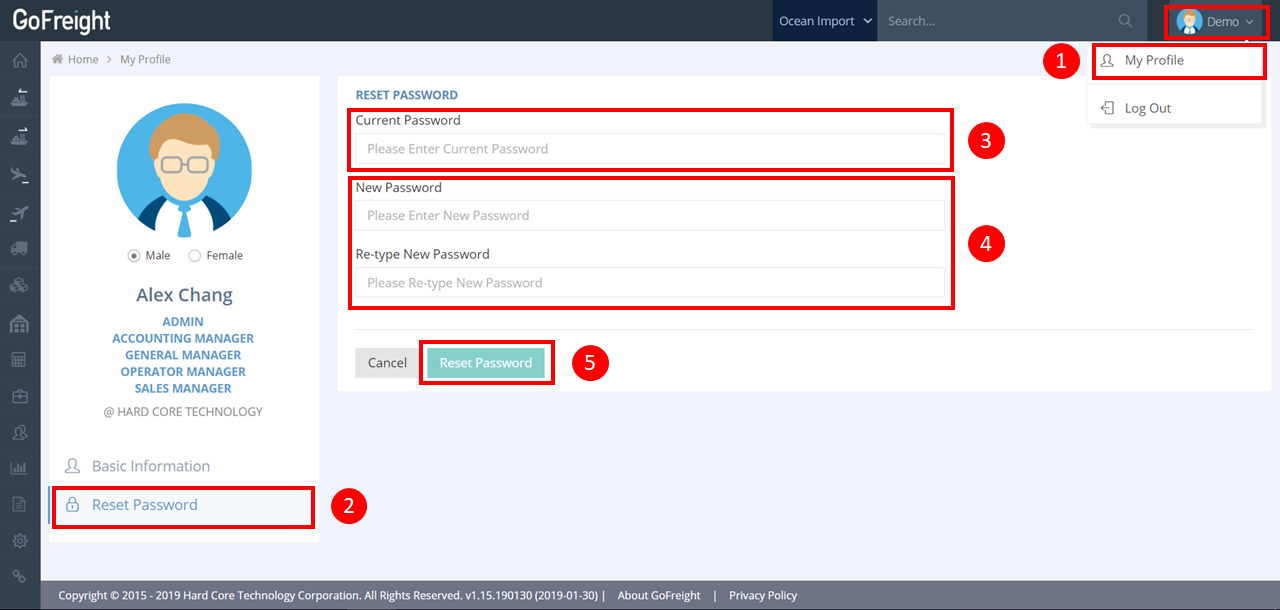
- Click the "User" icon and select “My Profile.”
- Click “Reset Password”.
- Enter your current password.
-
Enter your new password and retype it to confirm.
**Note:-The password must be at least 10 characters long.
-The password cannot consist of numbers only.
- Click the green button “Reset Password” to confirm the change.
Resetting Another User's Password
If you have the authority to manage other user accounts, you can reset a password as follows:
1. Go to “Settings” and select “User Management.”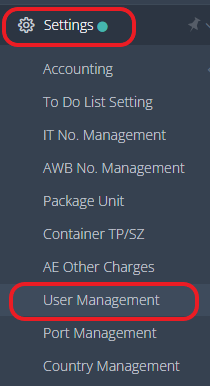
2. Find the account for which you want to change the password and click the green button “Reset Password.”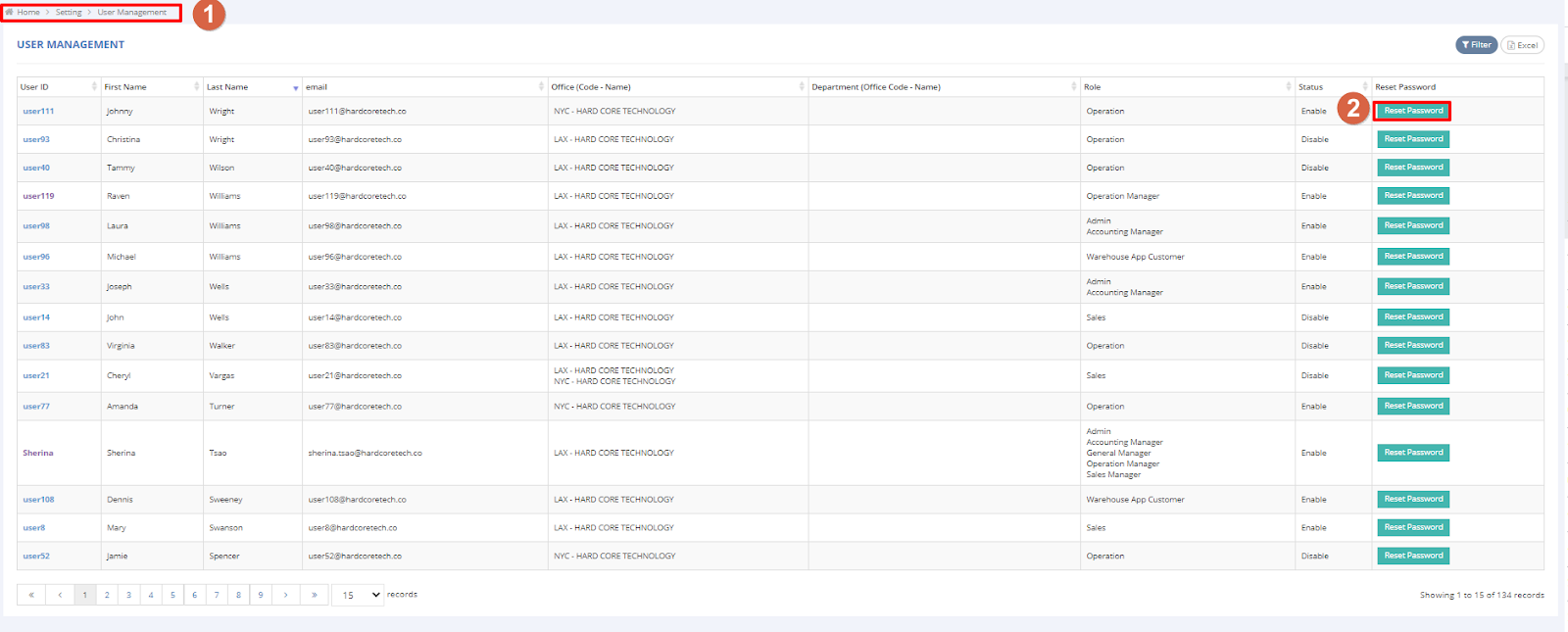
3. Enter the new password and retype it to confirm in the pop-up message.
**Note:
-The password must be at least 10 characters long.
-The password cannot consist of numbers only.
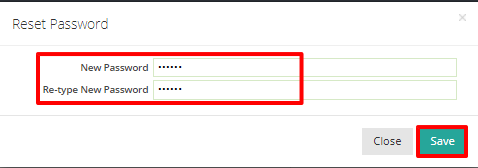
If you see the pop-up message “Reset User Password Successfully,” it indicates that you have successfully changed the account’s password.

Alternative Method for Other User’s Password Reset
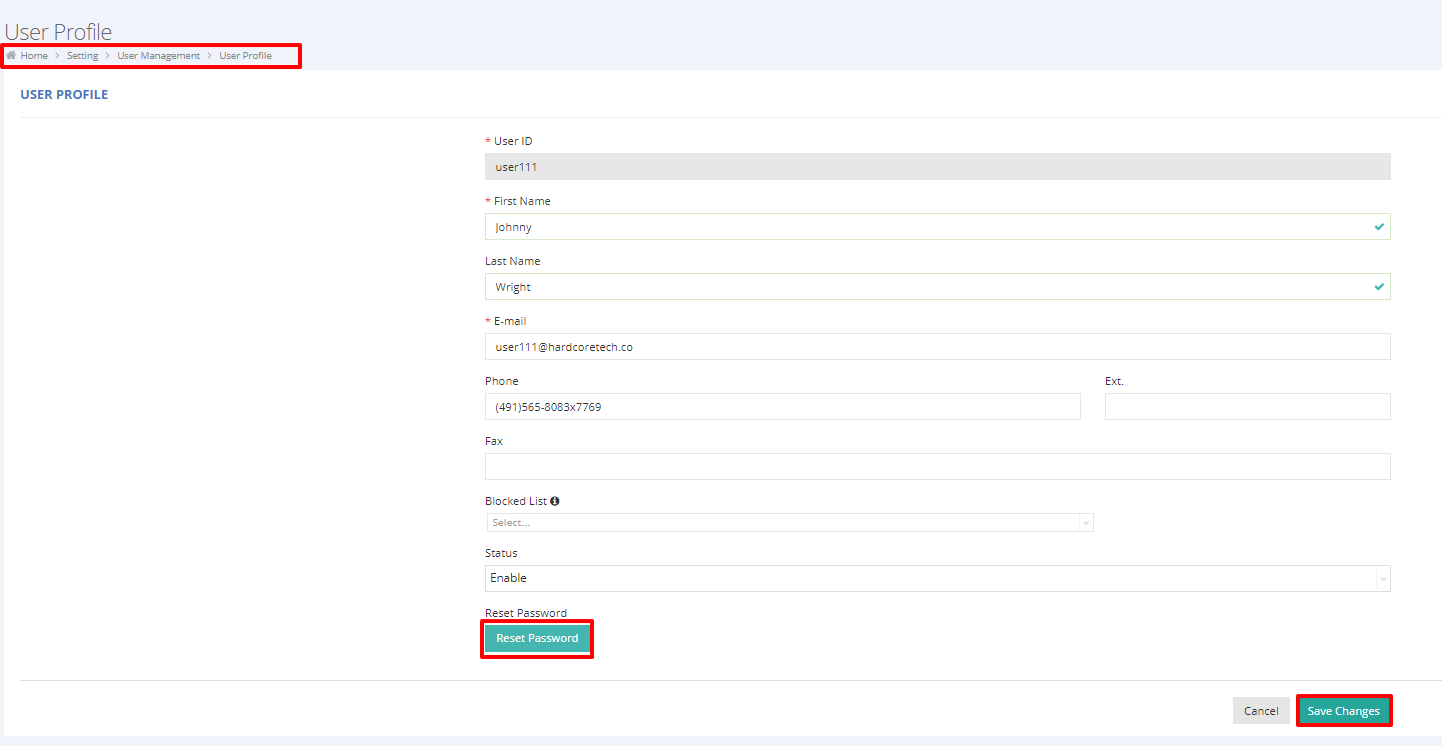
You can also enter the user account directly to change the password by following these steps:
- Click the user ID.
-
Click “Reset Password” on the user profile page.
**Note:-The password must be at least 10 characters long.
-The password cannot consist of numbers only.
- After resetting, click “Save.”
For a visual guide on this feature, please refer to the following video: