Instructions for Sending Emails with Attachments in GoFreight
Before you begin, please ensure that your email address is properly set up and verified in the GoFreight system. For a visual guide on this process, please refer to the following video(s): GoFreight Email Setup Tutorial .
To connect your workspace email to GoFreight and send emails to your customers, consignees, or shippers with attachments, please follow the steps below.
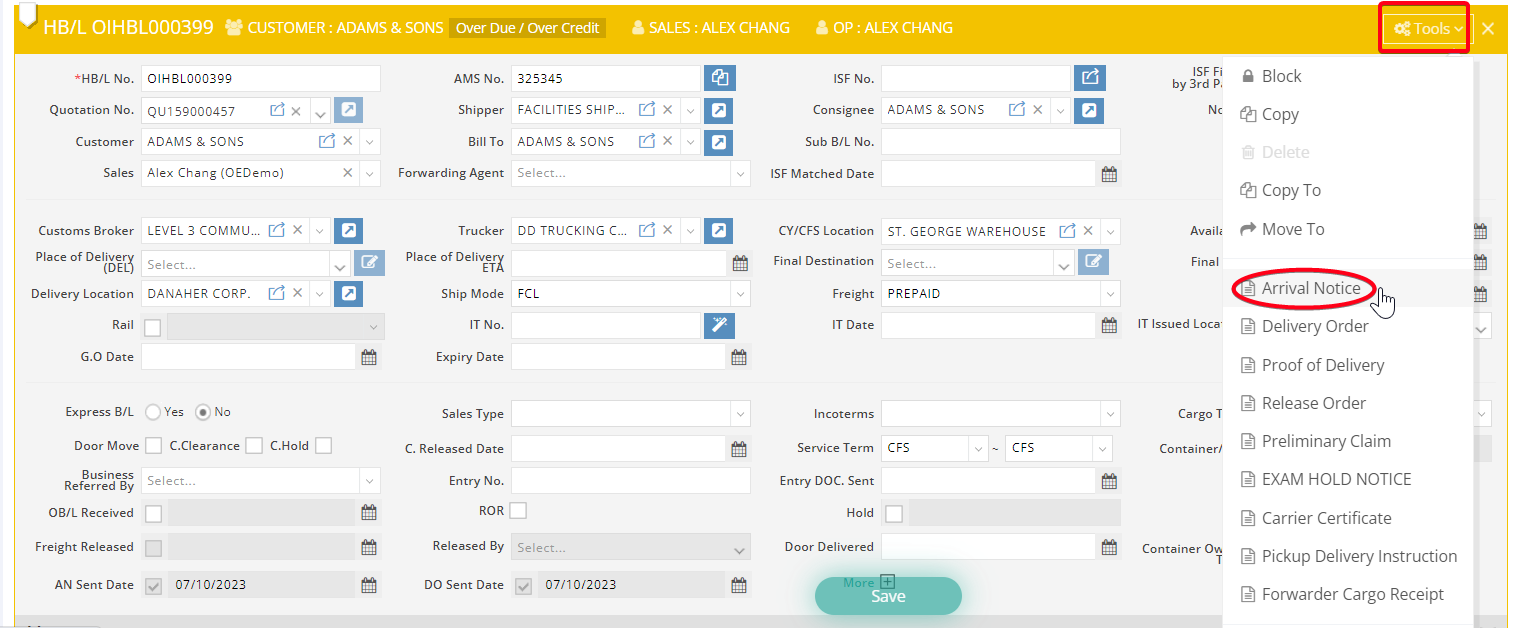
- Navigate to the "Tools" menu on the upper-right-hand side.
- Select a document that you would like to generate and send.
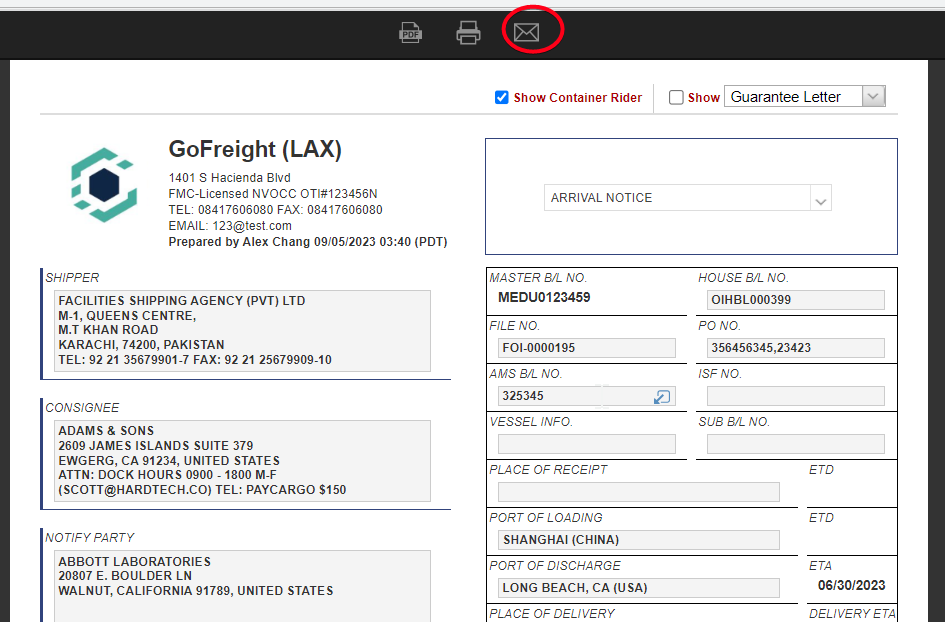
- In the print preview, click the "Email" icon.
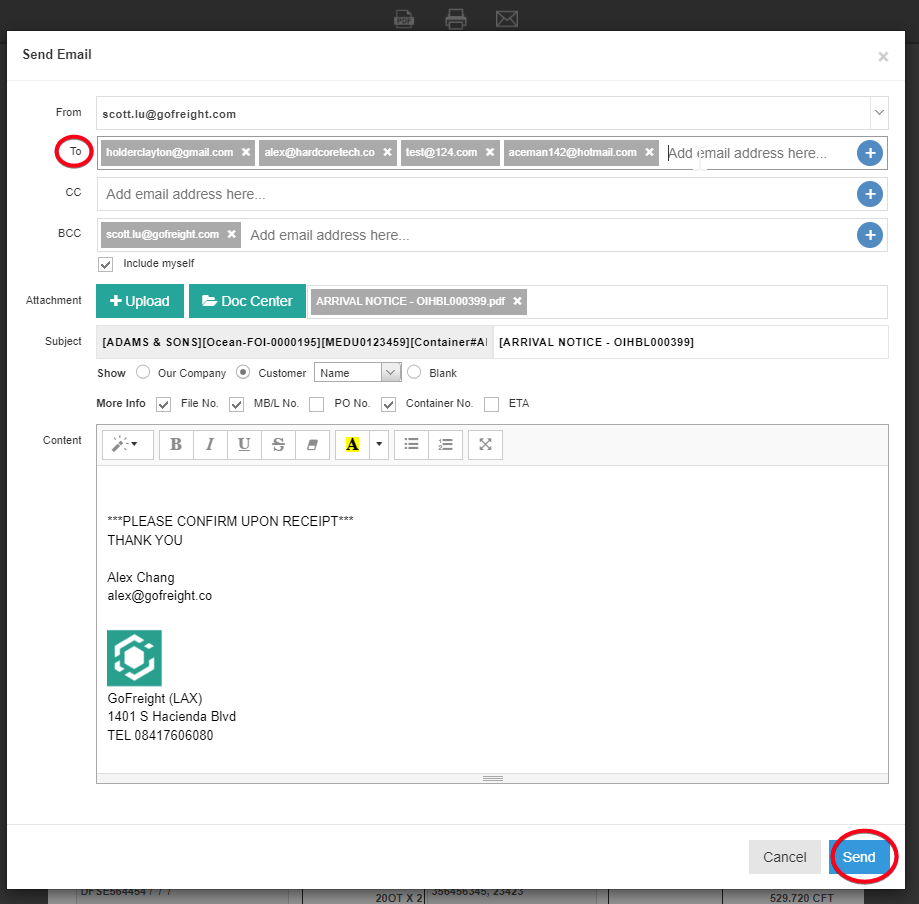
- Edit the email address in the “To” field and customize the email content as needed.
- Attach more files by clicking on the "Upload" button to select files from your computer or the "Doc Center" button to select existing files from Doc Center, if necessary.
- Click "Send" to dispatch the email.