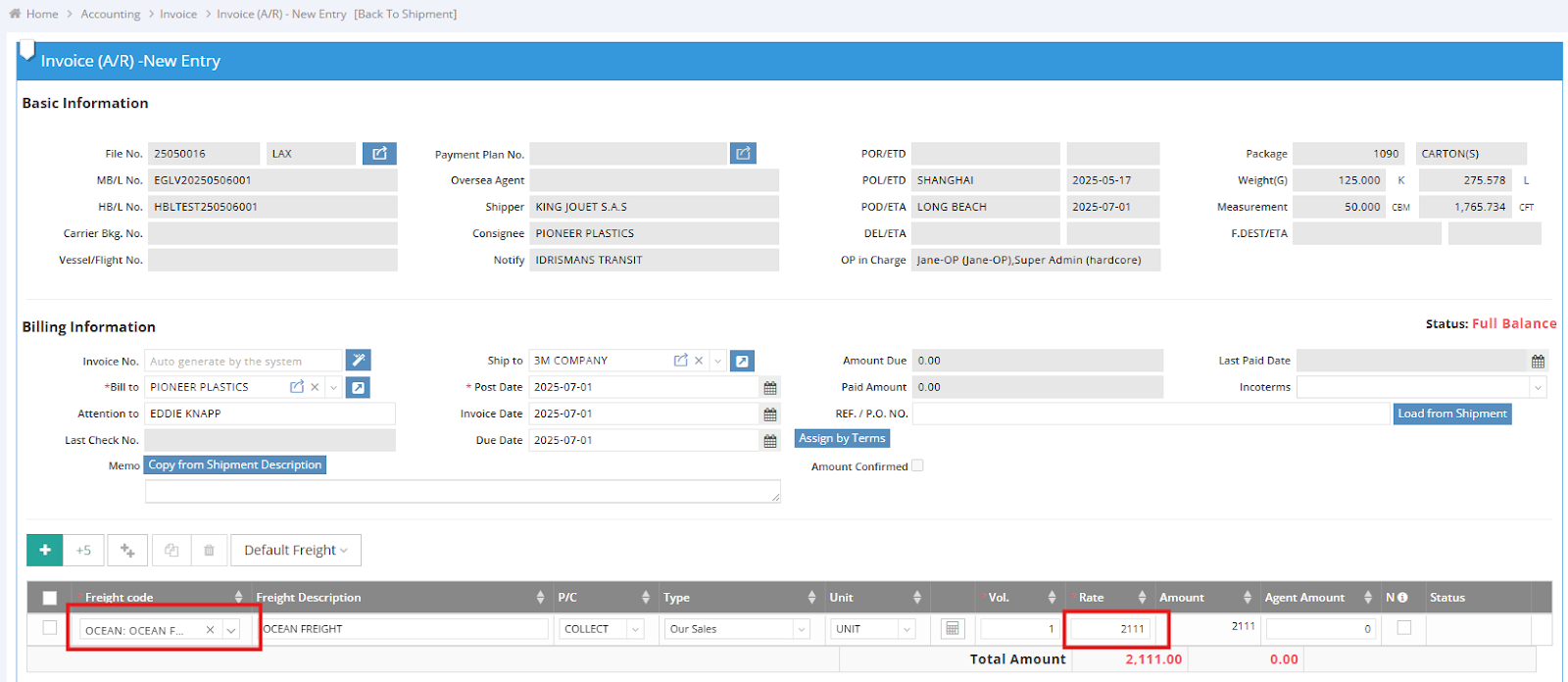
If you need to establish default freight rates for specific modules, you can set them through the following path:
Settings > Freight Default Value Setting on the navigation bar.
Note: By default, this feature is only available to users with General Manager, Accounting Manager, and Admin roles.
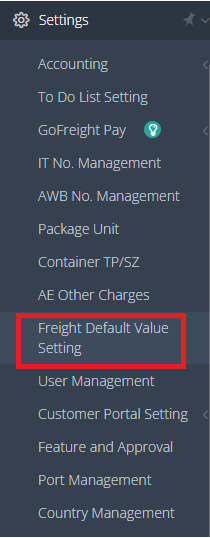
The default freight can be configured for Accounts Receivable (AR), Accounts Payable (AP), and Debit/Credit Notes (D/C Note) for each module, as well as for different offices, if your system has multiple offices.
Note: If you have multiple offices, you can select the desired office from the upper right-hand corner of the page. You can also switch between different modules to set up additional default freight rates.

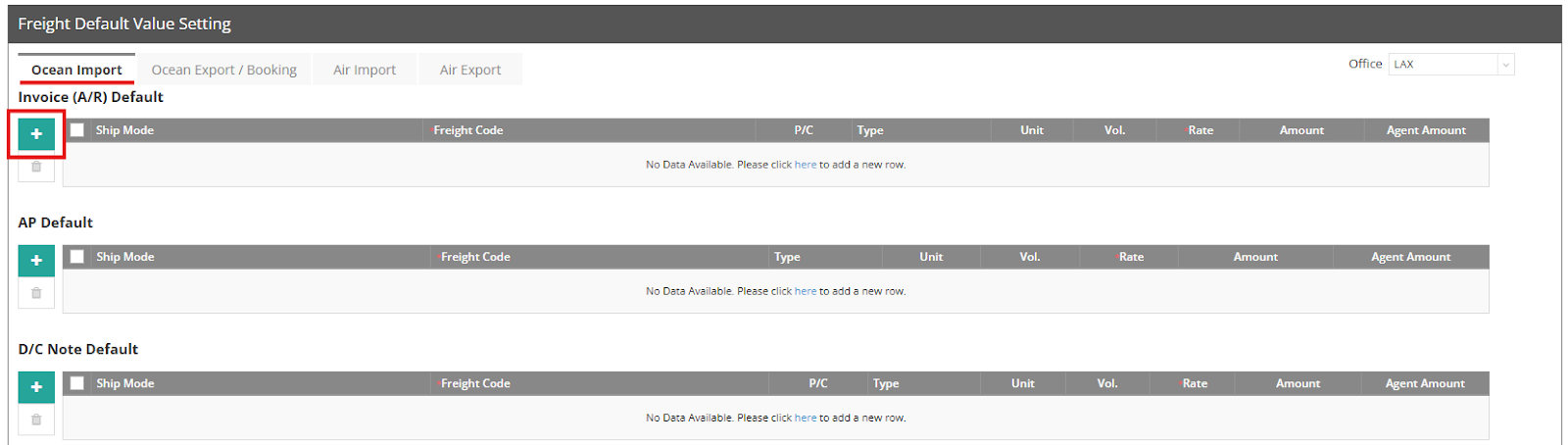
For example, to add default freight under the Ocean Import module for AR:
- Click on the green “+” button to add an item line of default freight.
- Select the Ship Mode; the default option has all modes checked, but you can uncheck any columns as needed.
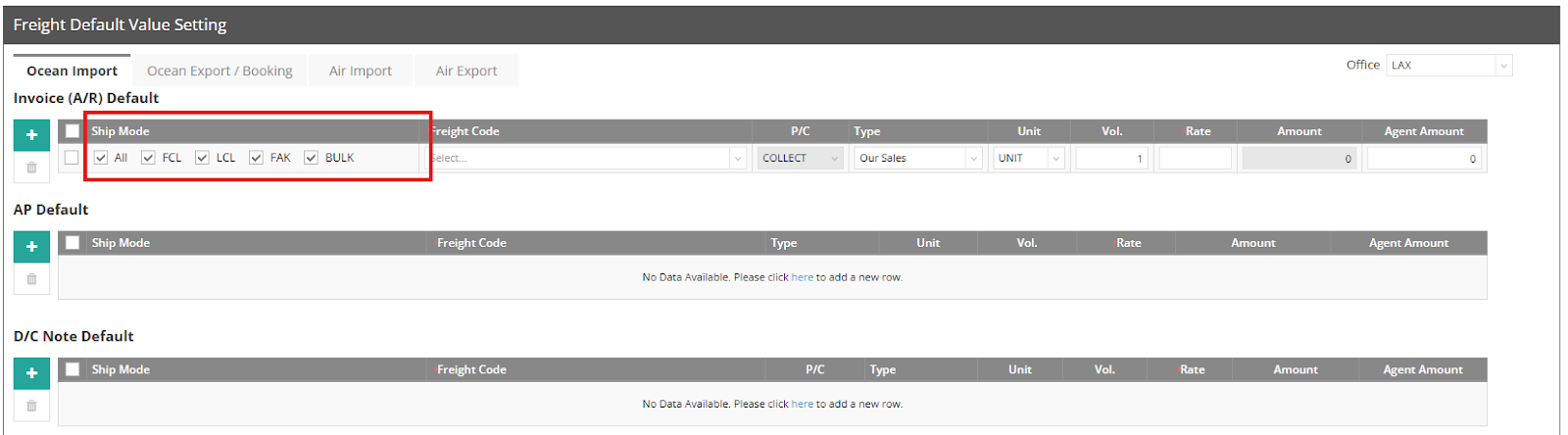
- Select the Freight Code, Type, and Unit.
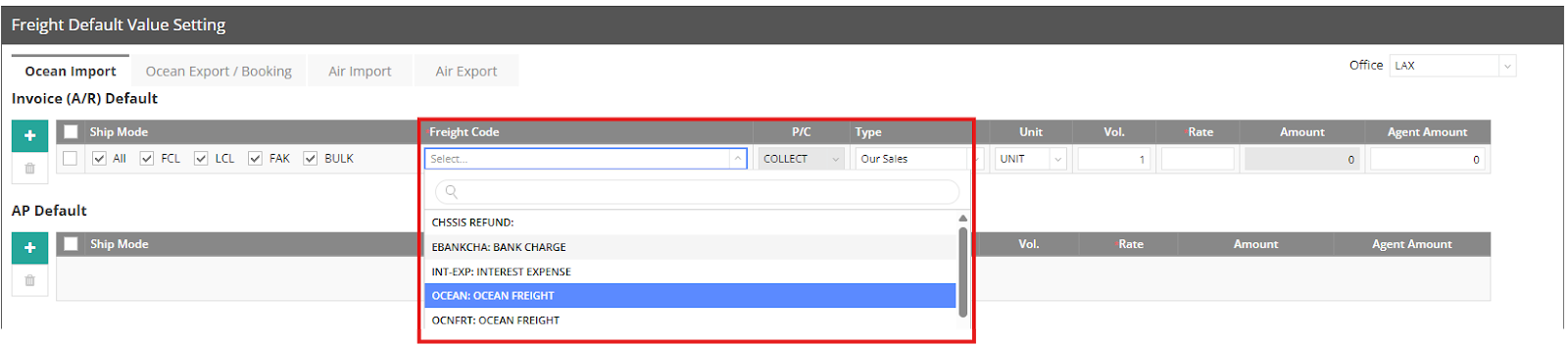
- Enter the rate and click Save at the bottom of the page to complete the default rate setup.

Once the setup is complete, whenever you create an AR Invoice in any Ocean Import shipment file, the default rate will be automatically applied as long as you select a freight code with a predefined default value.