
Please follow the instructions below to set up your email address for your GoFreight account.
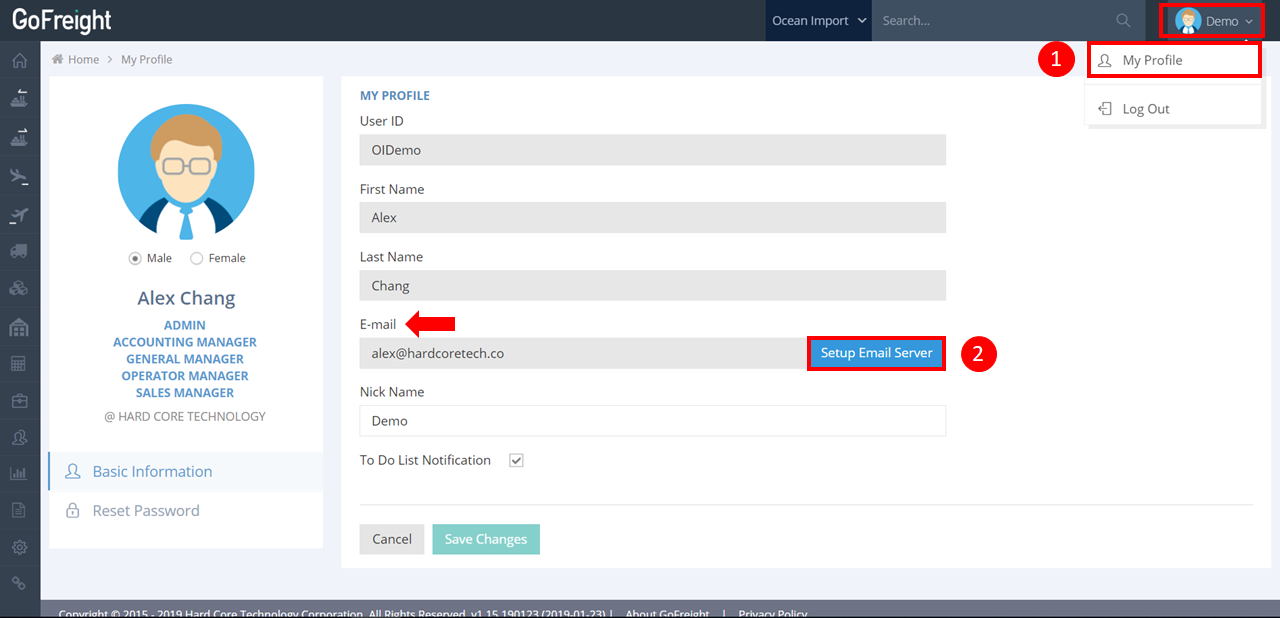
1. Click the "User" icon and then select “My Profile.”
2. In the "E-mail" section, click “Setup Email Server.”
Note: If you use Gmail or Office 365, please skip to step (5).
3. Enter your full email address in both the “Email” and “Username” fields.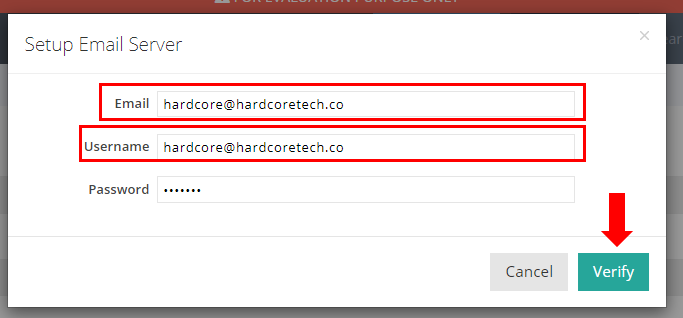
Note: The email address should typically be the same as the username. If you’re unable to verify your email successfully, try entering your email account ID in the “Username” field instead.
4. Enter your email password and click “Verify” to confirm the change.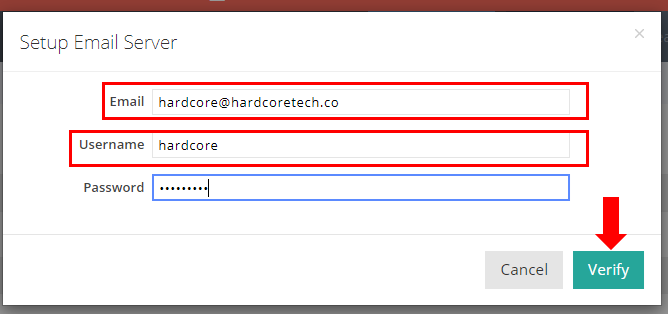
Note: For Yahoo Business email users, you need to create a separate password for third-party app access. Please refer to this link for Yahoo's email app password setting instructions: Yahoo Support .
- If you encounter "Authentication Failed," click "More" for additional information about the error code.
- Error 535: If you see error 535, please follow these steps:
- Ensure your password is entered correctly.
- If the password is correct but you still see error 535, contact your email service provider or email administrator to ensure SMTP access is enabled for third-party applications.
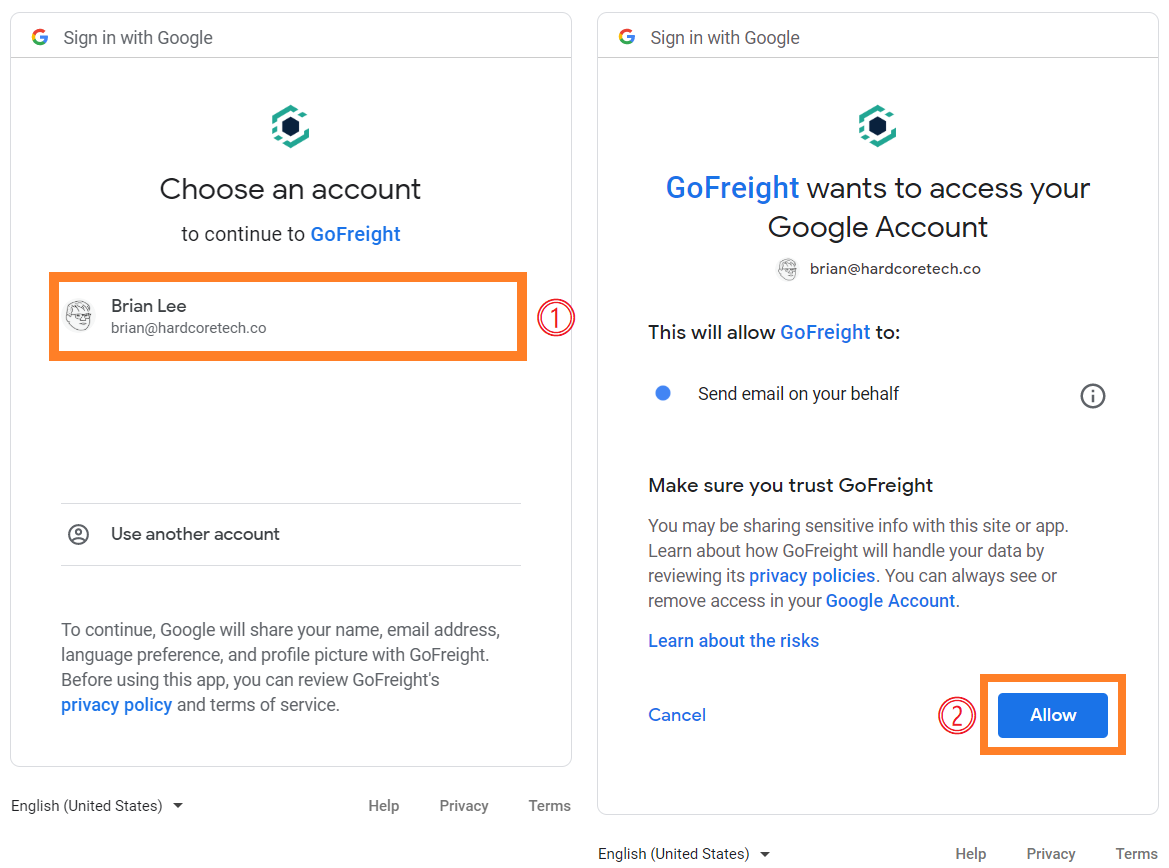
- After clicking on the verify button, sign in with your email address and select “Allow.”
- If a warning message appears when attempting to send an email from GoFreight:
- Click “Advanced” to show more options.
- Click on “Go to GoFreight (unsafe)” to open another pop-up window.
- Press the “Allow” button to complete the Gmail setup.
For a visual guide on this feature, please refer to the following video(s):
GoFreight Email Setup Tutorial .