
1. AMS Web Portal
1.1 Login System
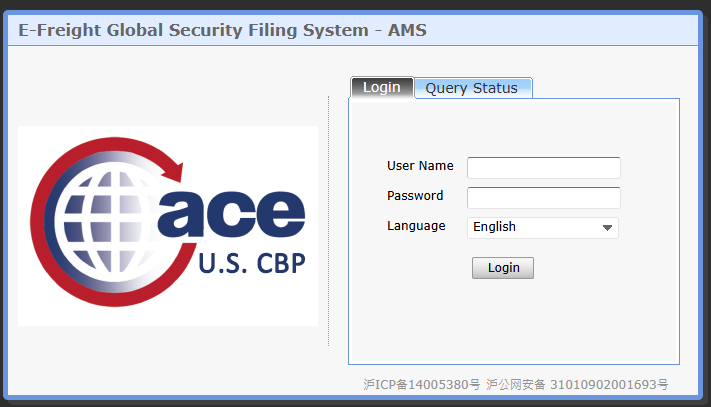
❖ Go to the following URL: https://ams.gsf24.com/
❖ Log in with your User Account and Password provided by GoFreight.
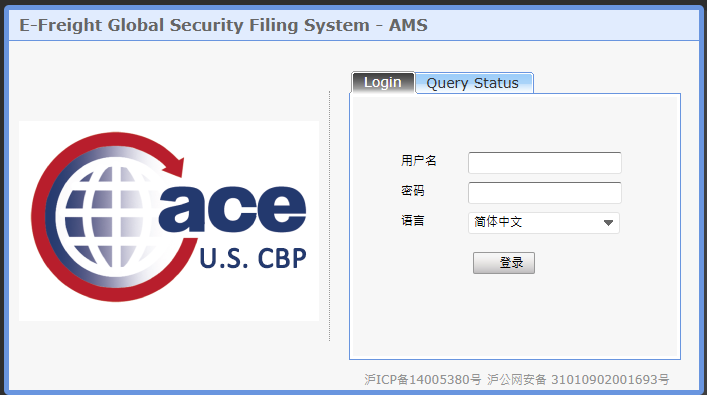
❖ Language Selection: Available in English and Simplified Chinese.
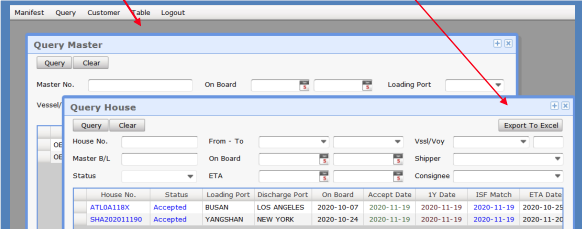
❖ You can open multiple screens in one webpage.
❖ Dragging the Menu Bar can also move the screen.
❖ Hold the Control key and scroll your mouse to zoom in or out on your window.
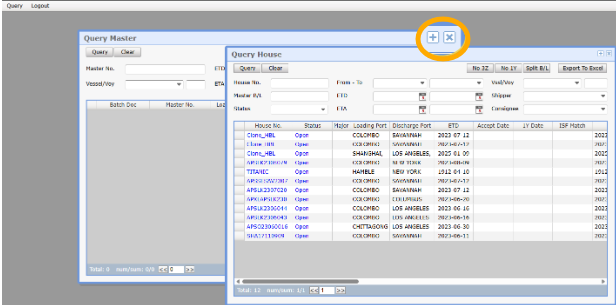
❖ Click the "+" sign at the top right to enlarge your screen, and double-click "+" to return to the original size.
2. Inputting Declaration Information
The interface for entering declaration information is divided into two parts:
- The Master Bill Number information interface.
- The House Bill Number information interface.
2.1 Inputting Master Bill Information Interface
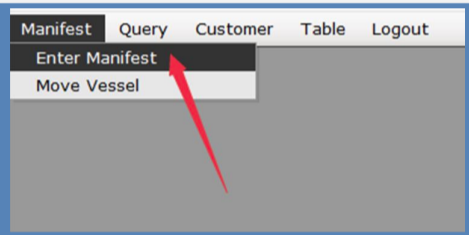
❖ Access the Master B/L Entry menu:
- Click the Manifest menu bar.
- Select “Enter Manifest.”
- Access the Entry Master screen.

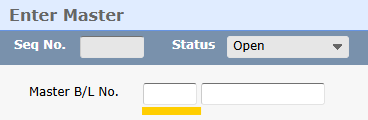
1. Master B/L Number
- The first part of the number represents the Carrier Code.
- The second part is the actual B/L Number, which must not exceed 12 characters.
2. Ocean Carrier
- The system will automatically retrieve the carrier information.
3. Vessel Name
- This refers to the vessel arriving in the United States.
- If the vessel name is in the system, it will appear in the drop-down menu.
- If not, click "Enter" to add a new vessel in a pop-up window.
- The vessel name refers to the ship traveling to the United States.
4. Voyage Number
- U.S. Customs allows a maximum of 5 characters.
- If the voyage number exceeds 5 characters, check with the carrier on how to file it.
5. IMO Number (Lloyd's Register Number)
- The IMO Number will be displayed automatically when a vessel name is selected.
- The system sends the IMO Number to U.S. Customs to ensure correct listings and prevent AMS errors.
- If the correct IMO Number is unknown, click the IMO-X button to send the vessel name directly to U.S. Customs. Ensure the ship’s name is correct in this case.
6. Loading Port
- Select the Port of Loading from the drop-down menu.
7. Unloading Port
- Select the Discharge Port in the United States from the drop-down menu.
8. On Board Date
- Enter the estimated cargo on board date.
9. ETA (Estimated Time of Arrival)
- Enter the expected arrival date of the vessel.
10. Port to Port & FROB (Foreign Cargo Remaining on Board)
- Port to Port: This is set by default.
- FROB: Refers to cargo on a vessel that is not being discharged at a U.S. port.
11. Export Agent
- The system defaults to the user's company name.
12. Importer Agent
- The user’s U.S. company name will be displayed under the drop-down menu.
- If the required agent is not in the system, please contact GoFreight Support at support@gofreight.com for assistance in adding the agent.
13. Container Number
- Input the container number as provided.
14. Seal Number
- If the container does not have a seal number, enter "NOSEAL".
15. Container Type
- Select the applicable container type.
Additional Notes:
- The port is where the container is loaded and unloaded.
- For transit cargo that does not discharge in the United States, input the first U.S. port of transit as the discharge port.
Add Vessel
❖ Table Menu - Table Maintenance
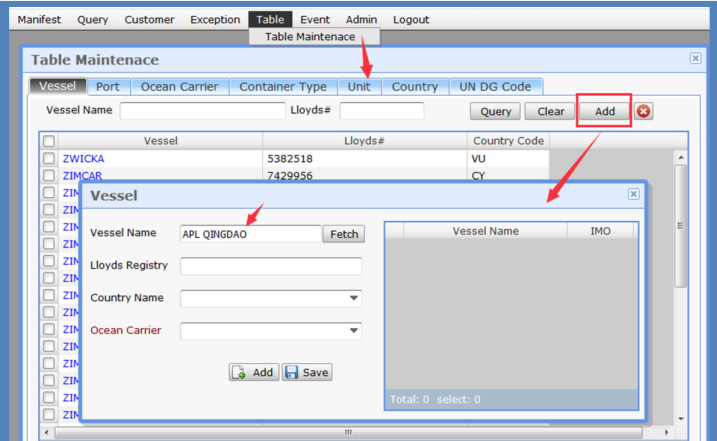
❖ Click the Fetch button to retrieve the vessel’s basic information.
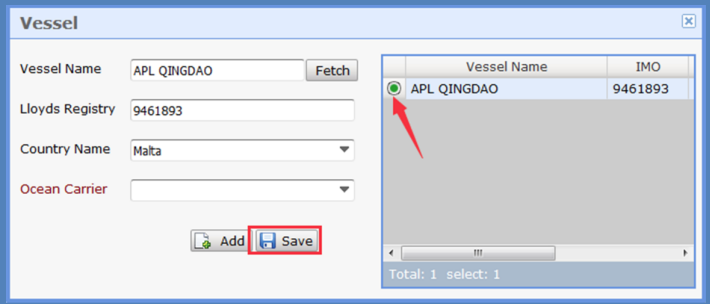
❖ Click the  button, and the system will auto-fill the IMO No. and Country fields on the left side of the window. Then, click the Save button.
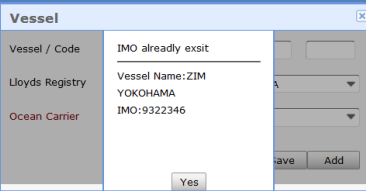
If vessel information already exists, the system will show a pop-up message below.
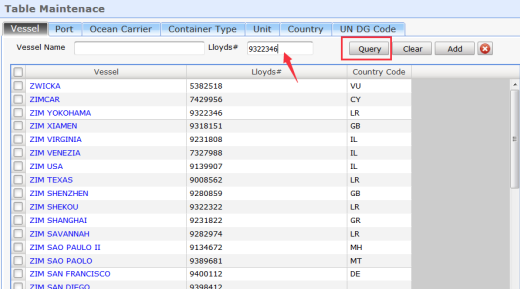
You can also use the IMO No. (Lloyds#) to check.
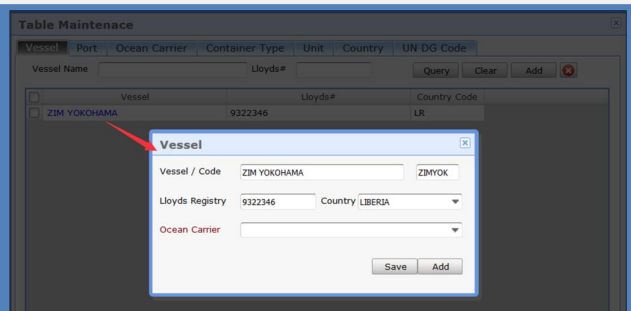
Double-click the vessel name, update the vessel info, and then click the “Save” button.
2.2 Enter House Bill of Lading Info
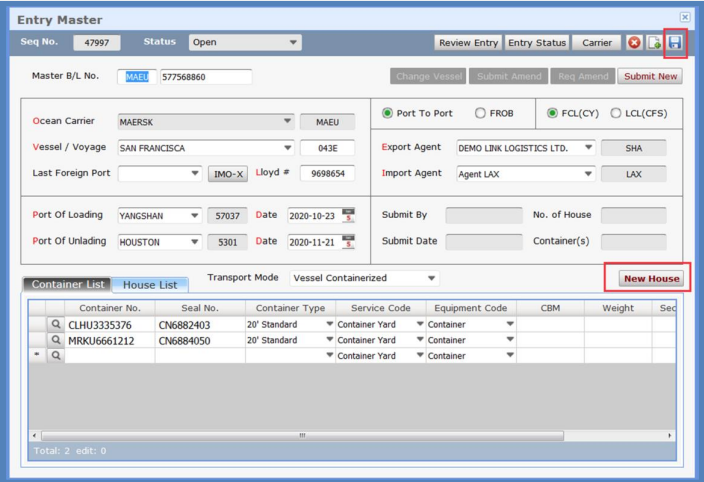
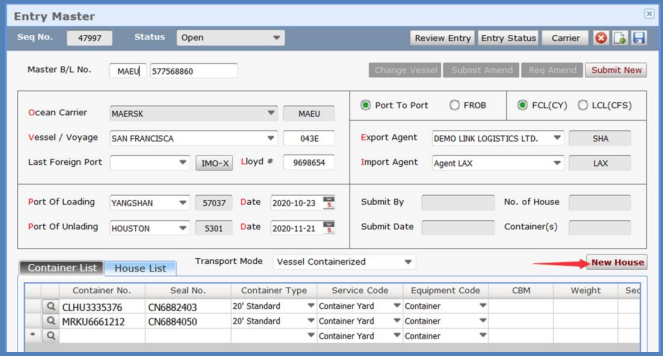
❖ After saving the MBL Interface, click the New House button to open the House bill interface.
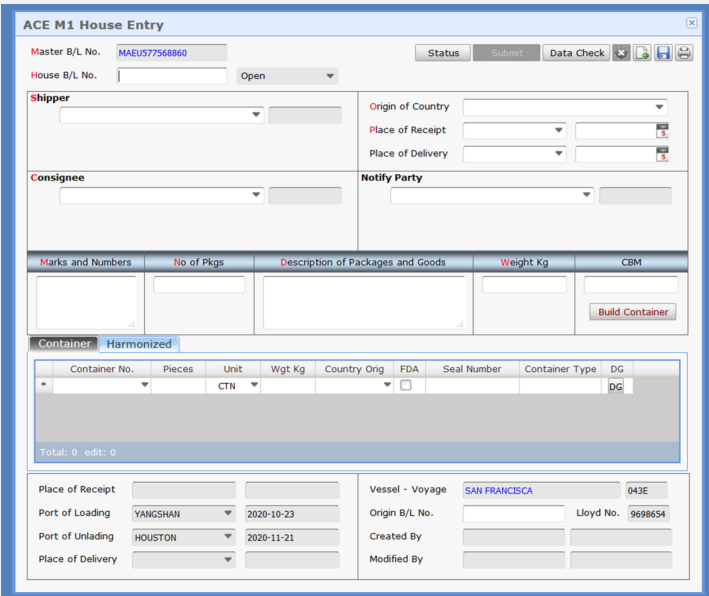
House B/L No.
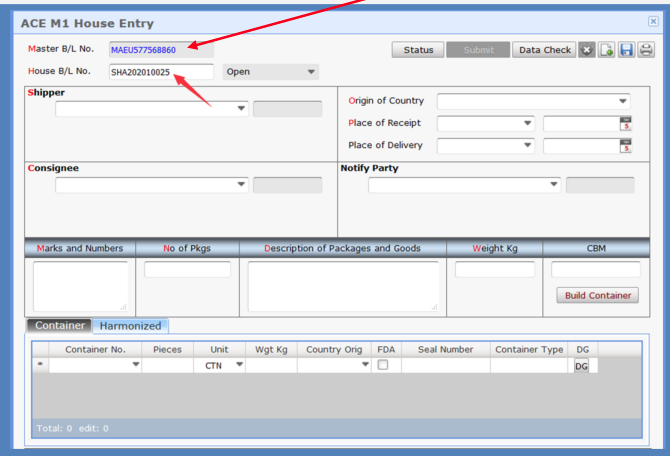
❖ The House bill number is very important; please double-check when entering the House bill number, as it cannot be modified.
❖ The House bill number can only contain numbers or letters, with a maximum length of 12 digits.
❖ The system will prepend the SCAC Code to the House B/L No. before sending it to US Customs.
❖ To open the Master Bill interface, double-click the blue-highlighted Master B/L number.
Shipper & Consignee
❖ Choose the Shipper and Consignee.
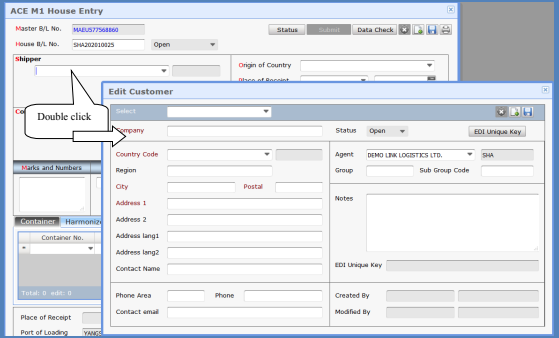
❖ If the customer profile does not exist in the system, double-click the name to add and access the customer edit/update screen.
❖ In the Customer menu, the Edit/Update screen functions similarly to the new customer entry screen.
❖ The actual consignee must be entered, not the agent or broker.
Notify Party
❖ This is an optional field.
❖ For imported goods, if the consignee is not a U.S. company, please enter a U.S. company as the notification party.
Add New Customer Information
Double-click the relevant column (such as the Shipper column).
- Company: Enter the company name.
- Country Code: Enter the company's country.
- Region: Enter the province/state name.
- City: Enter the city name.
- Postal: If the Country is UNITED STATES, CANADA, or INDIA, the postal code is mandatory.
- Enter the address in Address 1. If the address is too long, use Address 2 to complete the full address, but do not repeat the country name, city name, or postal code in either Address 1 or 2.
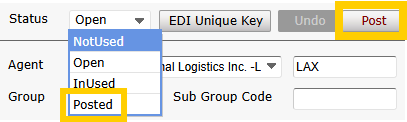
❖ Click Post to save after entering the information; the status will change from Open to Posted.
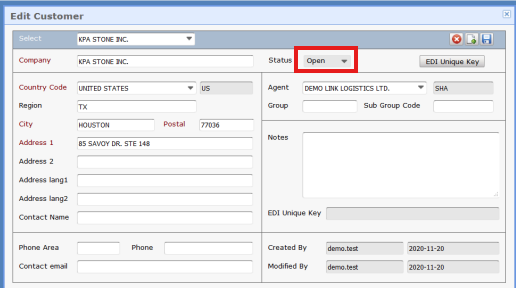
❖ After inputting, click the Save button  in the upper right corner.

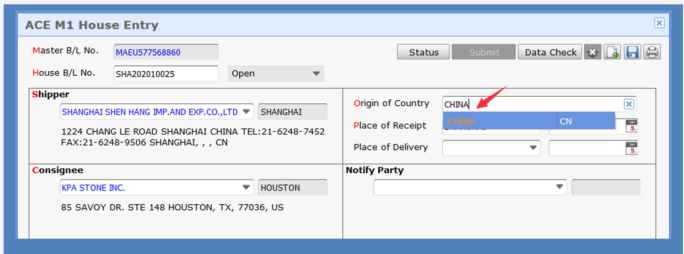
Country of Origin
Place of Receipt
❖ Required fields. Users can select from the drop-down list, while inland cities must be entered manually and saved. 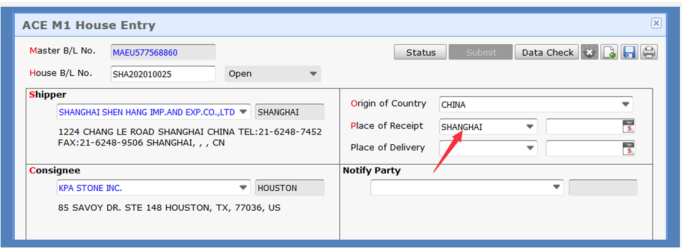
Place of Delivery
❖ This is an optional field.
Container Information
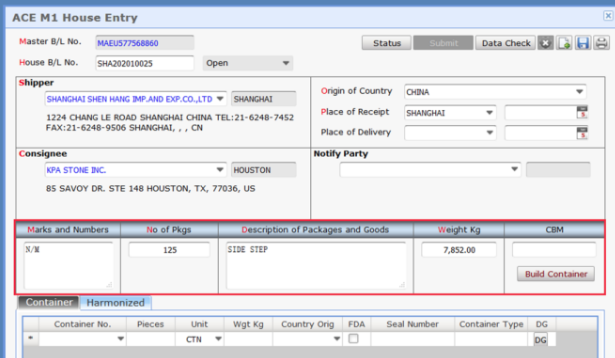
❖ Marks and Numbers: Enter the Marks and Numbers information.
❖ No. of Pkgs: Enter the number of pieces. If using multiple containers, input the number of pieces per container.
❖ Description of Packages and Goods: Provide a full description of the goods. Abbreviations and general descriptions are not allowed.
❖ Weight: Enter the gross weight. If there is a decimal, round it up, as customs only accept whole numbers.
❖ CBM: Enter the volume (optional field).
❖ Click the "Build Container" button after entering all the information.
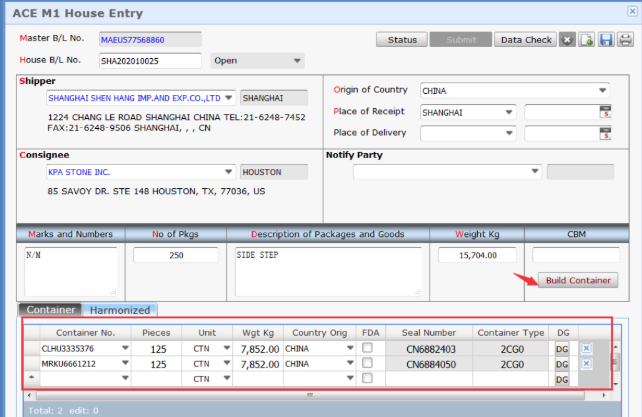
❖ The system automatically brings in all container numbers entered on the MBL.
❖ Unit: The system defaults to CTN, and the user can select the desired packaging unit from the drop-down list.
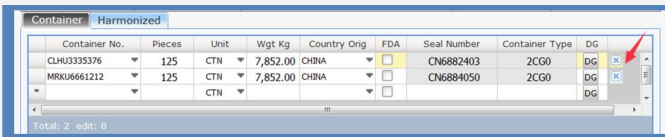
❖ To delete redundant container information, drag the scroll bar to the right and click the button  .
.
❖ If the number of pieces or gross weight differs across multiple containers, please update it in the "Container Information" section indicated by the red arrow below. After saving, the total number of pieces and gross weight will be calculated automatically.
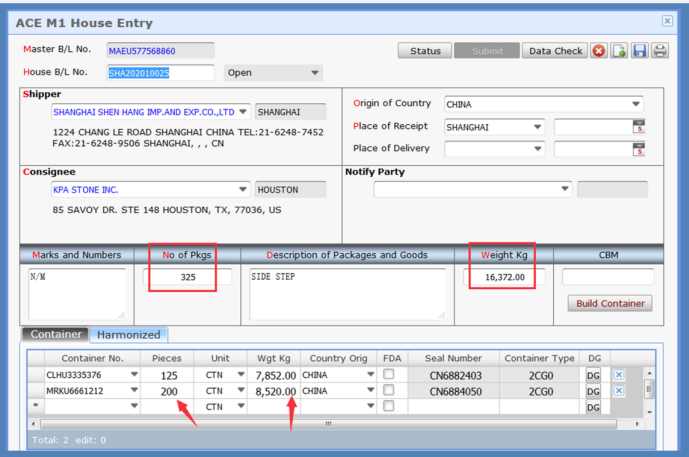
Note: After completing data entry on the House interface, please click the Save button  in the upper right corner.
Consol Shipment - Multiple House Input
❖ In the Master Bill interface, click the New House button to add another House under this Master Bill.
2.3 Dangerous Goods
❖ On the House Interface, go to the Container Section and click the button at the end of the Container Information.

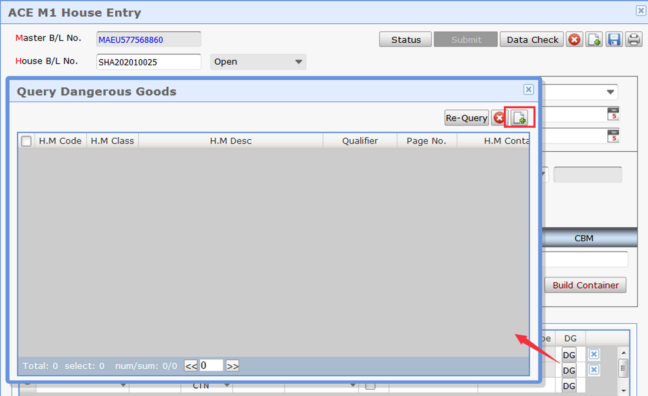
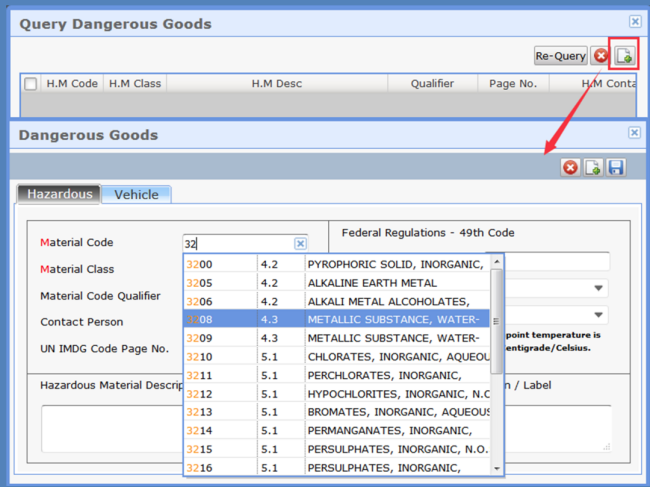
❖ Click the Add button  , then click the Save button after adding.
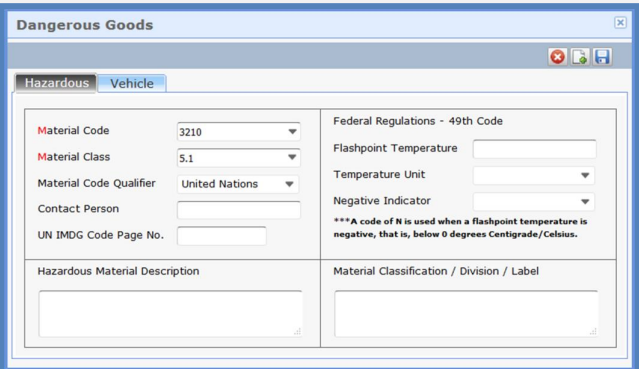
❖ Material Code: A mandatory field; you can select it directly from the drop-down list.
❖ Material Class: A mandatory field that will pop up if a Material Code is selected. If it cannot be selected, the user must manually enter it alongside the Material Class.
2.4 Submit
❖ There are two methods to submit the AMS filing:
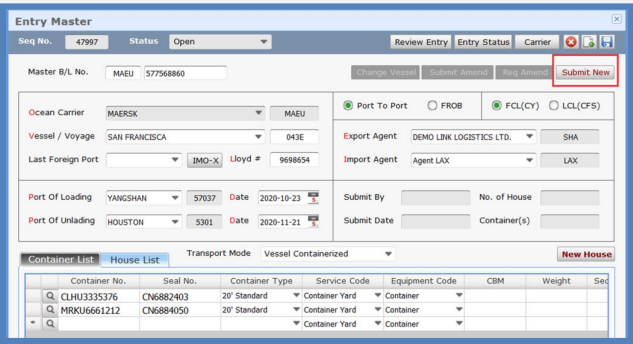
- Submit New button on the Master Bill interface:
- Click the “Submit New” button to send all houses under this master bill to customs.
***We recommend this method for submission.
2. Data Check button on the House interface:
- Click the Data Check button; if the data check is correct, the Submit button will light up.
- Click Send to submit only the current house.
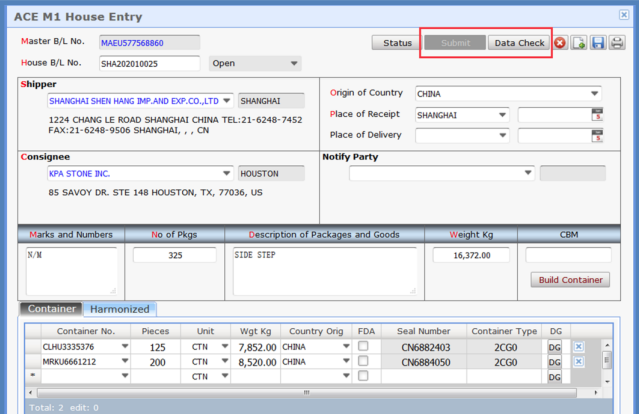
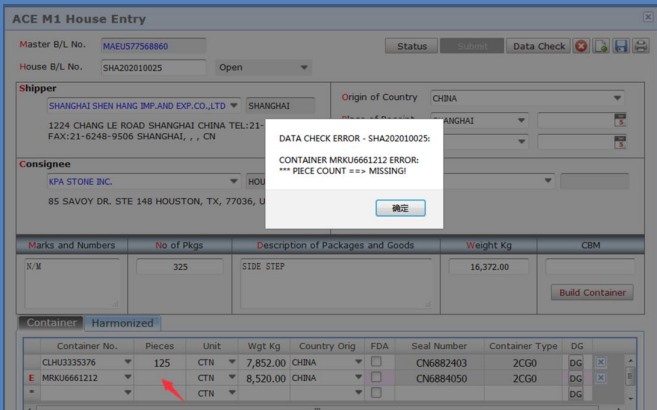
❖ If any required items are missing, the system will not allow submission.
❖ Below is an example where the number of pieces has not been entered.
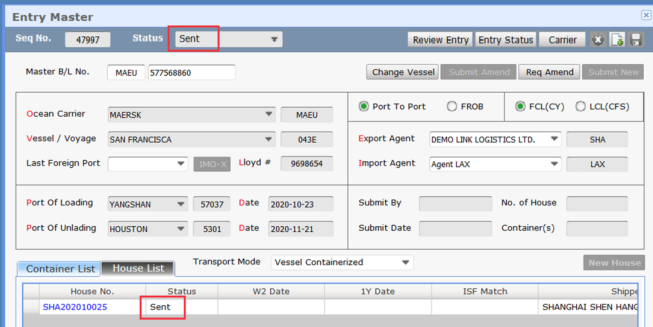
❖ After submission, the Status will display "Sent" until the response message shows "Accepted."
❖ If no response is received, please do not make any edits yet.
2.5 Other
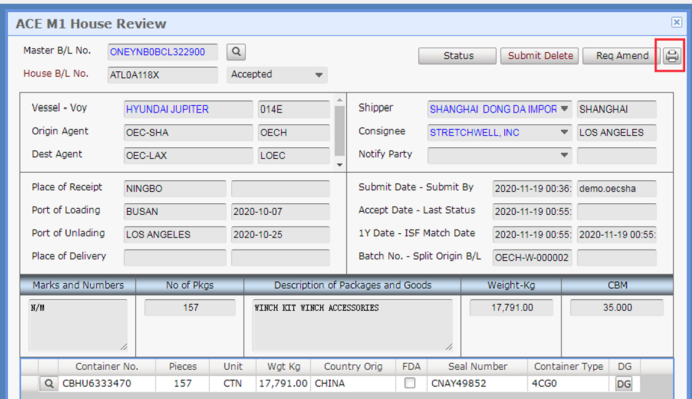
❖ Print button: Opens or saves the currently declared AMS data in PDF format.
Querying
The system provides various query options; you can select one based on your requirements.
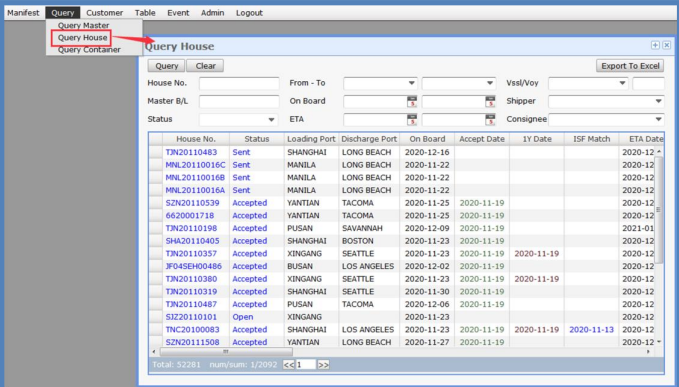
❖ To query house bills, click the Query House button from the Query menu, then select the “Query” button to display all houses.
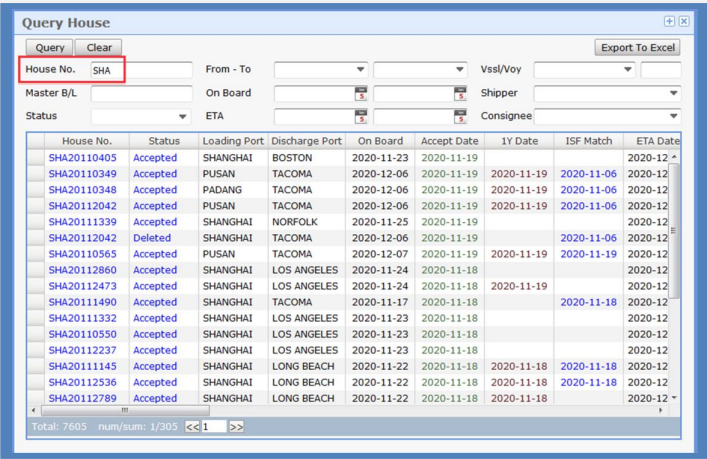
❖ To query all house bill numbers containing "SHA," input "SHA" in the House No. column and click the “Query” button.
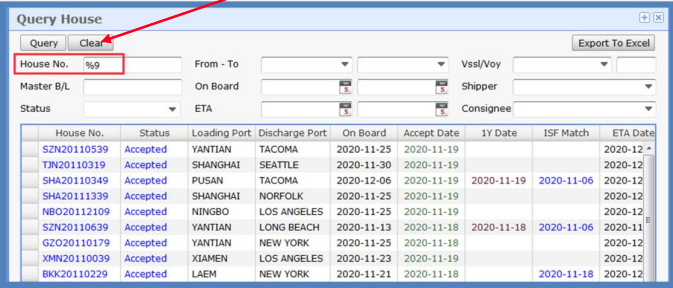
❖ You can type "%9" to query all House Bill numbers ending with "9."
❖ To clear the entire query, click the Clear button.
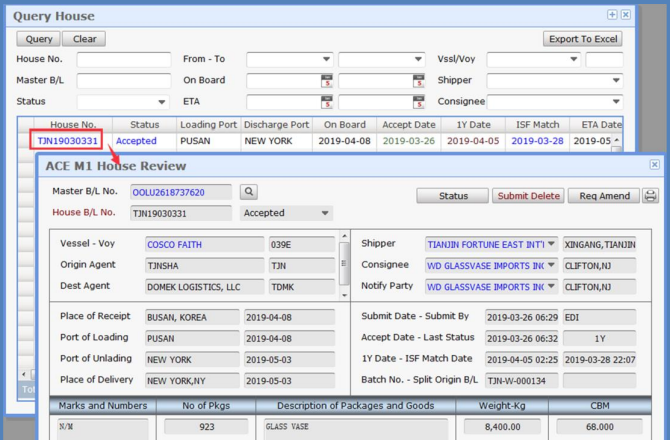
Checking the Query Results
❖ To view more detailed information in the system, double-click the blue characters.
Sorting
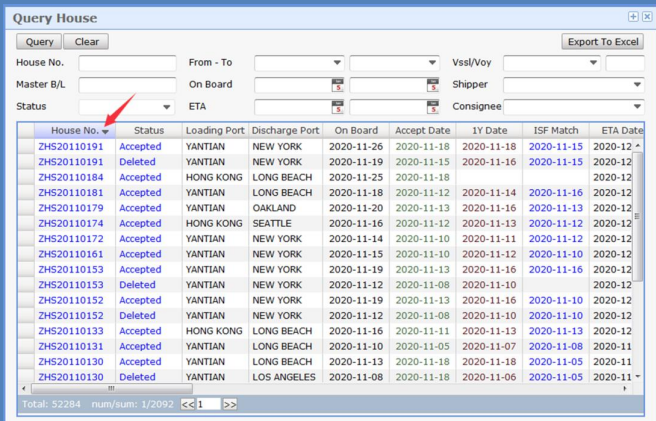
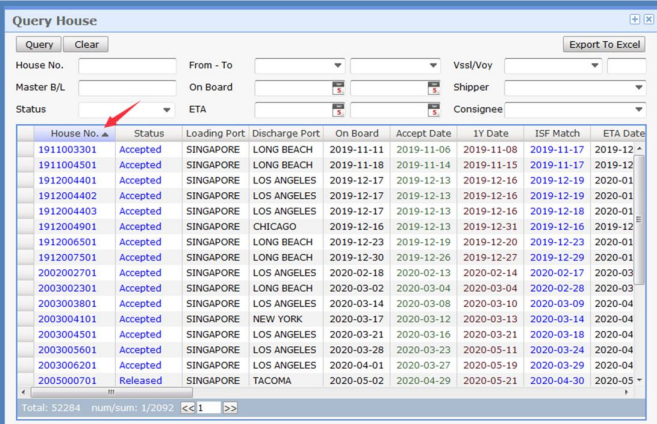
❖ Sort all records based on the title column.
-
To sort in descending order, click on "House B/L."
-
To sort in ascending order, click "House B/L" again.
Filtering Queries
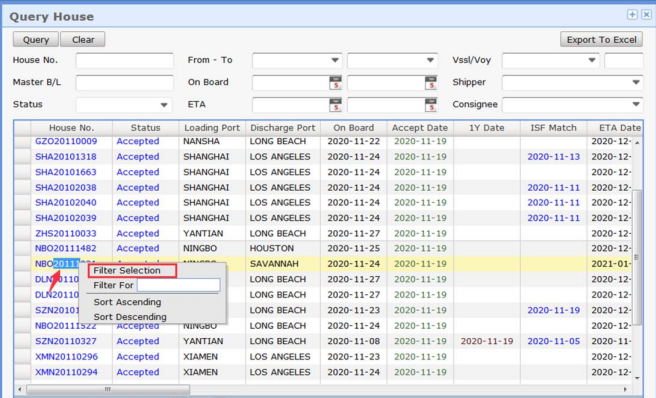
❖ To filter for House B/L that includes "20111":
-
Drag your mouse to the House B/L column and search for "20111." Highlight it, then right-click to open a small window.
-
Click Filter Selection to display all House B/Ls that meet the selection criteria.
-
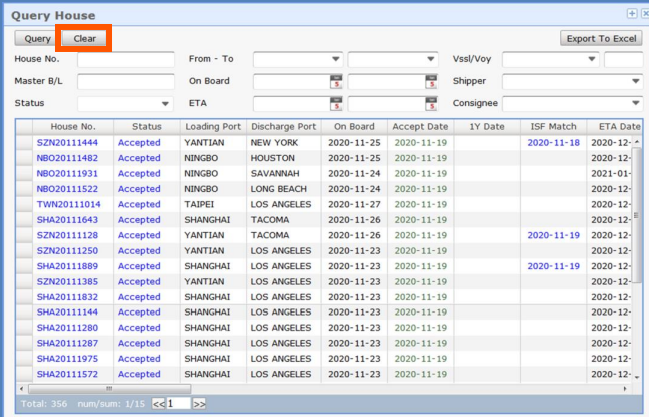
To remove selections from your query, click the Clear button.
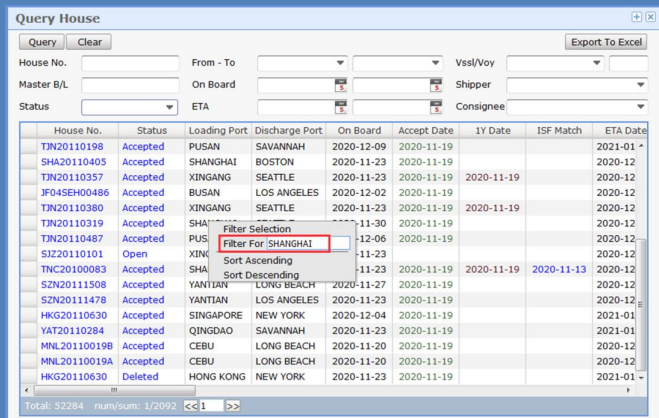
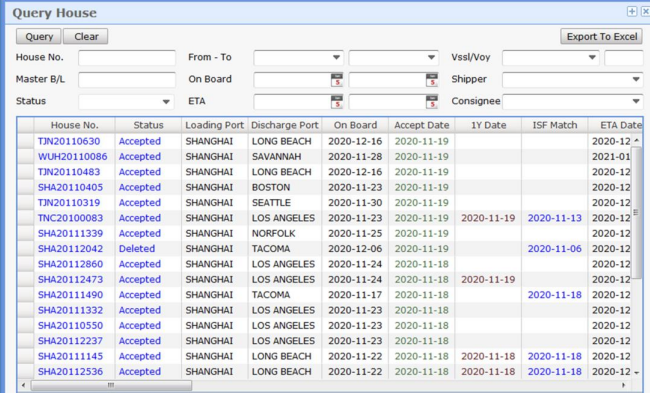
❖ To filter House B/L where the Loading Port is Shanghai:
-
Right-click in the Loading Port column.
-
Type SHANGHAI in the "Filter For" field, then press Enter. Records containing "SHANGHAI" will be displayed.
Filtering Criteria and Searching
❖ Users can input multiple filtering criteria and right-click certain columns for advanced searching.
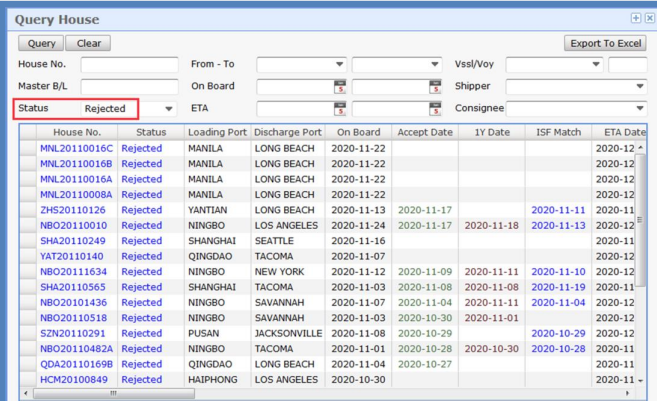
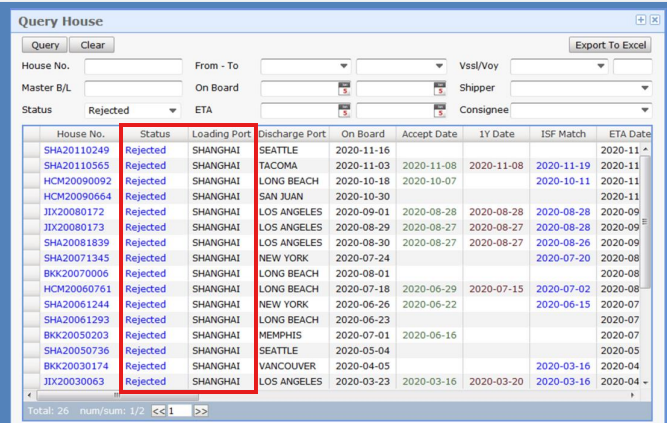
❖ To search for House B/L with Loading Port as Shanghai and status as Rejected:
-
In the Query House window, select Rejected in the Status field, then click Query.
-
In the Loading Port column, highlight SHANGHAI, right-click, and select Filter Selection.

Query House Interface
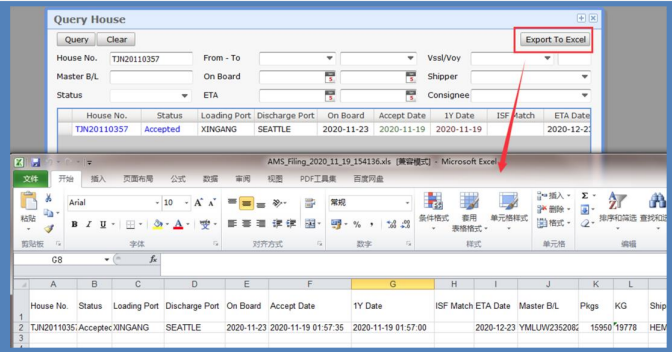
▪ Click the “Export To Excel” button to export all data shown under the Query House interface to an Excel sheet.
3. Modify Information After Submission
3.1 Modify Information in the Master Bill Interface
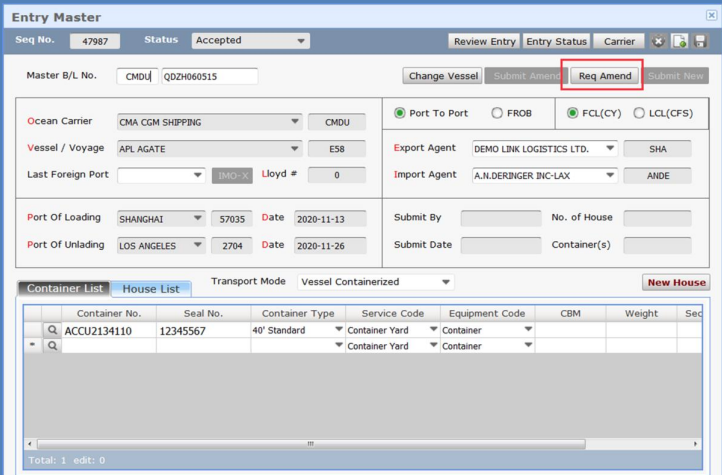
❖ Enter the Master Bill interface and click the "Req Amend" button.
❖ You can modify the master bill number, container number, seal number, container type, and import/transit goods.
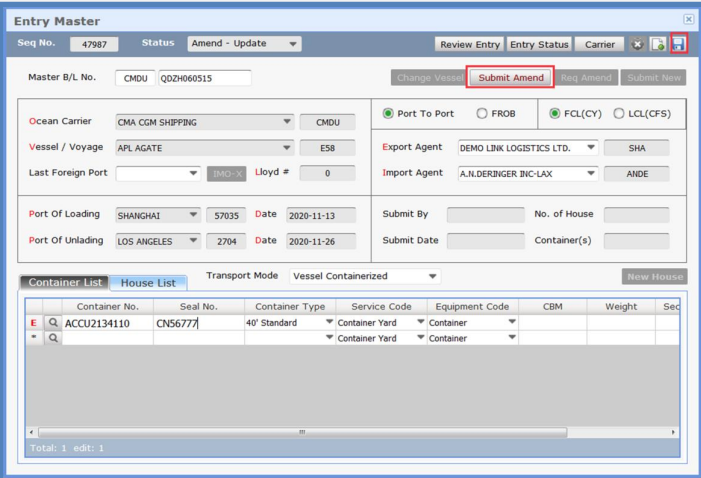
❖ After making the necessary modifications, save your changes and click the "Submit Amend" button.
❖ Note: If there are multiple house bills under the master bill, clicking the "Submit Amend" button will send each house bill to customs separately for modification.
3.2 Data Modification on the House Bill Interface
❖ Enter the House Bill interface and click the "Req Amend" button.
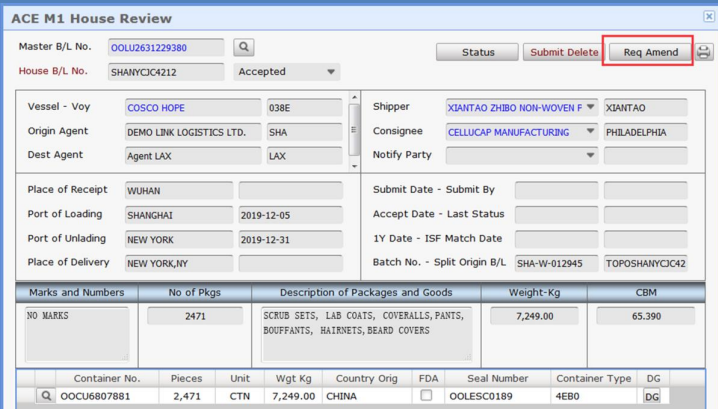
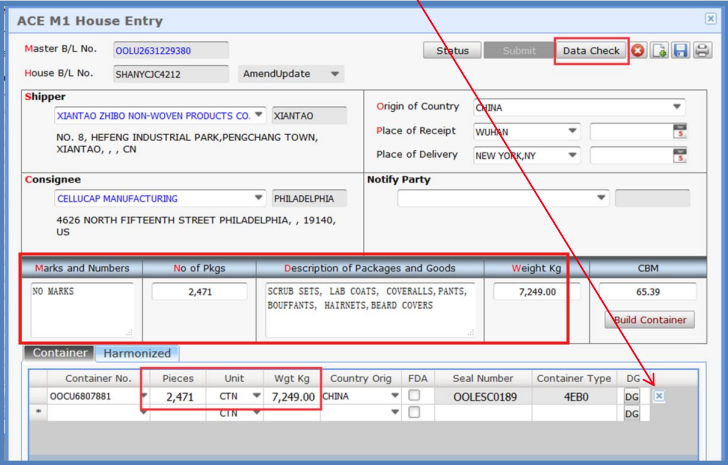
❖ You can modify details such as the shipper, consignee, number of pieces, gross weight, product name, mark, packing unit, and delete redundant container information.
❖ After completing the modifications, click the "Data Check" button. Once the data checks out, click the "Submit" button.
❖ Note: Modify key information like mark, product name, number of pieces, gross weight, etc., found in the designated areas highlighted in red in the screenshot below.
❖ Note: The house number cannot be modified. If an error is identified in the house number, please delete the incorrect house first, then add a new house in the Master Bill interface, re-enter the details, and submit.
❖ To delete extra boxes, click the "X" on the right.
❖ Click the “Status” button on the House Bill interface to view the response message.
3.3 Removing a House
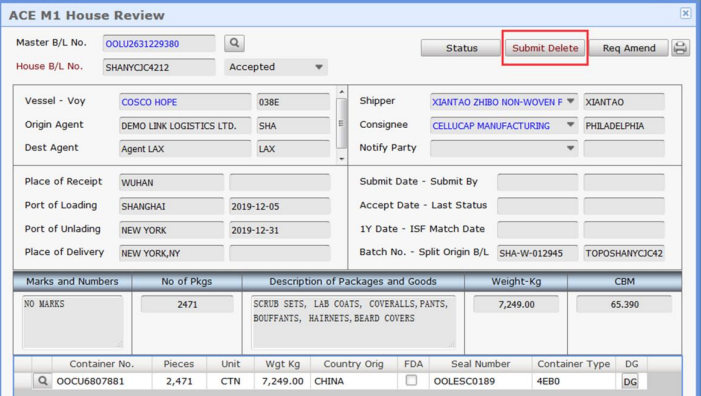
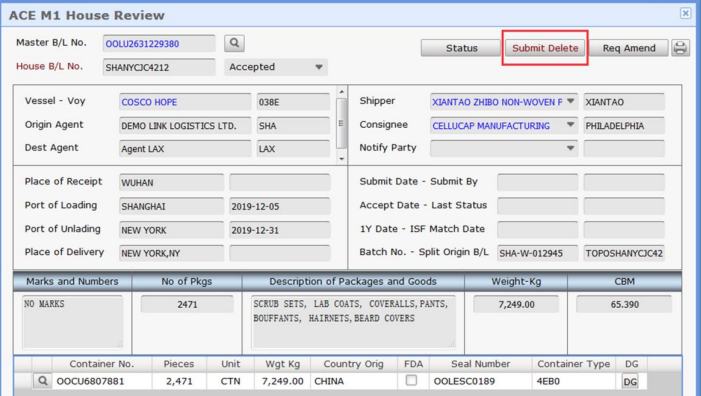
❖ If the house has been accepted and needs to be deleted, enter the house interface and click the "Submit Delete" button.
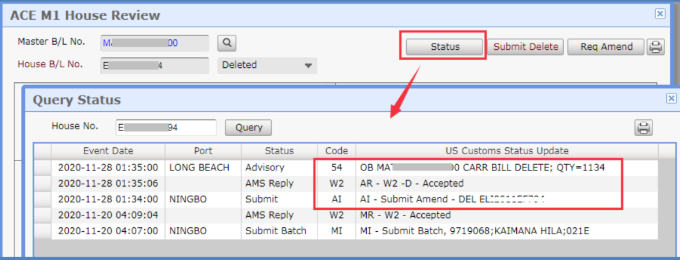
❖ Click the "Status" button on the House Bill interface to view the response message.
3.4 Changing Vessel Information
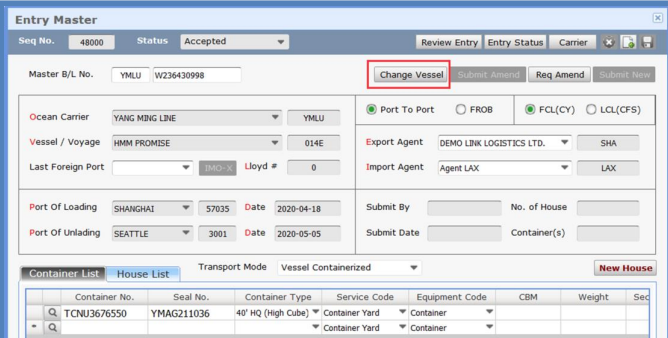
❖ To change the vessel name, voyage, port, and time information, click the "Change Vessel" button on the Master Bill interface.
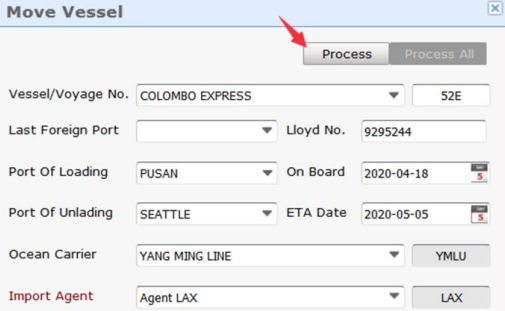
❖ Enter the new vessel name, voyage, and other relevant information.
❖ After clicking the "Process" button, the system will automatically generate a new bill. If the data is correct, click the "Submit New" button.
3.5 Batch Move Vessel
❖ If multiple Master Bills are on the same voyage with the same vessel name, transshipment is needed.
❖ Under the "Manifest" menu, select "Move Vessel."
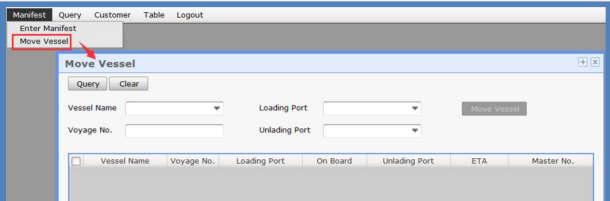
❖ Enter the vessel name, voyage number, loading port, and unloading port, then click the "Query" button.
❖ Select the vessel that needs to be changed and click the "Move Vessel" button.
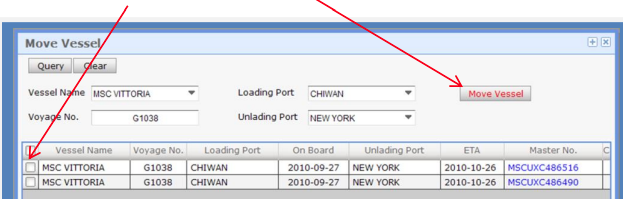
❖ Enter the vessel name, voyage, and other details, then click the "Process All" button.
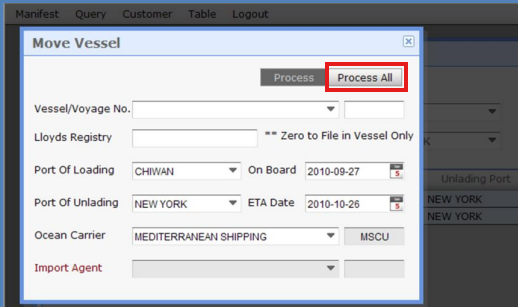
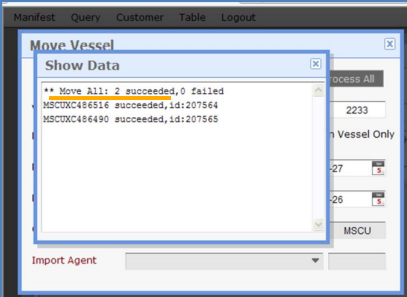
❖ The system will indicate that the "Move Vessel" operation was successful and the new bill has been sent to customs. After 5 minutes, check the customs response message.
❖ Finally, close the current window.
3.6 Splitting a Bill
❖ If the House Bill declaration has been accepted and needs to be split, you can modify the original HBL directly and resend it.
❖ The new HBL will be added under "New House" in the original MBL interface. If the MBL number is different, reprocessing is required.
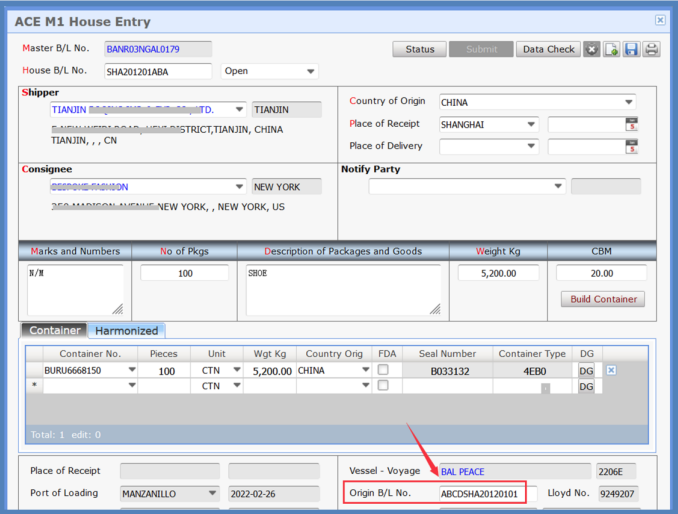
❖ Enter the original B/L number in the HBL interface followed by SCAC code + original HBL number to ensure customs recognizes it as a split bill and does not count it as a late filing.
4. Query Status
4.1 Querying Status
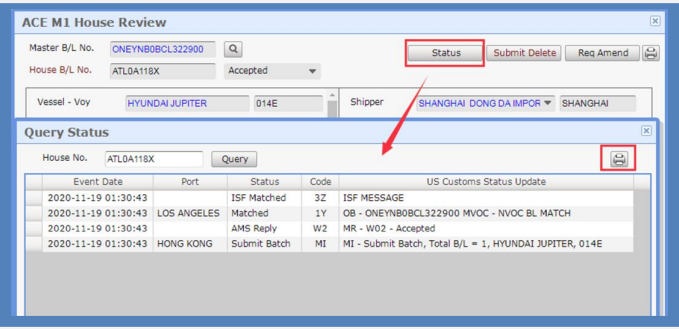
❖ To query a house bill, find the desired house and double-click the blue "Status."
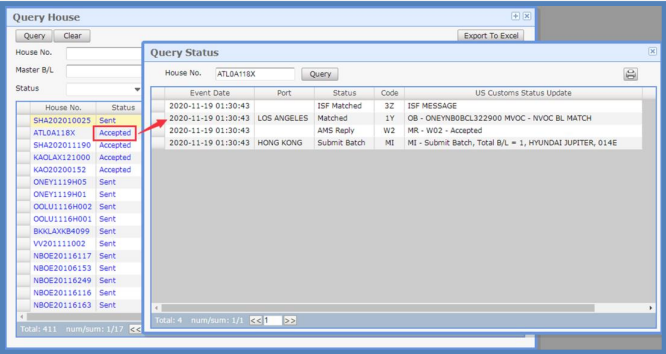
❖ Users can also click the Status button on the House interface to view the response message.
❖ To save the query response as a PDF, click the  button, or print it out to the local drive.
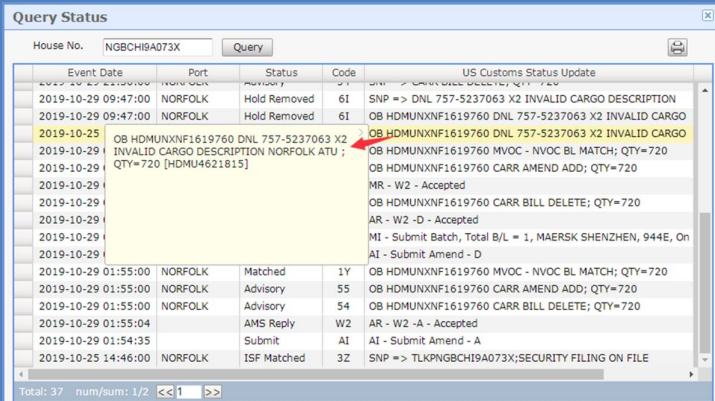
❖ Hover over a column in the US Customs Status Update to view the detailed response message for that column.
4.2 Common Response Messages
❖ Our AMS System
✓ MI: Indicates that the data has been successfully sent to our server. This response message will appear after clicking the Submit button on the Batch interface.
✓ AI: Indicates that the bill is sent for modification or deletion.
❖ US Customs Common Response Messages
✓ W2: US Customs accepted the AMS.
✓ 1Y: MVOC-NVOC Bill of Lading Match.
✓ The response message for removing a House: W2,54.
✓ Amendment response message: W2,54,55.
✓ Change Vessel response message: W2,54,W2.
✓ WA: The vessel has arrived at the US port.
✓ 2H/2I: 2H Customs supervision.
No changes are required; simply get 2I custom4.2 Common Response Messages
❖ Our AMS system
✓ MI: Indicates that the data has been successfully sent to our server. As long as you click the Submit button on the Batch interface and successfully submit the data, this response message will appear.
✓ AI: Indicates that the bill is sent for modification or deletion.
❖ US Customs Common Response Messages
✓ W2: US Customs accepted the AMS.
✓ 1Y: MVOC-NVOC Bill of Lading Match.
✓ The response message for removing House: W2,54.
✓ Amendment response message: W2,54,55.
✓ Change Vessel response message: W2,54,W2.
✓ WA: The vessel has arrived at the US port.
✓ 2H/2I: 2H Customs supervision.
No need to make any changes, just get 2I customs clearance.
✓ 1H/1I: 1H Customs manual inspection.
After inspection, the code will change to 1I.
✓ 7H/7I: 7H Customs X-ray inspection.
After inspection, the code will change to 7I.
❖ Codes Requiring Immediate Response
✓ W1: The bill is rejected.
The specific reason for rejection depends on the specific response message from customs.
✓ 2Z: The container number sent by NVOCC and the steamship company does not match.
Please check the container number and quantity with the steamship company in a timely manner. If the steamship company reports an error, we don’t need to change it. If we report an error, we need to amend the master.
✓ 6H/6I: 6H DO NOT LOAD. The specific reason for not allowing the shipment on board depends on the specific response message from customs (usually, there will be a customs phone number).
After the change, please contact customs promptly to get the information that 6I is allowed to board the ship.
If you do not get the 6I, the shipment will definitely not be allowed to board. The specific content of the receipt depends on the information in the US Customs Status Update. Currently, it is mostly related to the consignee and product name issues.
❖ Common Reject Codes for W1
✓ W1-026: The first four digits of the MBL number are incorrect; it is the carrier code of the steamship line.
✓ W1-033: Incorrect port of discharge.
✓ W1-034: The Last Foreign Port on the MBL interface is wrong. Clear the entry or select the correct last non-US port.
✓ W1-038: The bill already exists. Specific analysis should be combined with the previous response message.
✓ W1-040: The bill does not exist. Specific analysis should be combined with the previous response message.
✓ W1-059: In the customs system, this voyage shows as arrived. Please resend on the HBL interface.
✓ W1-152: The vessel IMO No. is incorrect. Please update it in the TABLE menu. If the IMO No. is correct, click the IMO-X button on the MBL interface, save, and resend.
✓ W1-299: The ocean carrier has declared the wrong bill type. Contact the ocean carrier to change it and resend after the ocean carrier has corrected it.
✓ W1-370: There are illegal characters in the data that are not accepted by customs.
✓ 3Z: Security Filing on File.
✓ 2O: The AMS message did not match the ISF, and 3Z was not received. If there are multiple houses under a master bill, as long as one house does not receive 3Z, all houses will receive 2O.
Click HERE to download the document for easier reference!