
GoFreight supports Electronic Air Waybill (eAWB) through the application registered with our vendor, Champ.
Once the eAWB with the airlines is set up with the connection, you can submit the eAWB through GoFreight directly. Follow these steps to submit an electronic Air Waybill (e-AWB) in the GoFreight system:
Step 1: Navigate to the Air Export Module for a new shipment.
Fill in the required information on the Shipment Basic tab.
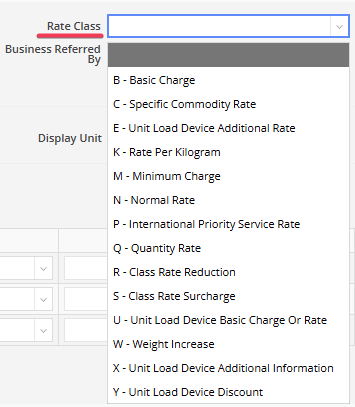
Note: The “Rate Class” column is available for selection under the MAWB.

Note: In case a shipment contains more than four transshipment flights to the destination, please remove one flight so that the total route does not exceed three flights before submitting eAWB, as required by the vendor, Champ.

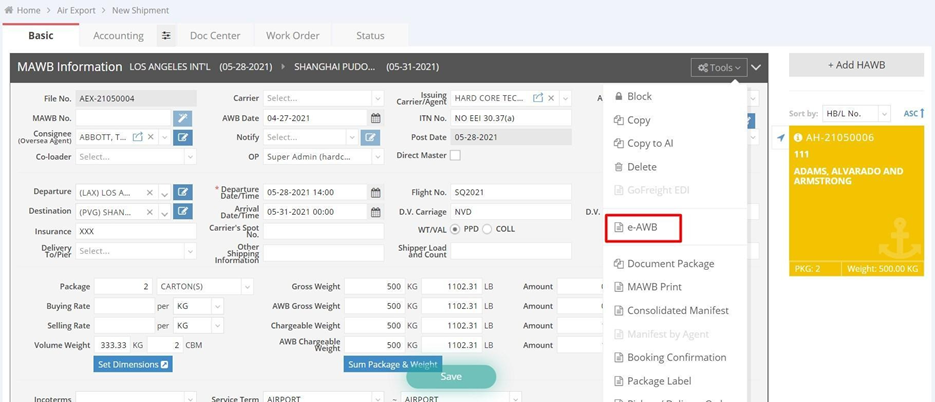
Step 2: Click “Tools” under the MAWB section and select “e-AWB”.
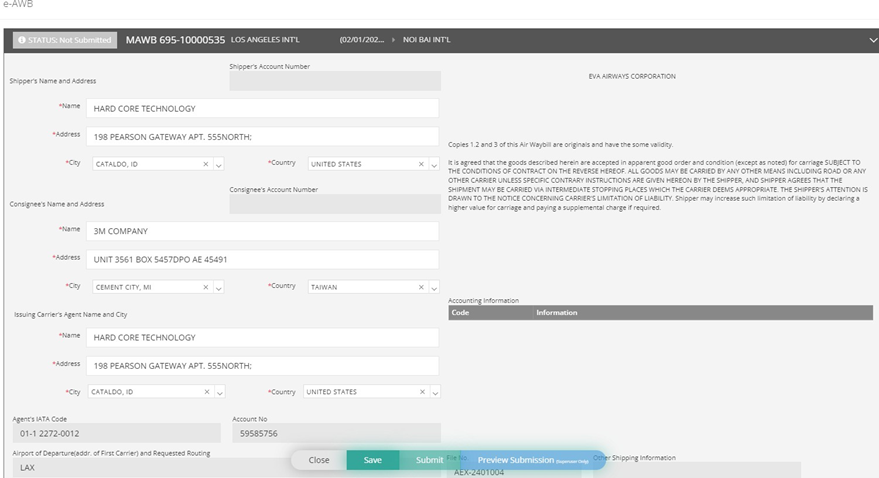
Step 3: A pop-up window will display the information you entered. Ensure all required information marked with red asterisks is filled out correctly (e.g., City, State, and Country of shipper and consignee). Note:Tthe city name must be entered using by UN/LOCODE.

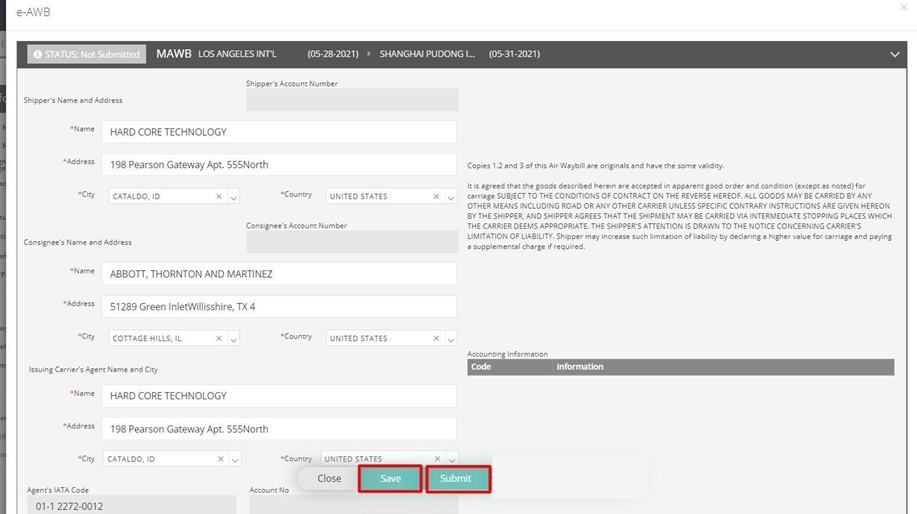
Step 4: Click "Save" and then "Submit" to send the e-AWB data to the airlines. Please avoid repeatedly clicking the Submit button; responses regarding the e-AWB status will appear within a few minutes.
Tables can't be imported directly. Please insert an image of your table which can be found here.
Step 5: After submission, check the status details at the bottom. The upper left corner of each e-AWB will also display its status.
Step 6: All updates and amendments can be reviewed in the “User Operation Log”. Click “More Detail” to see what exactly was changed.

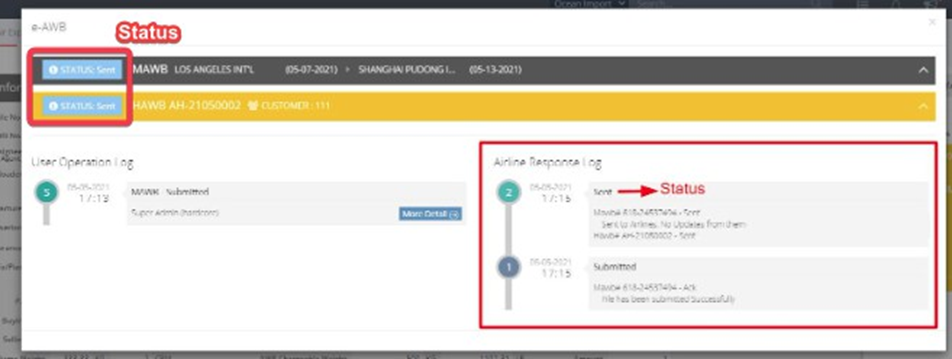
Step 7: The “Airline Response Log” on the right side will show response messages from our vendor and airlines.
MAWB/HAWB List View Status Introduction
- Not Submitted: e-AWB data has not been transmitted to the vendor.
- Submitted: e-AWB data has been successfully transmitted to the vendor.
- Error: e-AWB data was submitted to the vendor but encountered issues.
- Sent: e-AWB data has been sent electronically to airlines.
- Airline Accepted: Airlines successfully received the e-AWB data.
- Airline Processing: The airline is currently processing the e-AWB.
- Airline Rejected: The airline has rejected the e-AWB.
- Booked: The shipment has been booked with the airline for transportation.
- Freight on Hand: The airline has received the freight for transportation.
- Received from Carrier: The cargo has been received from the carrier.
- Received from Shipper: The cargo has been received from the shipper by the airline or handling agent.
- Transferred to Carrier: The cargo has been transferred to the carrier for transportation.
- Consignee Notified: The consignee has been notified of the arrival or status of the shipment.
- Arrival Documentation Delivered: Documentation required upon arrival has been delivered.
- Delivered: The cargo has been delivered to the consignee.
- Transfer Manifested: The transfer of cargo has been manifested, indicating its planned movement.
- Customs Cleared: The shipment has been cleared by customs for further movement.
- Discrepancy: There is a discrepancy with the shipment.
- Delivered at Door: The cargo has been delivered directly to the consignee's door.
- Report to Customs: A report regarding the shipment has been sent to customs authorities.
Transferred to Customs: The shipment has been transferred to customs for inspection or clearance.