
The Status & Requirements panel (located on the right side of the Shipment Entry Page in the customer portal) shows customers the current status of their freight.
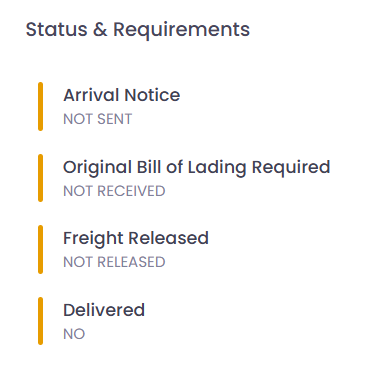
This section contains four key indicators:
-
Arrival Notice
-
Original Bill of Lading Required
-
Freight Released
-
Delivered
Each item displays a simple status (e.g., Sent/Not Sent, Received/Not Received, Yes/No, or Not Applicable).
Your input in GoFreight will directly update the Status displayed to customers on the right side of each Shipment Entry in the portal. Follow the steps below to ensure statuses reflect accurately.
1. Arrival Notice
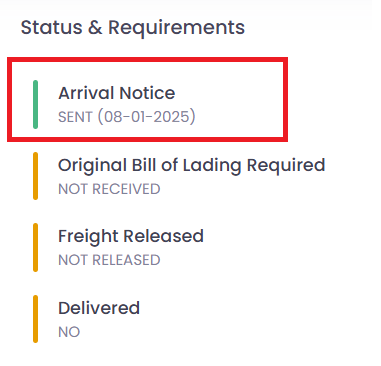
To show as SENT on the portal:
- Go to the shipment page in GoFreight.
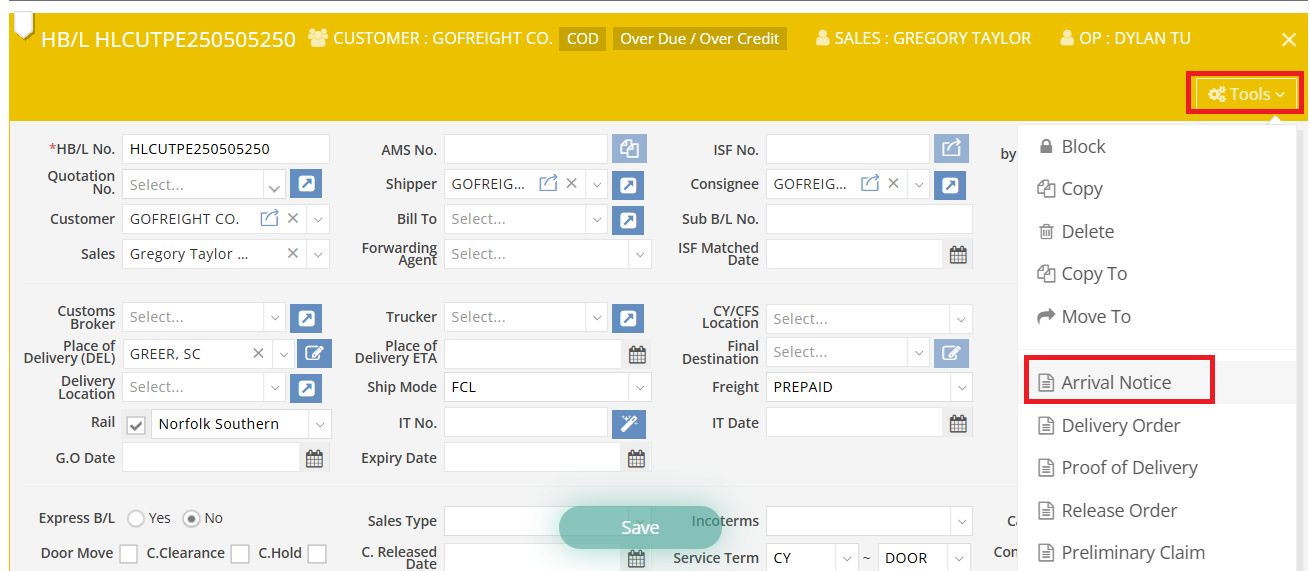
- Click Tools (top right corner of the HBL).
- Select Arrival Notice.
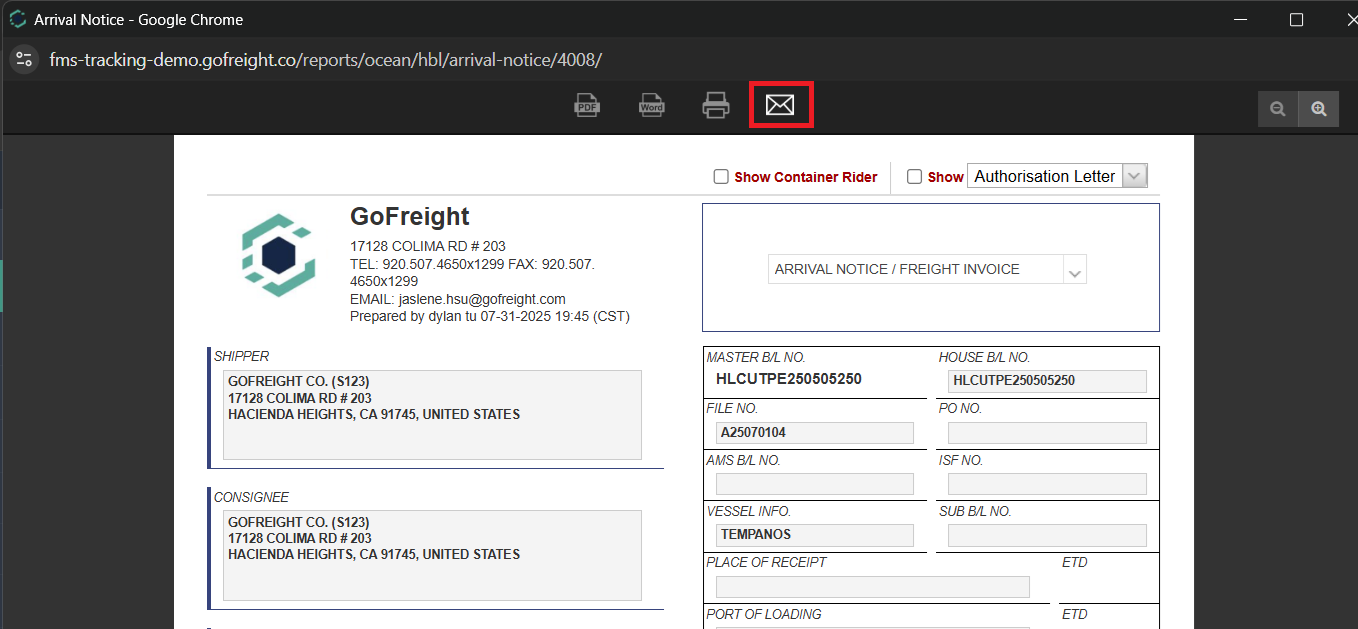
- In the pop-up, click the email icon at the top to send.
➡️ Once sent, the portal updates to SENT.
2. Original Bill of Lading Required
Under the HBL section, locate Express B/L.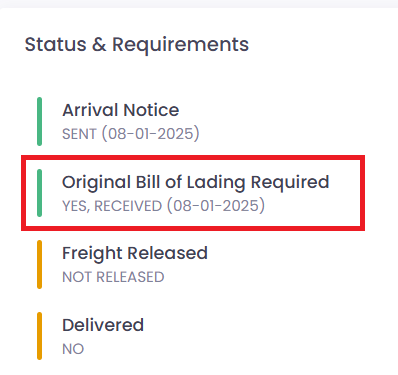
- If set to YES → This is an Express B/L, and the portal will show Not Required.
- If set to NO → The portal will display Not Received until further action is taken.
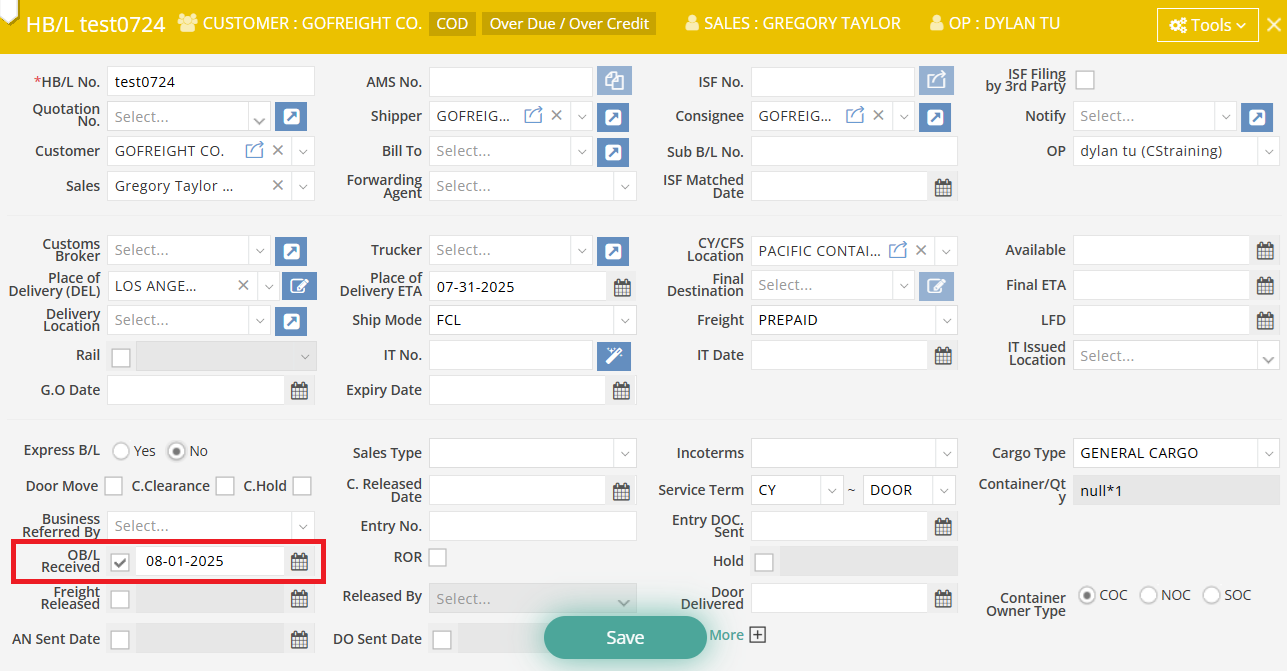
To update to RECEIVED:
- Tick OB/L Received.
- Enter the Received Date.
- Click Save.
➡️ The portal then shows RECEIVED with the date.

3. Freight Released
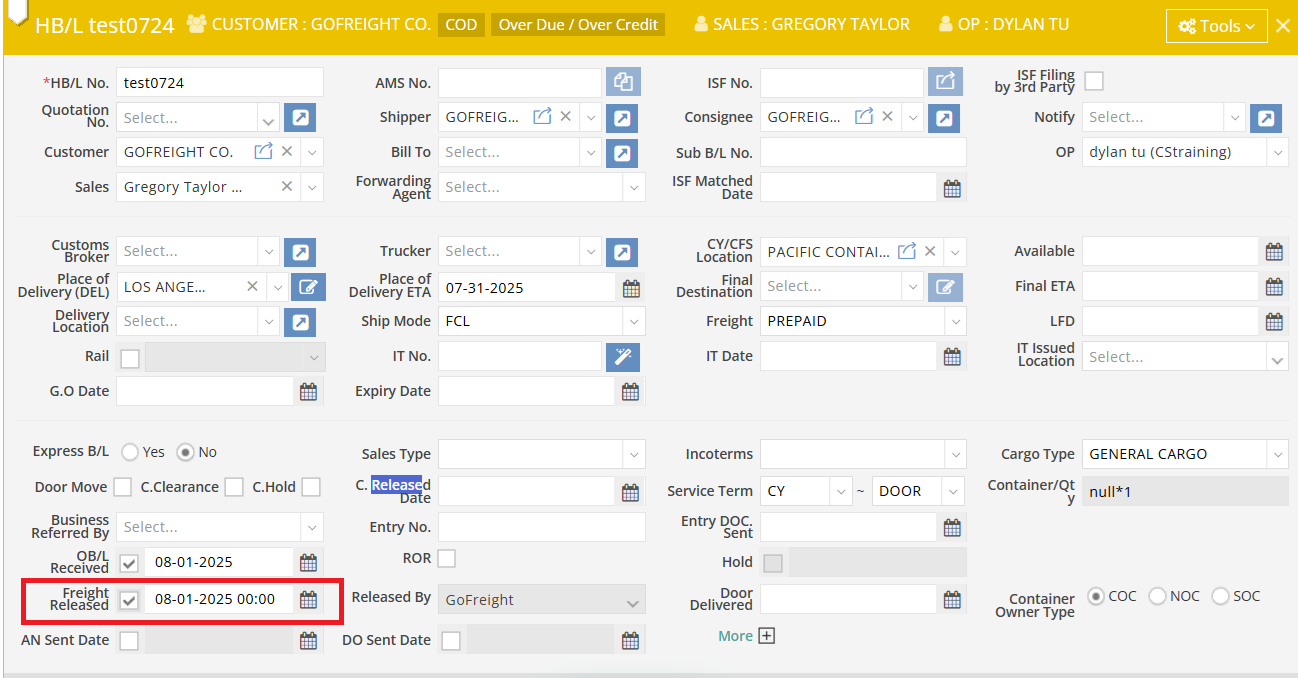
To update to RELEASED:
- Tick the Freight Released box under the HBL.
- Enter the Release Date.
- Click Save.
➡️ The portal displays RELEASED with the date.
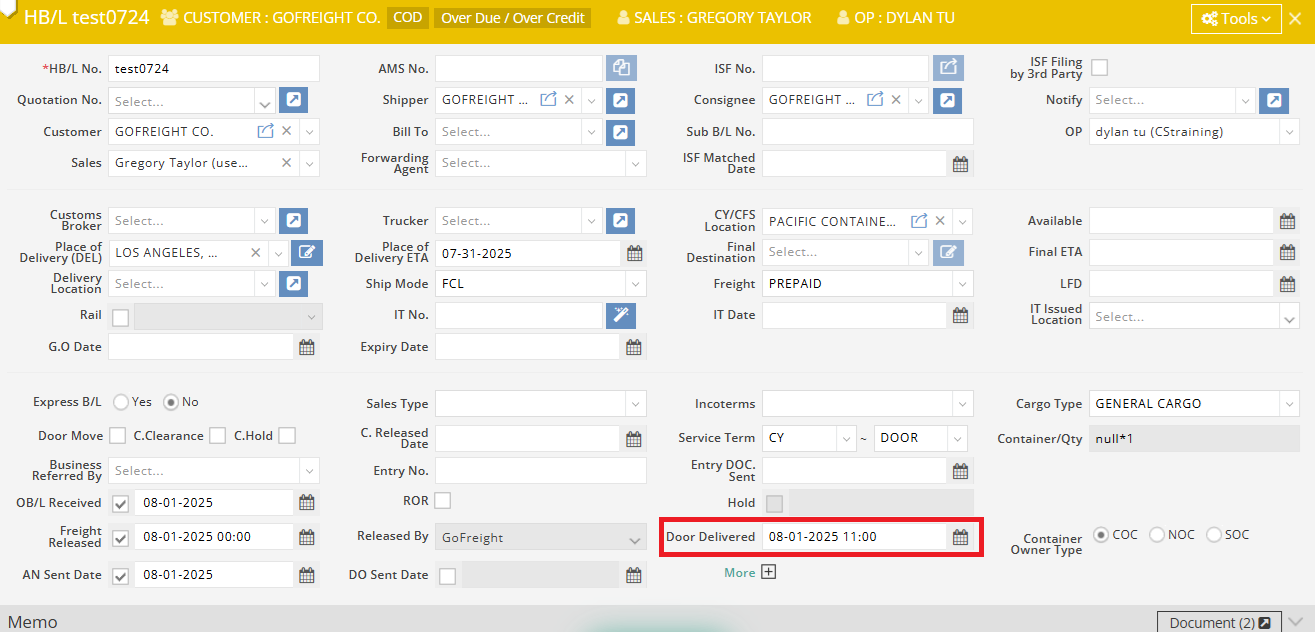
4. Delivered
Check the Service Term on the HBL: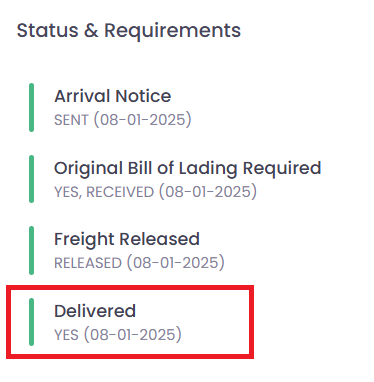
- If set to CY–CY → The portal will display Not Applicable (service ends at the port of discharge).
- If set to CY–DOOR → The portal will display Not Delivered until you update the delivery date.
To update to YES (Delivered):
- Enter the Delivered Date in the Door Delivered field under the HBL.
- Click Save.
➡️ The portal then shows YES with the delivery date.
FAQ
Q: How can I tell from looking at a shipment in GoFreight customer portal if the shipment has been delivered? where does it say delivered?
A: For door delivery shipments, please select the service term CY–DOOR on your HBL. Once the shipment is delivered, you can enter the delivery time in the Door Delivered field on the HBL page and click Save.
In the Customer Portal Shipment Entry page, you’ll find the Status & Requirements section on the right-hand side. Here, the shipment status will display as Delivered.