To support better shipment management and follow-up, GoFreight offers a Complete Shipment feature.
This function allows Gofreight users to mark which shipments are finished and no longer require active attention.
By marking shipments as complete, you can:
- Reduce clutter in your shipment views
- Improve reporting clarity
- Help both Gofreight users and tracking users focus on active shipments only
1. How to mark shipments as complete?
You can mark a container as complete through either of the following locations (both sync automatically):
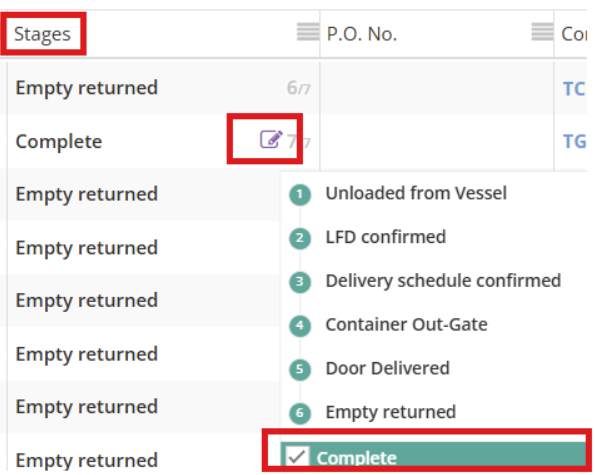
From My Containers
- Hover over the Stages column.
- Click the ✏️ pencil icon.
- Check the Complete box.
- Click Save.
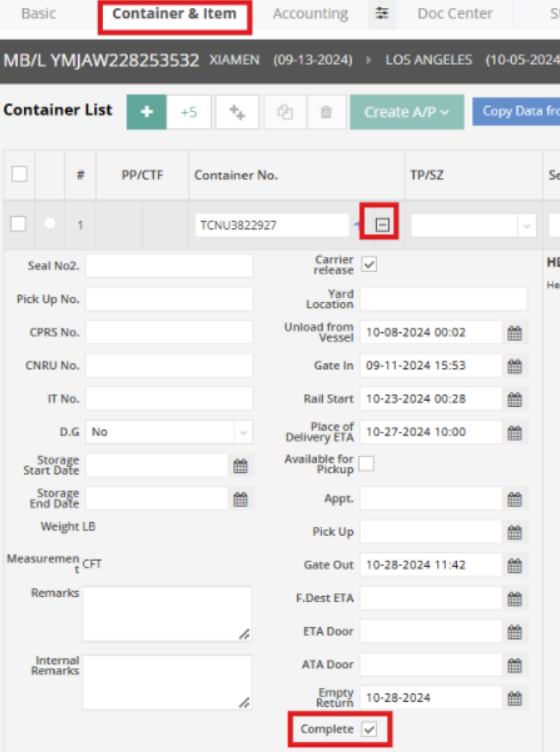
From the Shipment Entry Page
- Go to the Container & Item tab.
- Click the “+” icon next to the container number.
- Check the Complete box at the bottom.
- Click Save.
2. Effect of Completion Status
Once a shipment is marked as complete, here’s how this status can help you manage and view shipments more effectively across the system:
My Containers Page
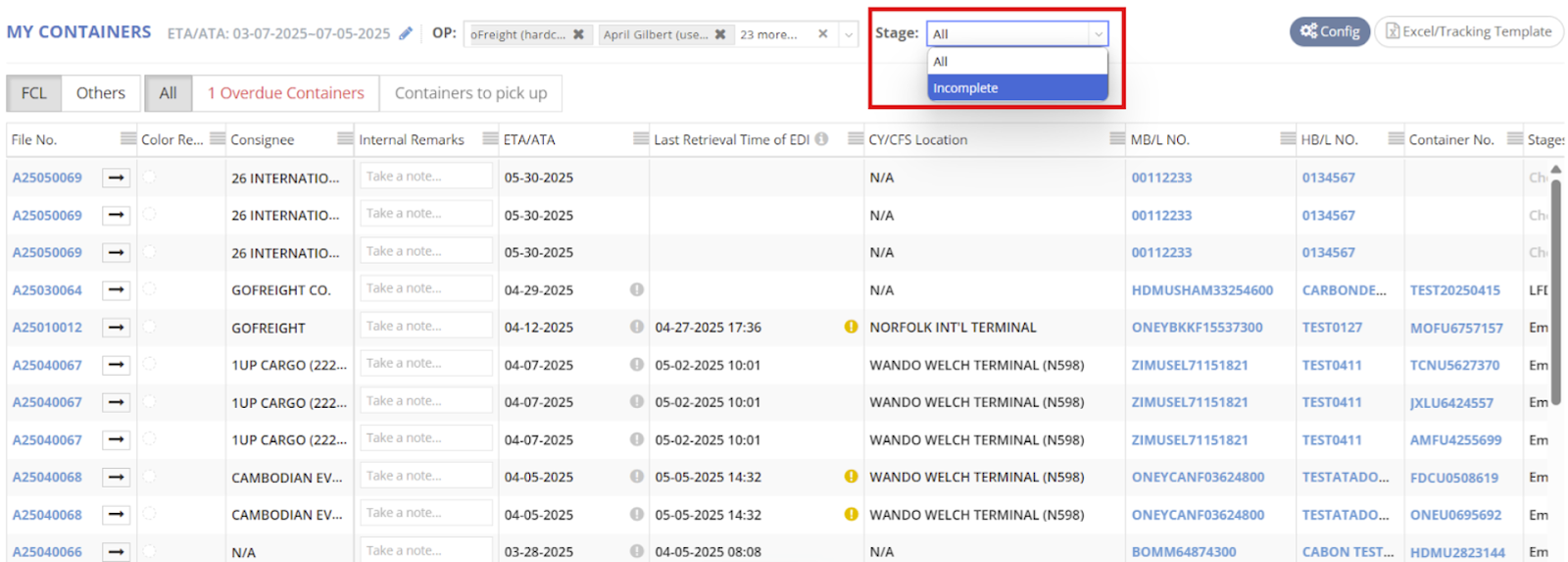
On the My Containers page, all containers—both complete and incomplete—are shown by default.
You can use the Stage Filter at the top to hide completed shipments, helping you focus on active shipments only.
Tracking Users
Shipment Report
When a shipment is marked as complete in My Containers or Shipment entry, it will be excluded from the shipment report for tracking users. This ensures a clear view of active shipments.
If a tracking user wishes to include completed shipments in their report, please go to the tracking user’s report settings and check “Display Completed Shipments in the Shipment Report.”
For more information, see: How to Set Up Customized Shipment Report for Tracking User.
Customer Portal
In the Customer Portal, completed shipments are hidden by default to help users focus on in-progress shipments.
In addition to manual completion, the customer portal applies an automatic completion rule:
A shipment will be automatically marked as complete after a set number of days following the final milestone. For example, in CY-to-CY shipments, the final stage is “Unloaded from Vessel.”
If you need to adjust this automatic completion period:
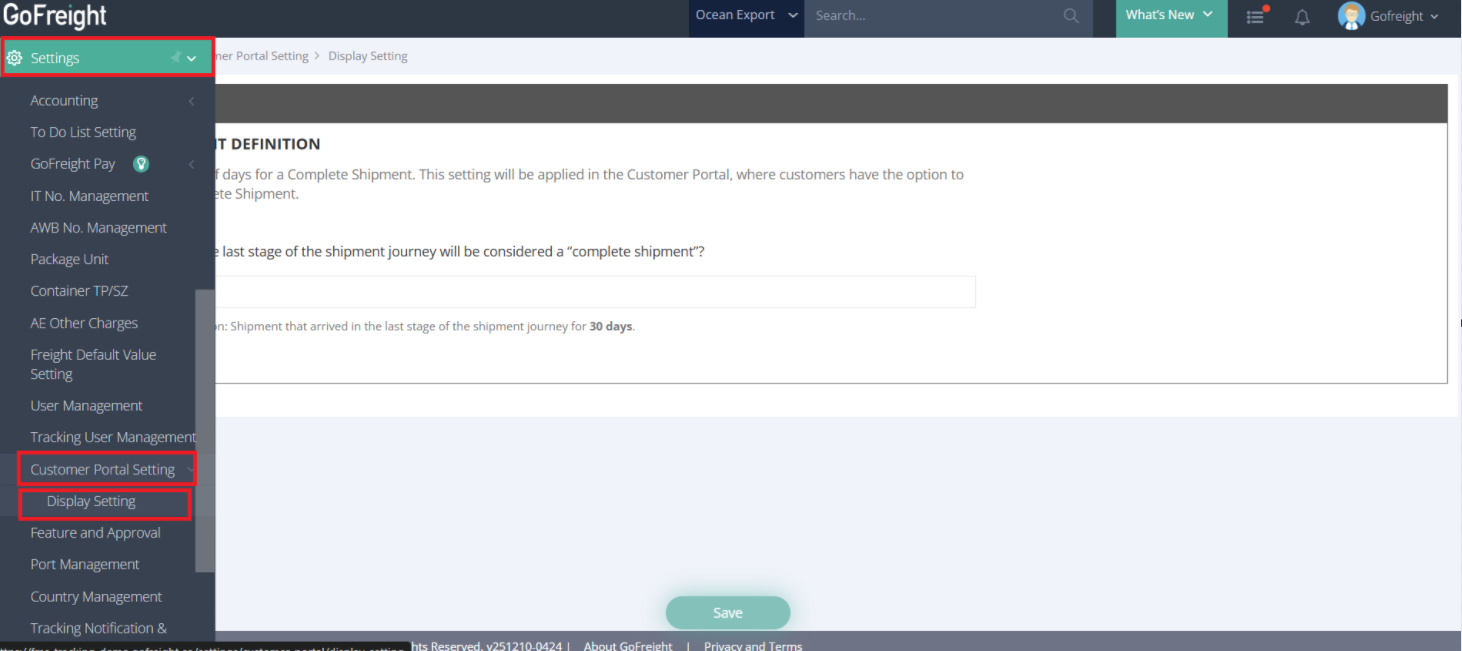
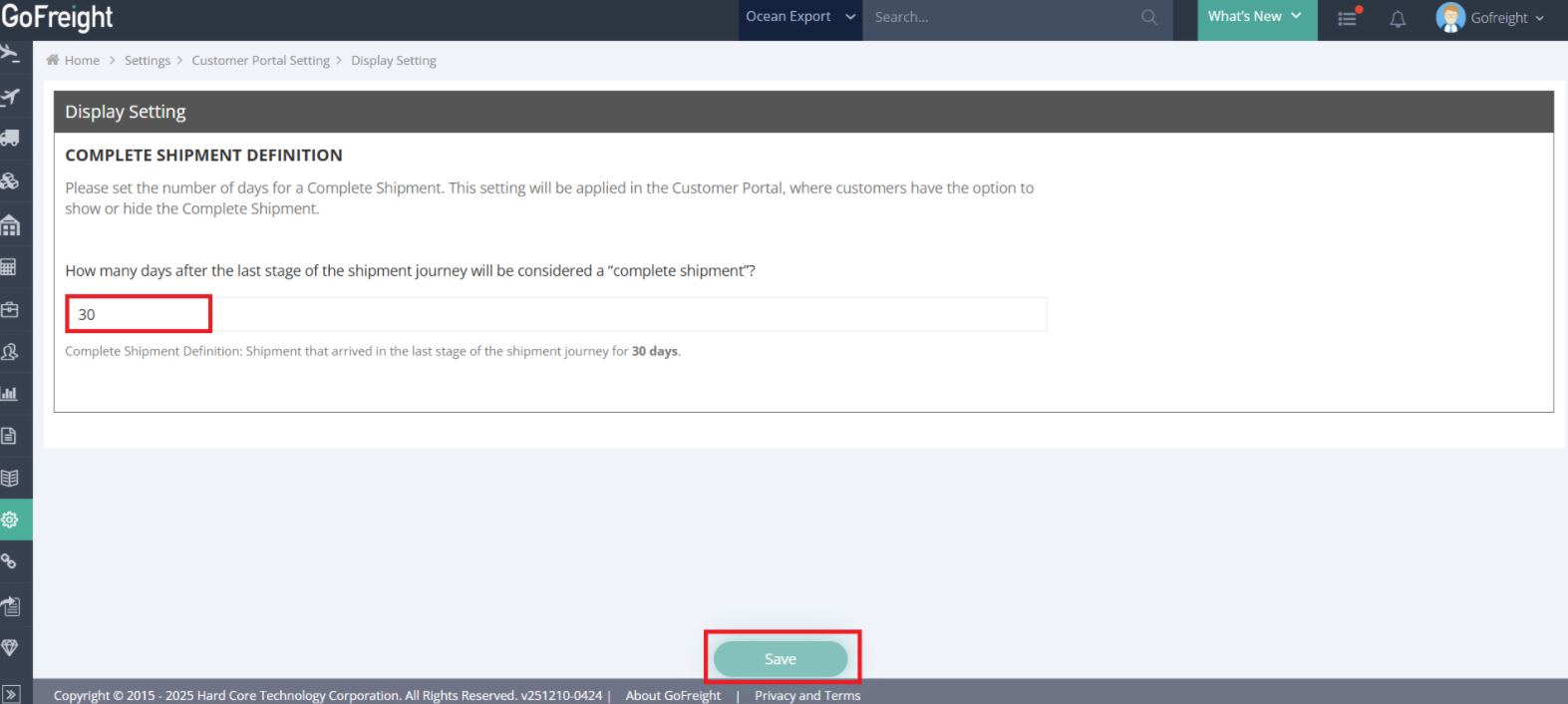
- Go to GoFreight > Settings > Customer Portal Settings > Display Setting.
- In the Completion Period field, enter the number of days after the final stage when a shipment should be marked as complete (e.g., change from 45 days to 14 days).
- Click Save to apply the changes.