For Gmail Users
1. Click on the Settings icon in the upper right corner of your Gmail page, then select See all settings.
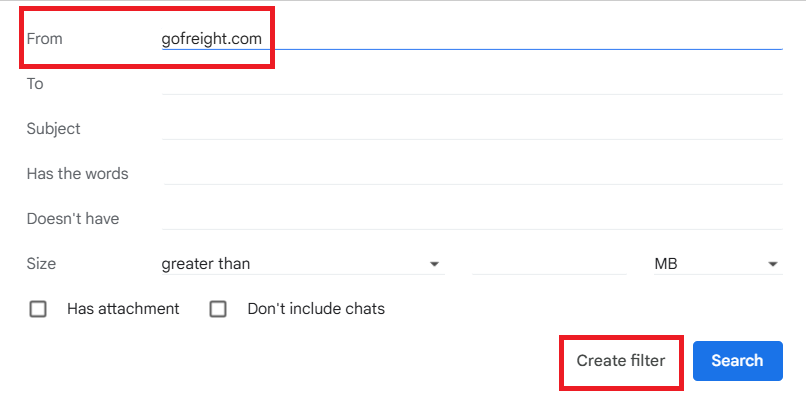
2. Navigate to Filters and Blocked Addresses and click Create a new filter.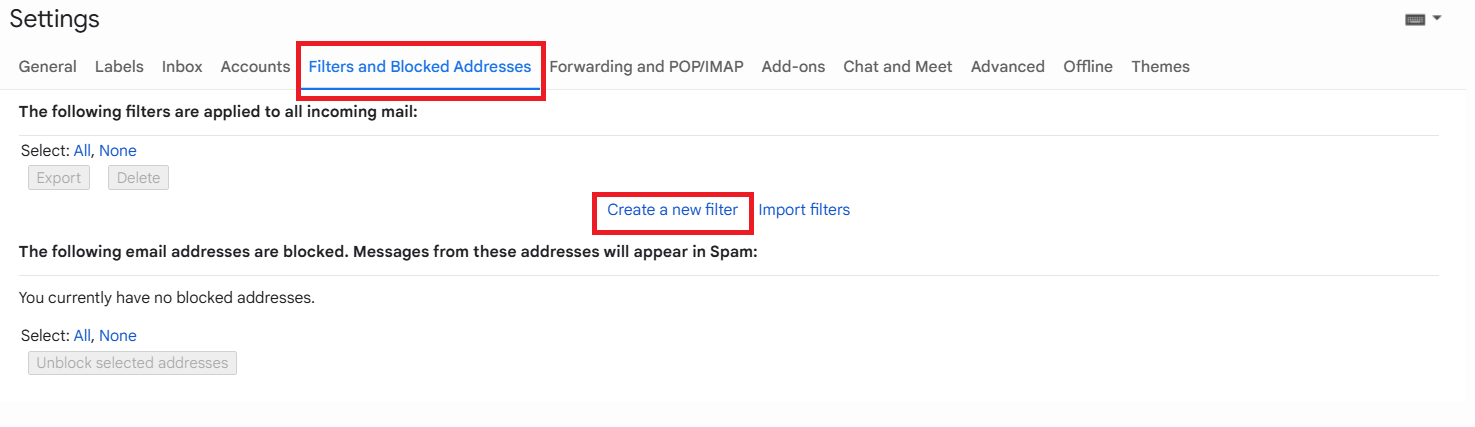 3. In the From field, enter gofreight.com, then click Create filter.
 4. Check the box that says Never send it to Spam, then click the Create filter.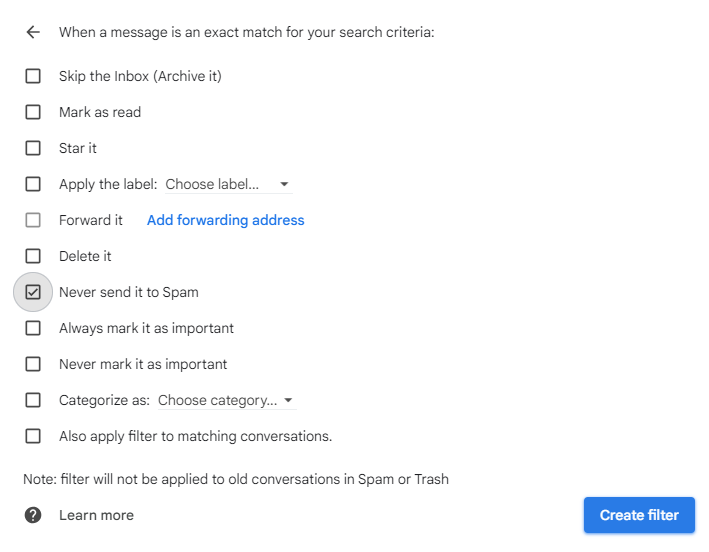
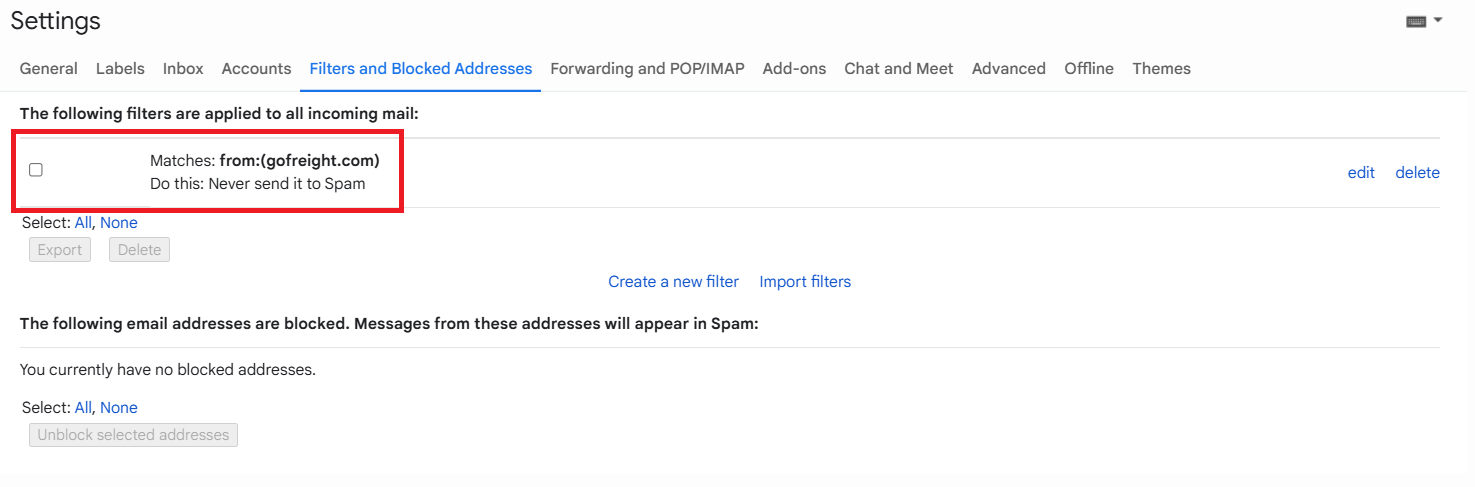
Then you will be directed back to the “Filters and Blocked Addresses” setting page and will see the following result of settings: The following filters are applied to all incoming mail from gofreight.com -Never send it to Spam.
For Microsoft Outlook Users
1. Click on the Home tab.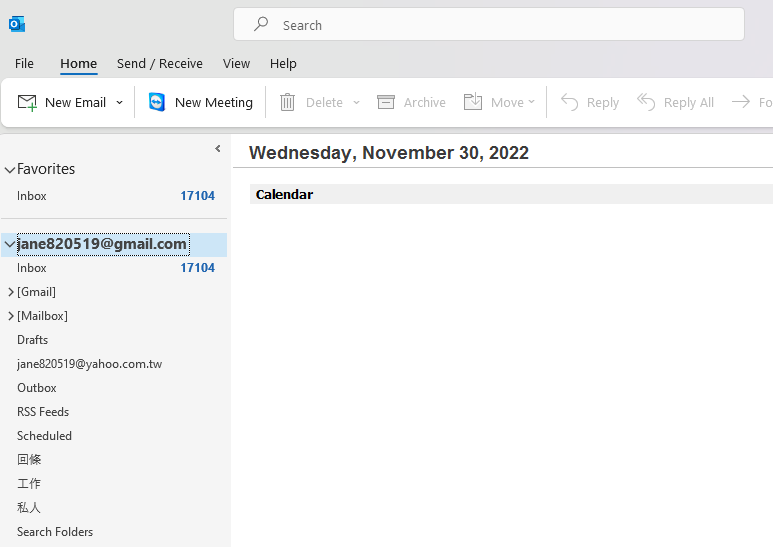
2. In the upper right corner, click on the three dots icon, select Junk, then click Junk Email Options.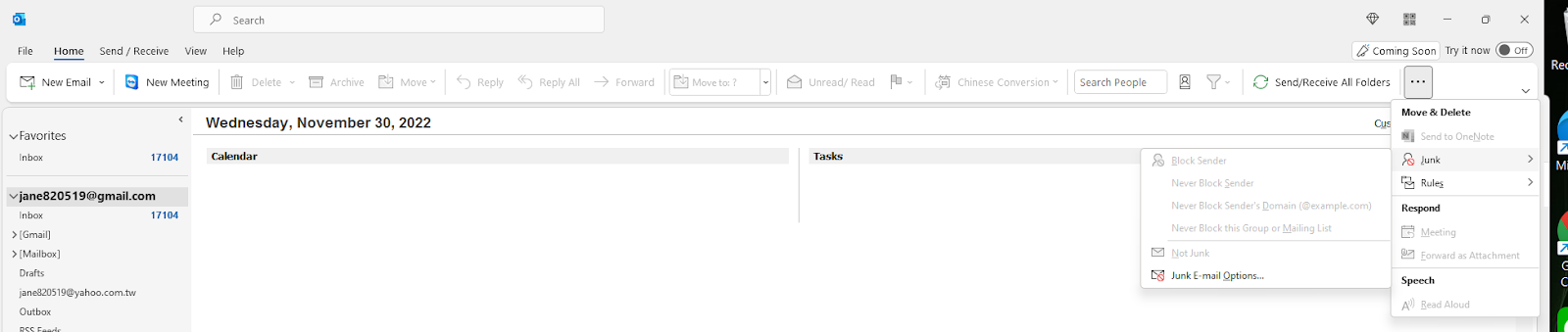
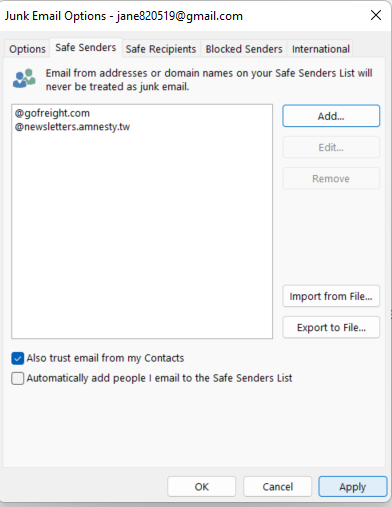
3. In the Junk Email Options section, navigate to Safe Senders, and click Add.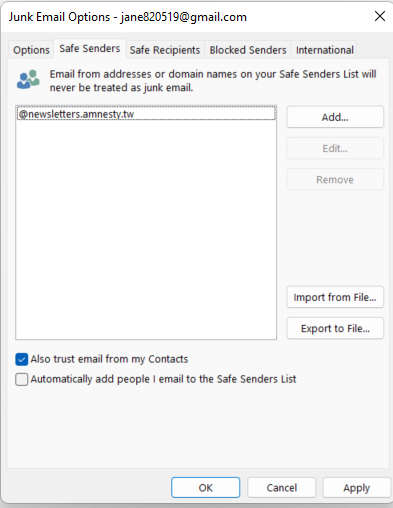
4. Enter gofreight.com, and click OK.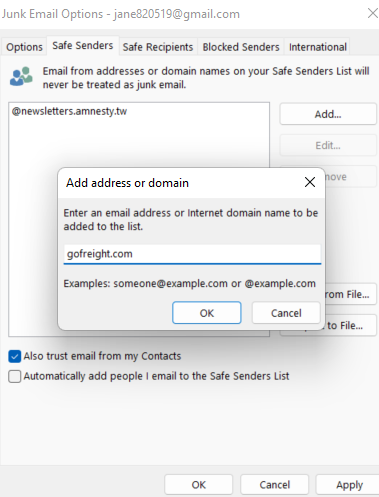
5. Finally, click Apply to complete the process.